Access Policy Management
Group Access Policies
Open the Access Policies section
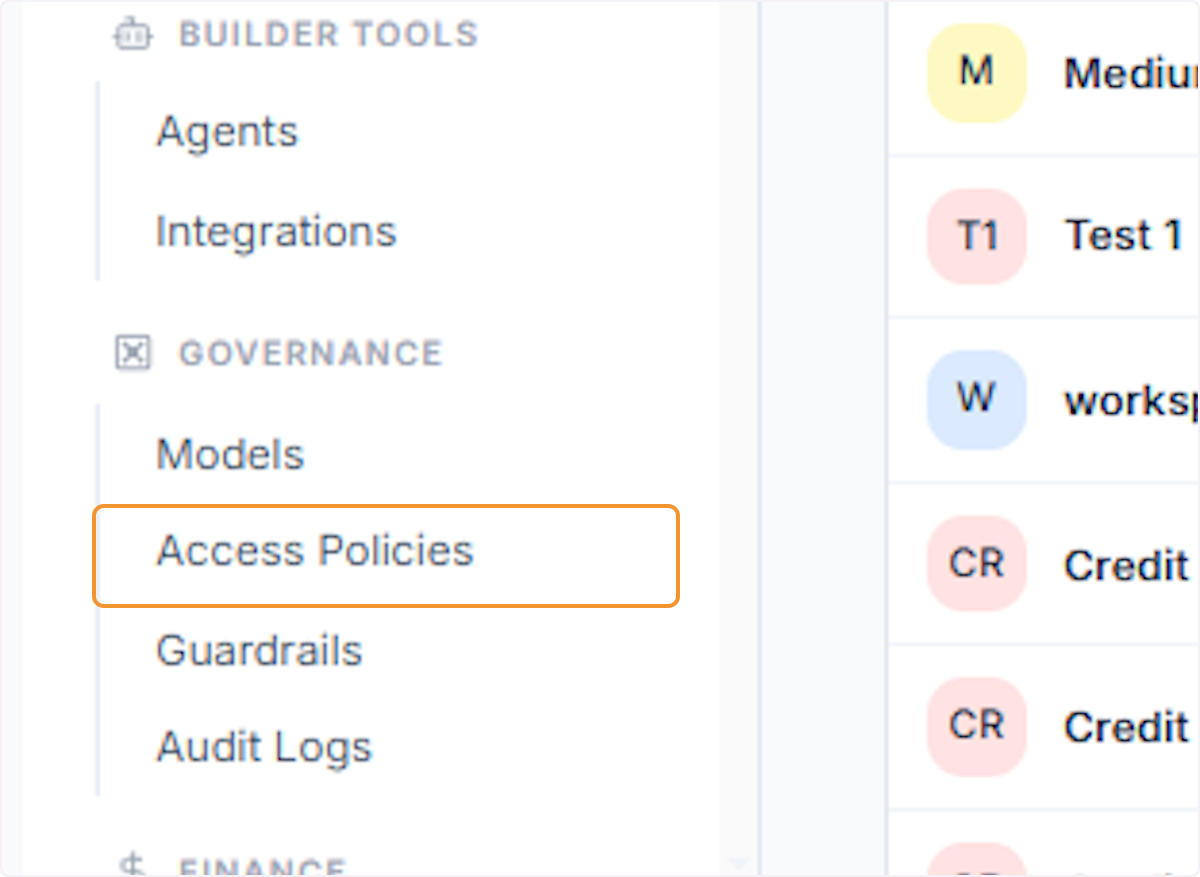
In the left sidebar under Governance, click Access Policies to open the access management area where account, group, and user-level permissions are configured.
View account-level policy overview
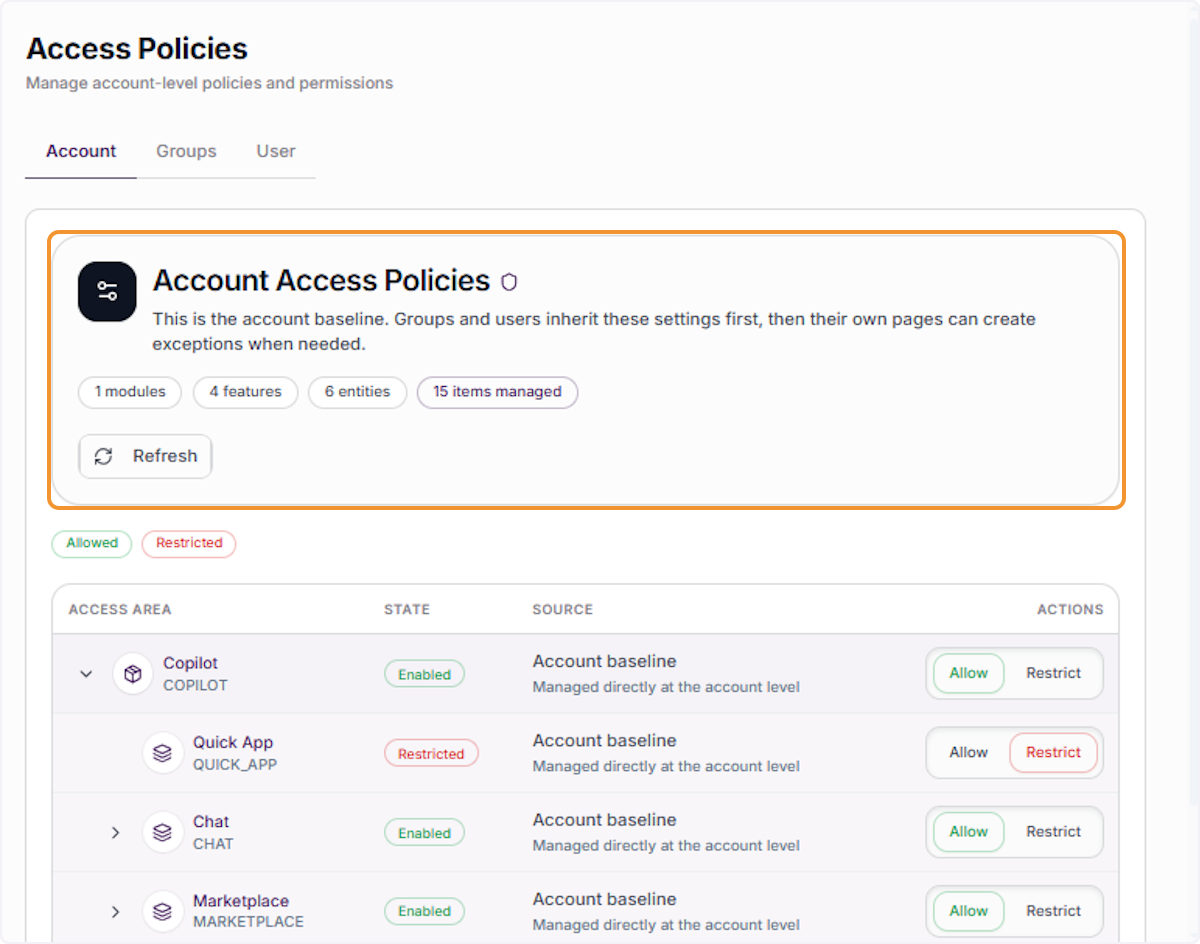
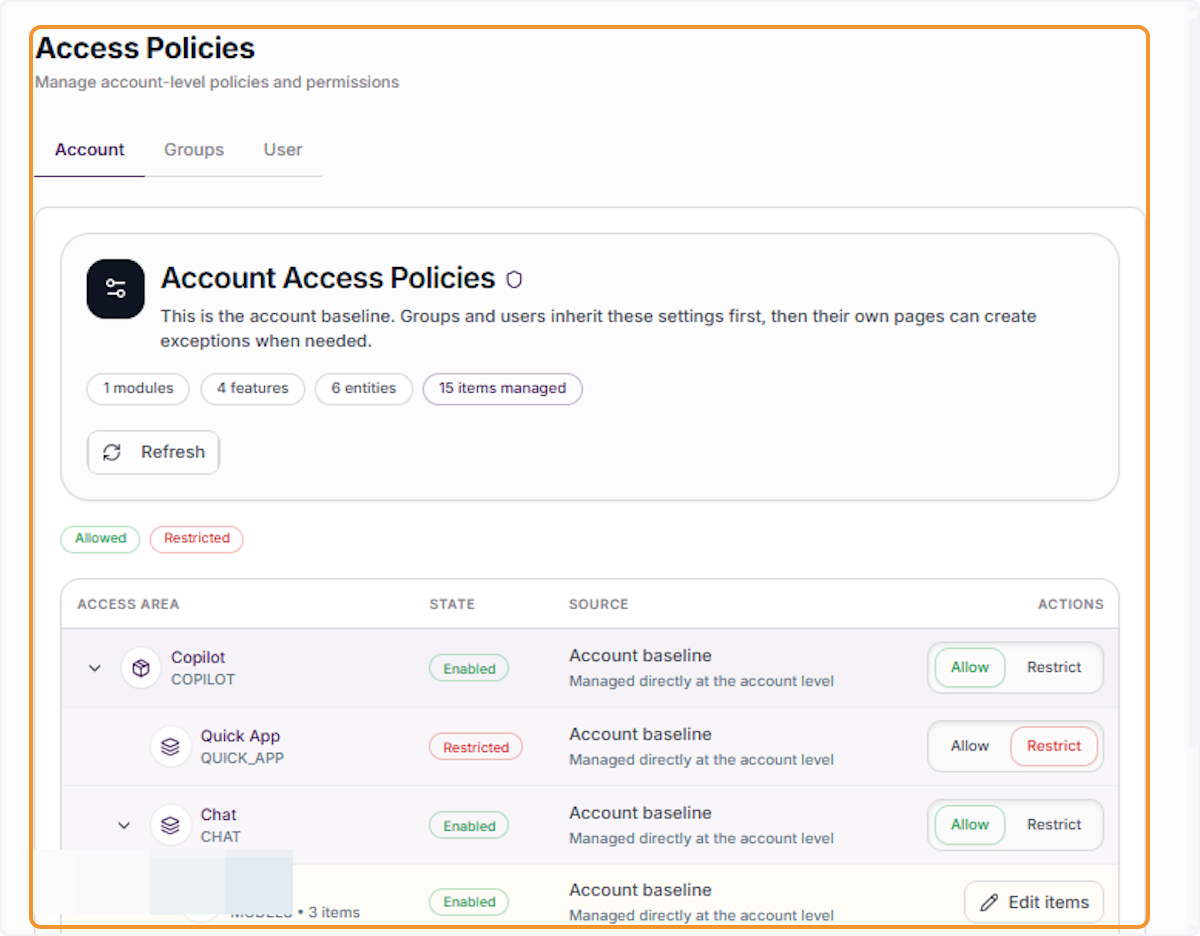
On the Access Policies panel that opens, locate Account Access Policies — the account baseline that all groups and users inherit by default unless overridden.
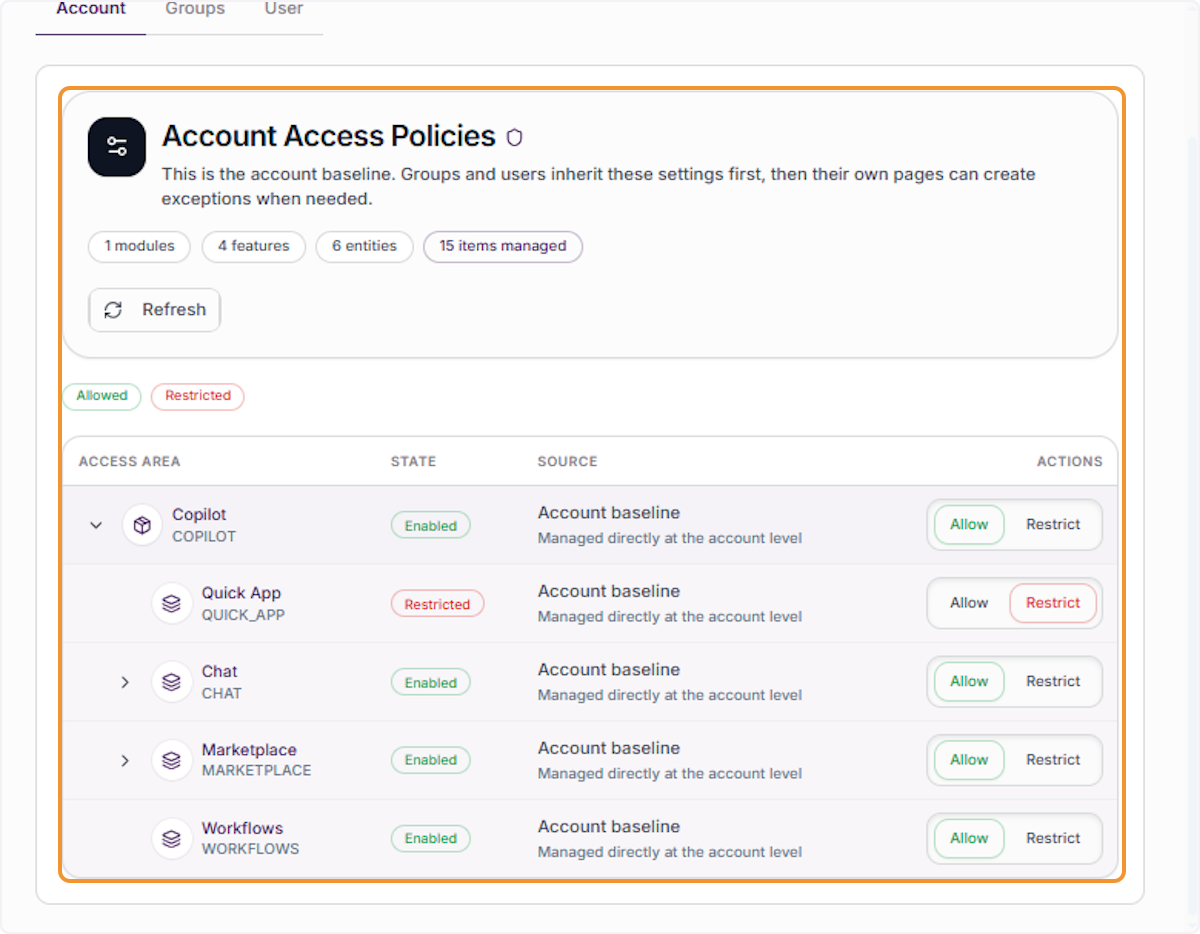
Inside the Access Policies page, confirm you are on the Account tab. This view shows all access areas managed directly at the account level, including Copilot, Chat, Marketplace, and Workflows.
Locate the Actions column
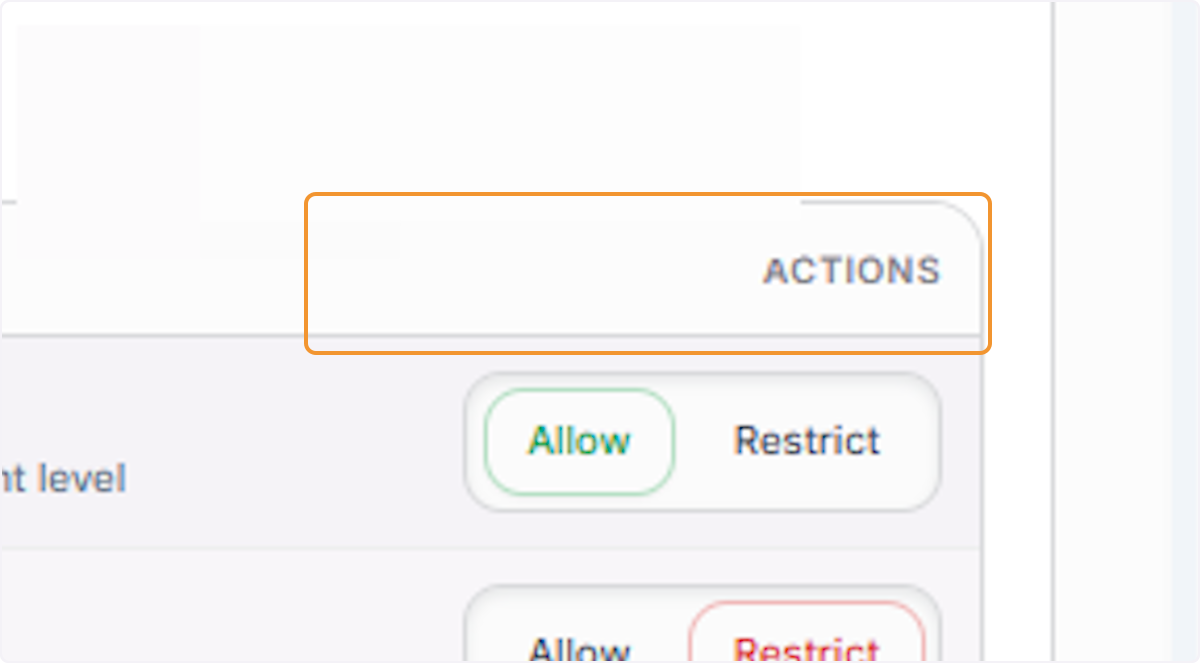
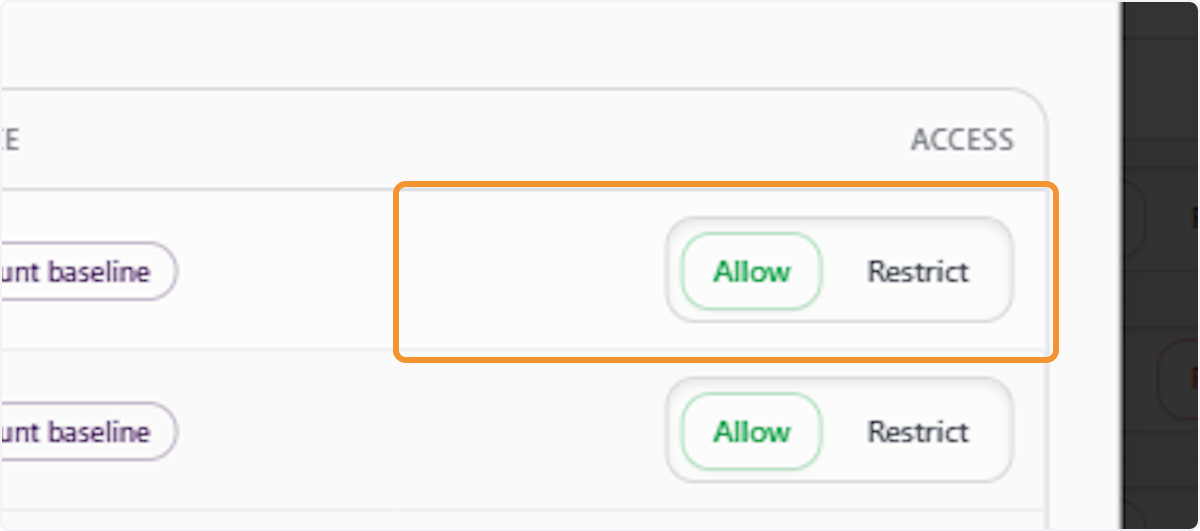
Within the expanded policy row, find the ACTIONS column on the right side. This column contains Allow and Restrict buttons for each listed access area.
Click Edit items on a policy row
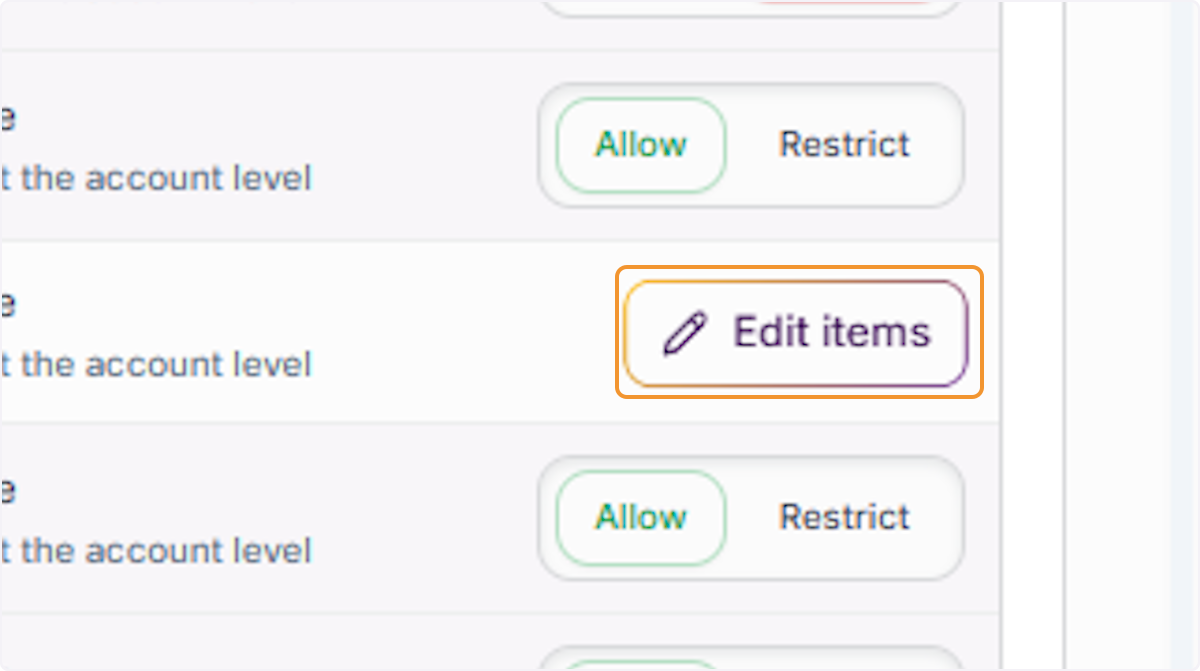
For a specific access area that shows an Edit items button, click it to open the item-level editor where you can fine-tune access to individual features within that area.
Expand the Models sub-section
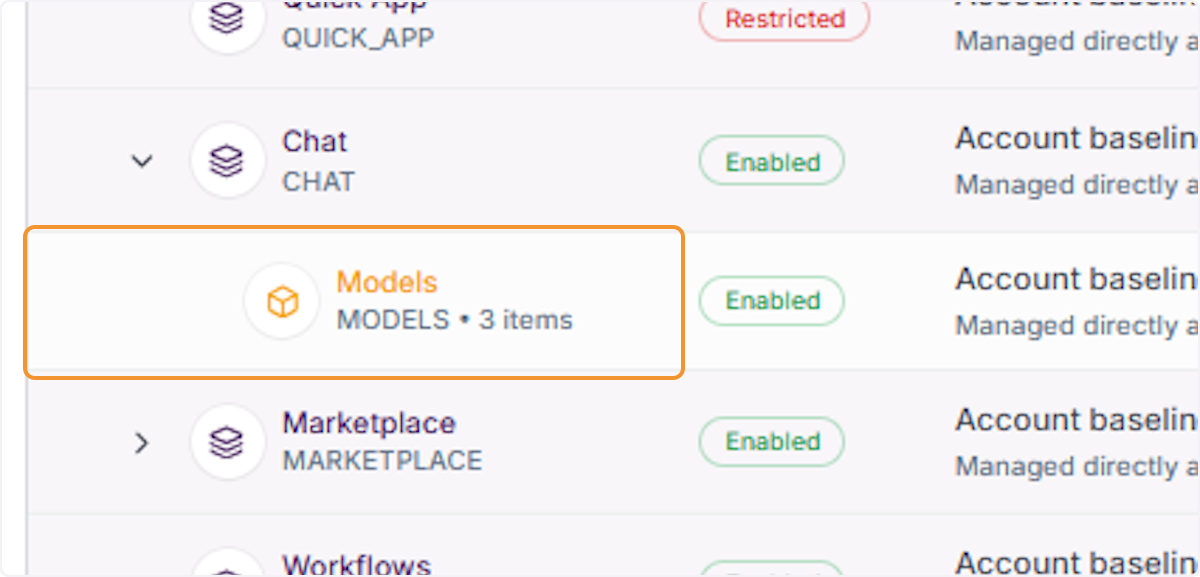
Inside the Copilot section, click on Models (MODELS · 3 items) to reveal the individual AI models available at the account level, such as GPT 5.3 Chat, GPT 5.4 Pro, and Sumeru Gpt 5.3 Chat.
Expand the Copilot section
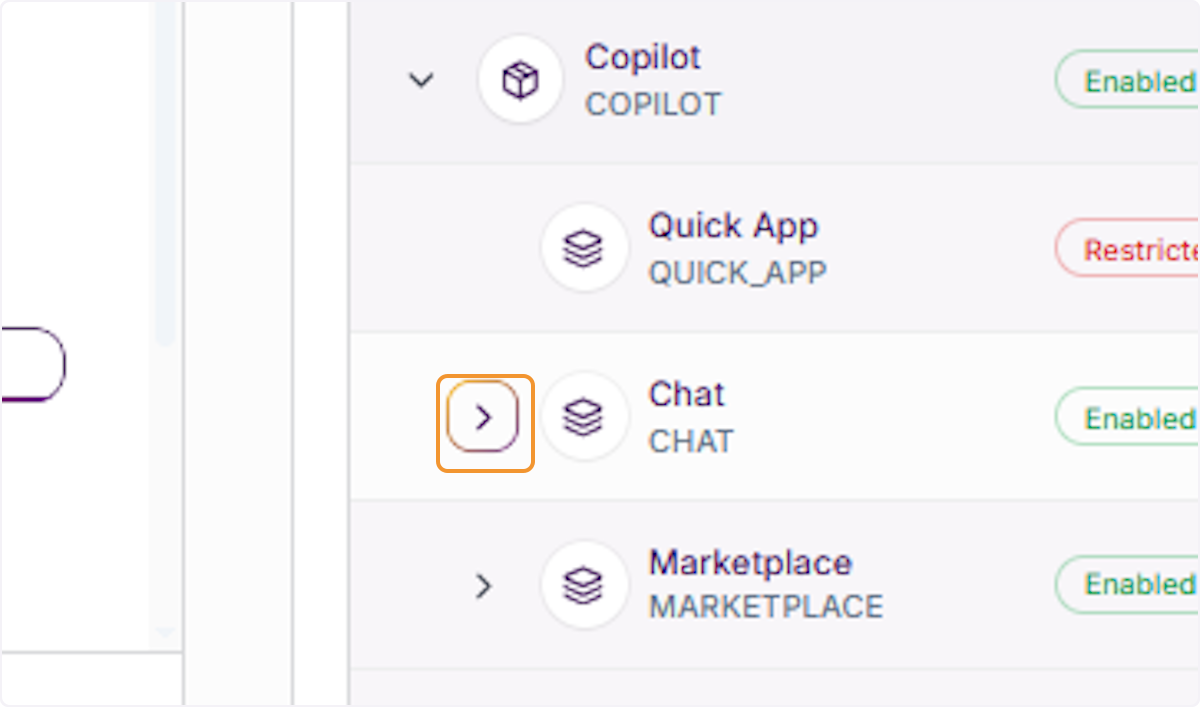
Click the expand arrow next to Copilot (COPILOT) to reveal its sub-features — including Quick App, Chat, Marketplace, and Workflows — so you can configure each one individually.
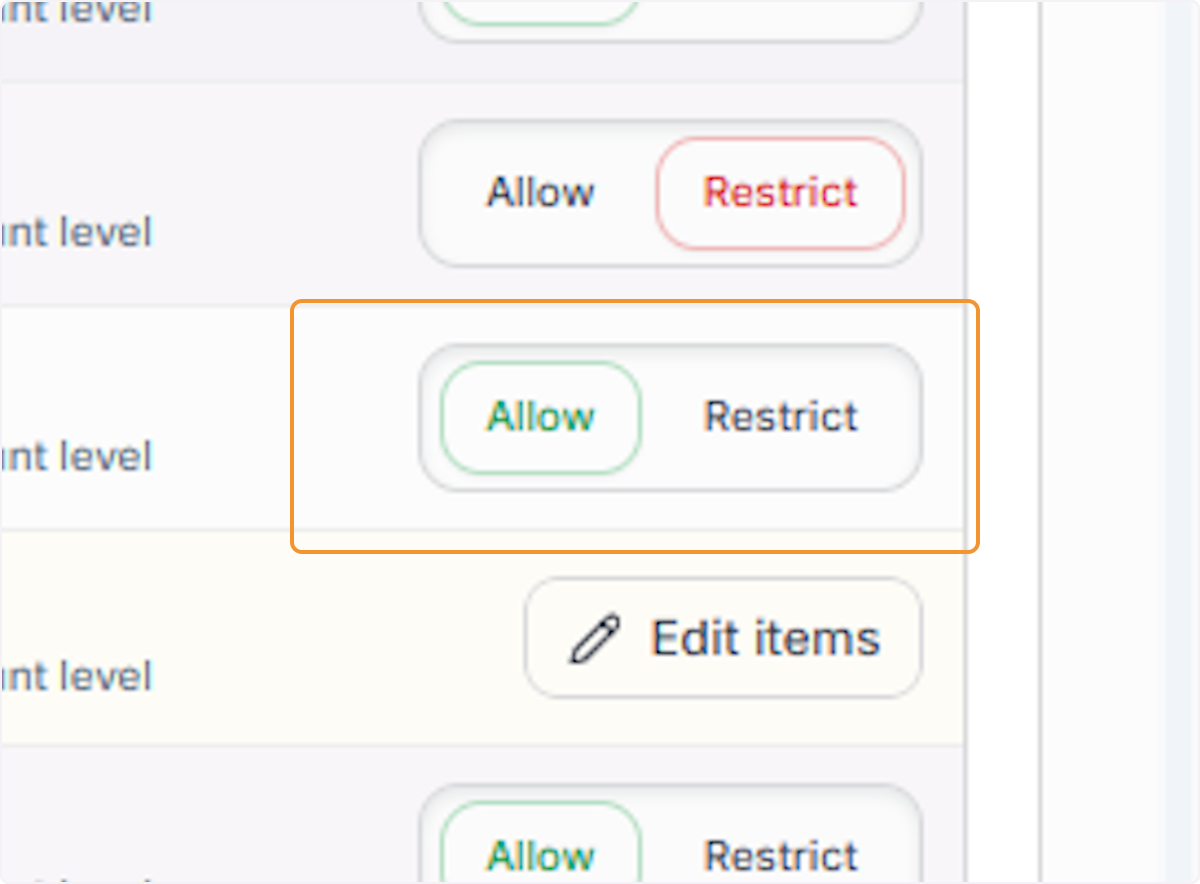
Set Chat access to Allow
Next to the chat you want to enable, click the Allow button. This grants account-wide access to that chat, making it available to all groups and users who inherit the account baseline.
Select a specific model to configure
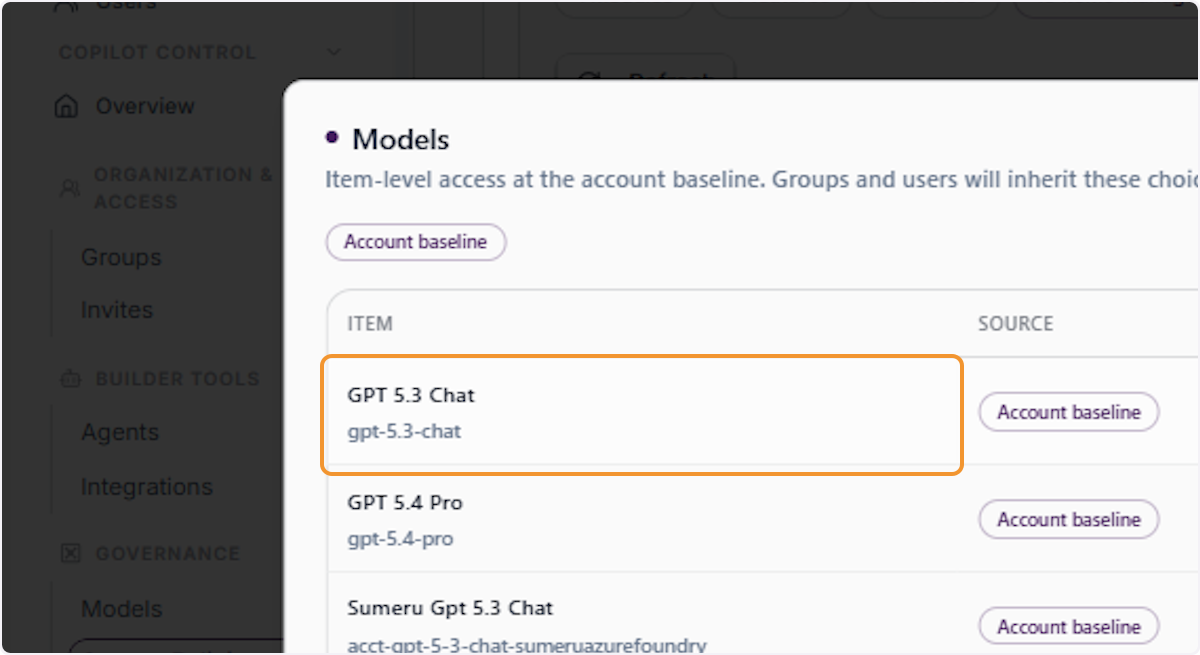
From the Models item list, click on GPT 5.3 Chat (gpt-5.3-chat) to view or adjust its access setting. The panel shows the item’s source as Account baseline, meaning this setting propagates downward unless overridden.
Confirm Allow access for the model
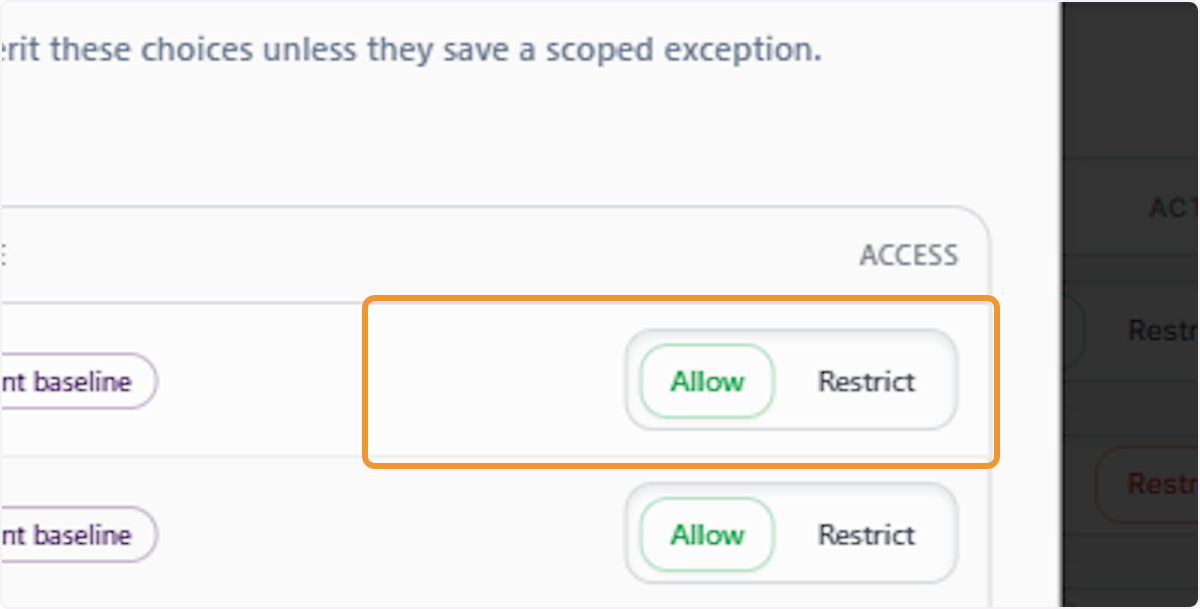
In the item-level access panel, click Allow to explicitly permit use of the selected model. This overrides any inherited Restricted state and makes the model accessible at the account scope.
Close the item editor
After setting access as desired, click the Close (×) button to dismiss the item-level editor and return to the main access policy list view.
Review the updated Chat section
With the item editor closed, verify that the Chat section now shows Models · 3 items as Enabled with your updated configuration. Expand to confirm individual model states if needed.
Open the item editor for a Marketplace policy row
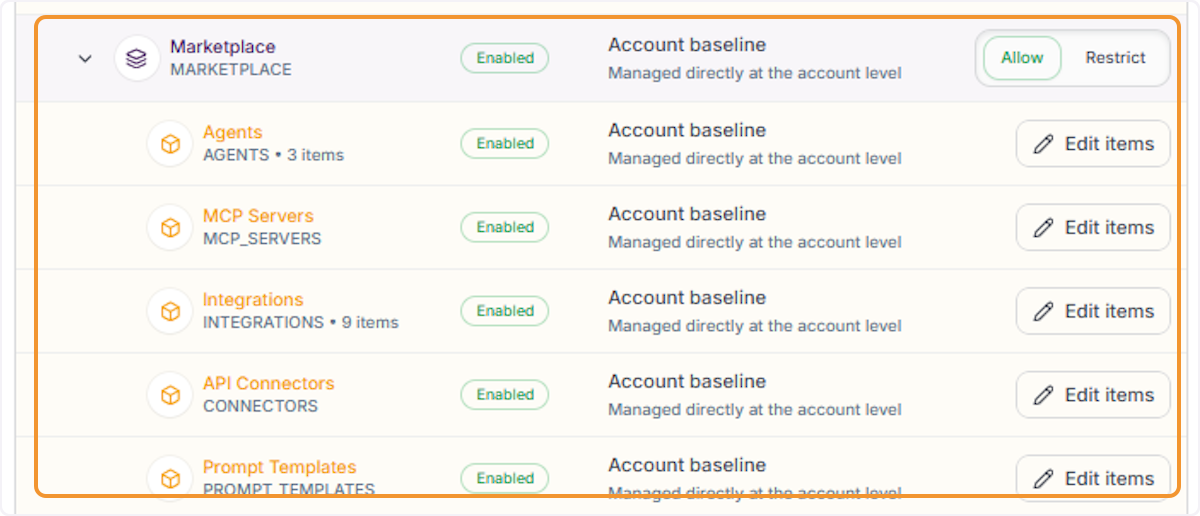
Click the expand control next to Marketplace (MARKETPLACE) to inspect its sub-items — including Agents and MCP Servers — and verify their enabled/restricted states at the account level.
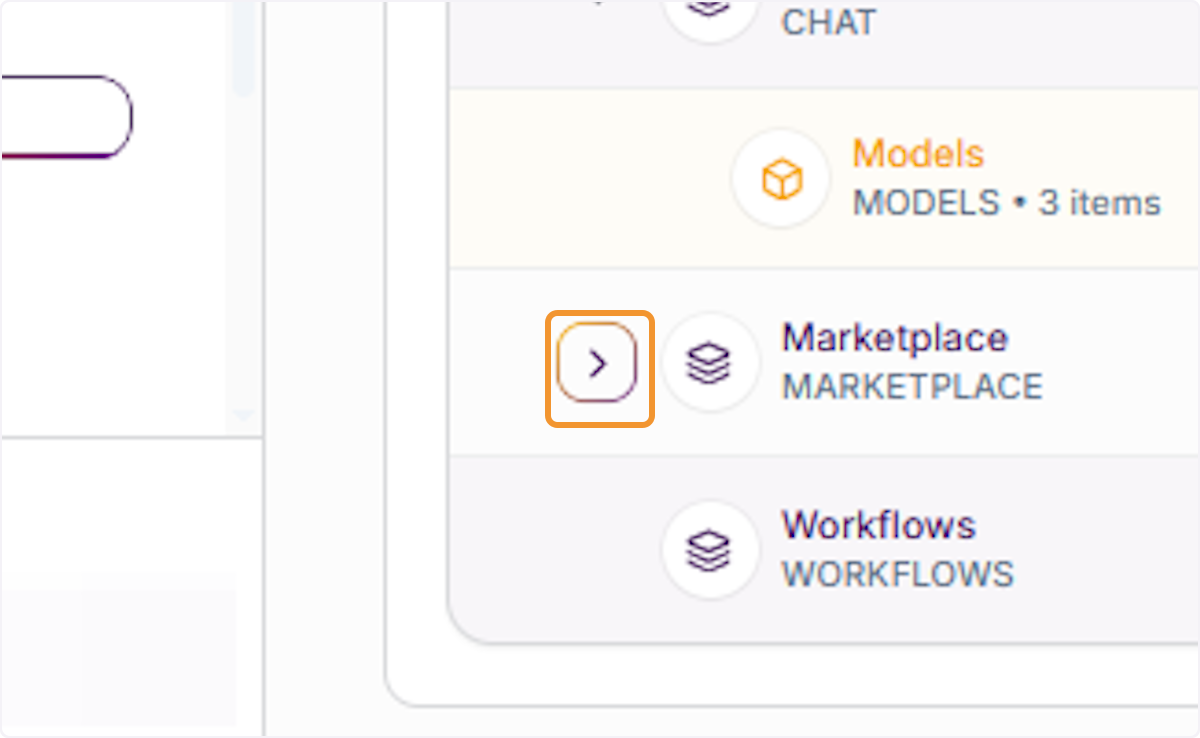
Expand Marketplace section
For a row displaying the Edit items button — typically for Agents, MCP Servers, or Integrations —
Click on Edit items
click Edit items to manage access at the individual item level rather than the entire section.
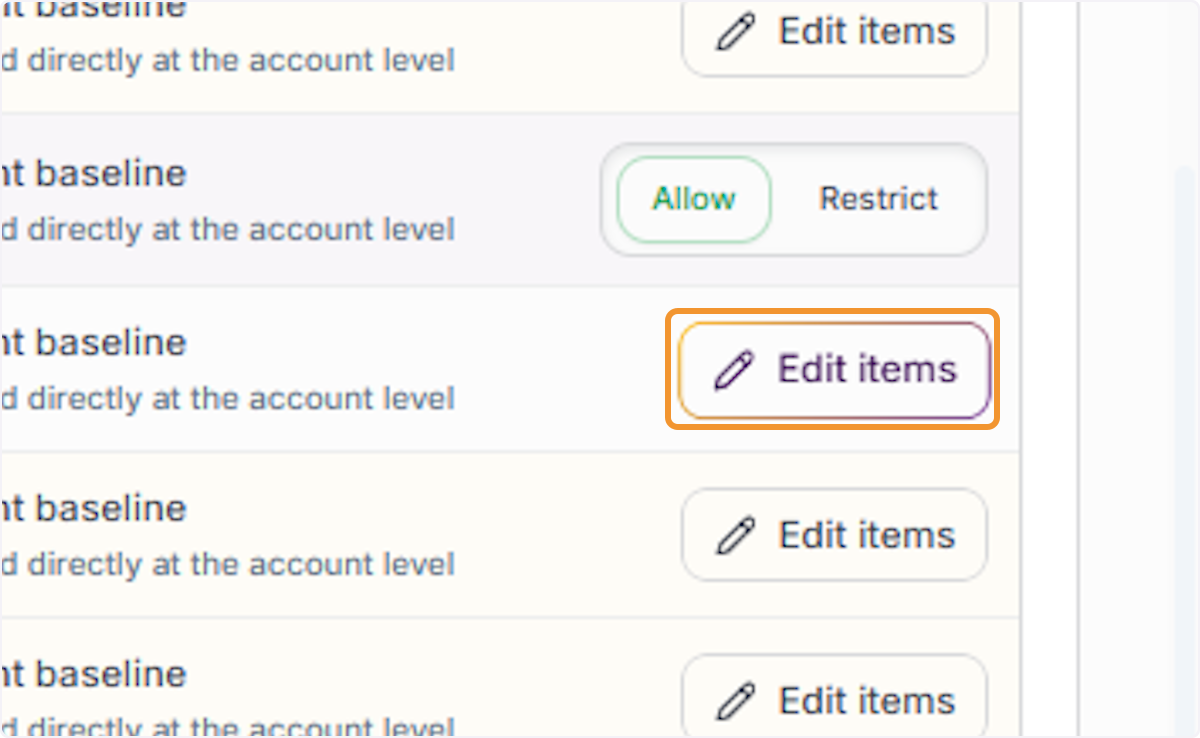
Review available Agents
Inside the Agents item editor, review the list of available agents (e.g., Alchemi-GPT, OrchestraGPT, Prospect Research & Pitch Agent). Each is shown with its source as Account baseline and Allow / Restrict options.
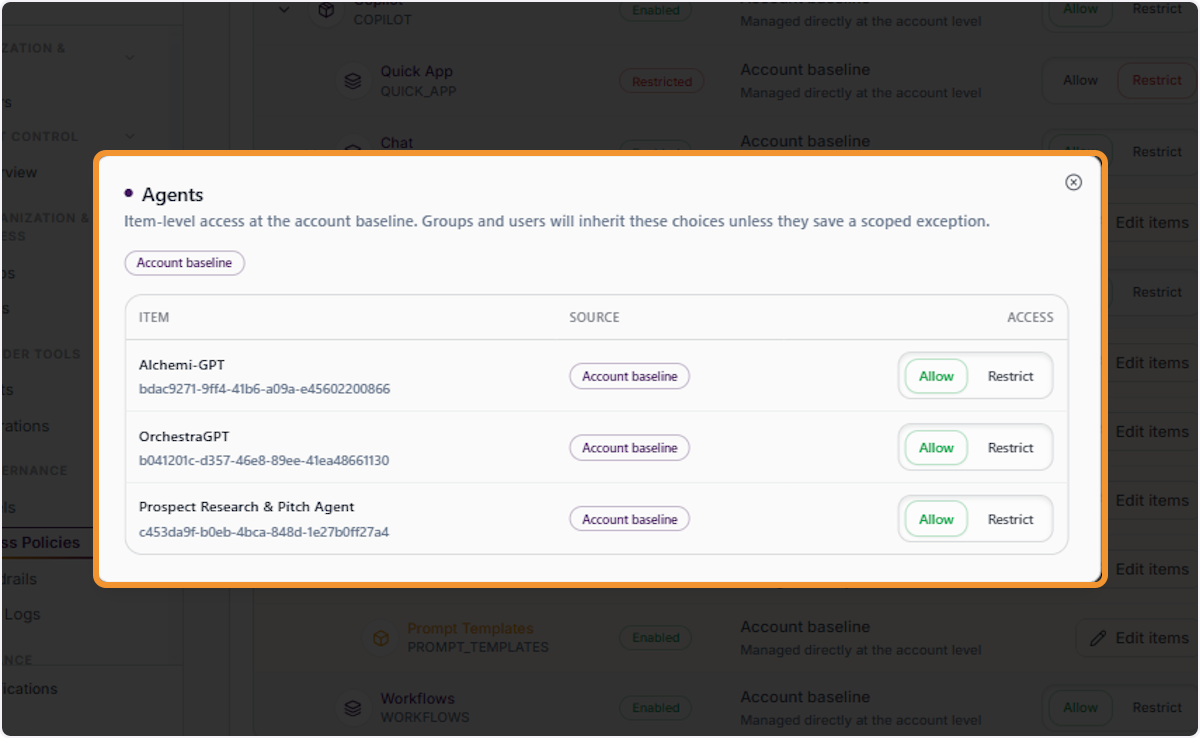
Close the Agents item editor
After reviewing or modifying agent access settings, click Close (×) to exit the item editor and return to the main account policy view.
Return to the main Access Policies page
Click Access Policies in the left navigation to return to the top-level Access Policies page. From here, switch between the Account, Groups, and User tabs for further configuration.
Switch to the Groups tab
On the Access Policies page, click the Groups tab. This view lists all groups in the account. Group policies inherit from the account baseline but can be customised with exceptions.
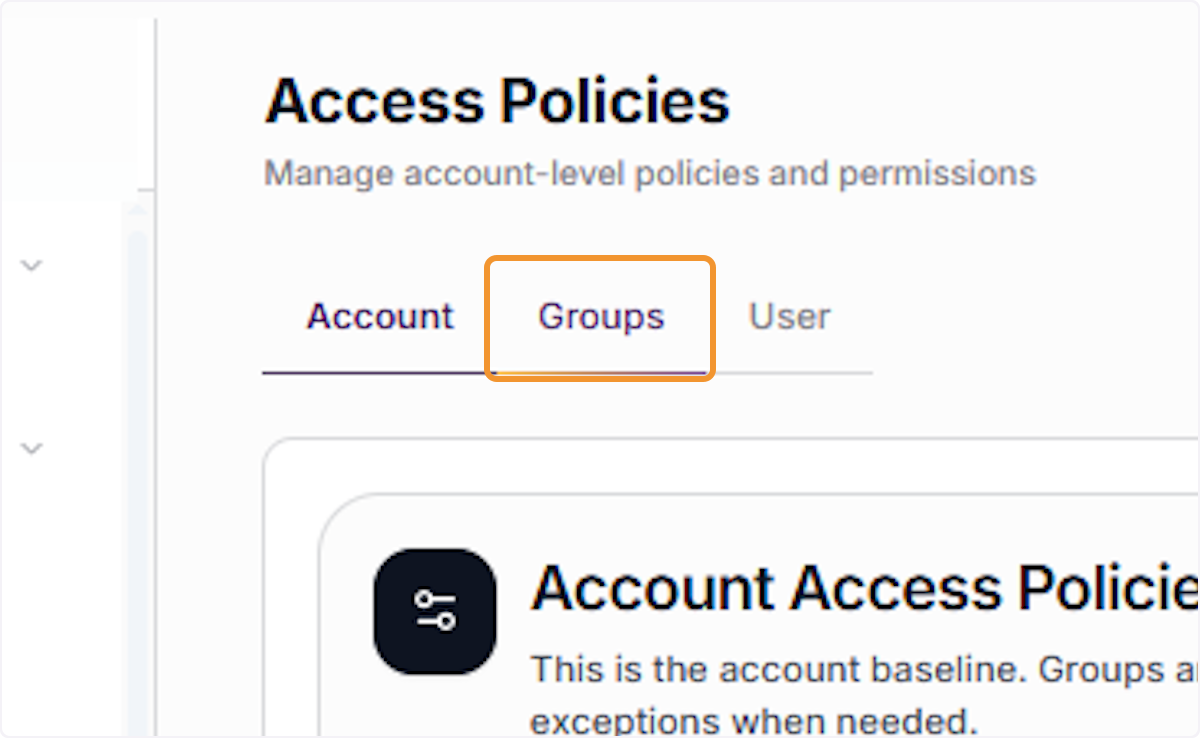
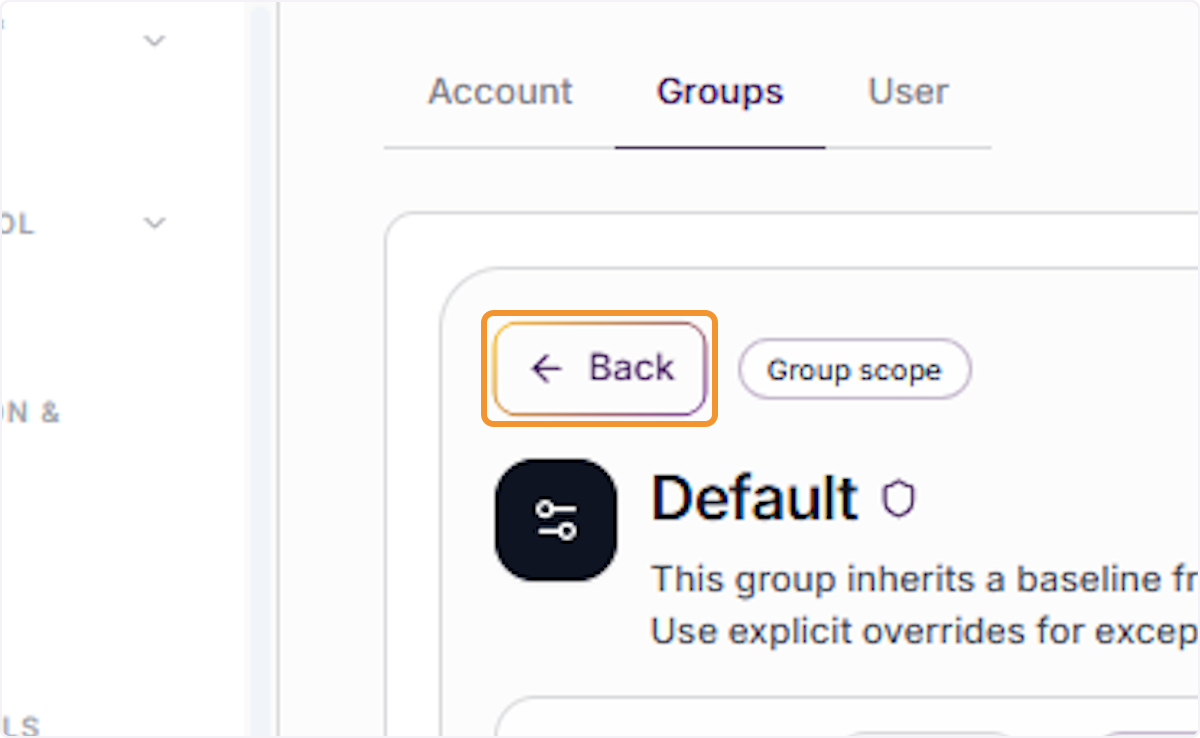
If you are inside a group detail (e.g. viewing Default group scope), click the Back arrow to return to the Group Access Policies list so you can select a different group or search for one.
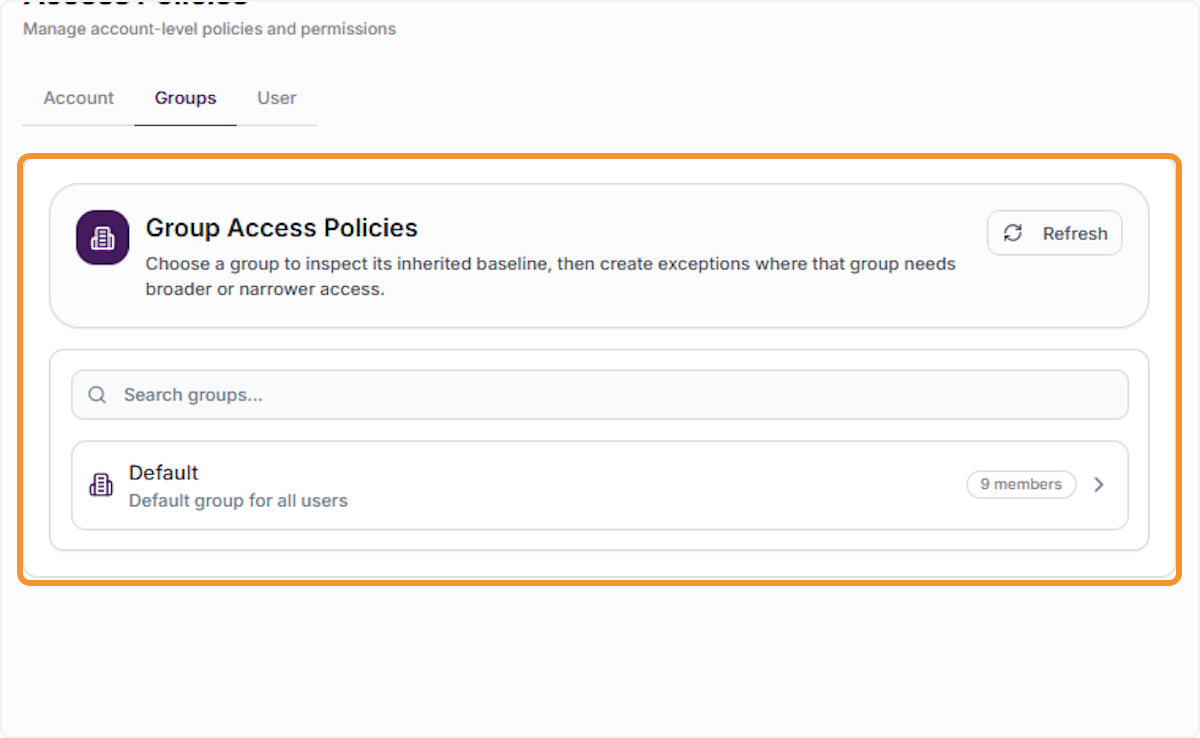
Open Group Access Policies
On the Groups tab, the Group Access Policies panel shows all groups. Select a group to inspect its inherited baseline and create exceptions where that group needs broader or narrower access than the account default.
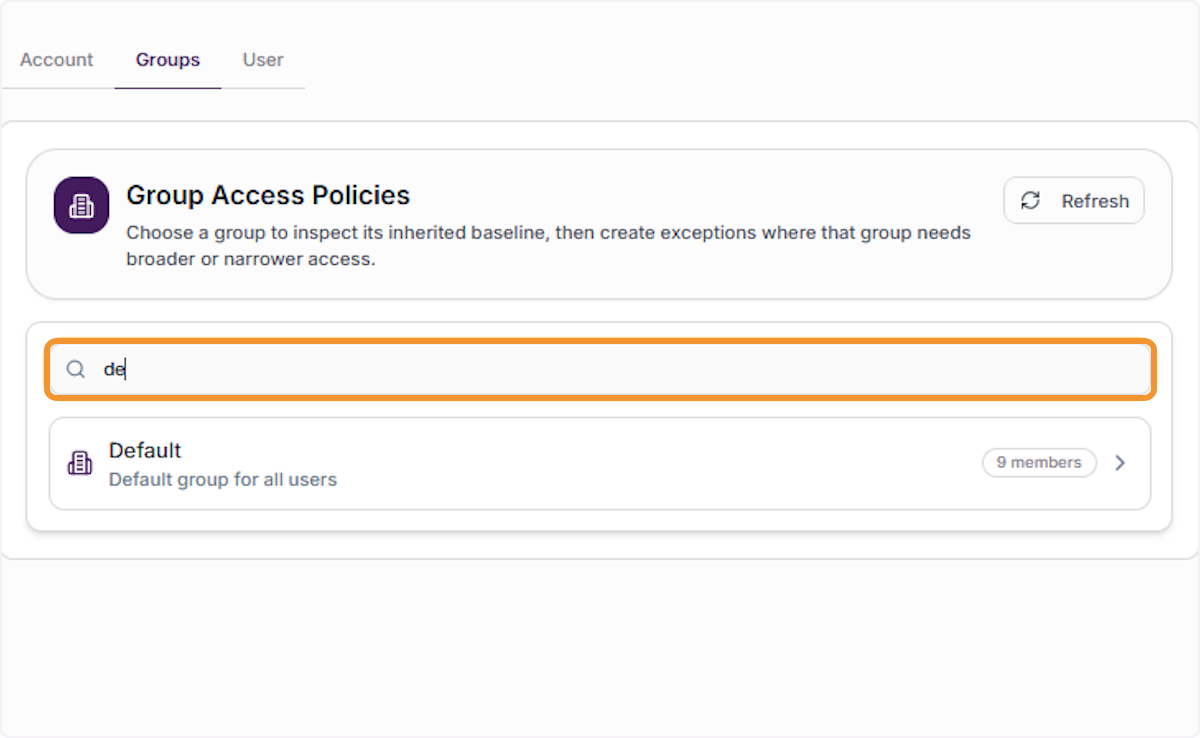
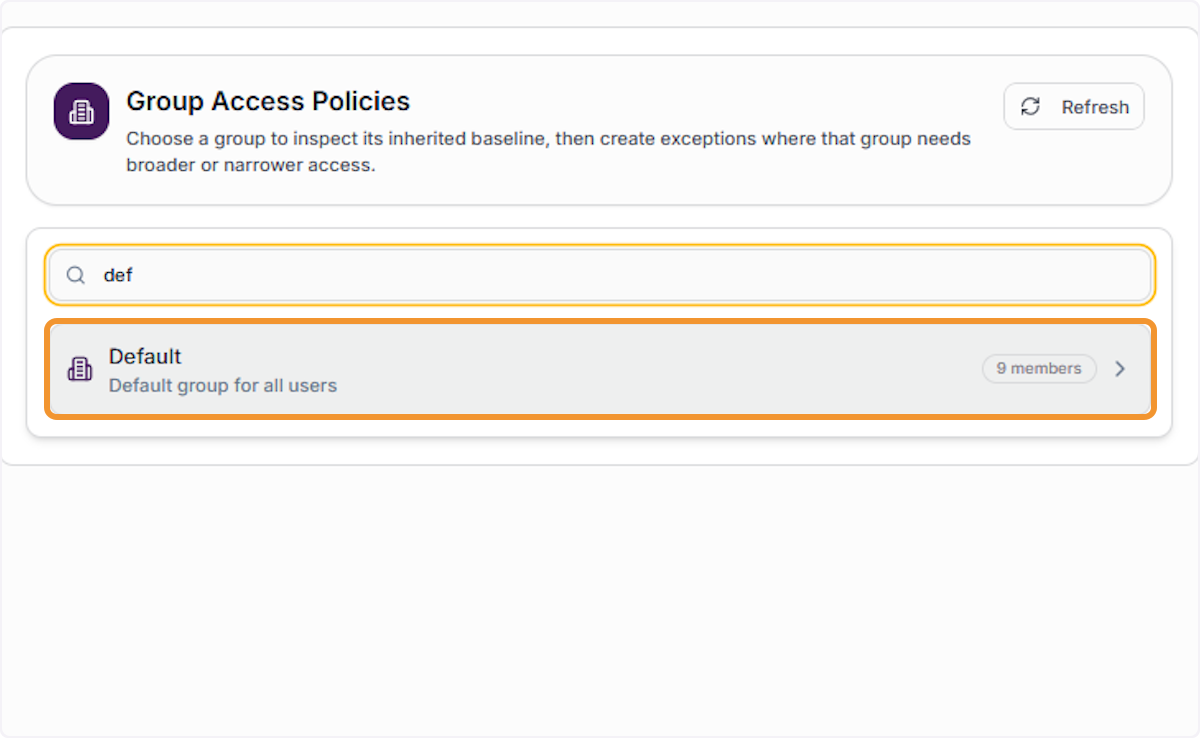
Search for a group by name
Use the Search groups field to filter the group list. Type a partial name (e.g., ‘def’) to narrow results. Matching groups appear instantly below the search field, allowing quick selection without scrolling.
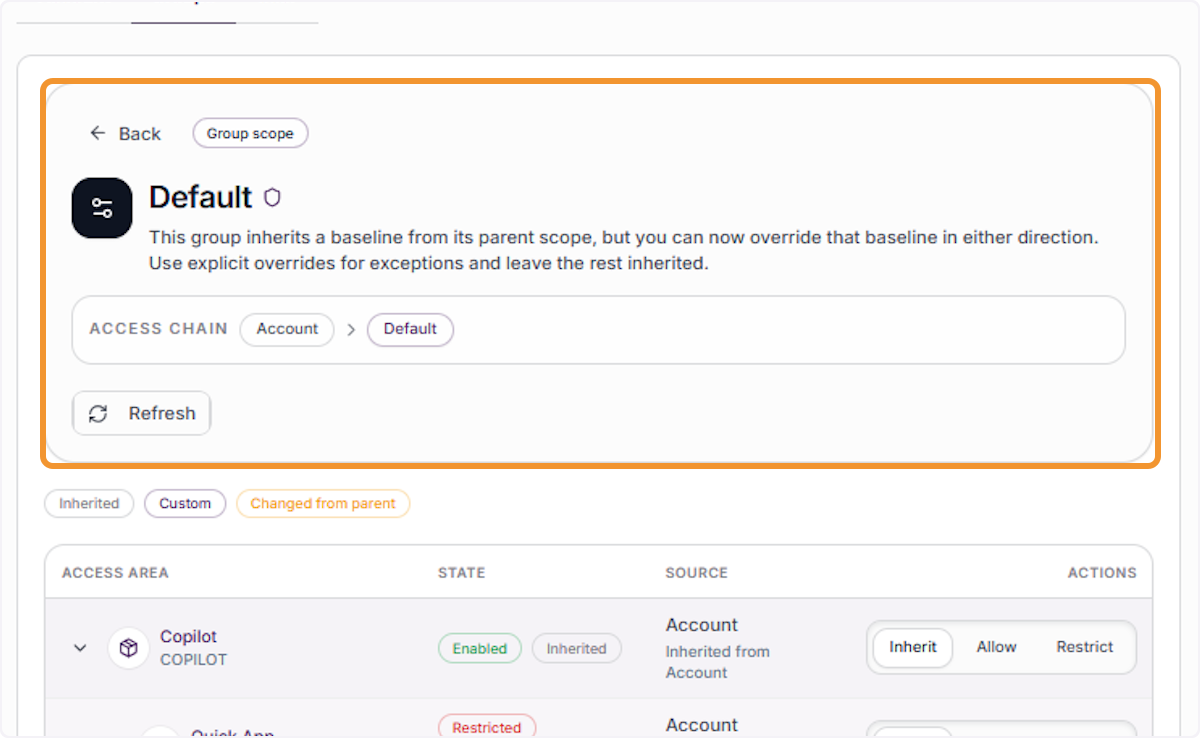
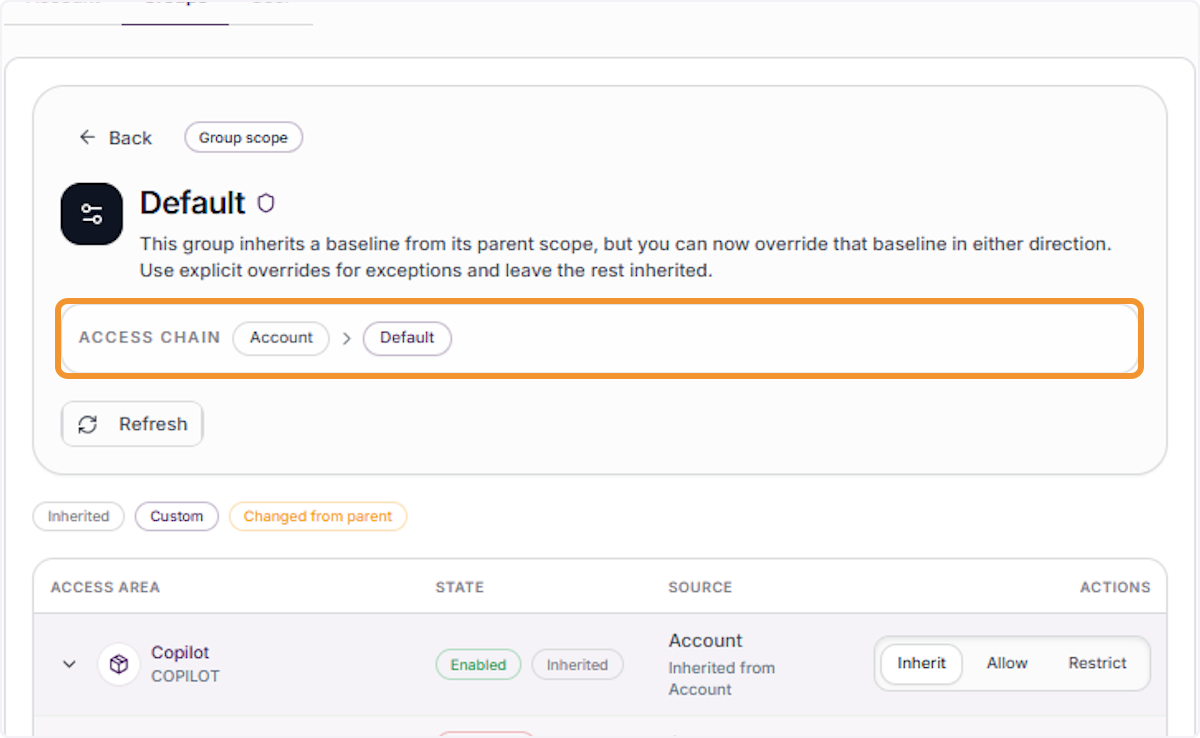
View the Default group detail
After selecting the Default group, review its configuration panel. The ACCESS CHAIN shows Account → Default, confirming this group inherits its baseline from the account scope. Tabs (Inherited, Custom, Changed from parent) let you see what is overridden.
Select the Default group from search results
In the search results, click the Default row (Default group for all users) to open its group-level policy detail view where you can review, inherit, allow, or restrict specific access areas.
Review the Access Chain
In the group detail view, the ACCESS CHAIN breadcrumb (Account › Default) shows the inheritance path for this group’s policies. Each link in the chain represents a scope level from which settings are inherited or overridden.
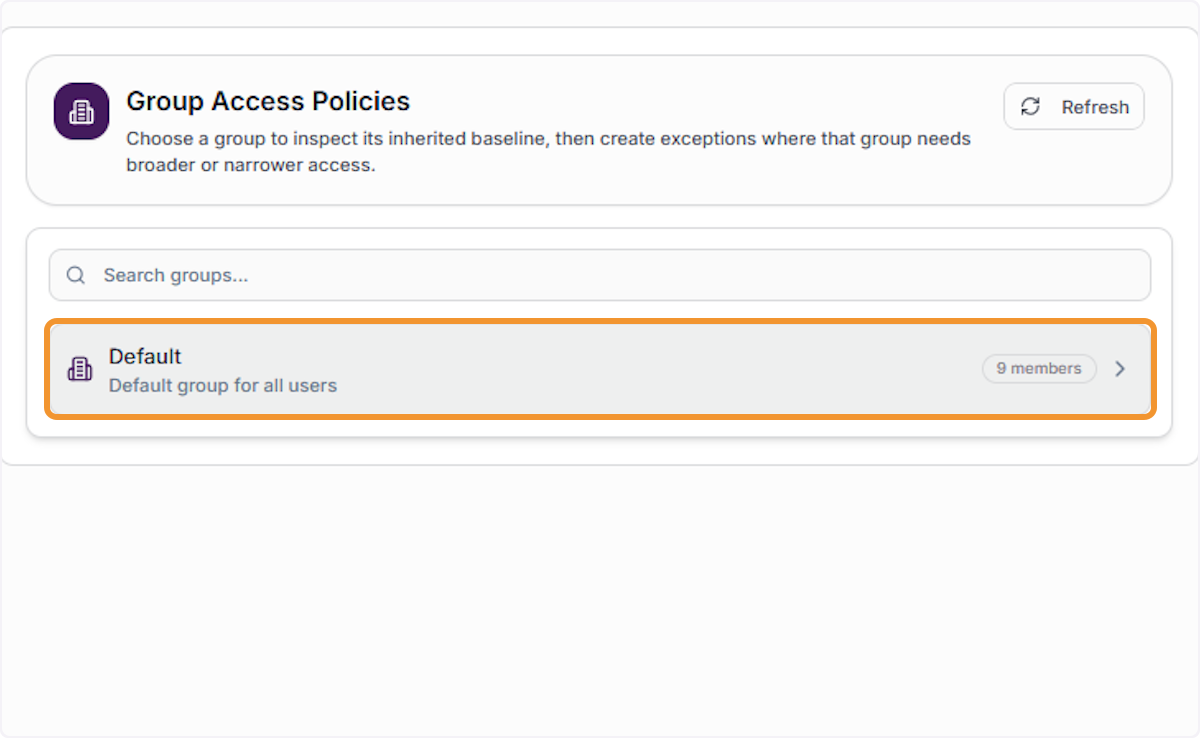
Select the Default group again
Select Default from the group list to re-enter its detail view. This is useful when you need to return to group-level settings after reviewing user-level policies.
Review inherited and changed policies
Inside the Default group detail, use the Inherited, Custom, and Changed from parent tabs to compare what has been inherited from the account scope versus any group-specific overrides. Rows show Account → Inherited status for each access area.
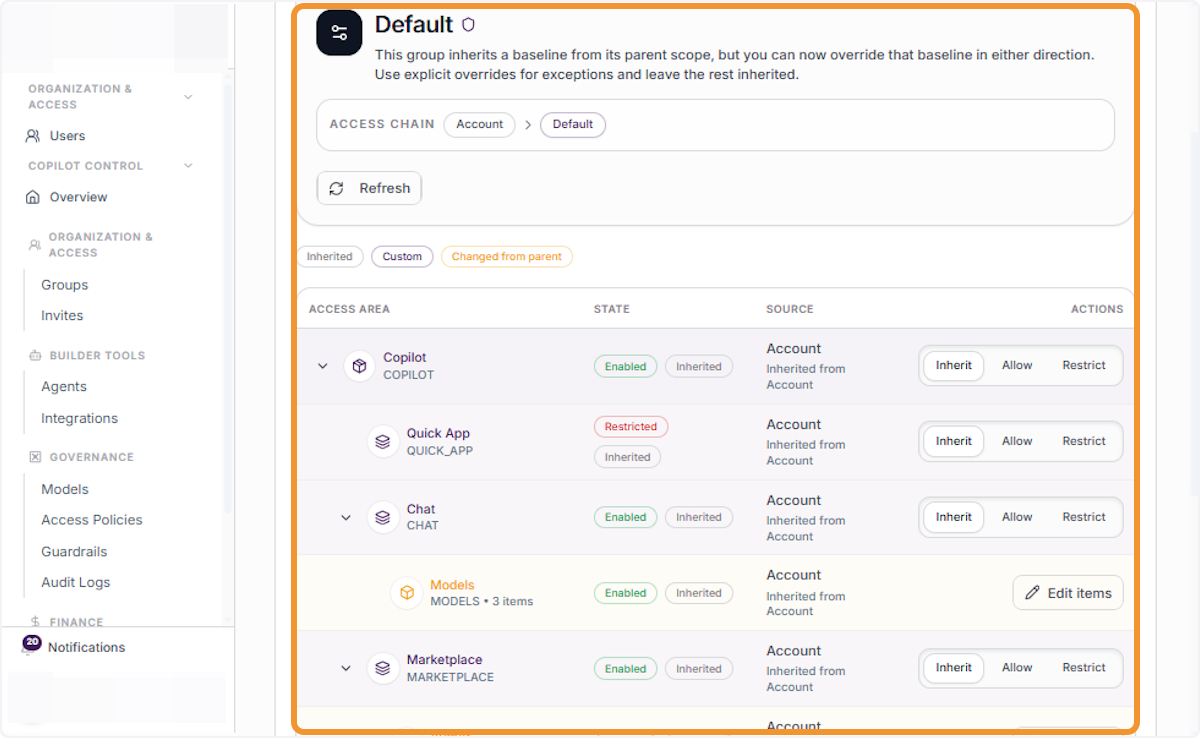
Identify a restricted feature
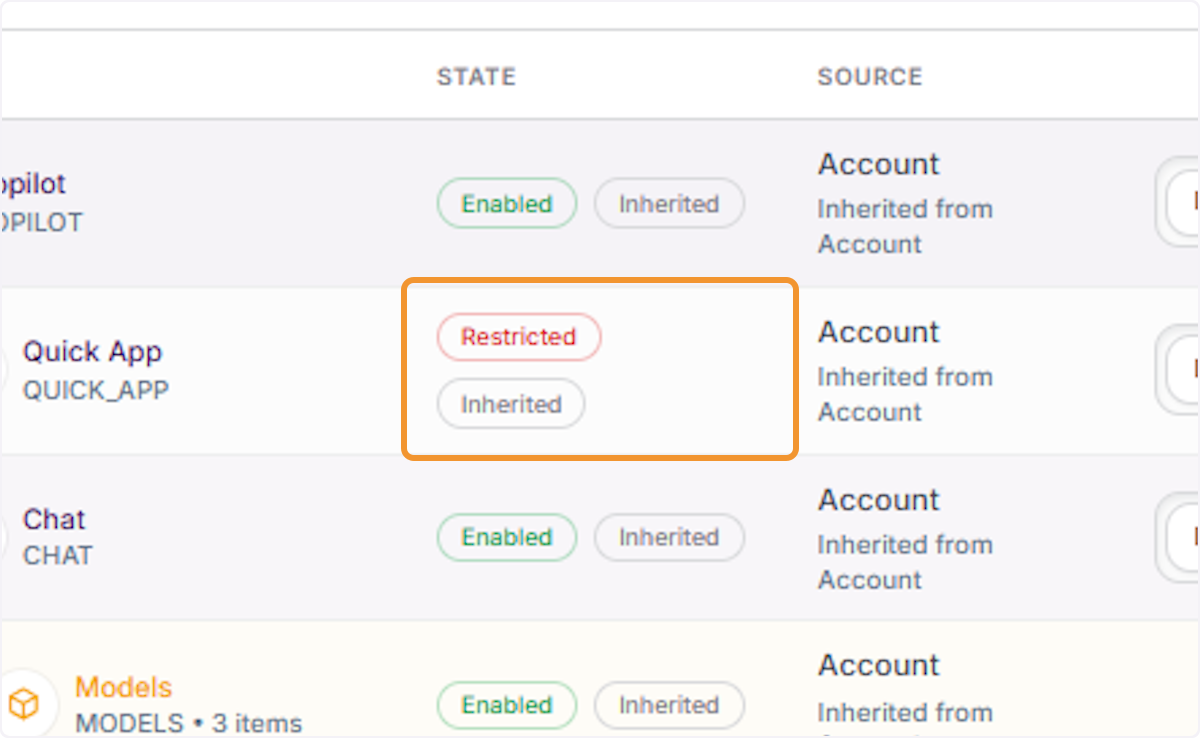
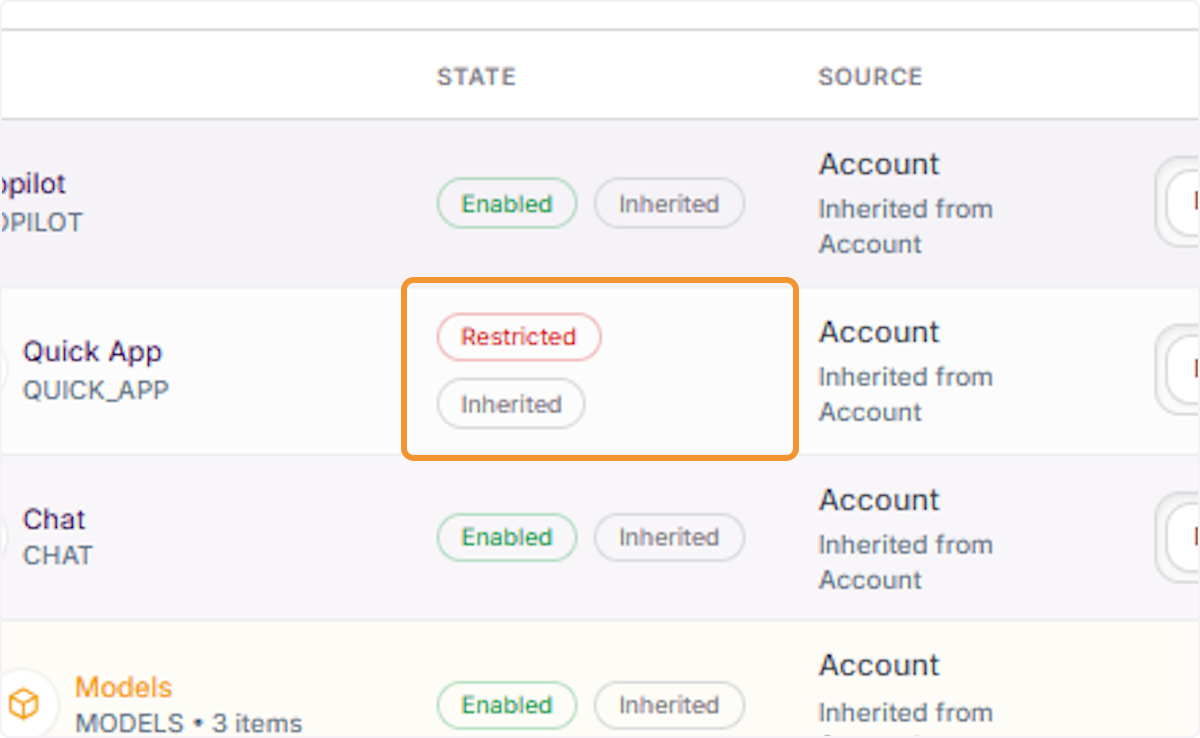
In the policy list, locate an access area that shows Restricted (e.g., Quick App). Note the source column shows Account / Inherited from Account, meaning the restriction was set at the account level and propagated to this group.
Set access to Inherit for an area
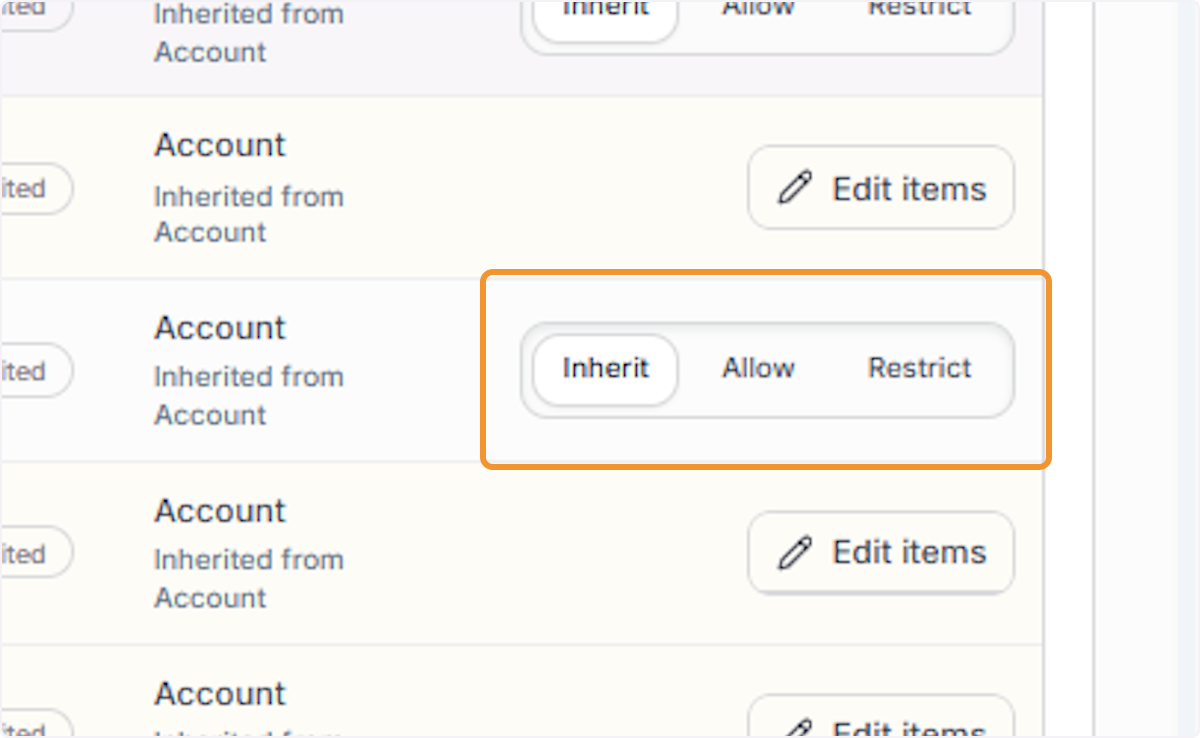
Click the Inherit button for an access area to remove any group-level override and fall back to whatever the account baseline specifies. This is useful for rolling back a group exception without explicitly choosing Allow or Restrict.
Open the item editor for Models
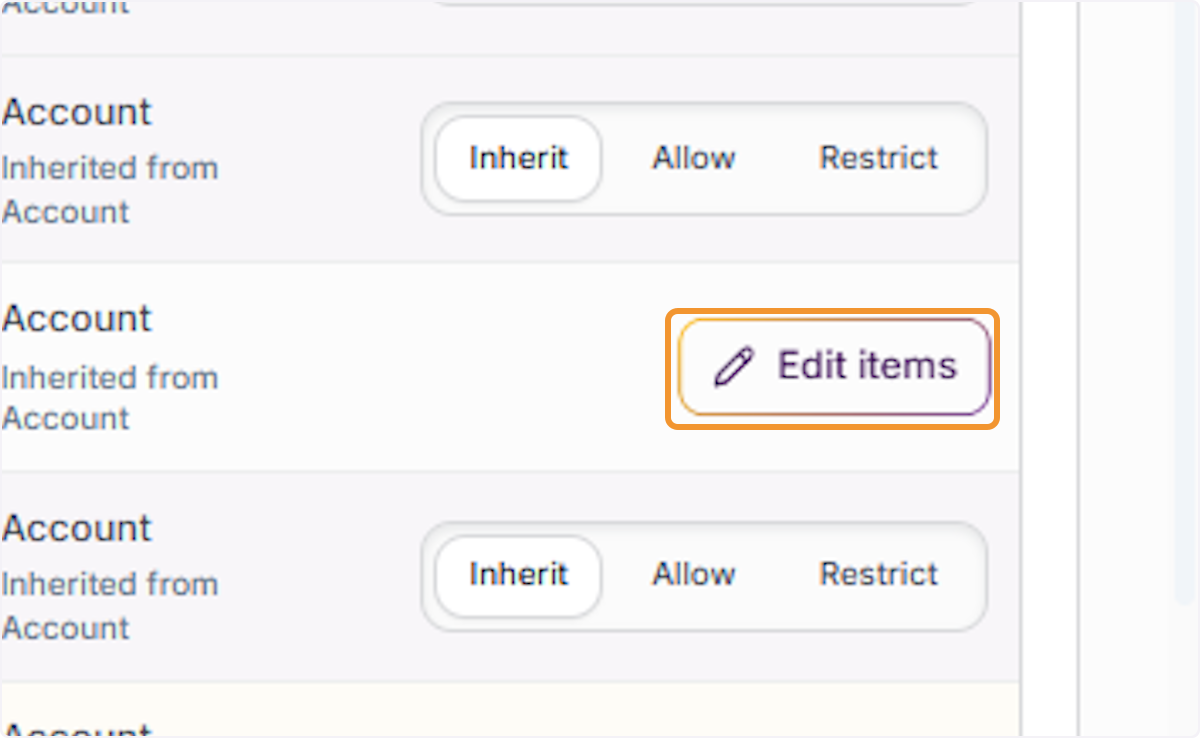
Click Edit items next to the Models access area within the group detail view to manage model-level access for this group specifically, independent of other access areas on the same row.
Review model inheritance for the group
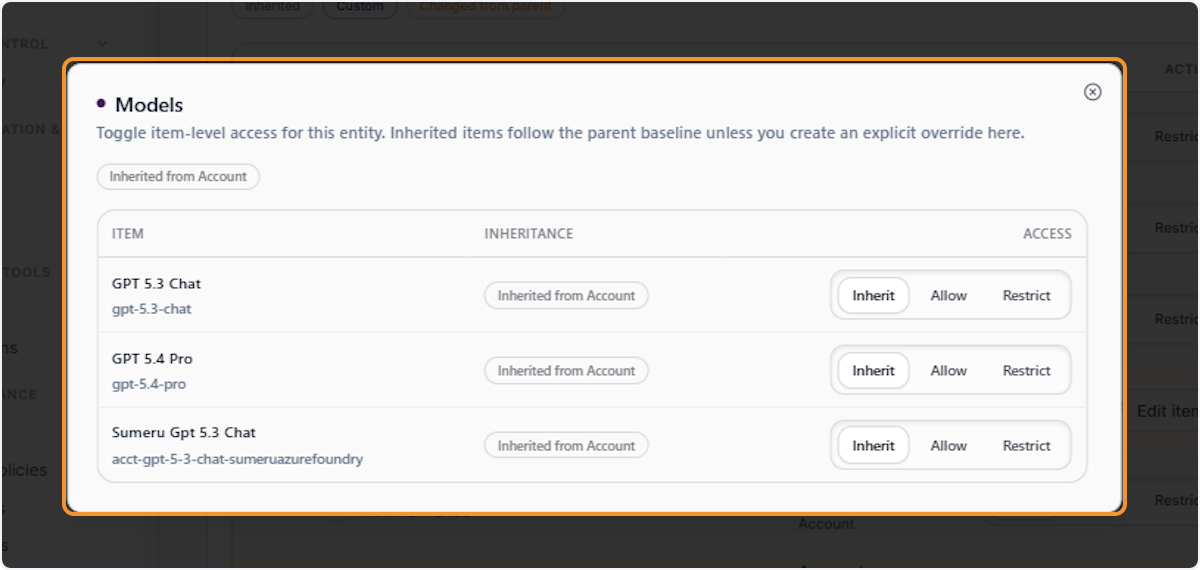
In the Models item editor, each model (GPT 5.3 Chat, GPT 5.4 Pro, Sumeru Gpt 5.3 Chat) shows its inheritance source as Inherited from Account. Use Inherit, Allow, or Restrict per model to set group-specific exceptions.
Close the model item editor
After reviewing or adjusting model-level settings for the group, click Close (×) to dismiss the editor and return to the group’s main access policy list.
User Access Policies
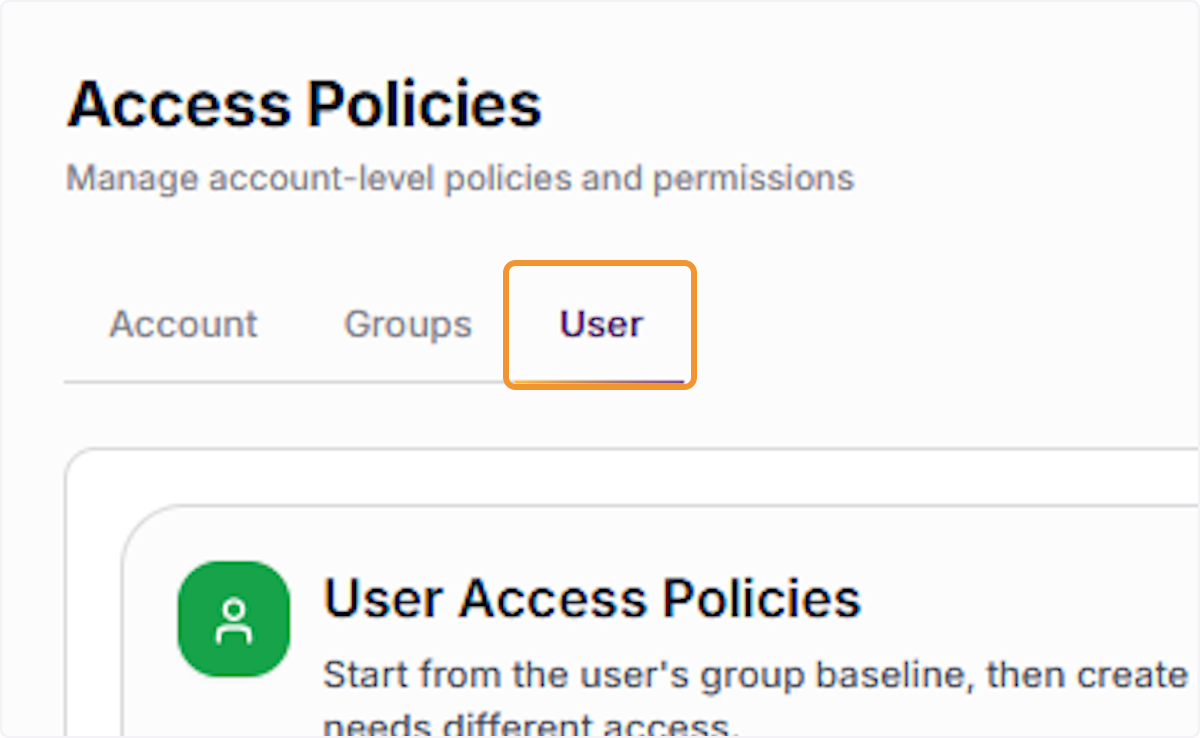
On the Access Policies page, click the User tab to open User Access Policies. This view lists all users and allows you to create direct, per-user access exceptions on top of their inherited group and account settings.
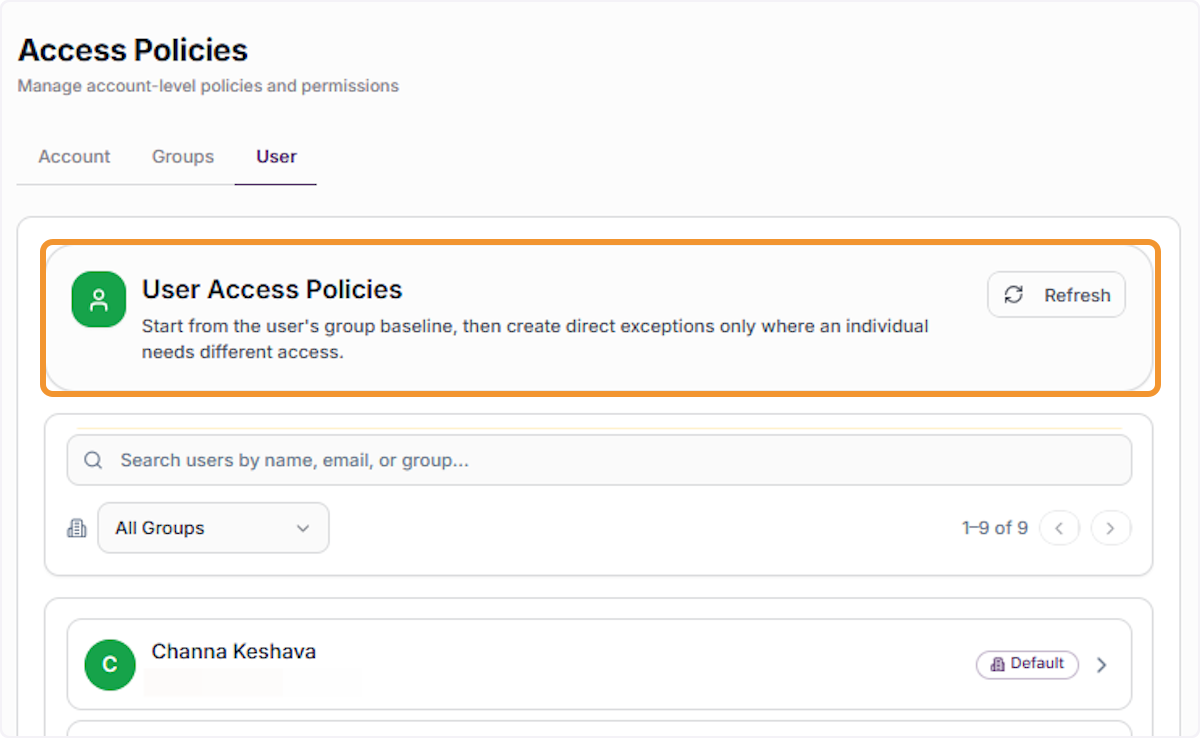
View the User Access Policies list
The User Access Policies panel lists all users in the account with their assigned group shown as a badge (e.g., Default). Use the search field or group filter to find a specific user quickly.
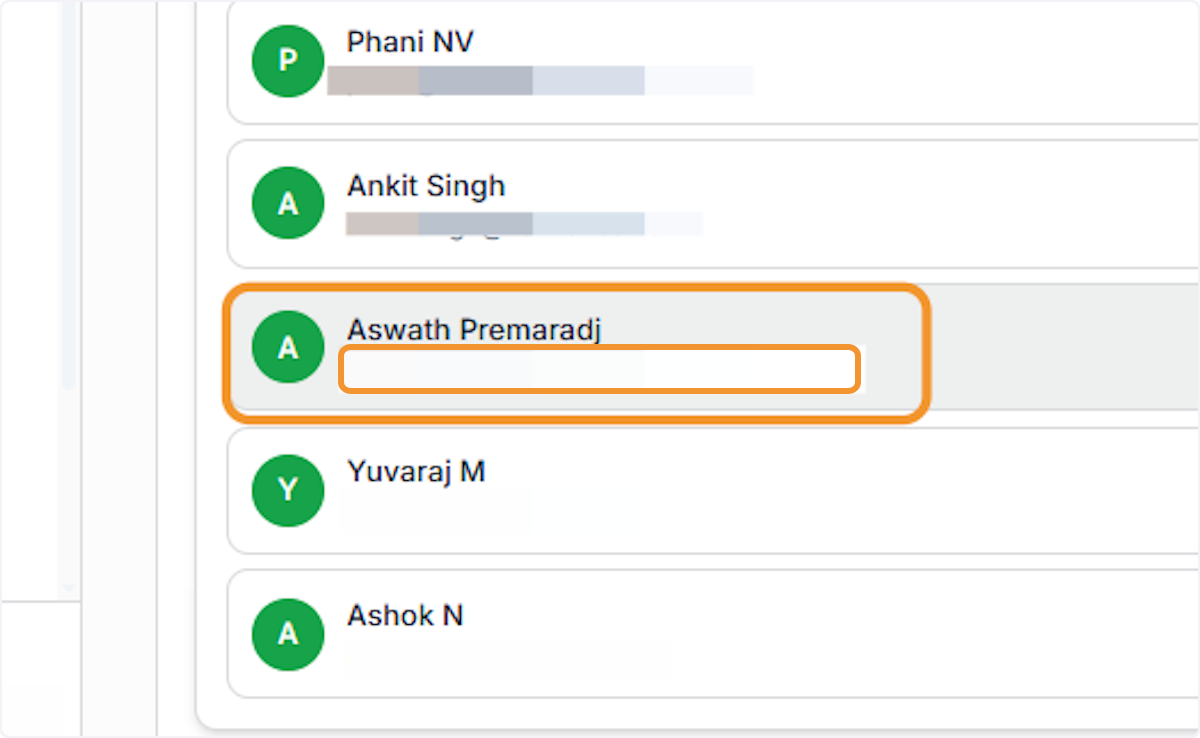
Select a user to configure
Locate and click on the target user — to open their individual access policy detail view and inspect or override their inherited settings.
Review the user’s access chain
Inside the user detail view, the ACCESS CHAIN (Account › Default › Aswath Premaradj) confirms the full inheritance path. Tabs show Inherited, Custom, and Changed from parent states so you can see exactly which settings differ from the group baseline.
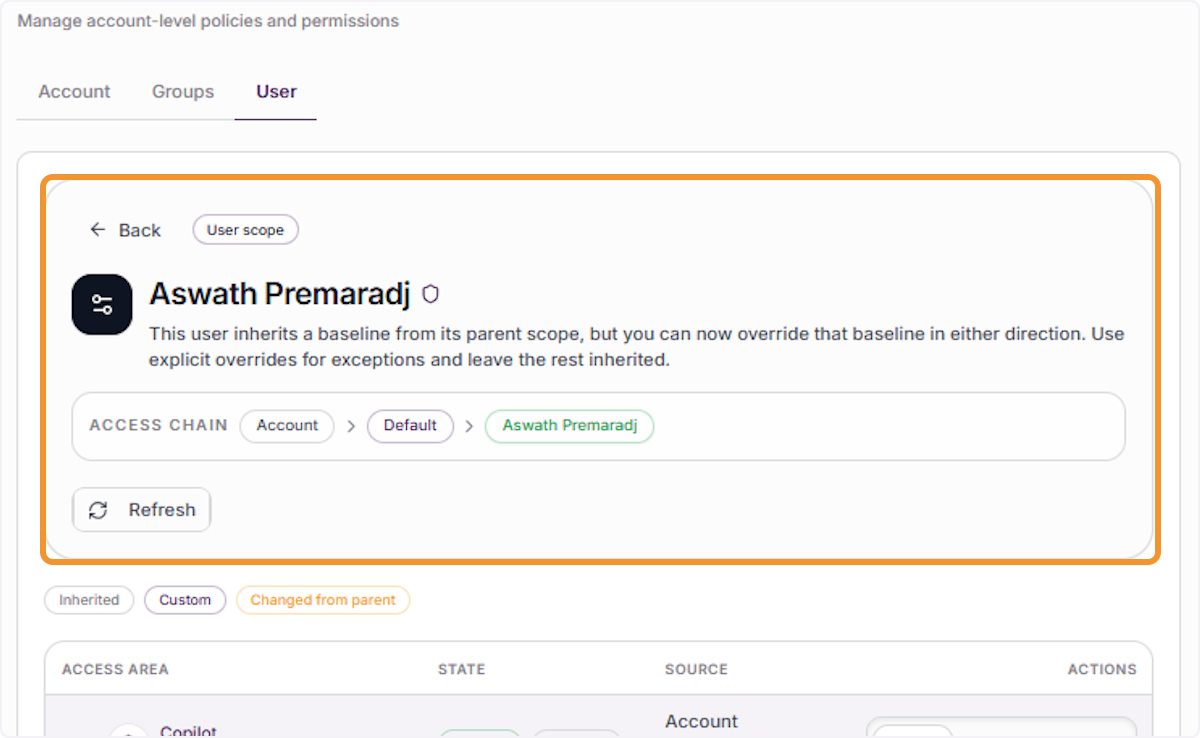
Identify restricted features for the user
Review the user’s access list to find features showing a Restricted state (e.g., Quick App — Restricted / Inherited). To change this, click Inherit to restore the group default, or Allow/Restrict to set an explicit user-level exception.