Dashboard Navigation
Opening User Management
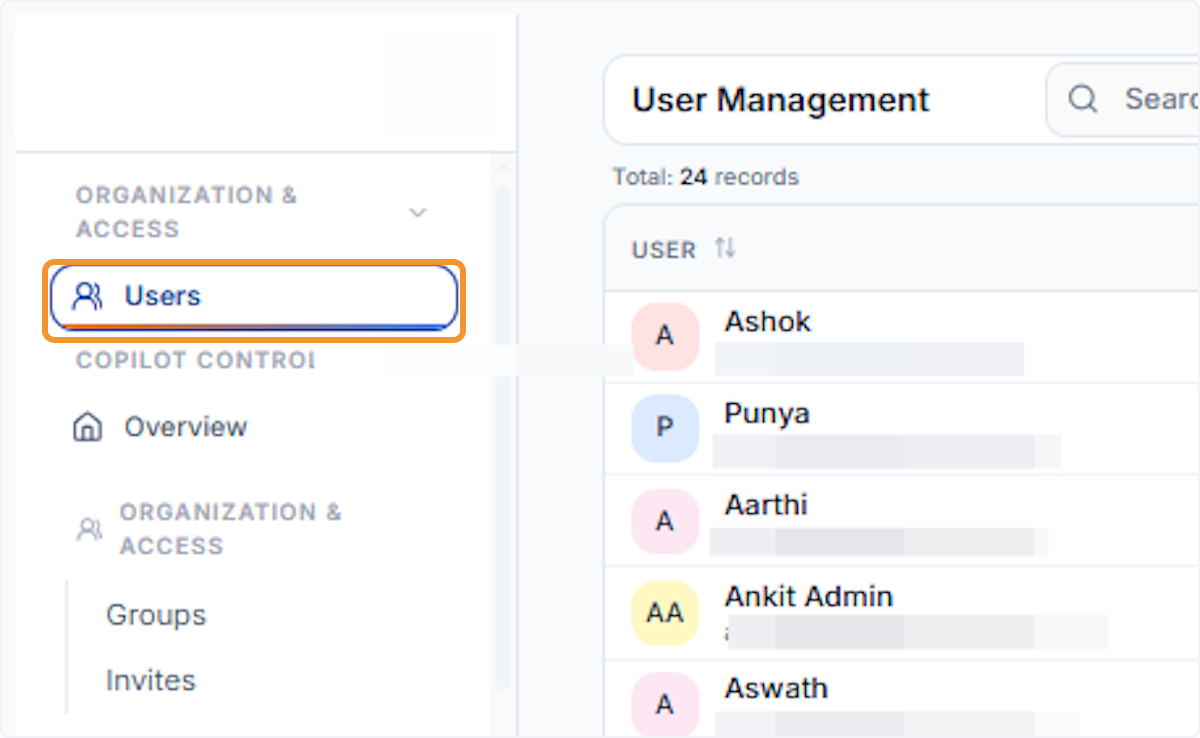
Open the Users section
In the left sidebar, click Users under Organization & Access to open the User Management panel. This is your starting point for all user-related tasks.
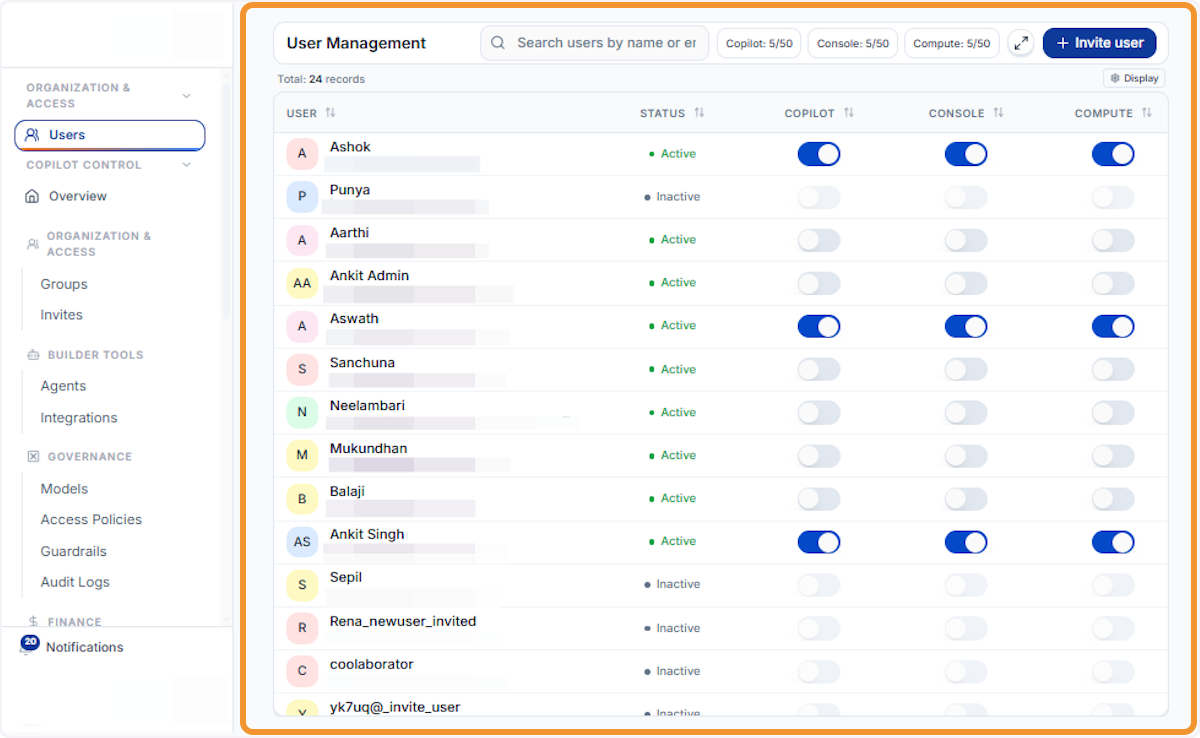
Access the User Management dashboard
Click User Management to open the full dashboard. Here you can view all registered users, their statuses, and access controls in one place.
Browsing and Filtering Users
View the full user list
The User Management table loads with all registered users. Review the list to identify users whose access, role, or status you need to manage.
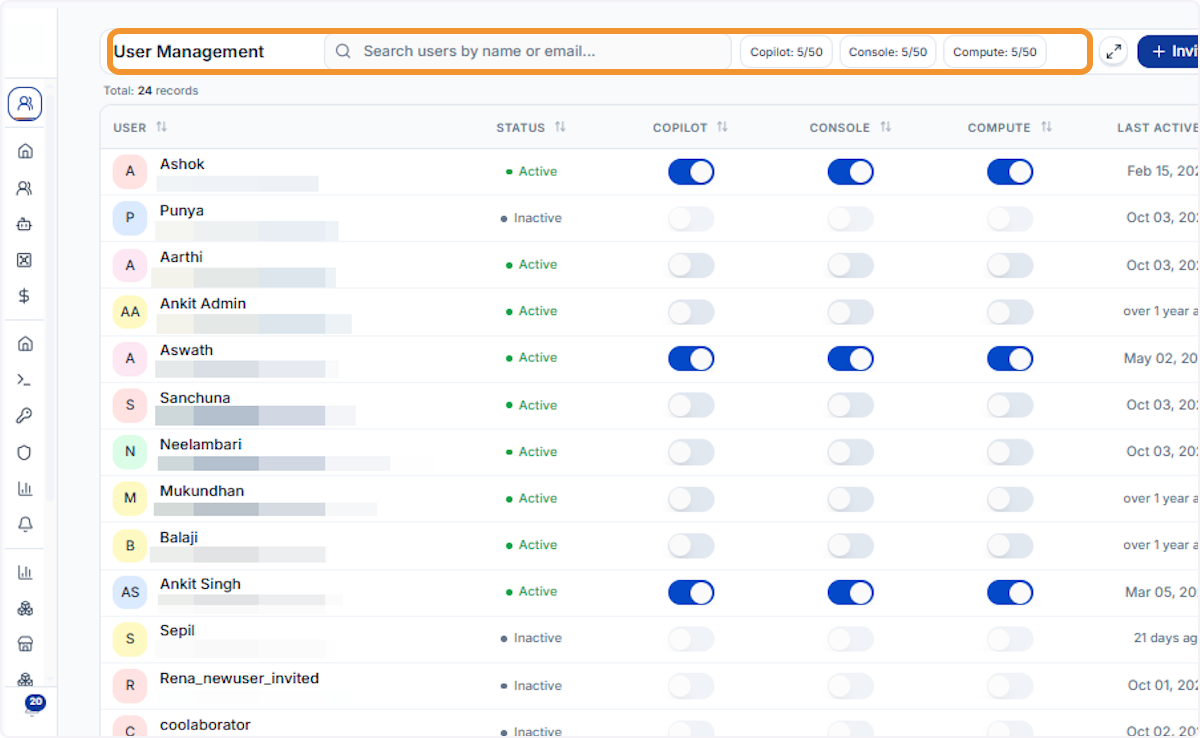
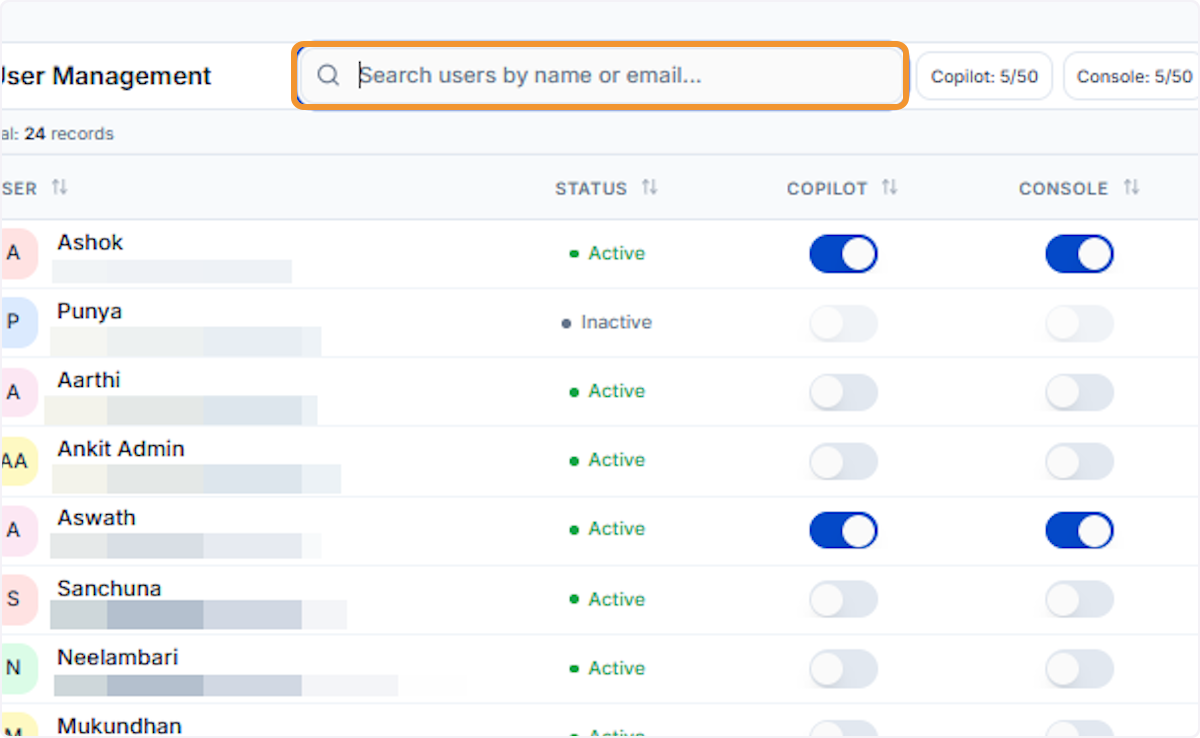
Search for a specific user
Use the Search users by name or email field to quickly locate a particular user without scrolling through the entire list.
Monitoring Seat Usage
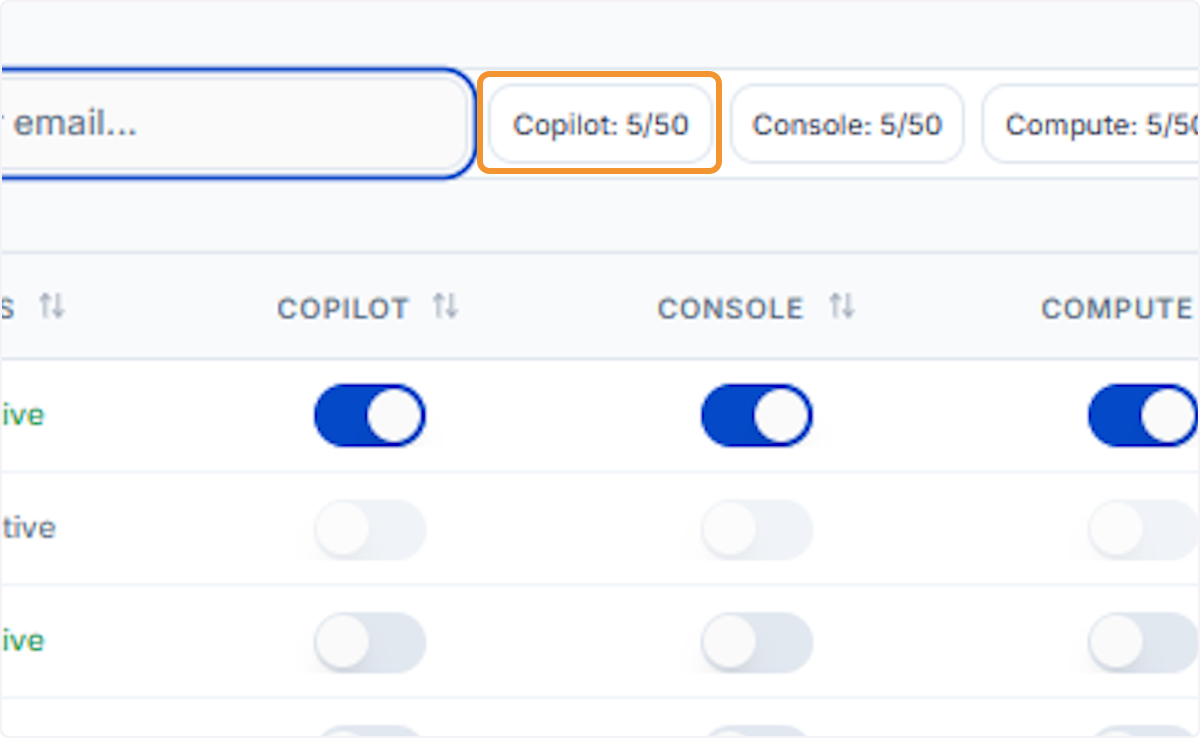
The header bar shows live seat consumption for each product tier. Click any counter to inspect current usage.
Check Copilot seat usage
Click the Copilot counter (e.g., Copilot: 5/50) to see how many of your allocated Copilot seats are currently in use.
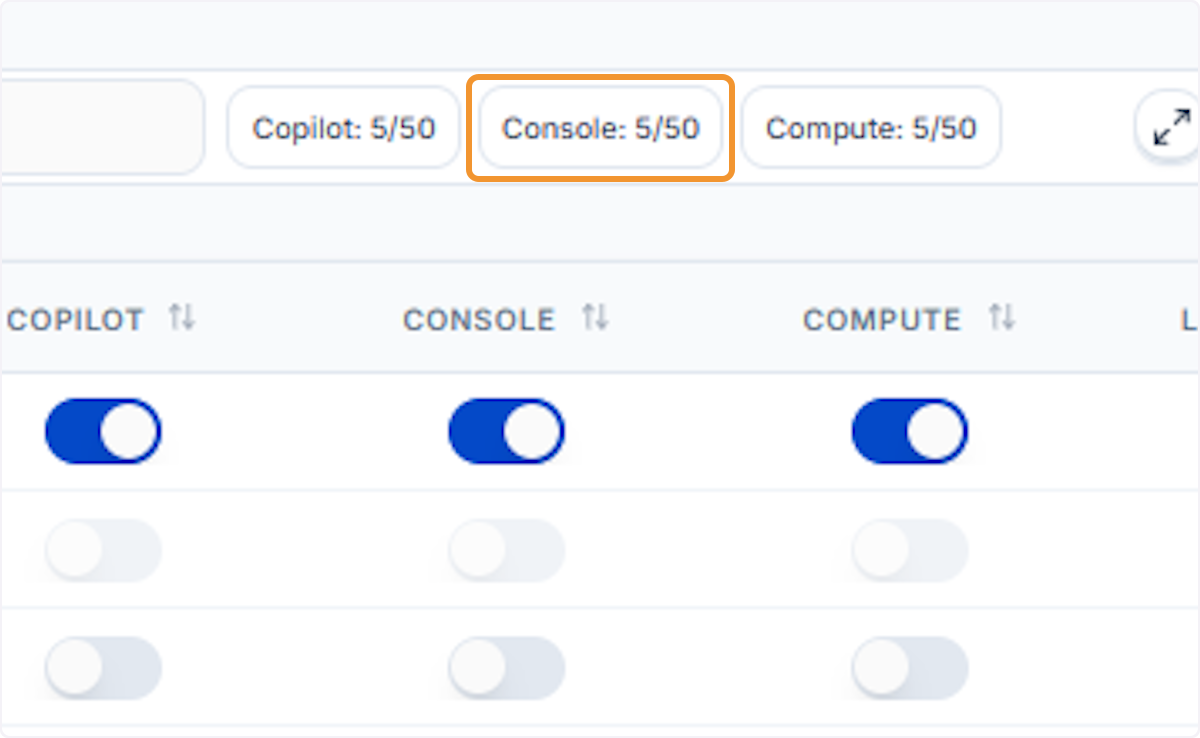
Check Console seat usage
Click the Console counter to view current Console seat consumption against your plan’s total allowance.
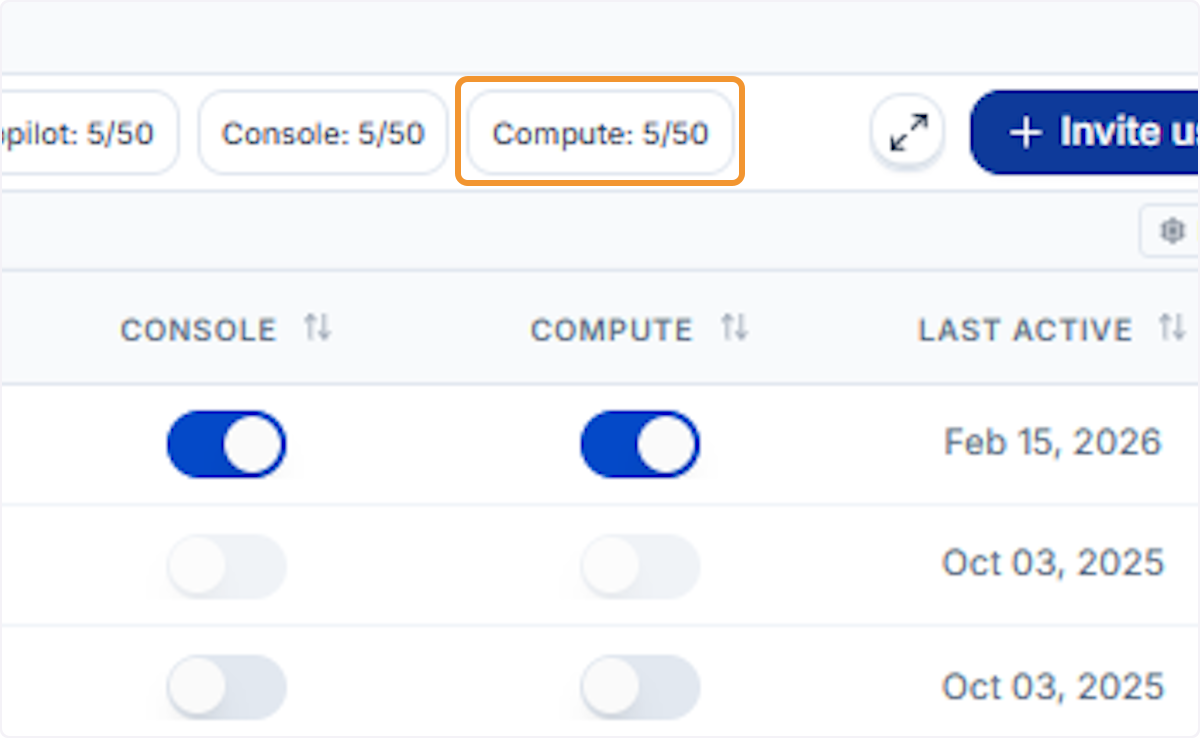
Check Compute seat usage
Click the Compute counter to review how many Compute seats are active relative to your subscription limit.
Sorting and Customising the Table
Click any column header to sort the user list by that field. Click again to reverse the order.
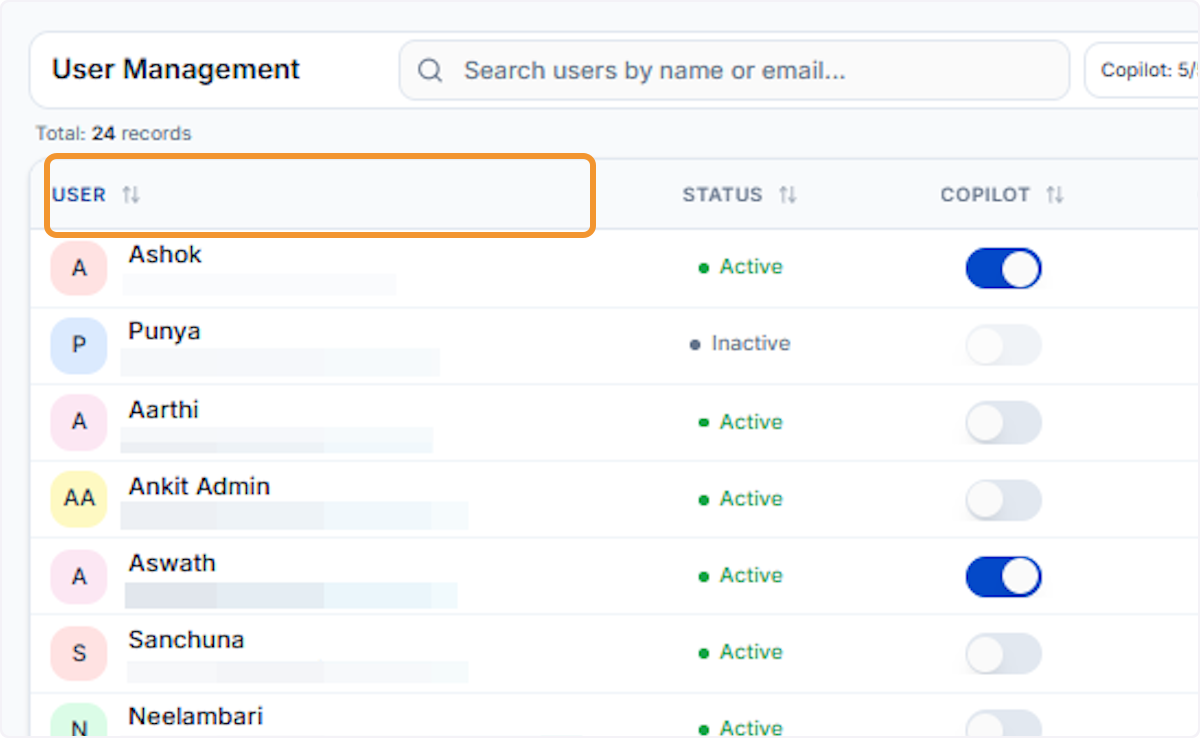
Sort by User
Click the User column header to sort the list alphabetically. This helps you locate users faster in large organisations.
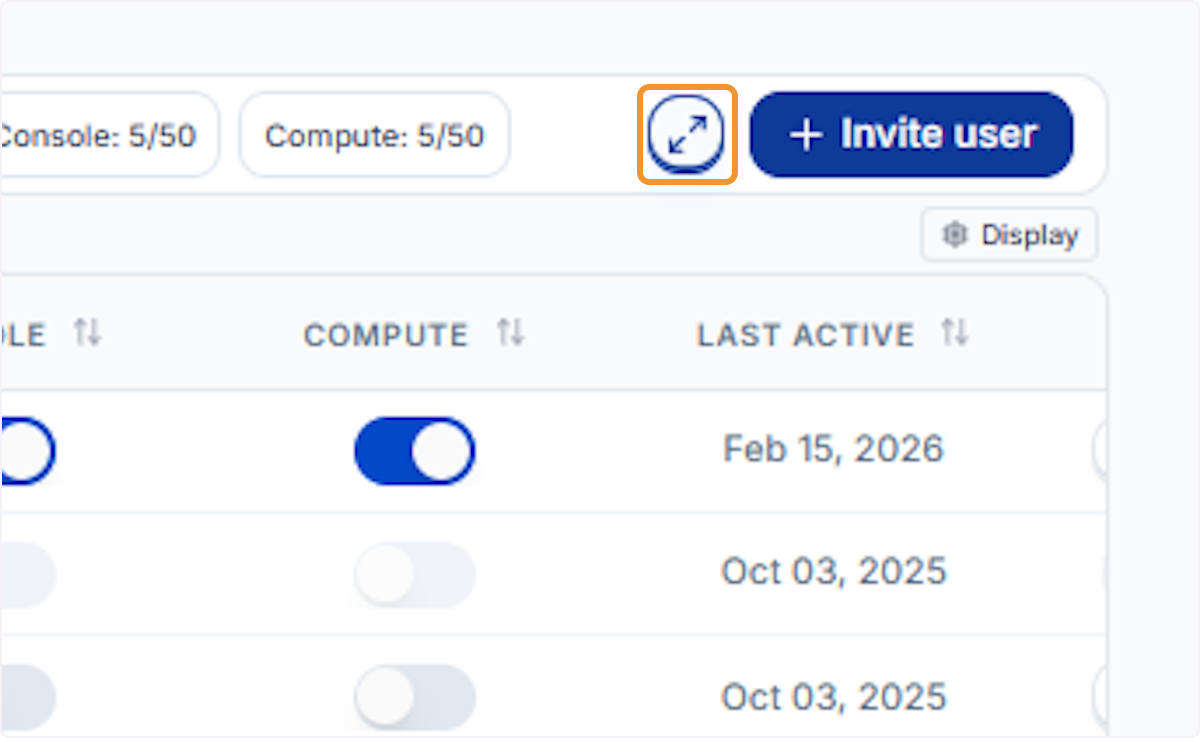
Open display settings
Click the Display icon (grid settings) near the top right to customise which columns are shown in the user table.
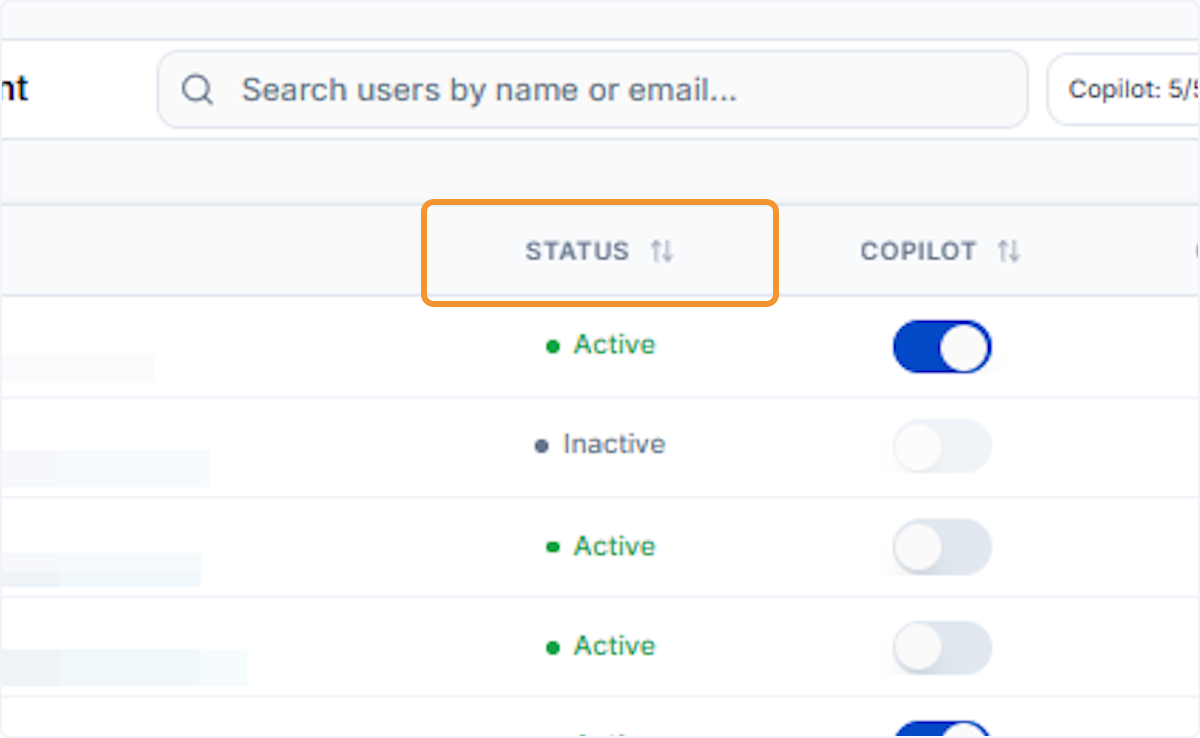
Sort by Status
Click the Status column header to group users by their account state (Active or Inactive), making it easy to identify dormant accounts.
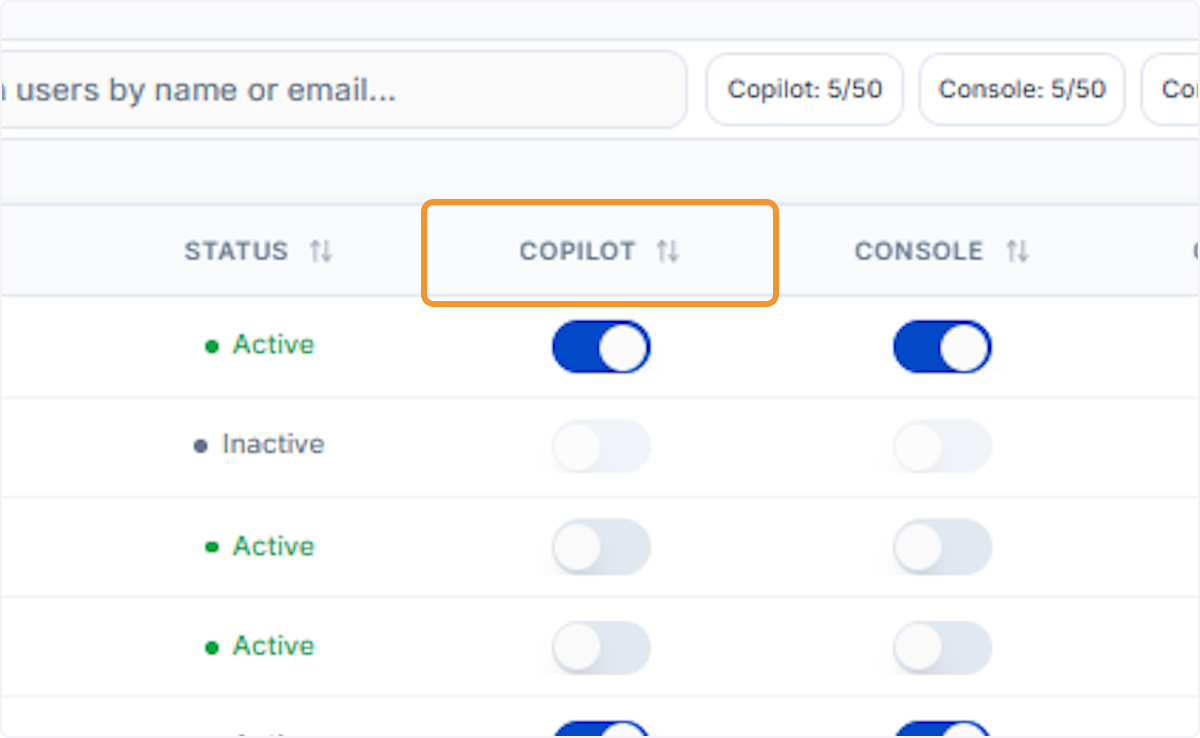
Sort by Copilot access
Click the Copilot column header to sort users based on whether they have Copilot access enabled or disabled.
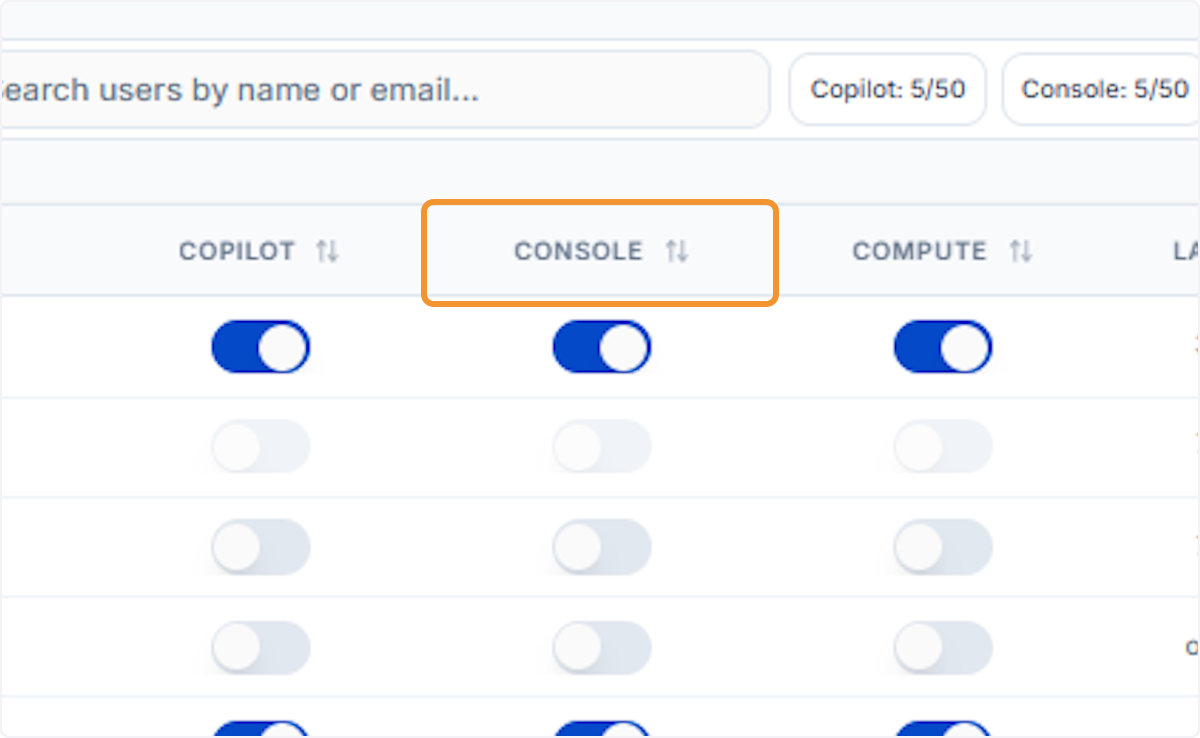
Sort by Console access
Click the Console column header to see which users have Console access toggled on or off, helping you audit permissions quickly.
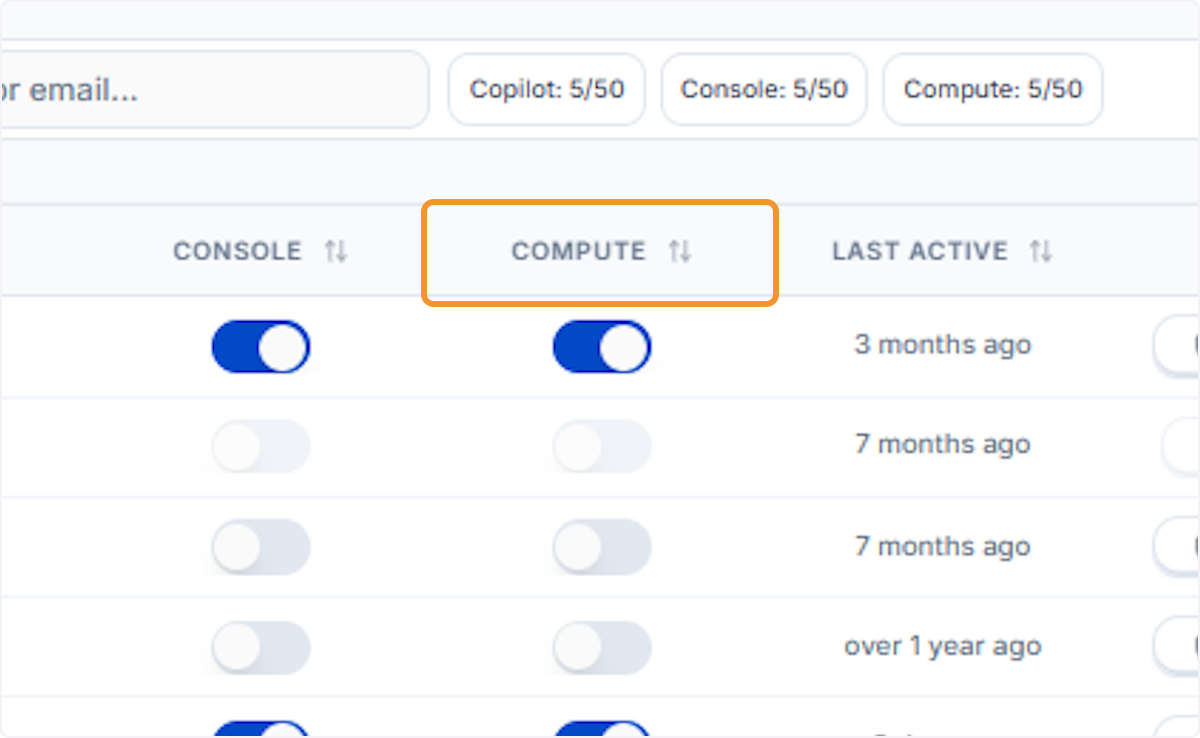
Sort by Compute access
Click the Compute column header to review the distribution of Compute access across your user base.
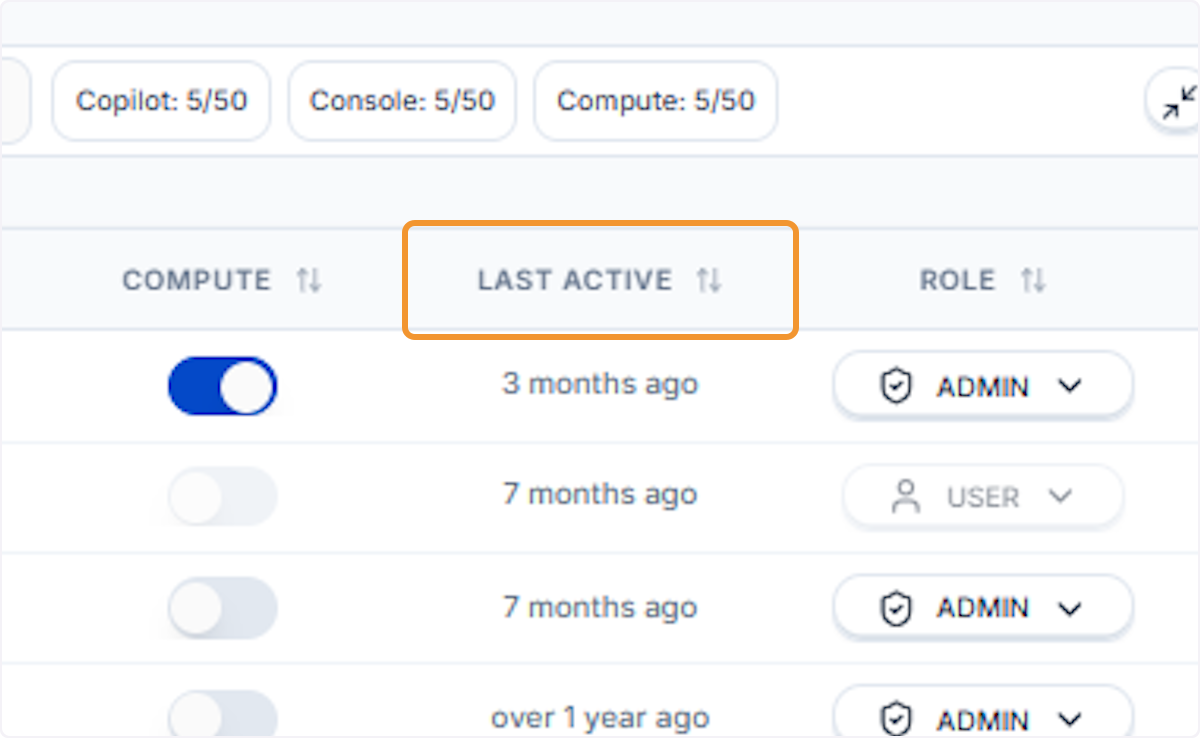
Sort by Last Active date
Click the Last Active column header to sort users by their most recent login, helping identify inactive or disengaged accounts.
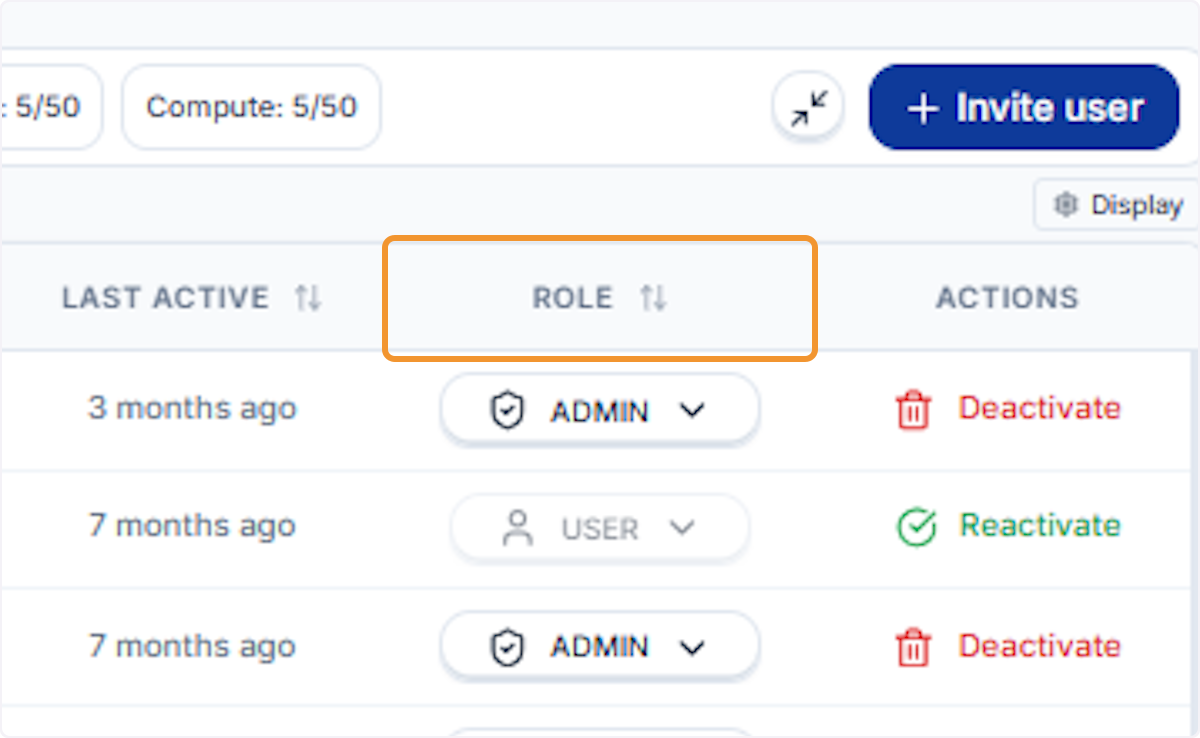
Sort by Role
Click the Role column header to group users by their permission level (Admin or User), useful for permission audits.
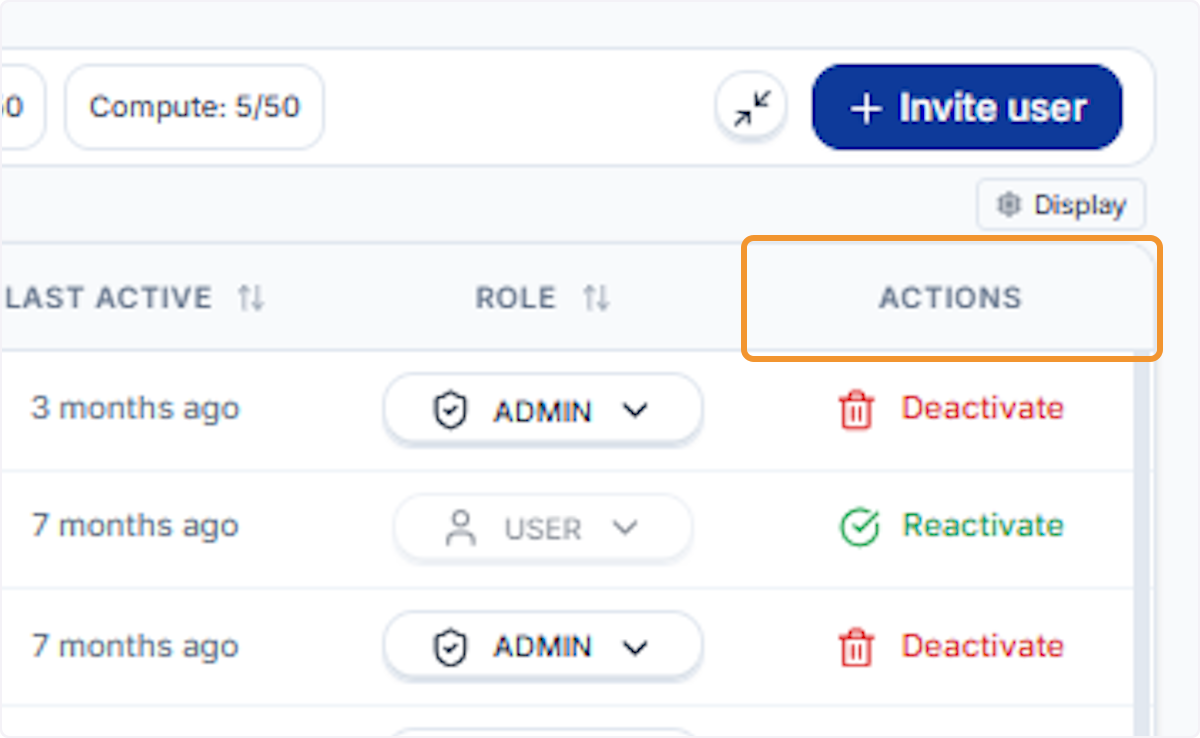
Review available Actions
Click the Actions column header to review the per-user actions available: Deactivate for active users and Reactivate for inactive ones.