Deactivate a User
Deactivating a user revokes their access to AlchemiStudio without deleting their account. Their data and settings are preserved, and access can be restored at any time by reactivating the account.
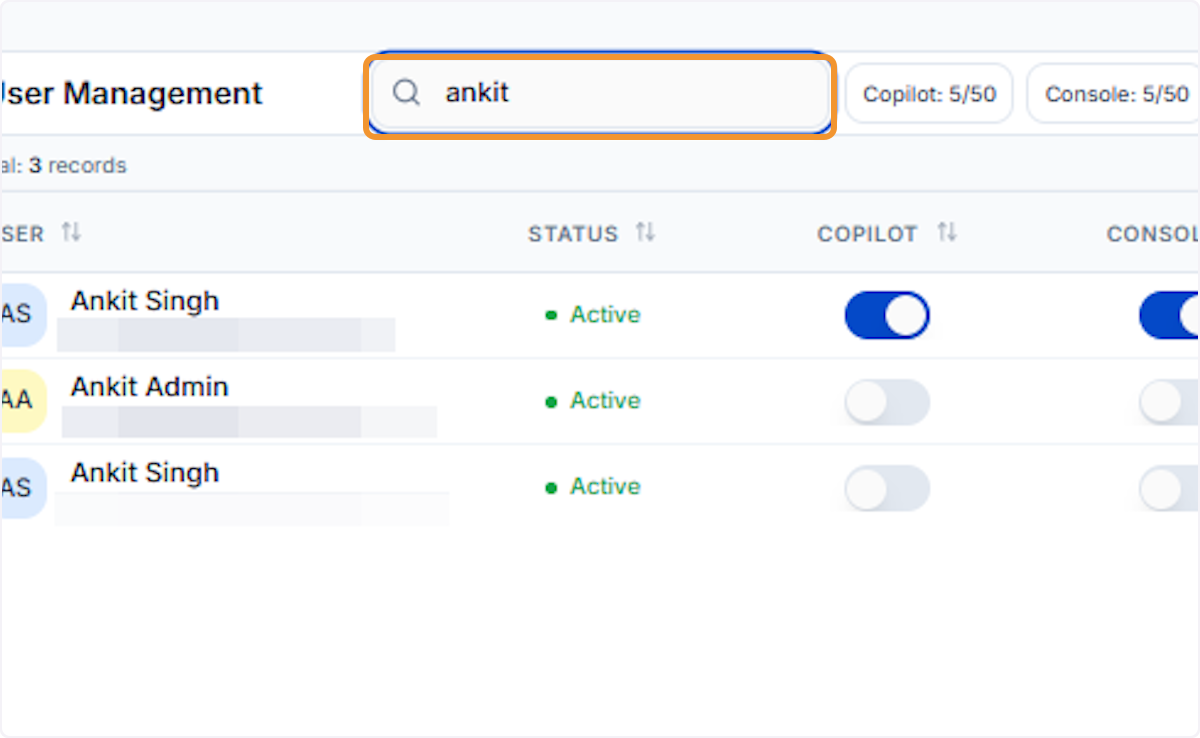
Search for the user to deactivate
Type the user’s name in the search bar to filter the list. Confirm you have the correct user selected before proceeding with deactivation.
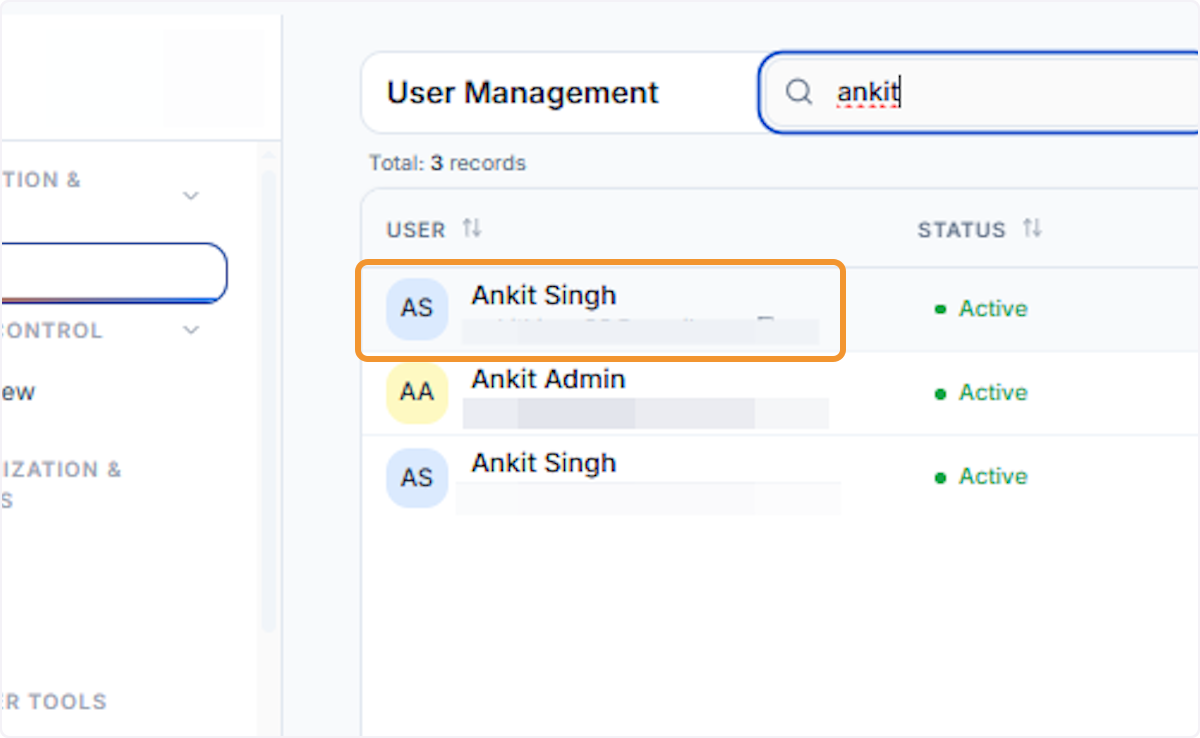
Select the user from search results
Click the target user’s row in the filtered results. Verify the user’s name and email to ensure you are acting on the correct account.
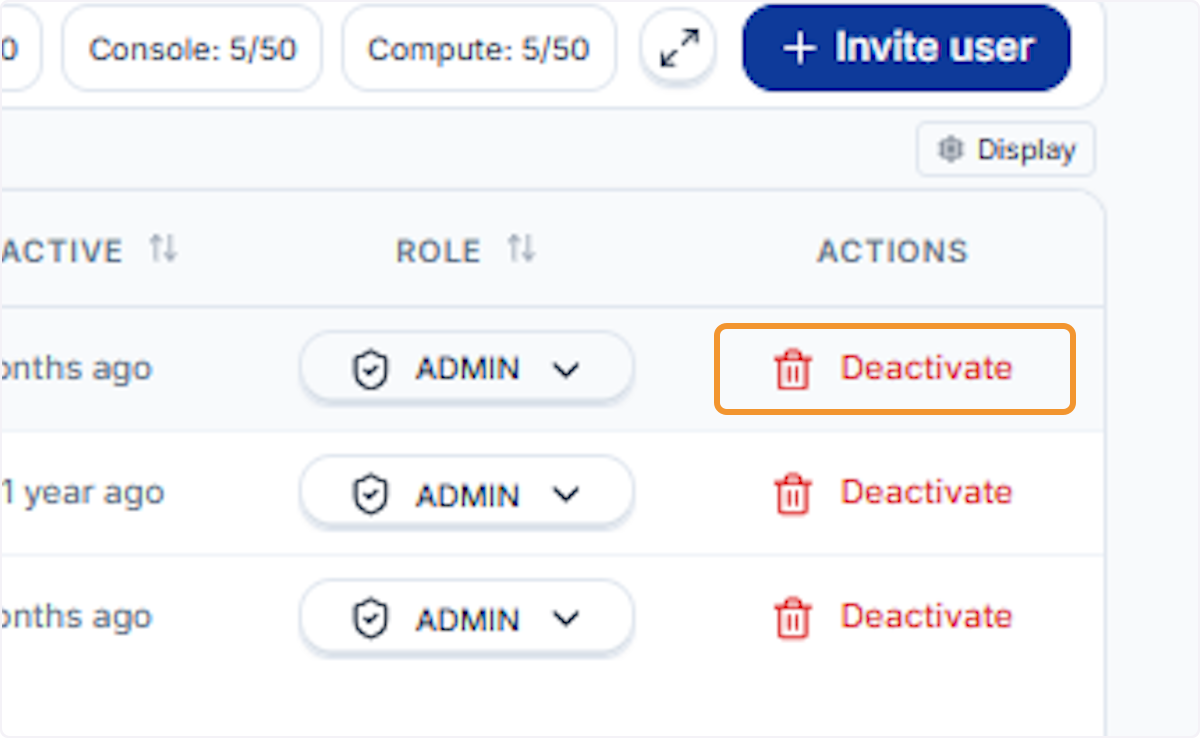
Click Deactivate
Click the Deactivate button (shown with a trash icon) in the Actions column of the user’s row to initiate the deactivation process.
Review the confirmation dialog
A Deactivate User Membership? modal appears, explaining that the user will lose access but can be reactivated later if needed. Read this carefully before confirming.
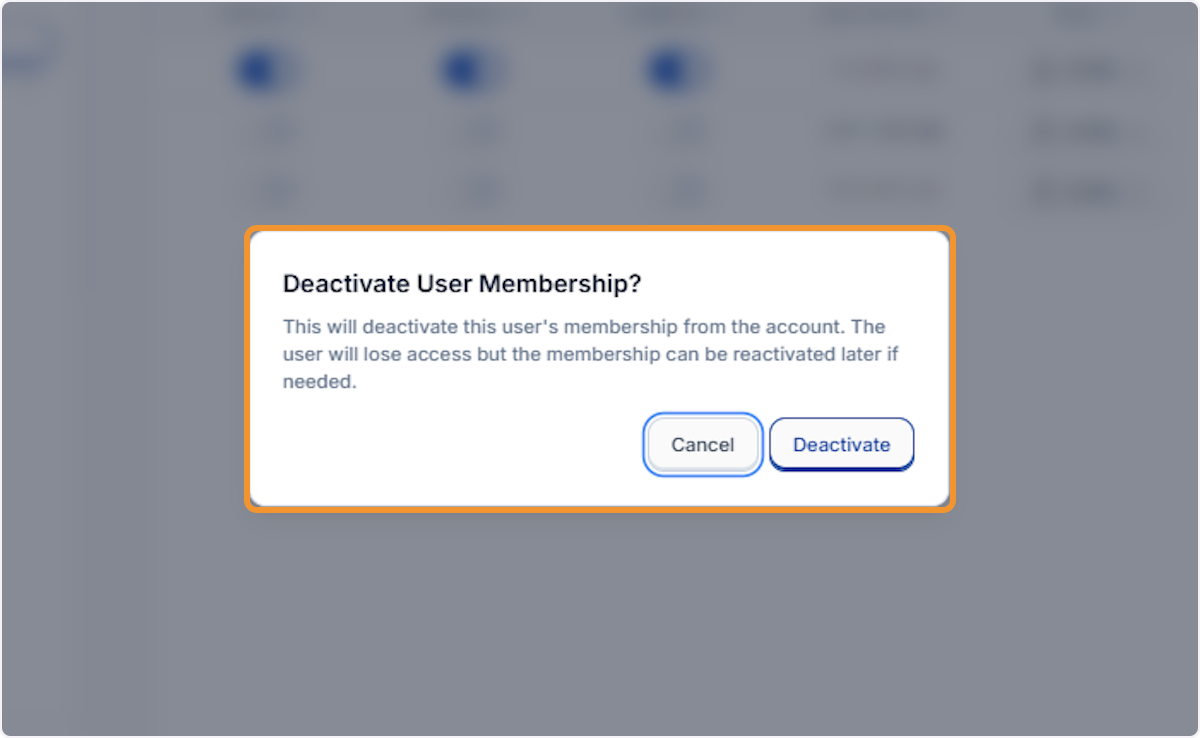
Confirm the deactivation
Click the Deactivate button in the confirmation modal to finalise the action. Click Cancel to abort without making any changes.
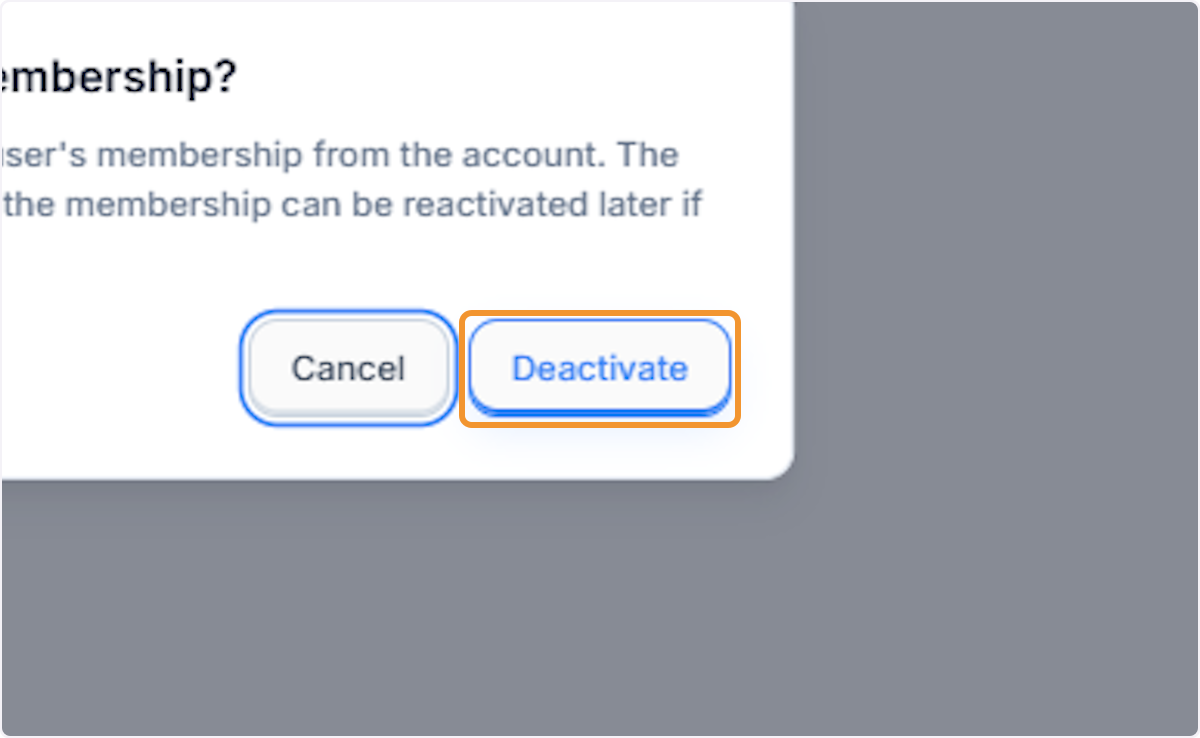
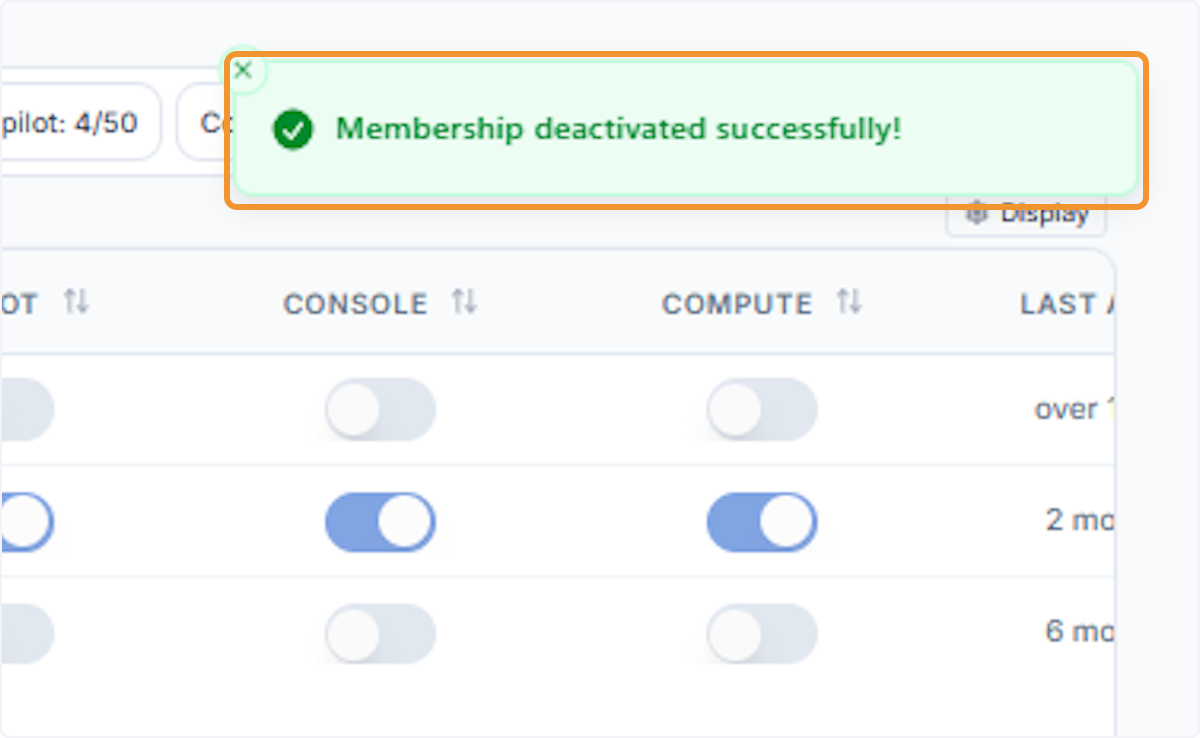
Deactivation confirmed
A green success banner reading Membership deactivated successfully! confirms the user’s access has been revoked. Their status changes to Inactive in the User Management table.