Test Compute Api Calls in Playground
Test Compute Api Calls in Playground
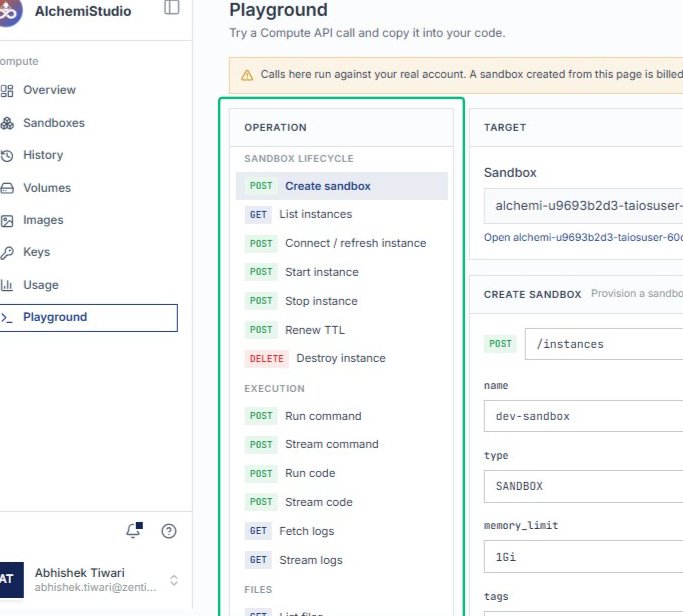
Start from the AlchemiStudio Compute page and open the Playground, where you can test API calls against your real account.
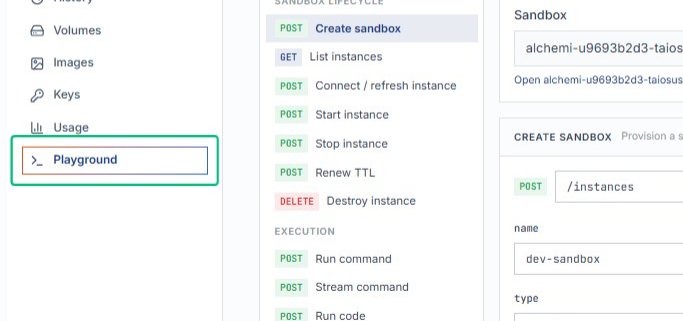
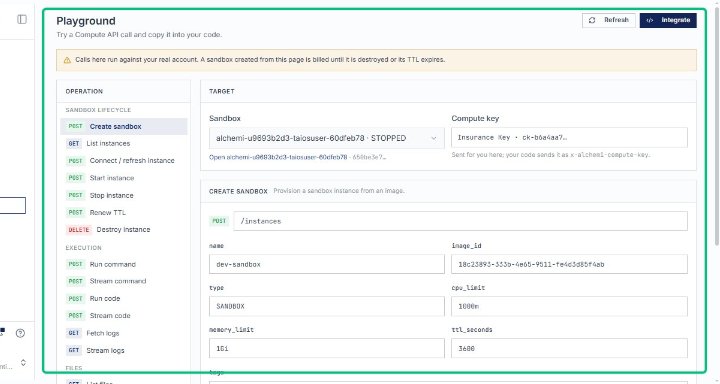
Review the Playground interface
The Playground displays the operation list on the left and the target configuration panel on the right, ready for you to select an API call.
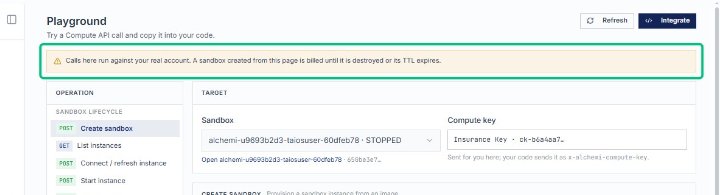
Review the sandbox warning banner
The banner reminds you that calls here run against your real account and that any sandbox created from this page is billed until destroyed or expired.
Select the Create sandbox operation
In the OPERATION panel under SANDBOX LIFECYCLE, choose the POST Create sandbox endpoint to configure a new sandbox instance.
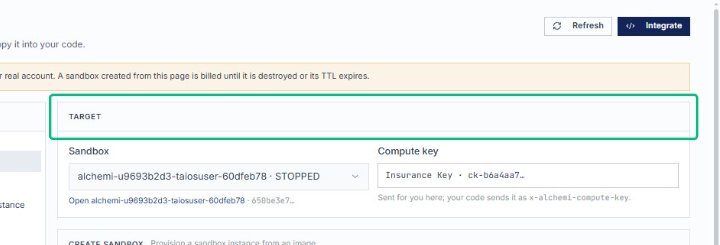
Select the TARGET section
On the Playground page, the TARGET section displays the sandbox and compute key configuration for the selected operation.
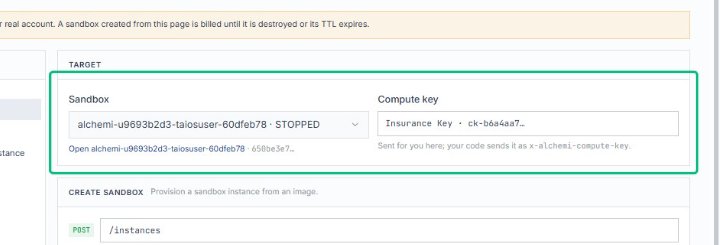
Review the sandbox configuration area
This area shows the current sandbox instance and compute key that will be used for API calls.
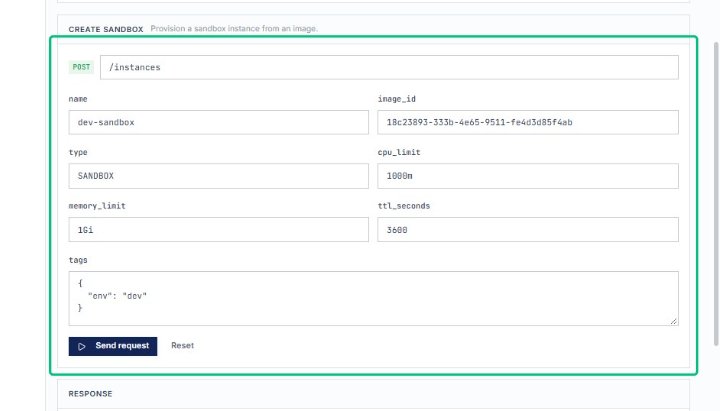
Review the Create sandbox form
The form displays all parameters needed to provision a new sandbox instance, including name, image, type, CPU limit, memory limit, TTL, and tags.
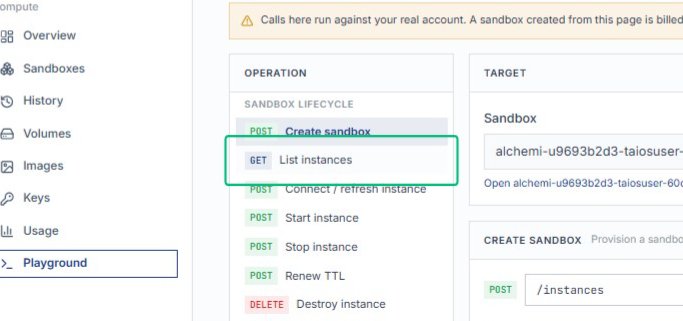
Select GETList instances
Switching to this operation loads the endpoint for retrieving all instances visible to your compute key.
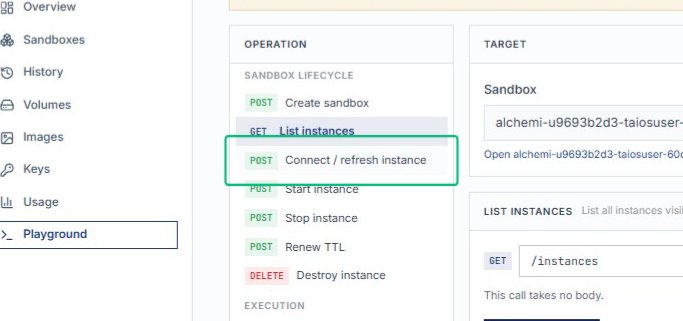
Select POSTConnect / refresh instance
On the Playground page, choose the Connect / refresh instance operation to load its details and endpoint configuration.
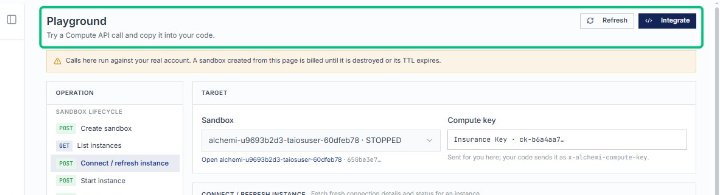
Review the Playground header
The Playground header confirms you are testing a Compute API call with live credentials against a sandbox instance.
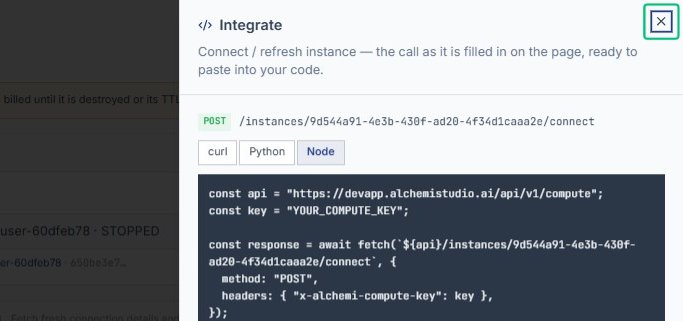
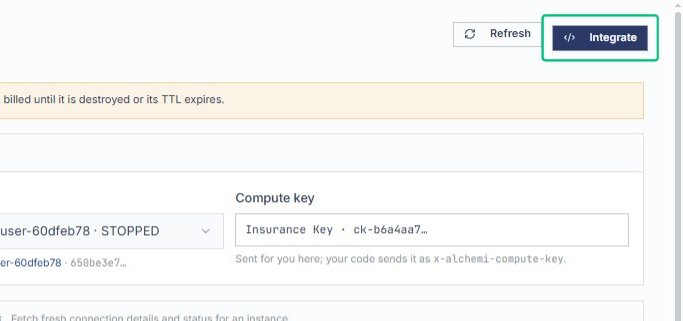
Open the Integrate panel
This panel displays ready-to-use code snippets for the selected API call, making it easy to integrate into your application.
Review the Integrate Connect / refresh instance header
With the Integrate panel open, the header shows the operation and endpoint you are about to copy as code.
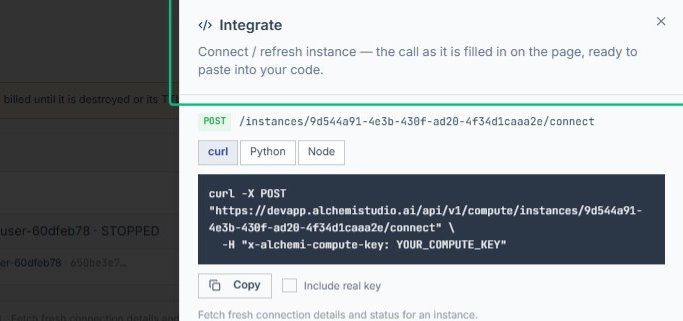
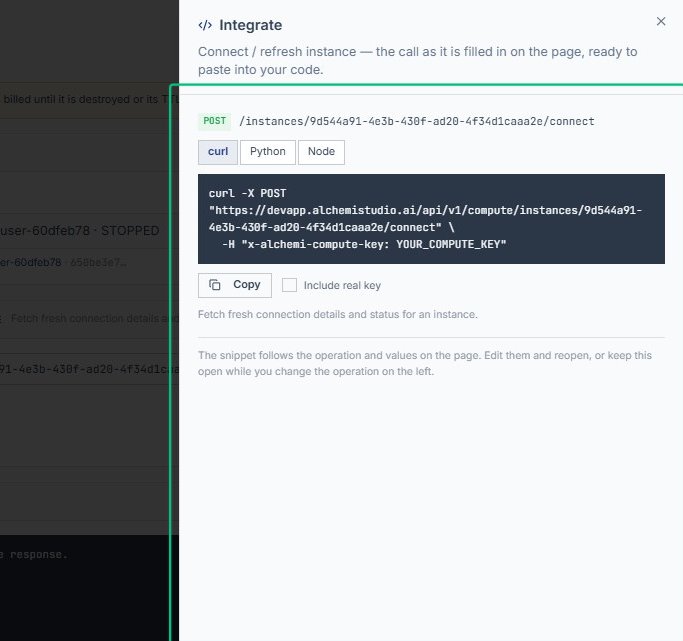
Review the POST /instances/9d544a91-4e3b-430f-ad20 code snippet
With the Integrate panel open, the code snippet displays the curl command for the Connect / refresh instance operation, ready to copy into your application.
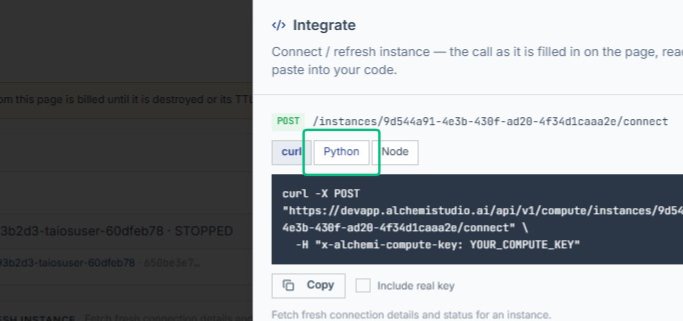
Switch to the Python tab
The panel updates to show the Python implementation of the same API call.
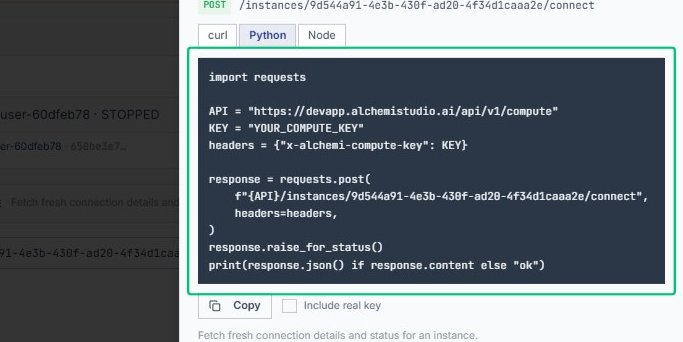
Review the Python code snippet
The snippet begins with import requests and includes the full POST request with headers and error handling.
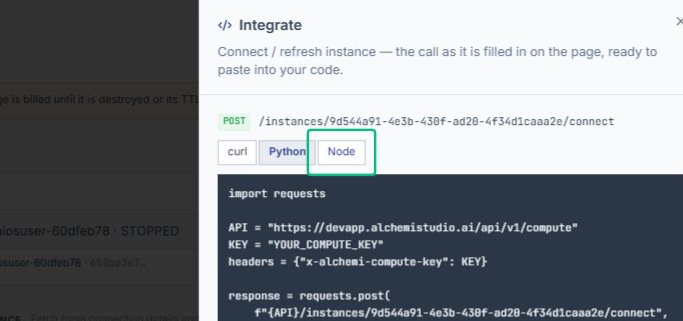
Switch to the Node tab
The panel now displays the Node.js version of the API call using fetch.
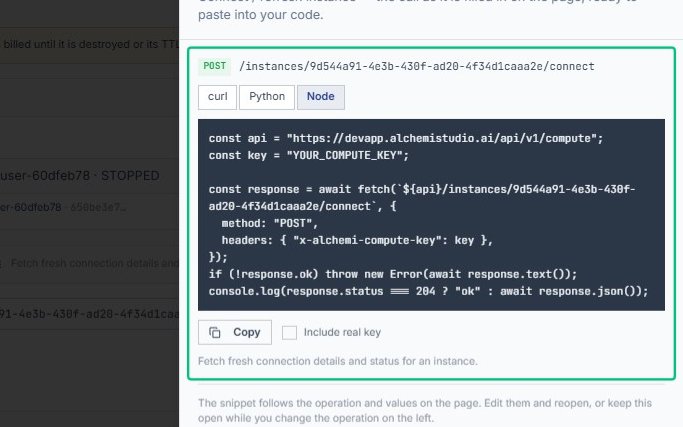
Review the Node code snippet
The snippet shows the async fetch call with method, headers, and response handling for the same instance operation.
Close the Integrate panel
The panel dismisses and you return to the Playground page, where you can continue testing API calls.