Monitoring Model Health Status
Monitoring Model Health Status
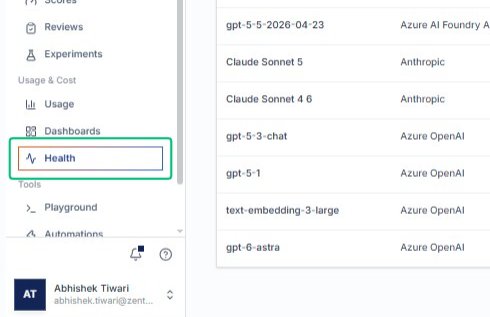
Start from the AlchemiStudio Console sidebar and open the Health page, where you can monitor the availability and status of all AI models accessible through your API keys.
Review the Model Health dashboard
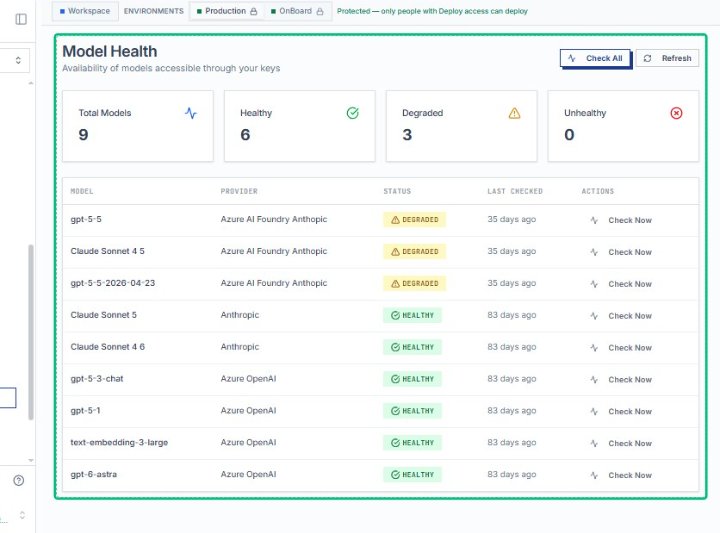
On the Model Health page, the dashboard displays availability metrics including total models, healthy models, degraded models, and unhealthy models, along with a table listing each model’s current status.
Review the model summary metrics
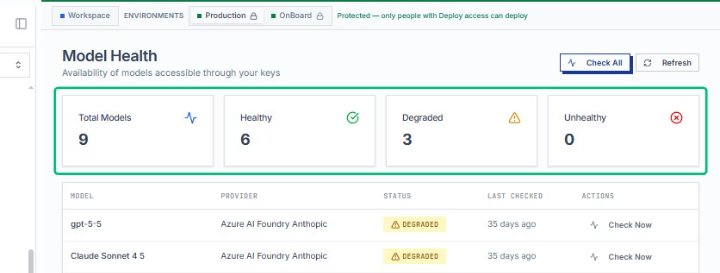
The summary cards at the top show 9 total models, 6 healthy, 3 degraded, and 0 unhealthy, giving you an at-a-glance view of your model fleet’s health.
Select the gpt-5-5 model row
From the table, locate the gpt-5-5 model, which currently shows a Degraded status and was last checked 35 days ago.
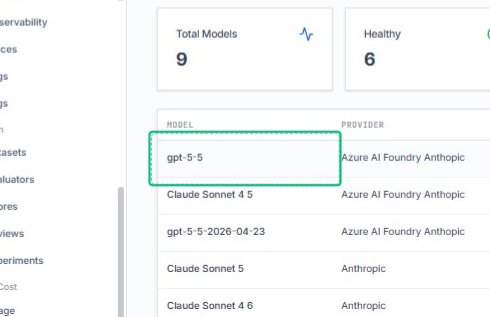
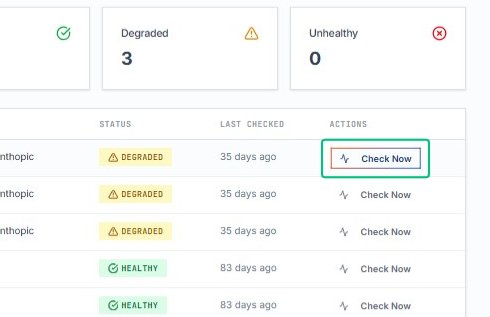
Run a health check for gpt-5-5
After selecting the gpt-5-5 model, click Check Now to verify its current availability. The status updates immediately, revealing whether the model is operational or experiencing issues.
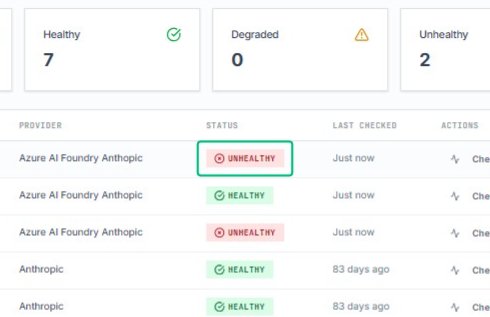
Review the UNHEALTHY status for gpt-5-5
The red UNHEALTHY badge confirms that gpt-5-5 is currently unavailable. This status helps you identify which models require attention or troubleshooting.
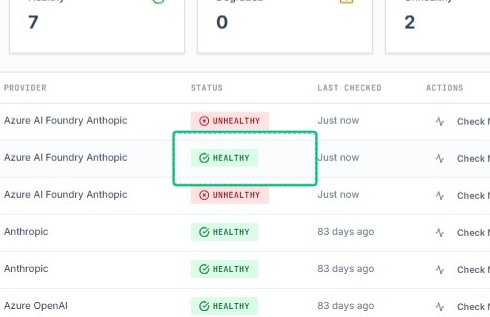
Review the HEALTHY status for Claude Sonnet 4.5
The green HEALTHY badge indicates that Claude Sonnet 4.5 is fully operational. Comparing healthy and unhealthy models helps you understand overall system reliability.
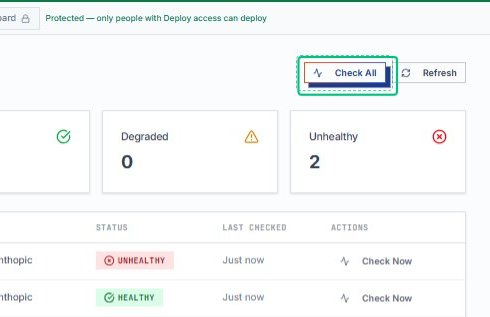
Trigger Check All Button
Triggers a health check across all models in the table at once. The Last Checked column updates for each model as the system verifies availability and performance.