Creating Gateway Bound Agents With Models
Creating Gateway Bound Agents With Models
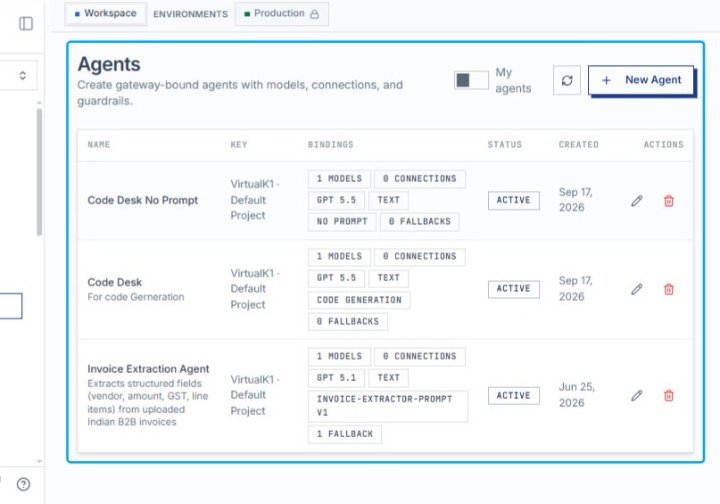
Click Agents to view the agents dashboard
Navigate to the Agents section from the main navigation. This page displays all configured gateway-bound agents with their models, connections, and guardrails. You can view agent details, manage bindings, and create new agents from this interface.
Click the Agents tab to view agent configurations
Select the Agents tab in the main navigation area. This switches the view from Models to the Agents section, where you can manage and configure AI agents. The tab is located in the center of the top navigation bar.
Click the Agents tab to view agent configurations
Select the Agents tab in the main navigation bar. This switches the view from Models to the Agents section, where you can manage and configure AI agents. The tab becomes highlighted to indicate it is now active.
Click New Agent to create a new agent
Click the New Agent button in the top-right corner of the page. This opens the agent creation workflow where you can configure a virtual key and bind resources. The form will display tabs for Model, Tools & Guardrails, and Review.
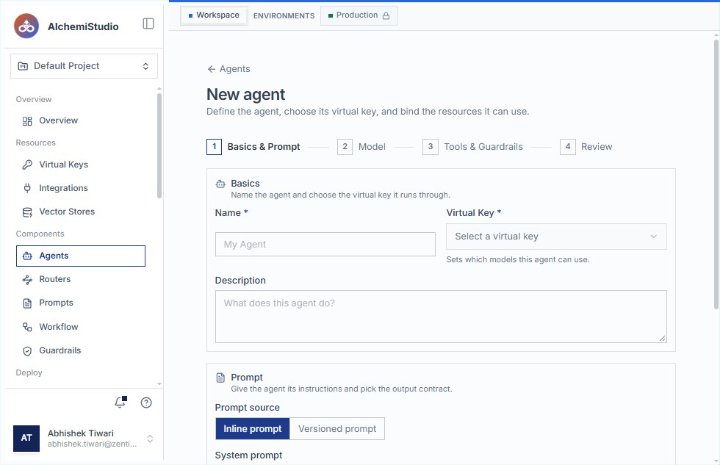
Open the New Agent page under the Agents section in AlchemiStudio. This page allows you to define a new agent by naming it, selecting a virtual key, and configuring its prompt and resources. You are now on step 1 of 4 in the agent creation workflow.
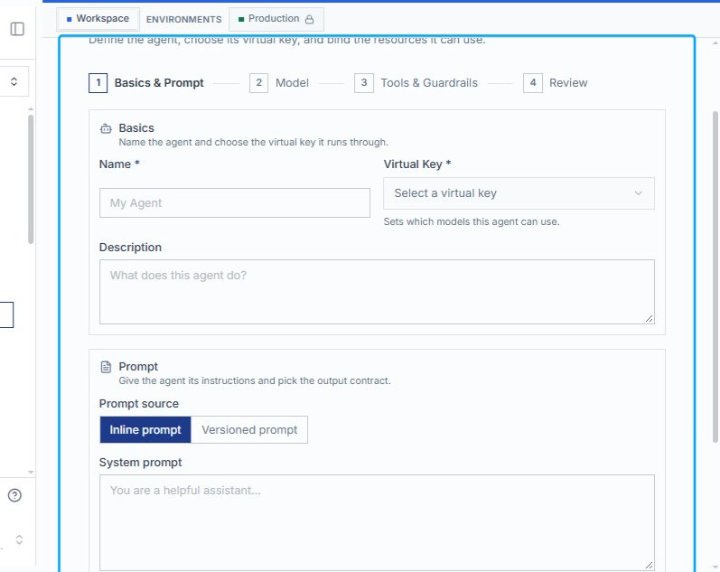
Click New agent to start creating an agent
Click the New agent button in the Agents section to begin the agent creation workflow. This opens a multi-step form where you define the agent’s name, virtual key, model, tools, and prompt. The form guides you through four tabs: Basics & Prompt, Model, Tools & Guardrails, and Review.
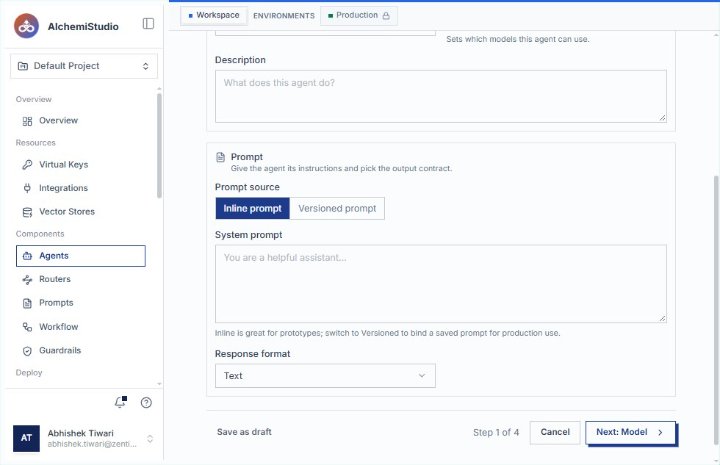
Scroll down to view Response format options
Scroll down the Agent configuration page to reveal the Response format dropdown and navigation controls. This allows you to review additional settings before proceeding to the next step. The page shows you are on Step 1 of 4 in the agent setup workflow.
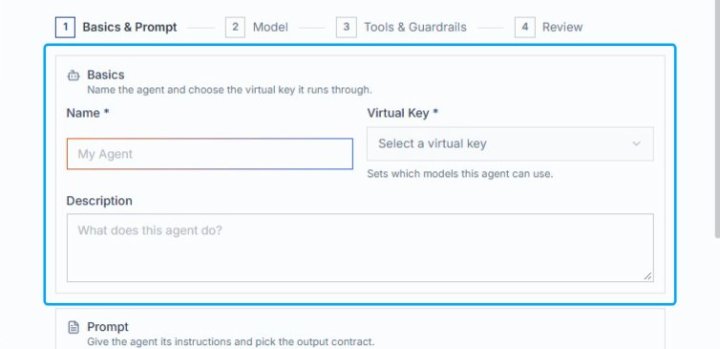
Click the Basics section to configure agent settings
Select the Basics section at the top of the agent setup wizard. This is the first step in creating a new agent, where you’ll define its name, assign a virtual key, and add a description. The virtual key determines which AI models the agent can access.
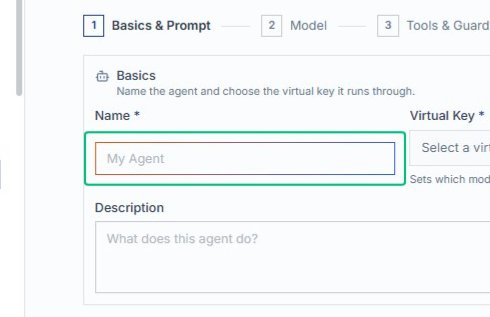
Enter agent name in the Name field
Click into the Name field under the Basics section and type your desired agent name. This identifies the agent within your AlchemiStudio workspace. The name helps you distinguish between multiple agents when managing your AI components.
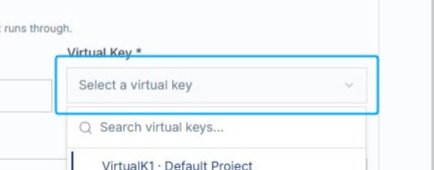
Click the Select a virtual key dropdown
Click the dropdown field labeled ‘Select a virtual key’ to open the list of available virtual keys. This allows you to choose which virtual key the system will use during execution. The dropdown displays options like ‘VirtualAI1 - Default Project’ once opened.
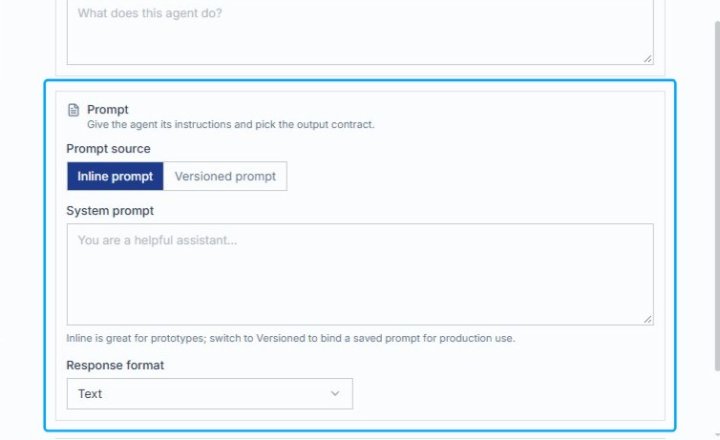
Click the Prompt configuration section
Select the Prompt panel to configure agent instructions and output contract settings. This section allows you to choose between inline or versioned prompts and define the system prompt. The response format dropdown below lets you specify how the agent should structure its output.
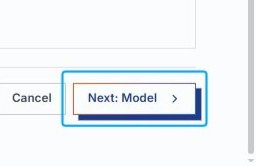
Click Next: Model to proceed to model selection
Click the Next: Model button at the bottom-right of the dialog. This advances you from step 1 to step 2 of the setup wizard, where you will choose the AI model for your saved prompt. The Cancel button allows you to exit without saving.
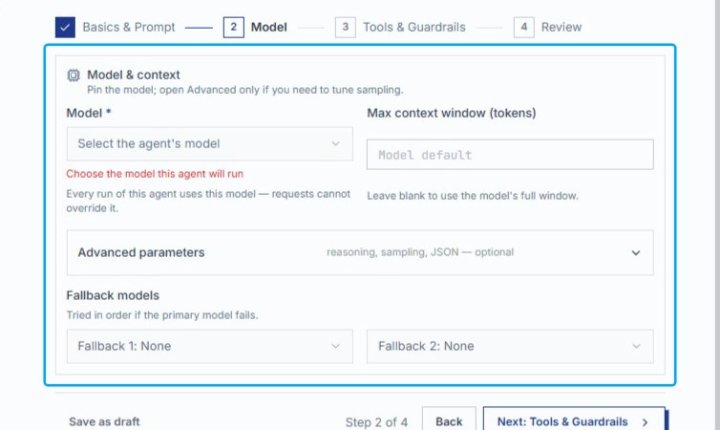
Click Model & context to configure agent settings
Select the Model & context section on the Model configuration page. This expands the panel where you choose which AI model the agent will use and set optional parameters like context window size. This is step 2 of the agent setup workflow.
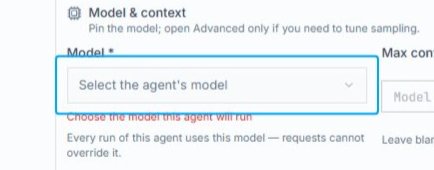
Click Select the agent’s model dropdown
Click the dropdown labeled ‘Select the agent’s model’ in the Model & context section. This opens a list of available AI models to choose from for your agent. The selected model determines how the agent processes requests and cannot be overridden per run.
Select Gpt 5.3 Chat from the Model dropdown
Click on Gpt 5.3 Chat in the expanded Model dropdown menu. This sets the AI model that will process agent requests. The selected model determines response quality, speed, and token usage for your agent’s interactions.
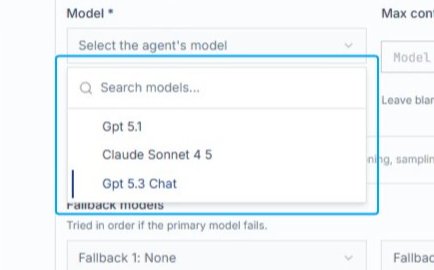
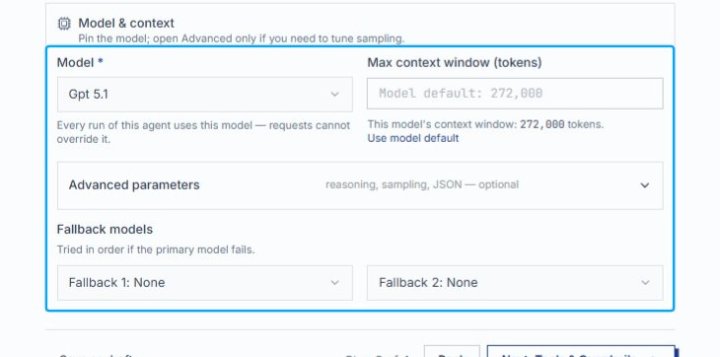
Select Gpt 5.1 from the Model dropdown
Choose Gpt 5.1 in the Model dropdown within the Model & context section. This sets the AI model that will process all agent requests, with a context window of 272,000 tokens. This selection cannot be overridden by individual requests.
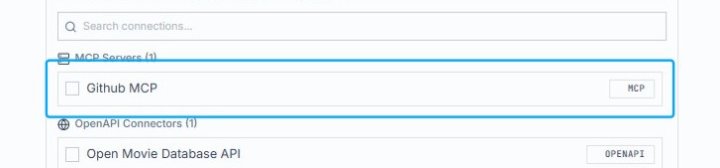
Select Github MCP from the MCP Servers list
Click the Github MCP checkbox in the Connections section under MCP Servers. This enables the Github MCP integration for your Alchemi Compute sandbox. The connection will be added to your active integrations.
Click Next: Tools & Guardrails to continue
Click the Next: Tools & Guardrails button at the bottom of the configuration page. This advances you to step 3 of the setup wizard where you can configure tools and safety guardrails for your model. You are currently on step 2 of 4.
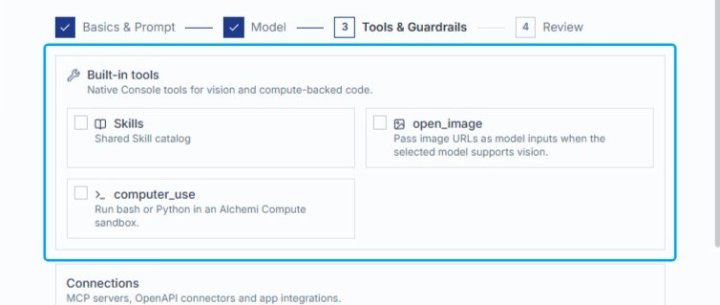
Select Built-in tools in the Tools & Guardrails section
Click the Built-in tools option on the Tools & Guardrails configuration page. This enables access to native console tools for vision and compute-backed code, including Skills catalog and image processing capabilities. The selection will activate these tools for your model configuration.
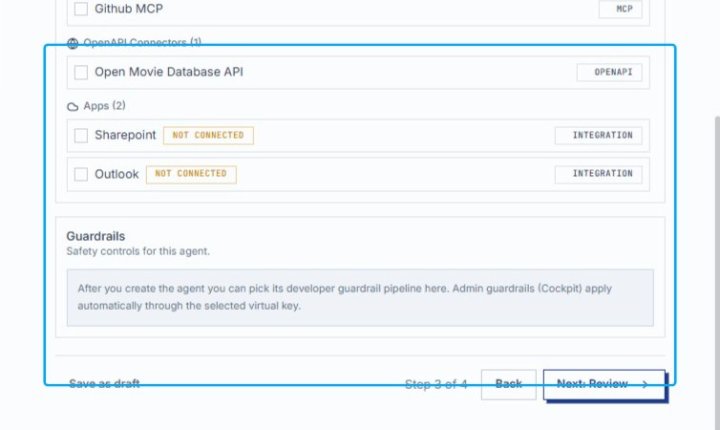
Click Next: Review to proceed to review
Click the Next: Review button at the bottom-right of the agent configuration page. This advances you to the final review step where you can verify all settings before creating the agent. The button is located after the Guardrails section and connection settings.
Click Create agent to finalize setup
Click the Create agent button at the bottom-right of the configuration wizard. This completes the agent creation process and saves your settings. You are currently on Step 4 of 4 in the setup flow.