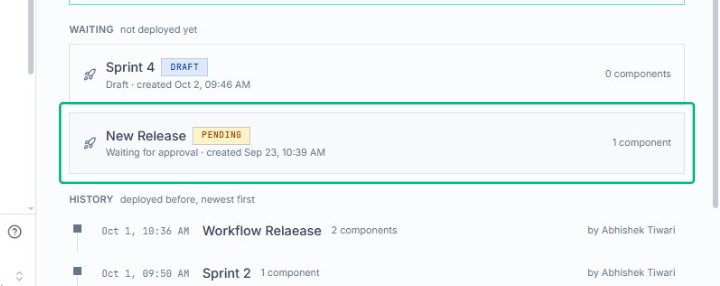
Create a New Release
Create a New Release
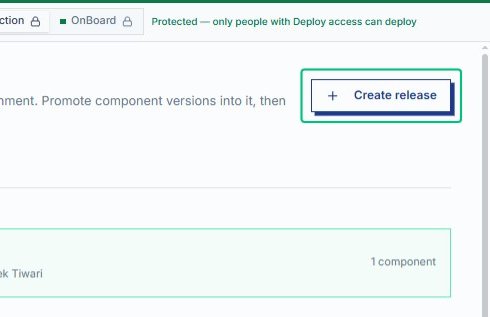
Open the Create release dialog
From the Releases page, launch the form to configure a new release. A release is a change set for an environment that you can promote and deploy as one unit.
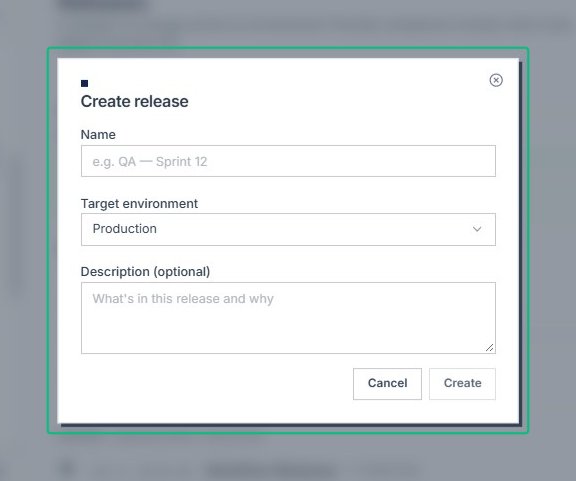
Review the Create release dialog
With the dialog open, you can now enter a name, choose a target environment, and optionally add a description for the new release.
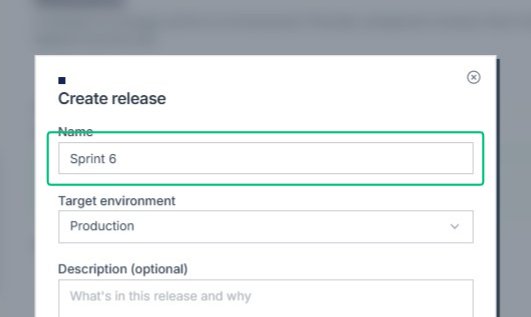
Focus the Name field
Click inside the Name field to begin entering a descriptive identifier for your release, such as a sprint number or version label.
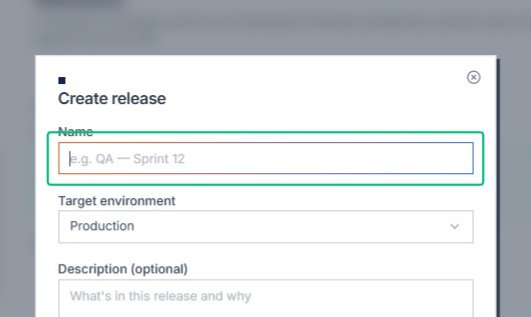
Enter your release name
Type a name that identifies this release. This name will appear throughout the system for tracking and reference. Input: [input captured]
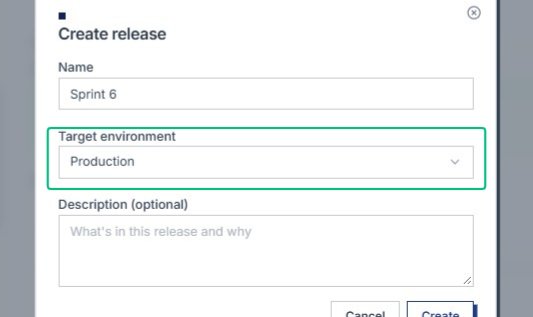
Expand the Target environment dropdown
With the Create release dialog open, open the Target environment menu to choose where Sprint 6 will be deployed.
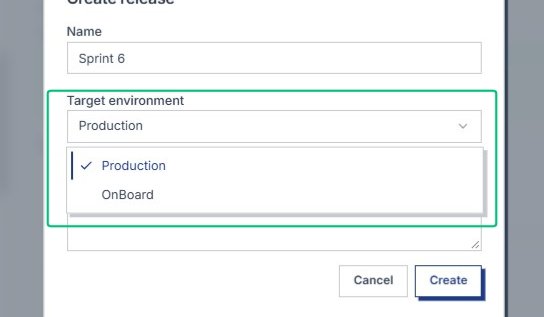
Choose Production from the dropdown. This sets the deployment destination for the Sprint 6 release. Input: [input captured]
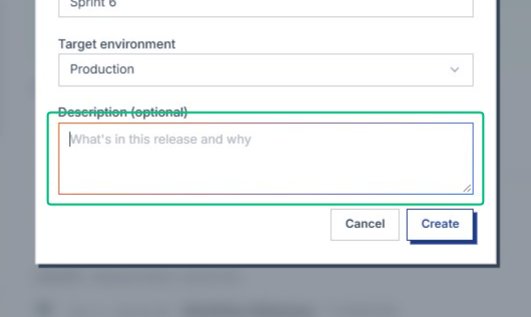
Focus the Description field
Click inside the optional Description text area to document what changes are included in Sprint 6 and why this release matters.
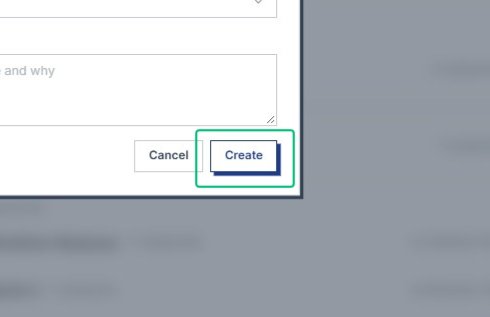
Create the release
Click the Create button at the bottom-right of the dialog. The release is saved and the dialog closes, returning you to the Releases page where Sprint 6 now appears.
Open the New Release details
On the Releases page, select the New Release item with Pending status from the Waiting section. This opens the release details, where you can review or approve the release created on Sep.