Viewing Console Usages
Viewing Console Usages
Start from the AlchemiStudio Console and open the Usage page from the left sidebar. This is where you monitor API consumption, token counts, and cost metrics for your environment.
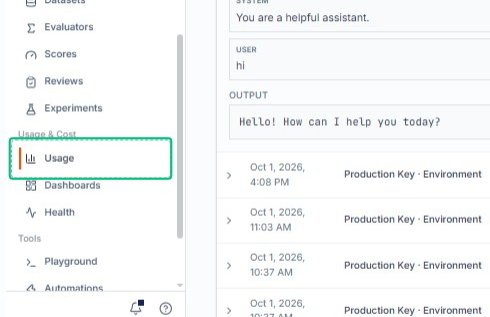
Review the Console Usage Analytics section
On the Usage page, locate the Console Usage Analytics section. This area displays cost, quota, latency, and traffic data for visible Console keys, along with filtering and export options.
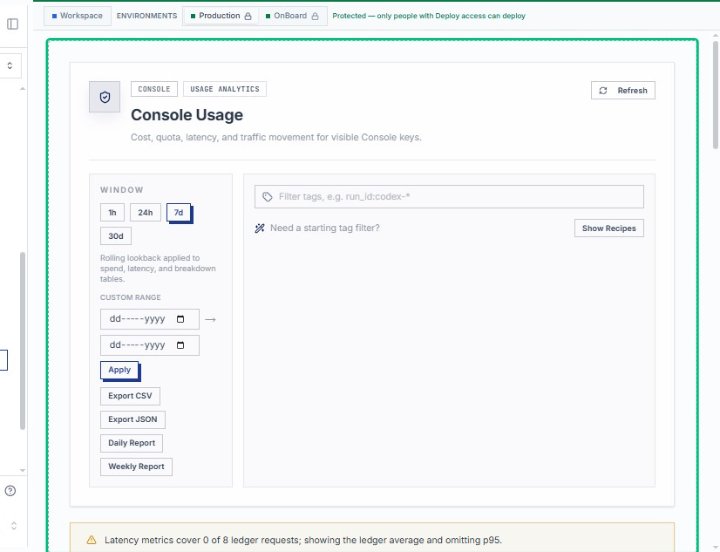
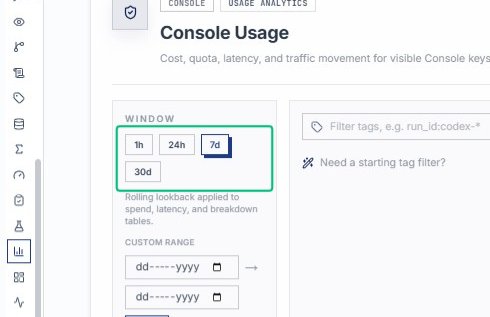
Locate the Window time range controls
Find the Window panel on the left side of the Console Usage page. It offers preset time ranges and a custom date picker to scope your usage data.
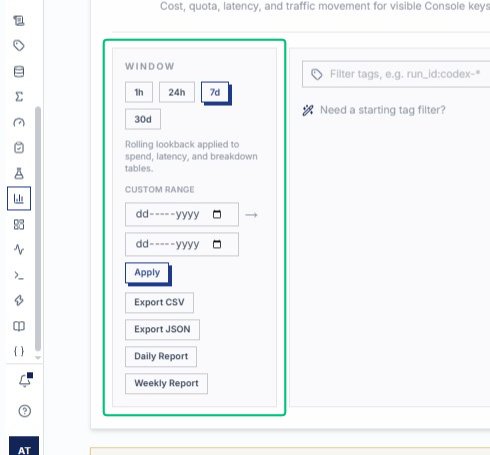
Select 7d from the Window options
Choose the 7d button to set the rolling lookback to the past seven days. Spend, latency, and breakdown tables will update to reflect this period.
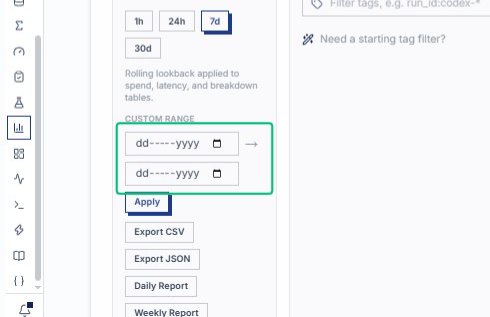
Apply the custom date range
After entering your start and end dates, click the arrow button to filter the usage data. The page refreshes to display metrics for the selected time period.
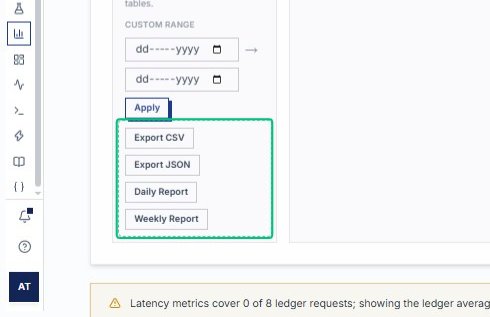
Review the export and report options
The panel shows Export CSV, Export JSON, Daily Report, and Weekly Report options. These allow you to download usage data or schedule automated reports for the selected time window.
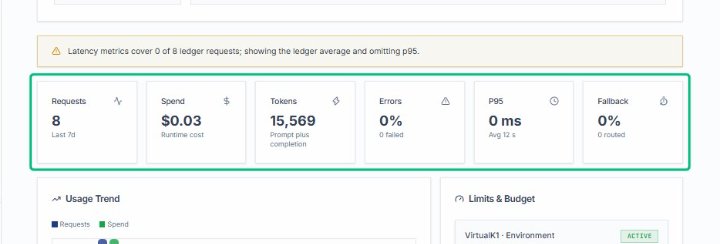
Review the Requests summary card
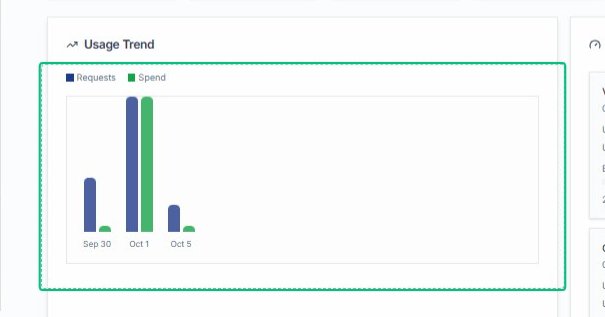
This card shows 8 requests in the last 7 days with a runtime cost of $0.03. Below it, the Usage Trend chart visualizes request volume and spend over time.
Review the Usage Trend chart
The chart displays Requests and Spend metrics from September 30 to October 5, helping you identify usage spikes and spending patterns across the selected time range.
Review the Limits & Budget panel
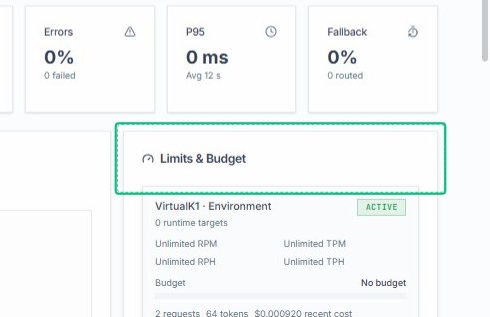
On the right side of the dashboard, the Limits & Budget section displays runtime targets, RPM and TPH limits, and budget information for each environment.
Review the VirtualK1 Environment card
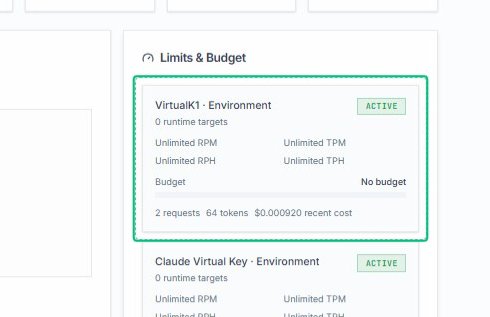
Within the Limits & Budget panel, the VirtualK1 Environment card shows 0 runtime targets, unlimited RPM and TPH, and no budget set. The environment is marked as ACTIVE with 2 requests and.
Review the Claude Virtual Key Environment card
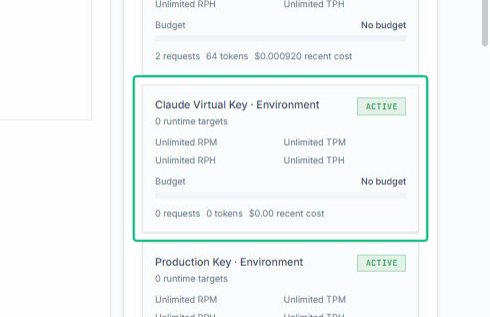
The Claude Virtual Key Environment card displays 0 runtime targets, unlimited RPM and TPH, and no budget. It shows 0 requests, 0 tokens, and $0.00 recent cost.
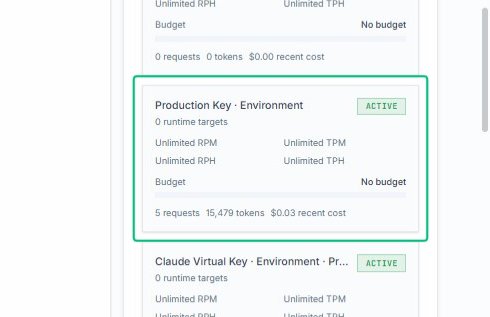
Review the Production Key Environment card
The Production Key Environment card shows 0 runtime targets, unlimited RPM and TPH, and no budget. It has recorded 5 requests, 15,479 tokens, and $0.03 recent cost.
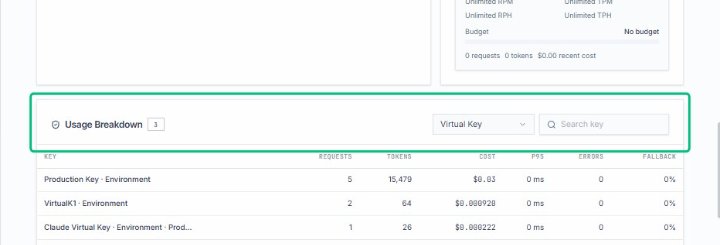
Expand the Usage Breakdown section
With the Virtual Key dialog open, locate the Usage Breakdown section showing 3 virtual keys. This section displays request counts, token usage, cost, and performance metrics for each key in the production.
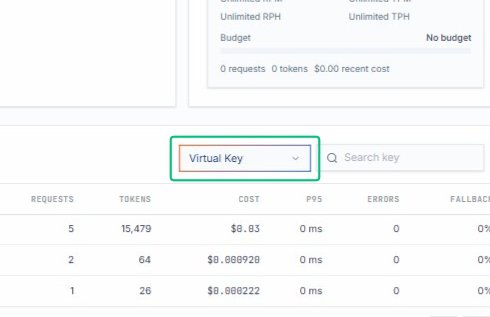
From the Usage Breakdown section, expand the Virtual Key dropdown to filter the table by different key types. The menu offers options like Model, Provider, Session, Tool, Guardrail, and Workflow.
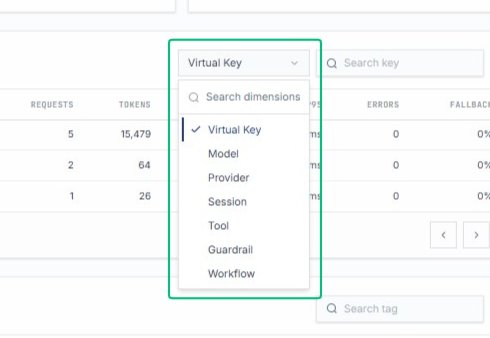
With the filter menu open, choose Virtual Key to display usage data for virtual keys only. The table below updates to show requests, tokens, cost, and performance metrics for the selected dimension.
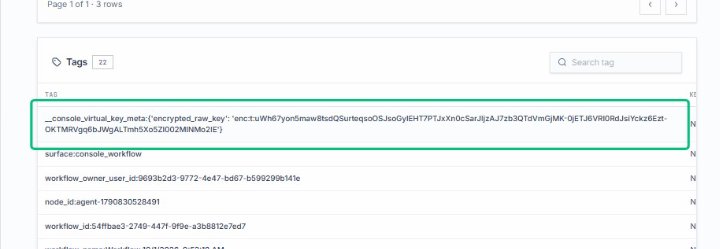
Expand the Tags section
Scroll to the Tags section showing 22 tags. This panel displays metadata about API keys, workflows, and trace information used for debugging and monitoring.
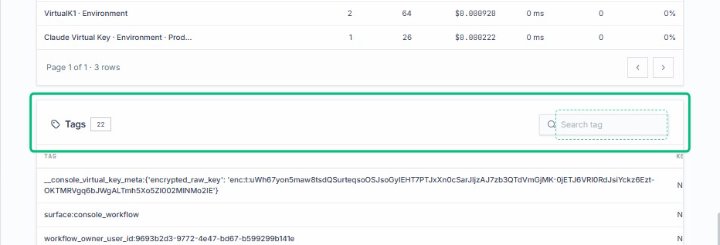
Review the TAG column in the tags table
With the Tags section expanded, locate the TAG column header. The table lists all tags associated with the selected usage data, including console metadata, workflow identifiers, and trace IDs.
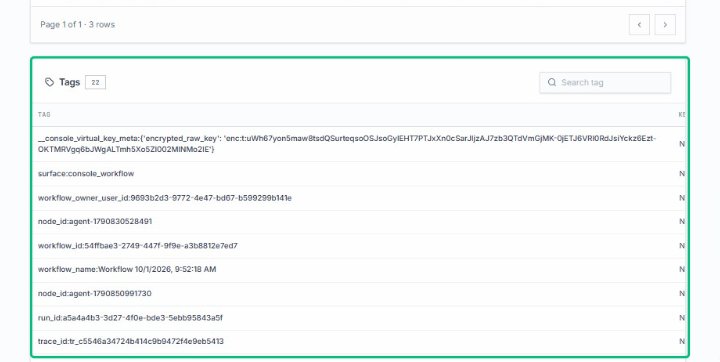
Select the console virtual key meta tag
With the Virtual Key dialog open and the Tags section visible, click the first tag row to view its usage details. This tag contains encrypted metadata associated with the virtual key.