Creating Prompt Template
Creating Prompt Template
Open the New prompt dialog
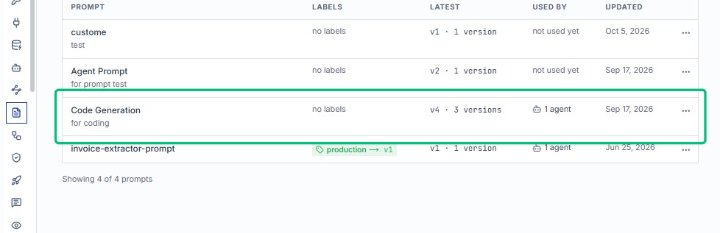
From the Prompts page in the AlchemiStudio Console, launch the creation form where you will name your prompt, choose its type, and select a starting template.
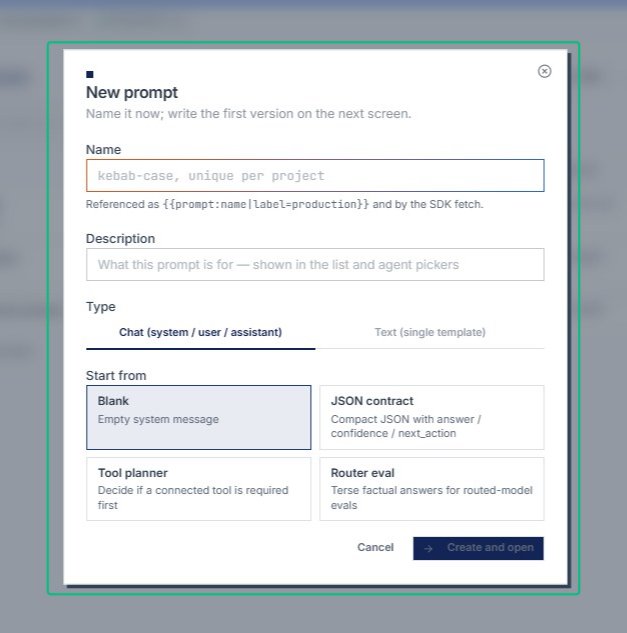
Focus the Name field
With the New prompt dialog open, click into the Name field to begin entering a unique identifier for your prompt in kebab-case format.
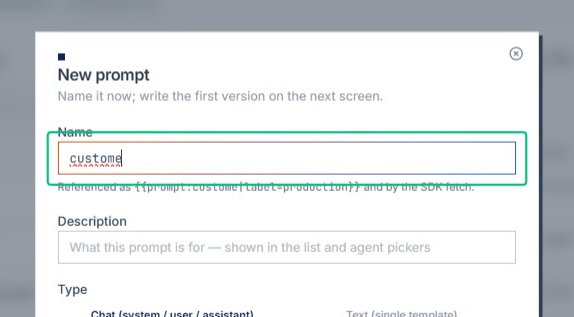
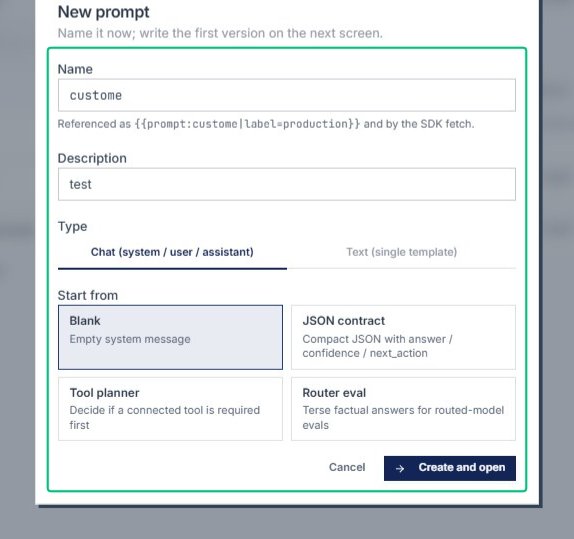
Enter custome in the Name field
Type ‘custome’ into the Name input field at the top of the New prompt modal. This names your prompt for reference in the system and SDK. The name will be used to identify this prompt in lists and agent pickers. Input: [input captured]
Enter a description in the Description field
Type a brief description in the Description field of the New prompt modal. This helps document the purpose of your prompt for future reference. The description is optional but recommended for clarity when managing multiple prompts. Input: [input captured]
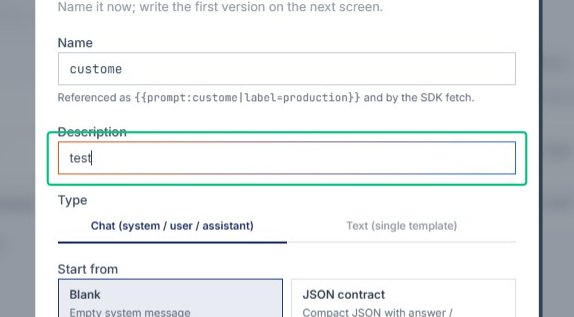
Select Chat (system / user / assistant) as the prompt type
Click the Chat (system / user / assistant) tab in the Type section of the New prompt modal. This sets up a conversational prompt format that supports system instructions, user messages, and assistant responses. This type is ideal for building interactive chat-based AI applications.
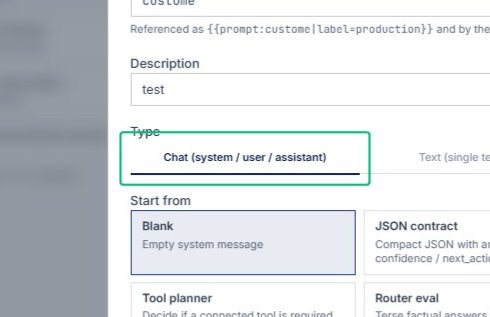
Select Blank from the Start from options
Click the Blank option in the Start from section of the New prompt dialog. This initializes your prompt with an empty system message, giving you a clean slate to build from. The Blank option is the default starting point for custom prompt creation.
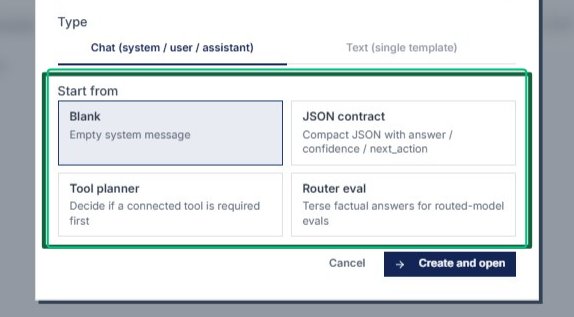
Select Text (single template) as the prompt type
Click the Text (single template) tab in the Type section of the New prompt modal. This sets the prompt format to a single-template text structure, which is ideal for straightforward text generation tasks. The selection determines how the prompt will be structured and executed.
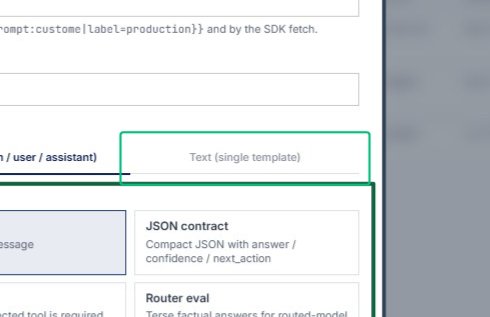
Select Blank from the Start from options
Click the Blank option in the Start from section of the New prompt dialog. This initializes your prompt with an empty system message, giving you a clean slate to build from. The Blank option is the default starting point for custom prompt creation.
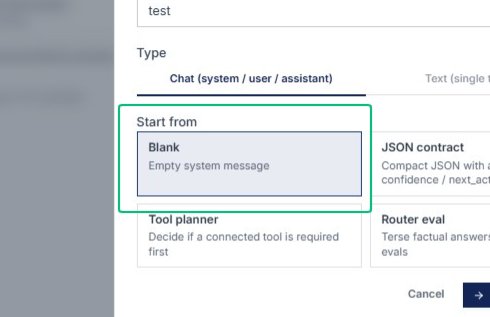
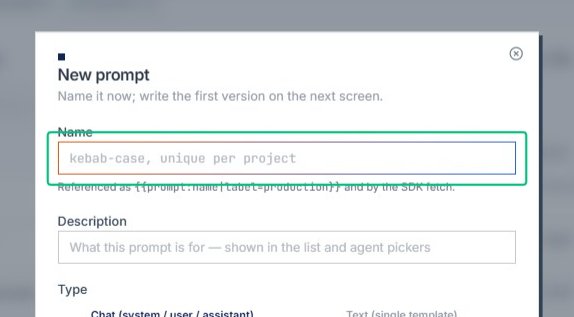
Click the Name field in the New prompt modal
Click inside the Name input field at the top of the New prompt dialog. This field allows you to define a unique identifier for your prompt, which will be referenced in your code and SDK calls. The name you enter will be used in the format {{prompt:yourname|label=production}}.
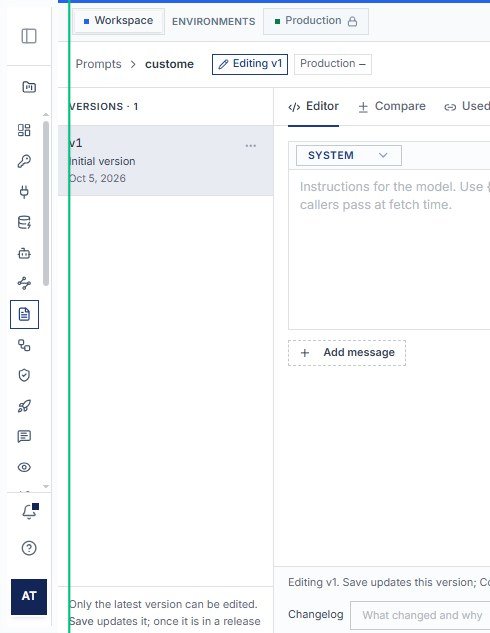
Click the AT icon located at the bottom of the left sidebar. This opens the AI/automation tools section where you can manage prompts, versions, and integrations. The icon is highlighted with a dark blue background indicating it’s the currently active section.
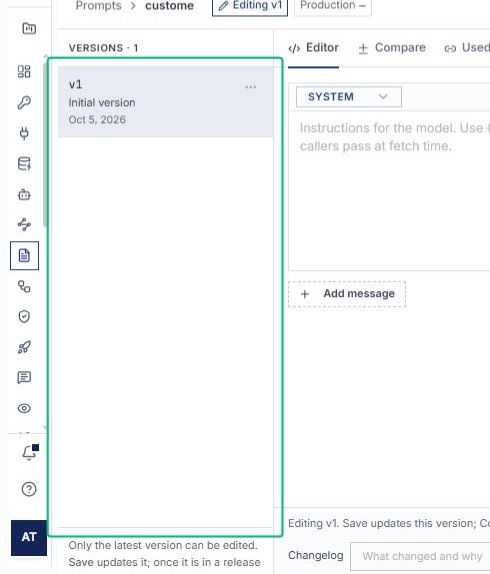
Select v1 from the Versions list
Click on the v1 version entry in the left sidebar under the Versions section. This loads the initial version of the prompt created on Oct 5, 2026 into the Editor. The version details and configuration will appear in the main editing area.
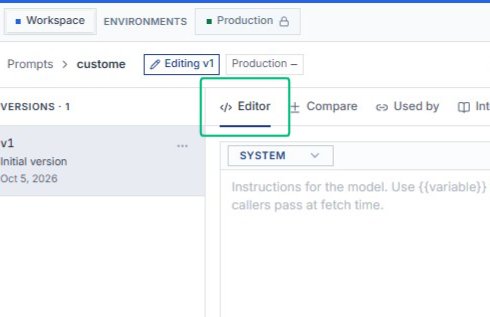
Click Editor tab in the prompt editing interface
Select the Editor tab located in the main navigation bar of the prompt editing screen. This displays the prompt configuration interface where you can edit system messages, variables, and response formats. The Editor view is the primary workspace for modifying prompt versions.
Click Add message to create a new prompt message
Click the Add message button below the SYSTEM message field in the Editor. This allows you to add additional messages to the prompt configuration, building out the conversation flow. New messages can be system, user, or assistant type depending on your prompt design needs.
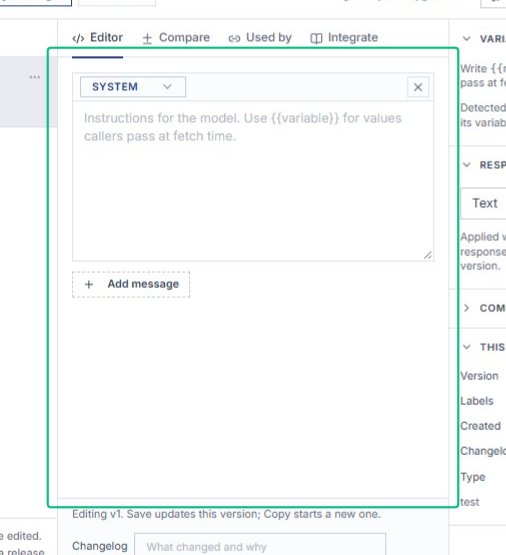
Click the SYSTEM dropdown in the Editor
Select the SYSTEM dropdown at the top of the message editor panel. This allows you to configure system-level instructions for the AI model. System messages define how the model should behave and interpret variables passed at runtime.
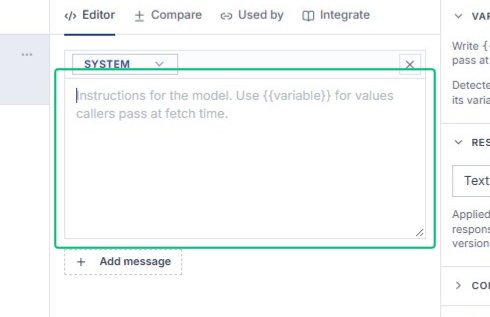
Type hello in the SYSTEM message field
Enter the text ‘hello’ into the SYSTEM message input field in the Editor. This defines the system-level instruction or context for the prompt. The content will be saved with the current version when you update or publish. Input: [input captured]
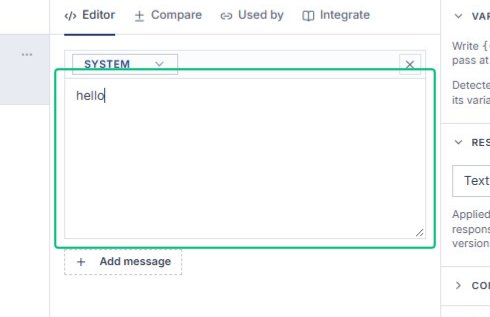
Enter hello in the SYSTEM message field
Type ‘hello’ into the SYSTEM message text area in the Editor tab. This defines the system-level instruction that will be sent with each prompt. The content is saved automatically with the version. Input: [input captured]
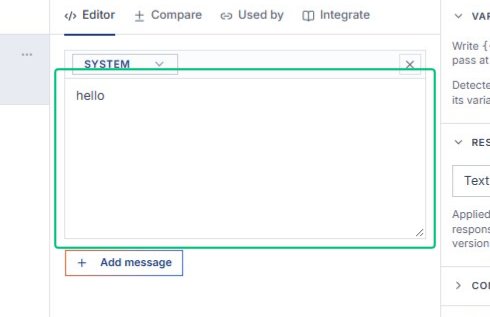
Scroll down the Editor page
Scroll vertically within the Editor interface to view additional message configurations or content below the current viewport. This allows you to access and edit message examples that may be positioned further down the page.
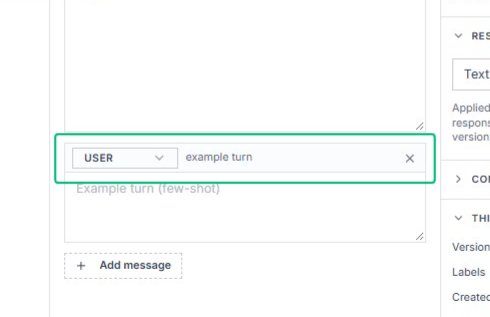
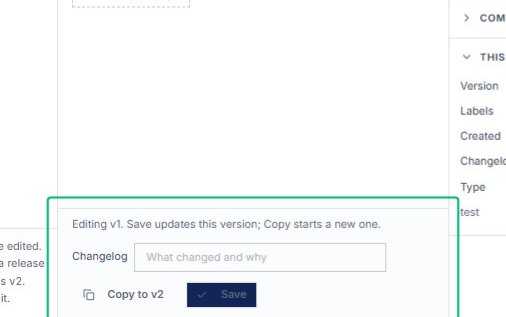
Click Save to update version v1
Press the Save button at the bottom-right of the Editor panel. This commits your changes to the current version (v1) of the chat message prompt. The green ‘Saved v1’ indicator will confirm the update was successful.
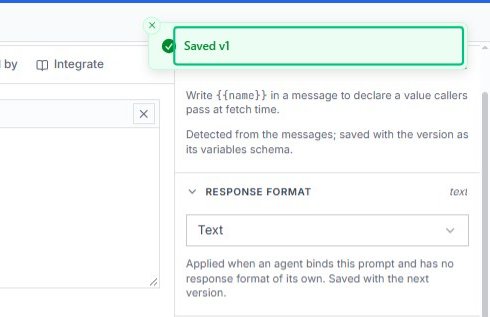
Click Saved v1 confirmation banner
Click the green Saved v1 banner at the top of the Editor page. This banner confirms that your changes to version 1 have been successfully saved. The banner appears temporarily after saving edits to the prompt configuration.
Scroll through the Active prompts list
Scroll down the Prompts page to view additional active prompts in the table. This allows you to browse all available prompts in your workspace. The page currently shows 4 of 4 active prompts including custome, Agent Prompt, Code Generation, and invoice-extractor-prompt.