Viewing Request Logs
Viewing Request Logs
Start from the AlchemiStudio Console and open the Logs page from the Observability section in the left sidebar. This displays a flat ledger of all API requests with status, cost, latency, and.
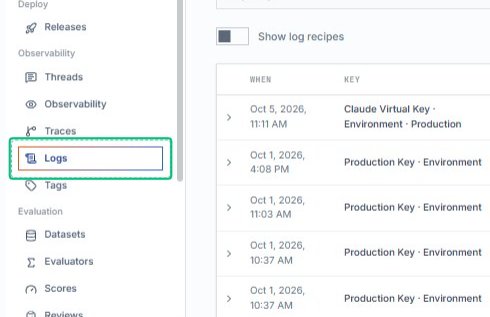
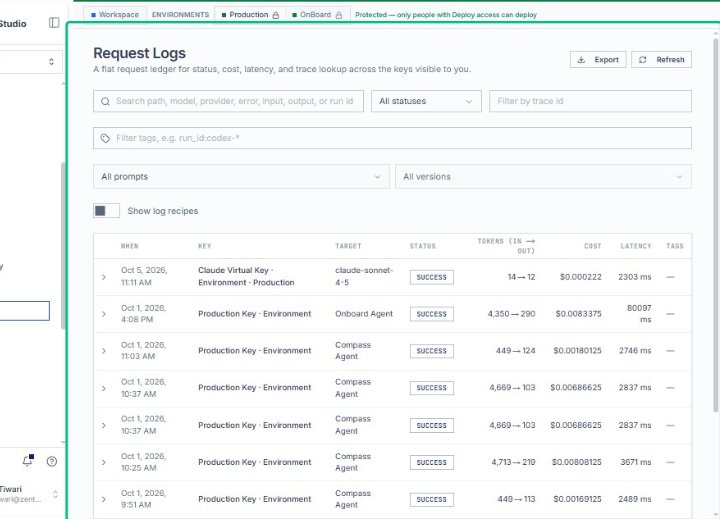
Review the Request Logs ledger
The Request Logs page shows a table of all API activity, including timestamps, keys, targets, status, token usage, cost, and latency. Use the filters and search tools above the table to narrow.
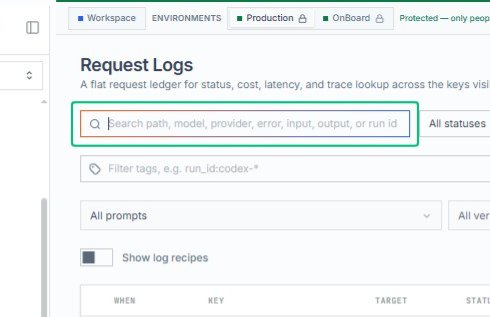
Focus the search field
Click into the search field to filter logs by path, model, provider, error, or input. Start typing to narrow the visible entries based on your criteria.
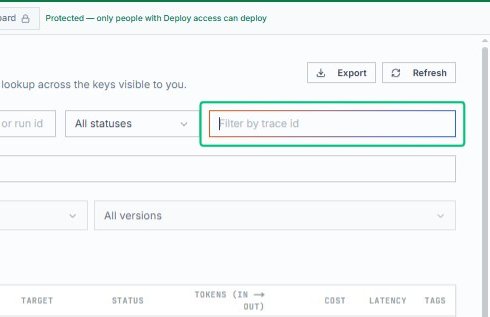
Focus the Filter by trace id field
With that in place, click into the trace ID filter to search for logs associated with a specific trace identifier. This helps you quickly locate requests tied to a particular execution.
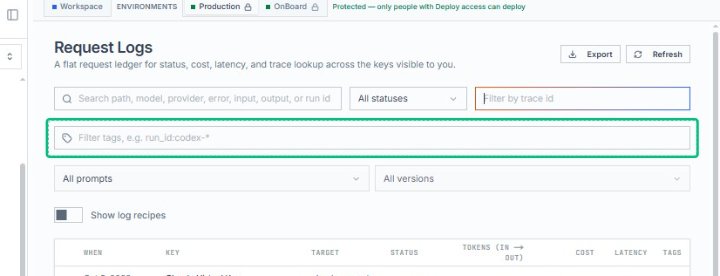
Focus the Filter tags field
After filtering by trace ID, move to the tag filter field to narrow results by custom tags such as run IDs or model names. This field accepts wildcard patterns like run_id:codex-* for.
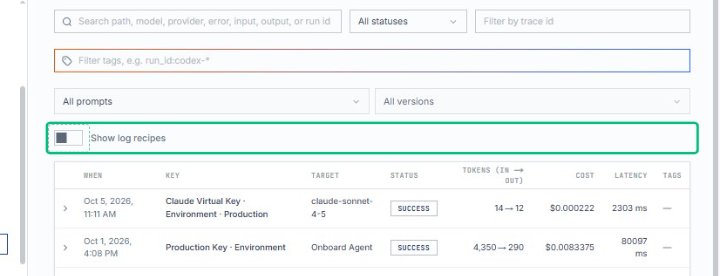
Enable Show log recipes
Toggle the Show log recipes checkbox above the table to reveal the underlying recipe configurations for each request. This helps you understand how requests are routed and processed.
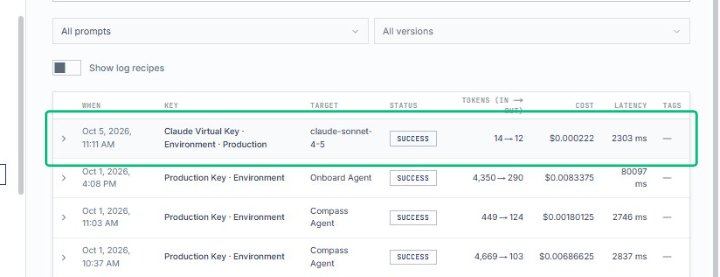
Select the first log entry
With recipes visible, click the top row in the Request Logs table to expand its details. The expanded view displays the full trace, including input messages, output responses, and execution metadata.
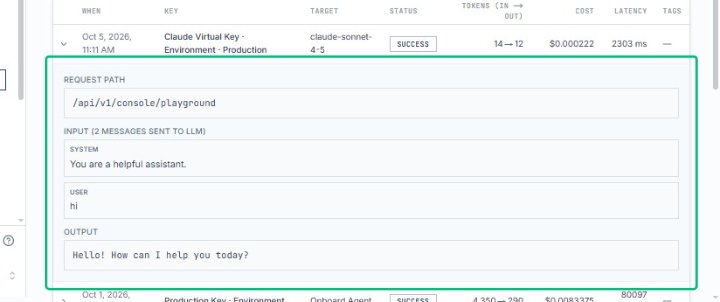
Review the REQUEST PATH section
The expanded log entry now shows the request path /api/v1/console/playground, along with input messages, user interactions, and output. Use this detail view to debug and analyze the specific API call.