Create and Configure a Dataset
Create and Configure a Dataset
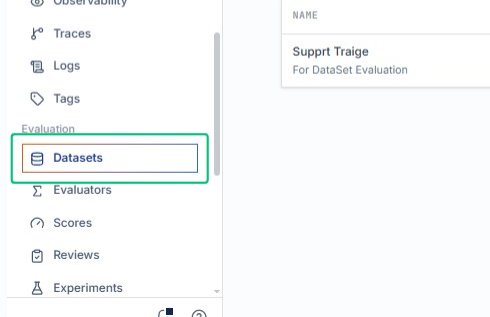
Start from the AlchemiStudio Console and open the Datasets page from the Evaluation section in the left sidebar. This is where you build curated examples, version items, run experiments, and compare results.
Review the Datasets overview
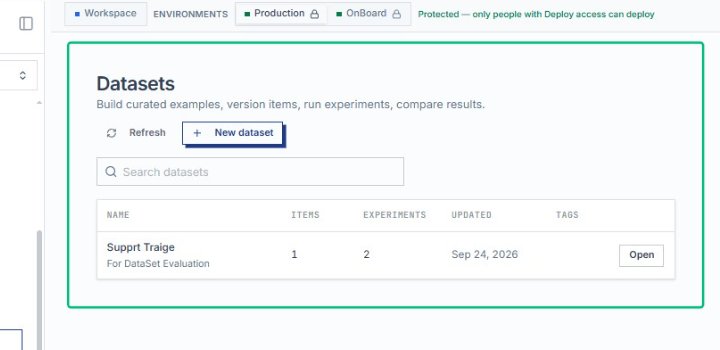
On the Datasets page, you see the main heading and description along with the list of existing datasets. From here you can search, refresh, or create a new dataset.
Sort by the ITEMS column
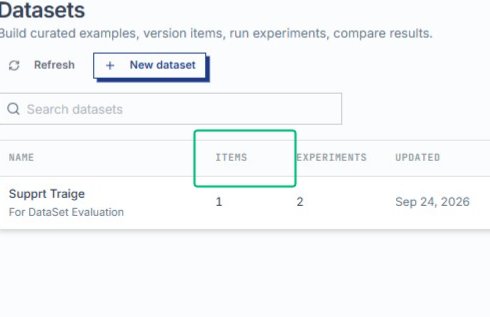
Click the ITEMS column header in the datasets table to sort by the number of items. This helps you quickly identify which datasets contain the most or fewest examples.
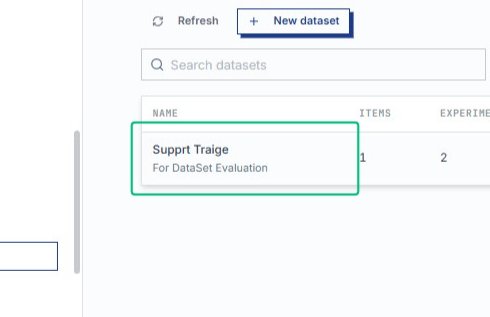
Select the Supprt Traige dataset row
Click anywhere in the Supprt Traige row to highlight it. The dataset contains 1 item and 2 experiments, last updated Sep 24, 2026.
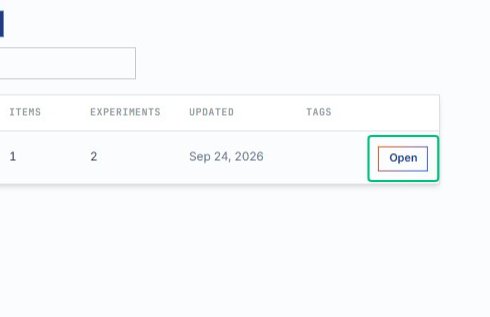
Open the Supprt Traige dataset
On the Datasets page, click the Open link in the row for Supprt Traige. This navigates to the dataset detail view where you can manage items, launch experiments, and review evaluation results.
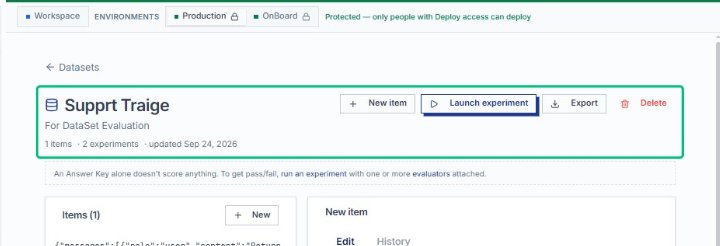
Select the Supprt Traige For DataSet Evaluation 1 item
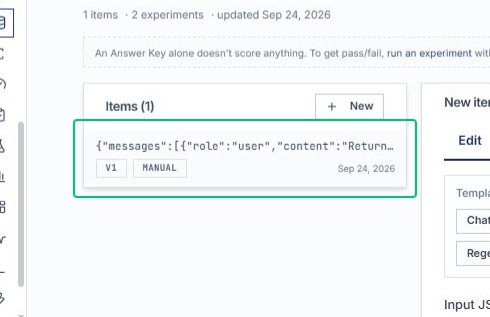
After opening the dataset, choose the first item to view its configuration. The item editor appears on the right, showing the input JSON and answer key rules.
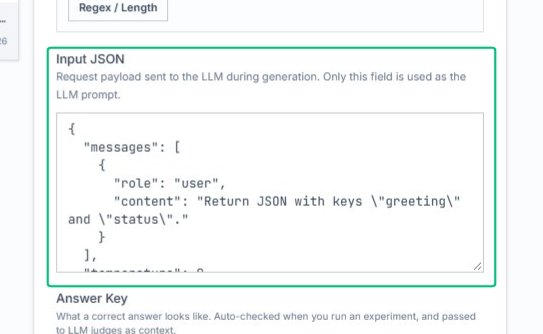
Review the Input JSON field
Click the Input JSON code block to inspect the request payload sent to the LLM during generation. This field defines the messages array and other parameters used in the prompt.
Switch to the Edit tab
From the item detail panel, click the Edit tab to access the full configuration form. This view displays the templates, input JSON, answer key rules, and change notes for the selected item.
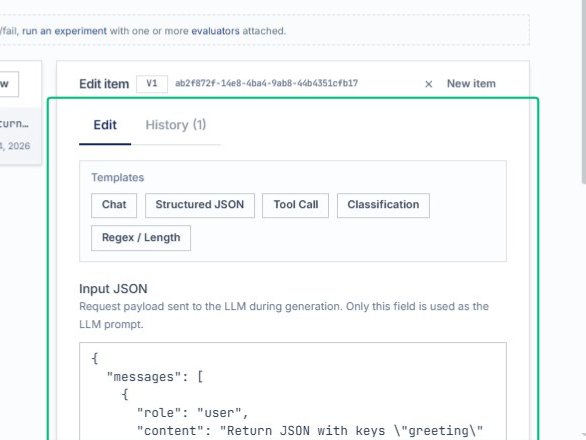
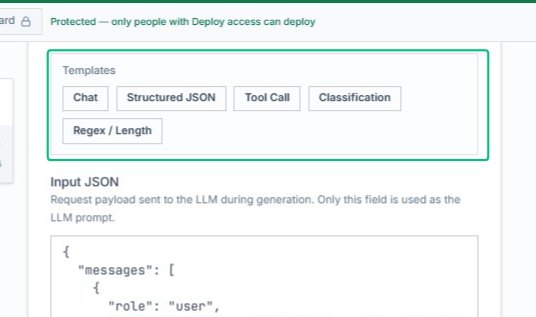
Review the Templates panel
The Templates panel displays available prompt formats including Chat, Structured JSON, Tool Call, and Classification. These templates provide starting points for configuring LLM requests with different response structures.
Review the Input JSON and Answer Key sections
The configuration panel displays the LLM prompt structure and validation rules. These sections define the request payload and expected response format for this dataset item.
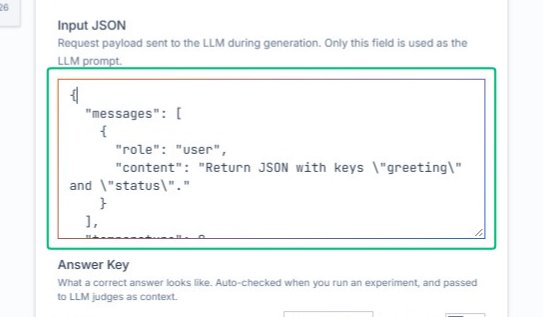
Focus the Input JSON field
Click into the Input JSON textarea to edit the request payload. This field defines the messages array and other parameters sent to the LLM during generation.
Review the Answer Key validation rules
The Answer Key section shows two rules that validate the LLM response. These rules ensure the JSON output contains the required status field and keys.
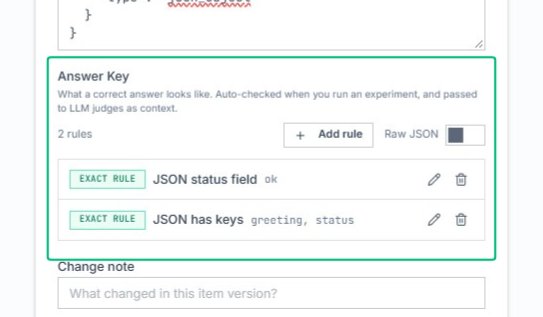
Review the Input JSON configuration
The Input JSON section displays the request payload sent to the LLM. This template defines the structure for prompts and evaluation.
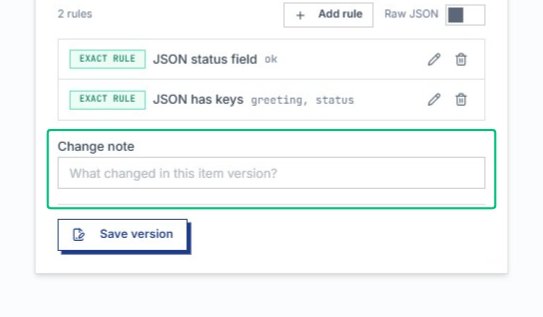
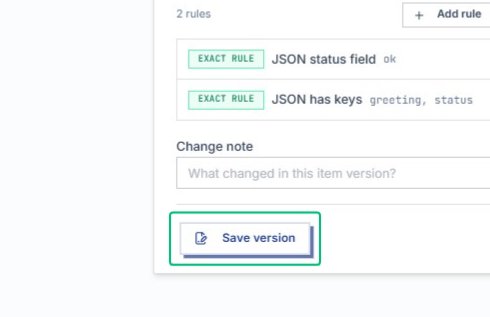
Save version
Once your prompt settings, answer key rules, and change notes are complete, commit the new version. The item is saved and timestamped in the Items list.
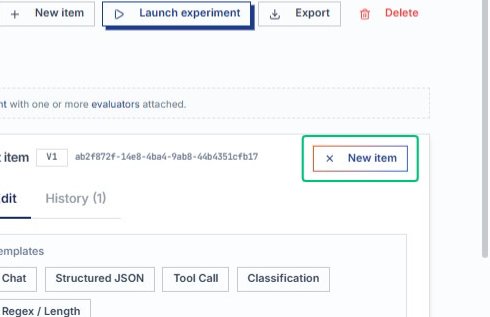
Open the New item dialog
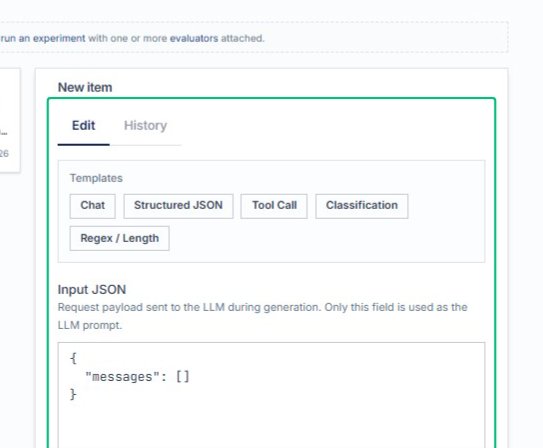
After saving, click New item to add another evaluation entry. The dialog opens with templates and an empty Input JSON.
Configure the new item
With the New item dialog open, select a template and define the Input JSON. Your dataset now contains multiple evaluation items.