Playground Testing for Targets
Playground Testing for Targets
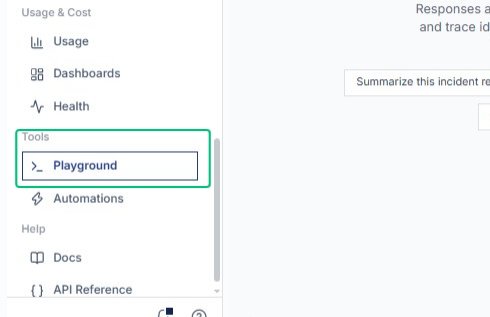
From the left sidebar under Tools, select Playground to open the interactive testing environment where you can send messages to models and review their responses.
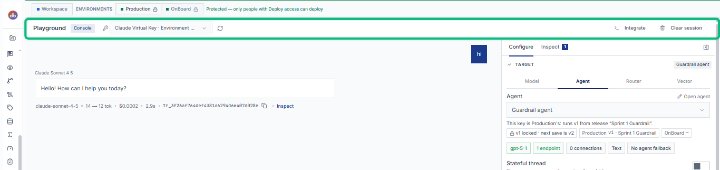
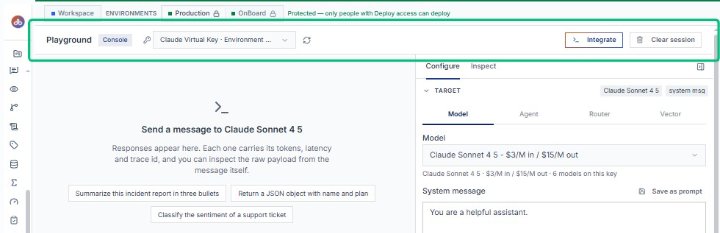
Review the Playground header
The header displays the current page, Console tab, and the active virtual key. This confirms you are in the Playground with the Claude Virtual Key selected for your session.
Switch to the Configure tab
On the right panel, select the Configure tab to view and adjust model settings, system messages, prompts, and generation parameters before sending a message.
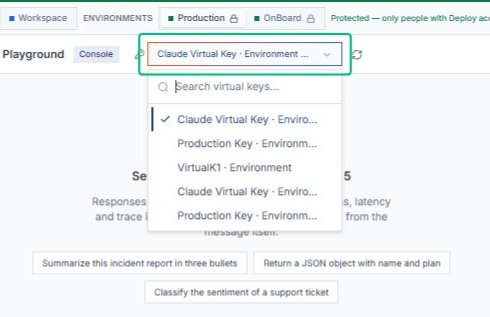
Open the virtual key selector
Click the Claude Virtual Key · Environment dropdown at the top of the Playground to view and switch between available API keys and environment configurations.
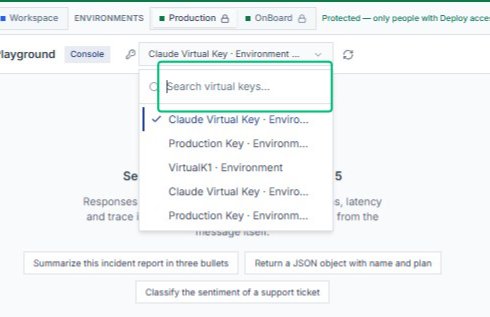
Open the virtual key search field
With the environment dropdown open, click the search field to filter available virtual keys. This helps you quickly locate the key you want to use for testing.
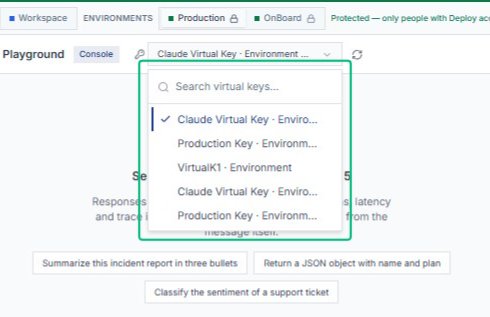
Close the virtual key selector
Click outside the dropdown to dismiss the virtual key selector and return to the Playground. The Claude Virtual Key remains selected for your session.
Return to the Playground Console
Click the Playground Console header to close any open overlays and return focus to the main testing interface, where you can compose and send messages.
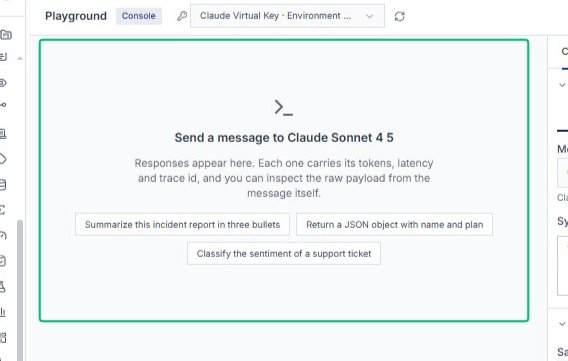
Scroll to view the message input
Scroll down the page to bring the message input field into view. This field is where you compose prompts to send to the Claude model.
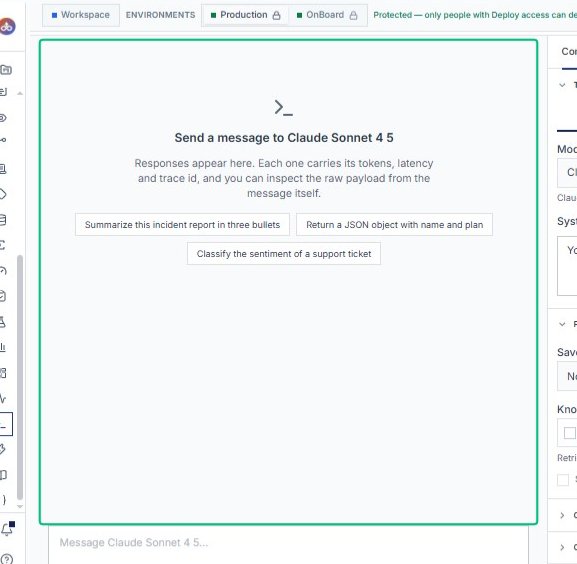
Focus the message input field
Click into the message field at the bottom of the playground to begin composing your test message to Claude Sonnet 4.5.
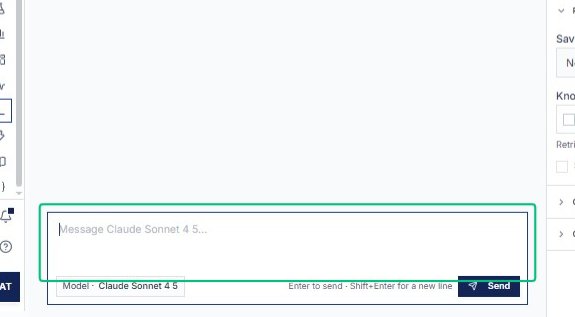
Enter your message
Type your message in the input field. This is the prompt that will be sent to the Claude model for testing. Input: [input captured]
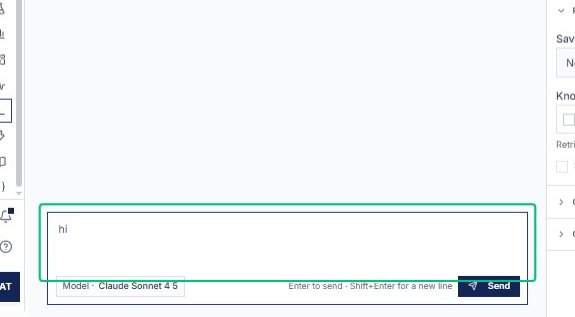
Send the message
Press Enter or click the Send button to submit your message. The model begins processing your request and the conversation thread updates above.
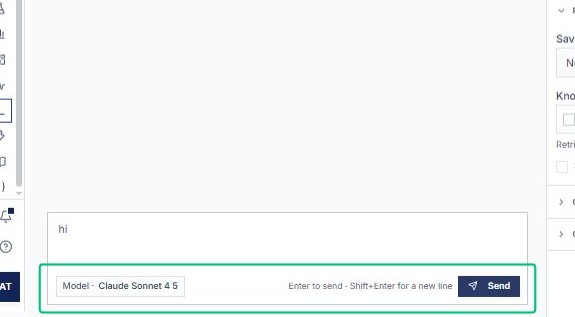
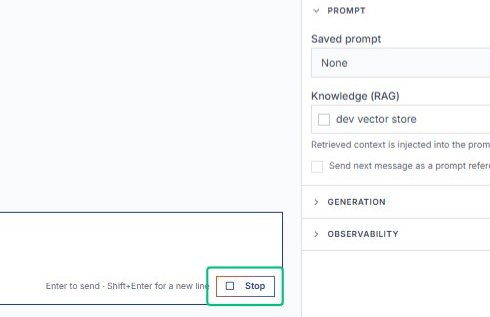
Stop the response
Click the Stop button to halt the model’s response generation. Use this to interrupt a response that is taking too long or is no longer needed.
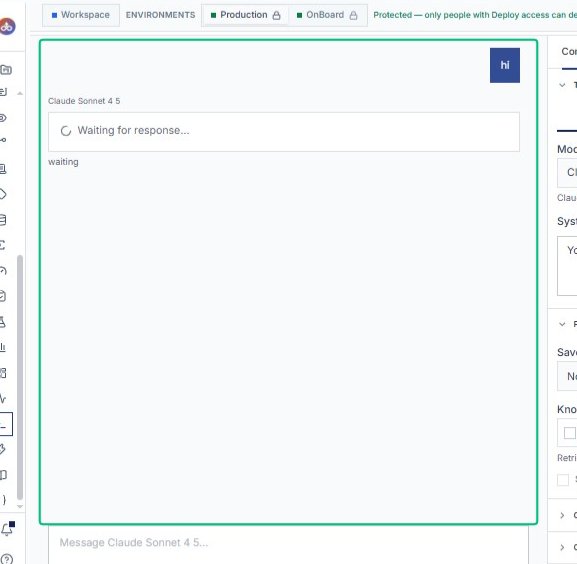
Review the conversation thread
The chat area displays your message and the model’s response status. After stopping the response, you can review the conversation history before proceeding.
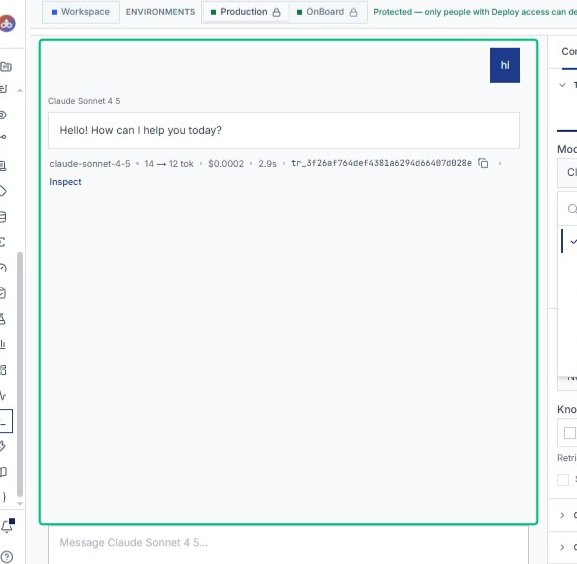
Scroll to view the model selector
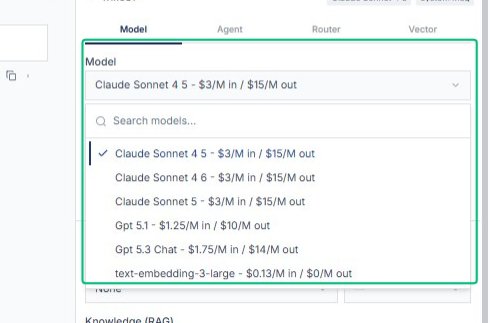
Scroll the page to bring the Model dropdown into view. The Configure panel on the right shows the current model and allows you to switch between available AI models.
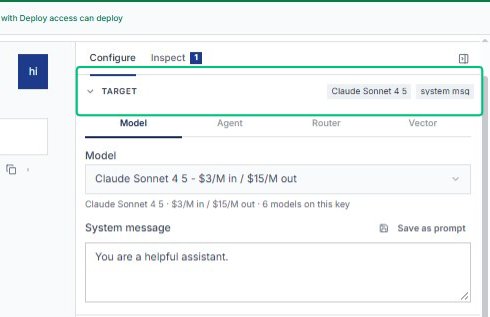
Expand the Target section
Click the Target section header in the Configure panel to reveal model and system message settings. This section controls which Claude model processes your requests.
Collapse the Target section
With the Search virtual keys dialog open, click the Target header again to collapse the section. This toggles the visibility of model configuration options while keeping your current settings.
Review the configuration panel
With the virtual key selected, the right panel displays model and system message settings. This panel controls which Claude model version is used and allows customization of the system prompt.
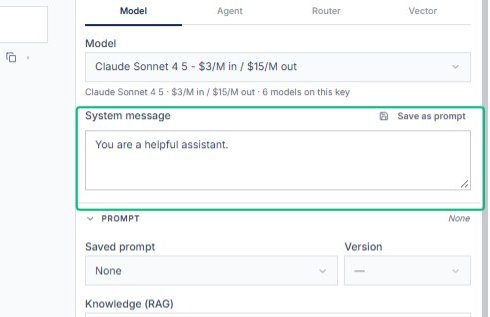
Review the system message field
The configuration panel shows the system message that guides the model’s behavior. You can edit this message or save it as a reusable prompt for future conversations.
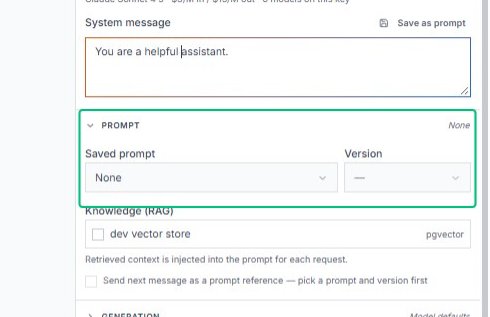
Review the prompt settings section
Below the system message, the panel displays saved prompt and knowledge options. These settings let you attach reusable prompts and retrieval-augmented generation sources to your requests.
Switch to the Agent tab
From the configuration panel, switch to the Agent tab to view agent-specific settings. This tab displays the Guardrail agent configuration instead of the direct model settings.
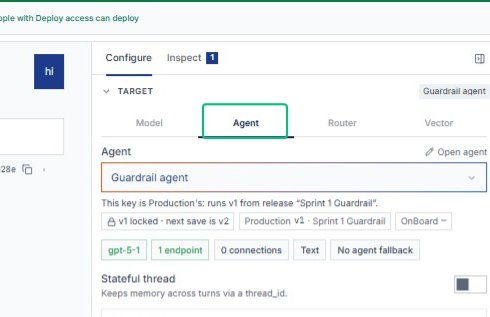
Select Guardrail agent from the Agent dropdown
With the Configure panel open, choose Guardrail agent from the Agent dropdown under the Target section. This sets the agent that will process requests sent through this virtual key.
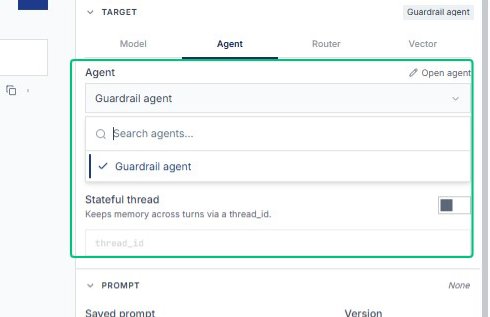
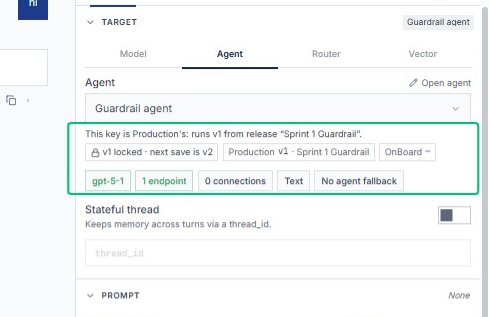
Review the Guardrail agent details
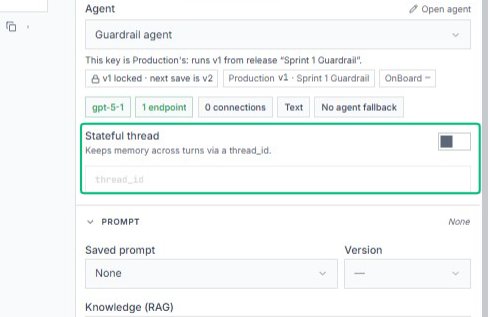
The panel now displays details about the selected Guardrail agent, including its environment, version, and connection status. These details confirm which agent configuration is active for testing.
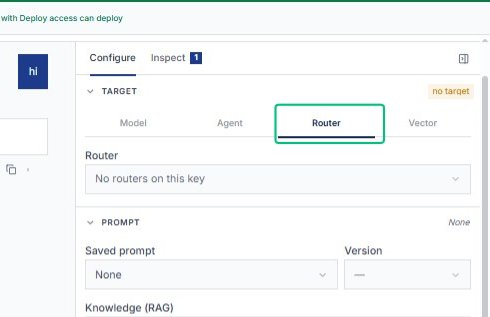
Switch to the Router tab
Select the Router tab at the top of the Target section. This displays routing configuration for the virtual key, showing which routers are assigned to handle requests.
Switch to the Router tab in the Configure panel
With the Search virtual keys dialog open, select the Router tab at the top of the Target section. The panel updates to show router settings, indicating that no routers are currently configured.
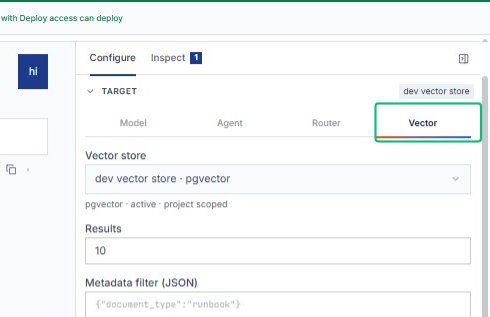
Switch to the Vector tab
Select the Vector tab at the top of the Target section. This displays vector store configuration, including the active store, result count, and metadata filters used for retrieval-augmented generation.