Create New Project in Console
Create New Project in Console
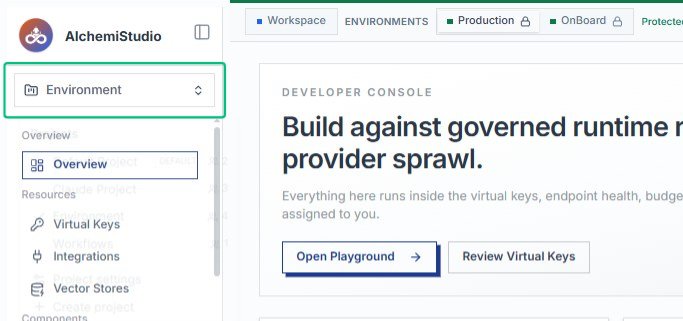
Start from the Console page and open the project switcher to access the list of existing projects and the option to create a new one.
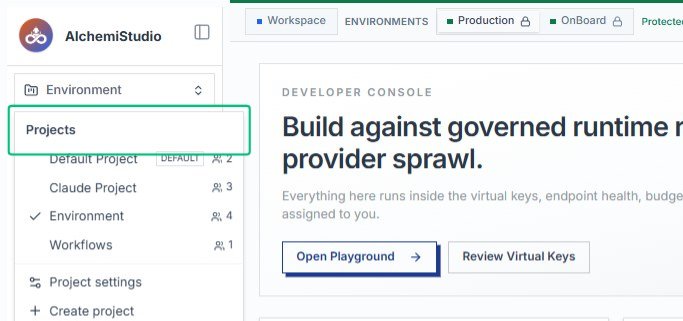
Select Projects
With the menu open, choose Projects to view all available projects and creation options.
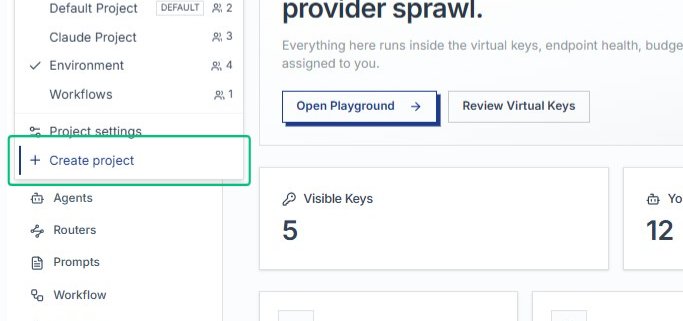
Select Create project
From the Projects menu, choose Create project to launch the project creation dialog.
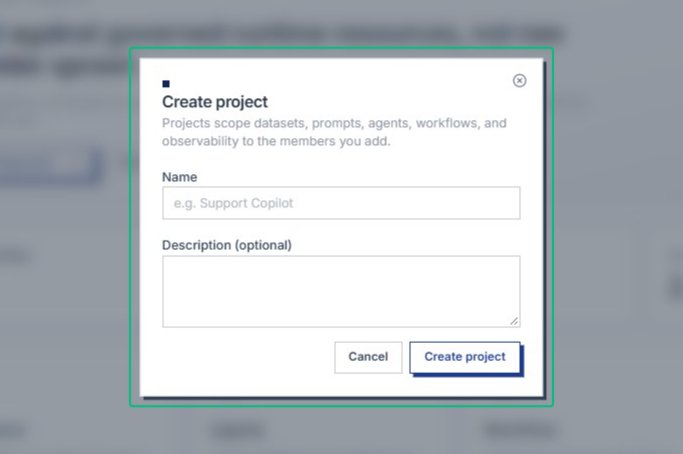
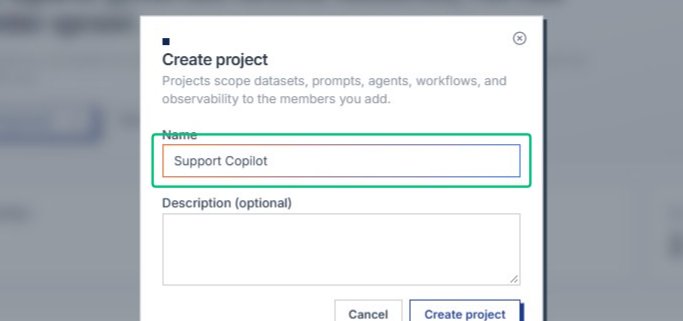
Review the Create project dialog
The dialog opens where you will provide a name and optional description for your new project, which scopes datasets, prompts, agents, workflows, and observability to the members you add.
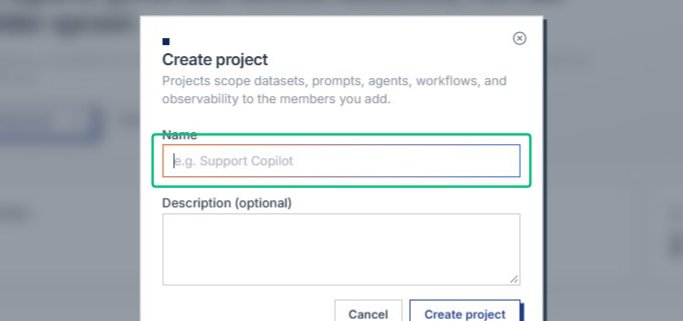
Focus the Name field
With the Create project dialog open, place your cursor in the Name field to begin entering a project name.
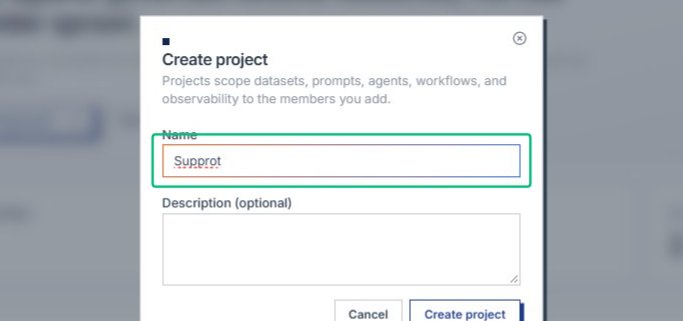
Enter your project name
Type a name that identifies the purpose of this project for your team. Input: [input captured]
Continue entering your project name
Finish typing the full name you want to use for this project. Input: [input captured]
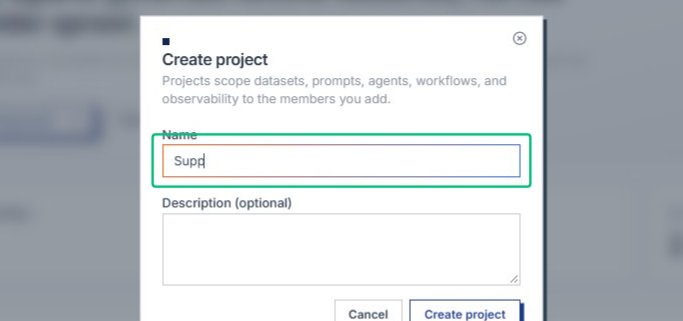
Complete the project name
Once the name is entered, you can move on to add an optional description. Input: [input captured]
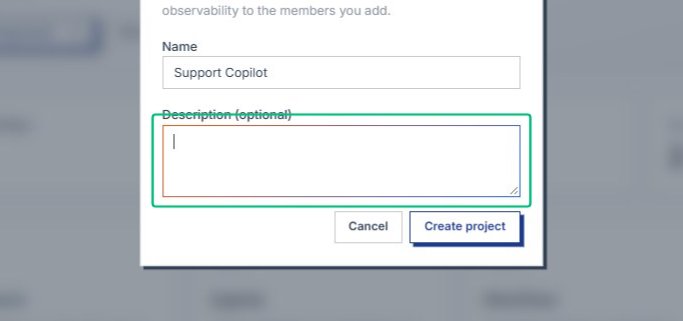
Focus the Description field
With the project name entered, place your cursor in the optional Description field to add context about this project.
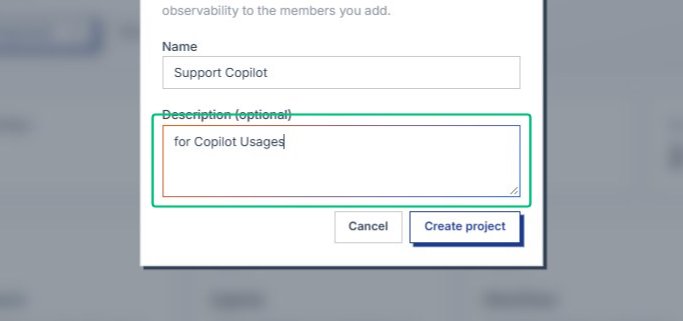
Enter a project description
Type a brief description that helps your team understand what this project is for. This field is optional but recommended for clarity. Input: [input captured]
Review the form
With the name and description filled in, the form is ready to submit. You can cancel to discard changes or proceed to create the project.
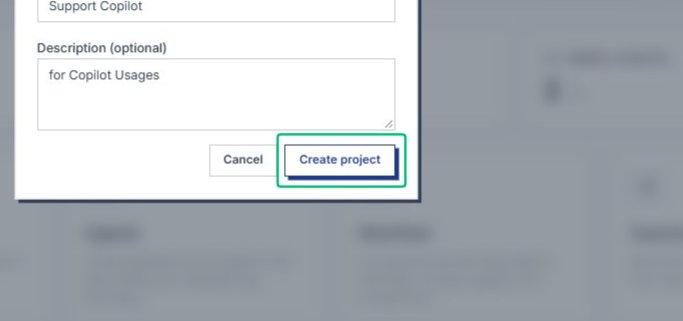
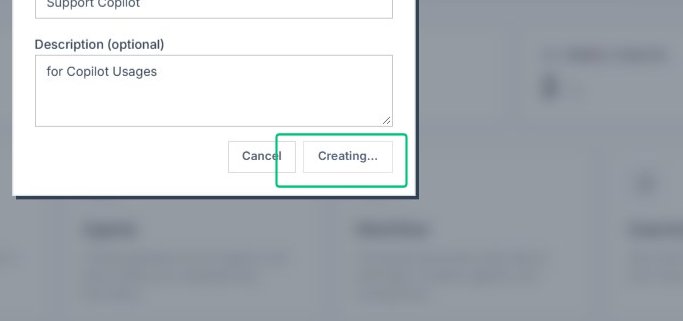
Create the project
Submitting the form creates the project and opens its settings page, where you can manage members, keys, integrations, and environments.
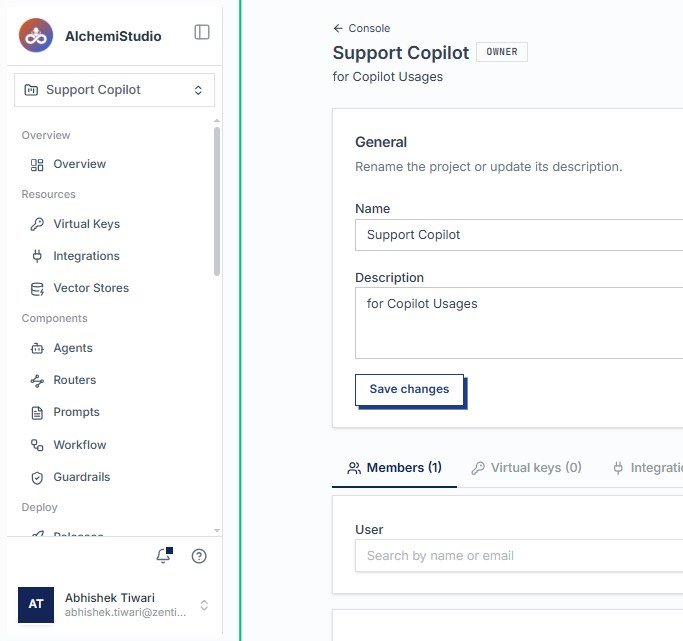
Review the project page
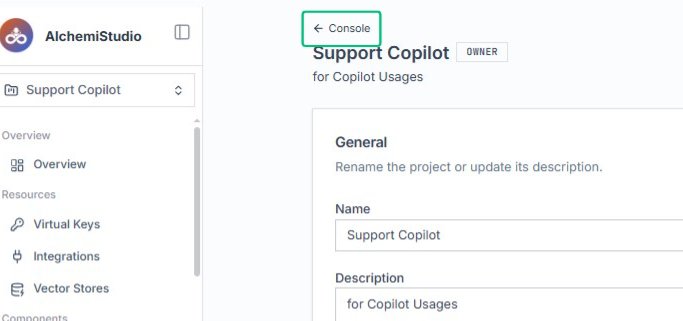
The new Support Copilot project page opens, showing the General section with the name and description you provided.
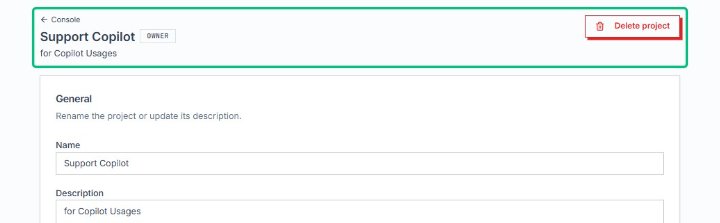
Review the project header
The header displays the project name, your owner role, and the description you provided during creation.
Review the project settings area
The main content area shows the General settings at the top and a row of tabs for Members, Virtual keys, Integrations, and other resources.
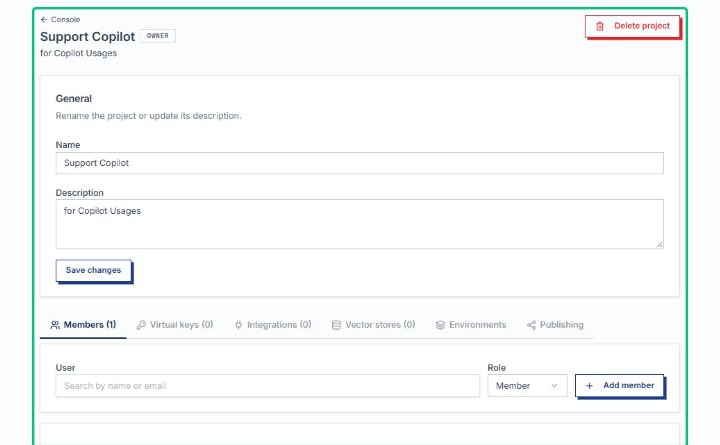
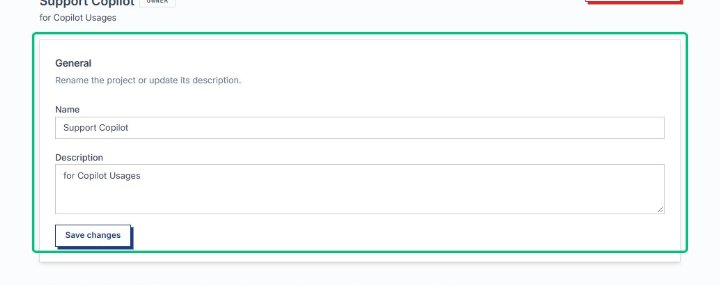
Review the General section
The General section displays the project name and description fields, which you can edit to update the project’s identity.
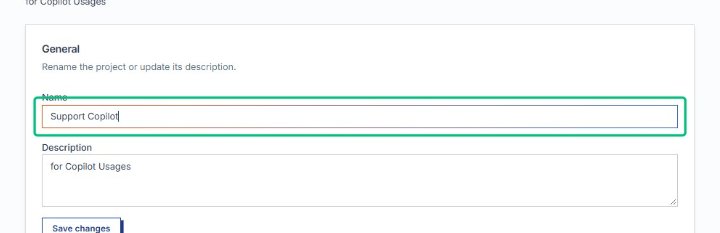
Focus the project name field
Clicking into the Name field places the cursor so you can edit the project name if needed. > Info: Member Management in Console Project
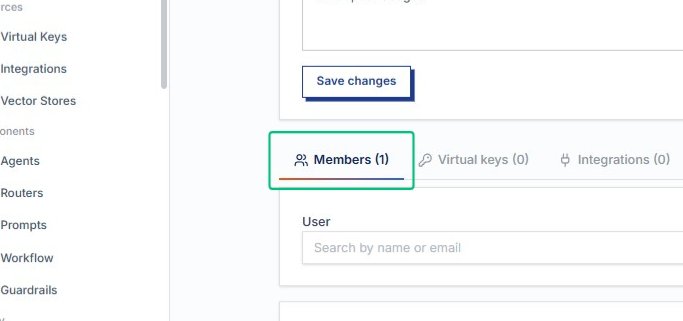
Switch to the Members tab
The Members tab shows who has access to this project and lets you invite or manage collaborators.
Review the Members panel
The panel lists current members, their roles, and provides a search field and Add member button for managing access.
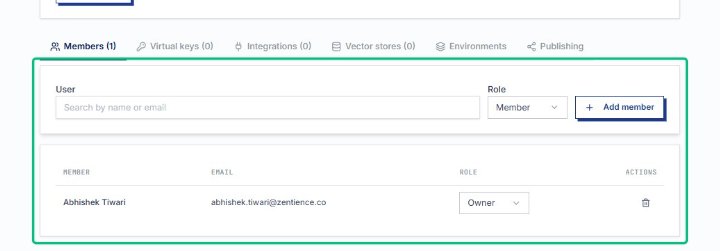
Review the Members tab content
The Members tab displays the current member list, a search field to filter by name or email, a role selector, and an Add member button.
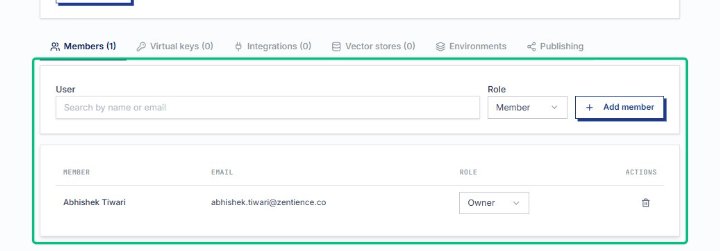
Focus the member search field
On the Members tab, clicking into the search field lets you filter the member list by name or email address.
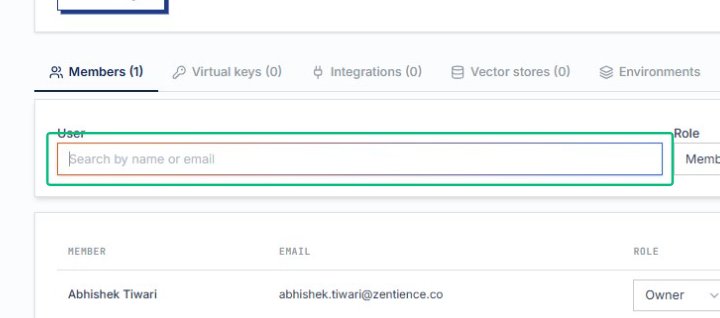
Begin entering the search term
The search updates in real time, narrowing the results as you type. Input: [input captured]
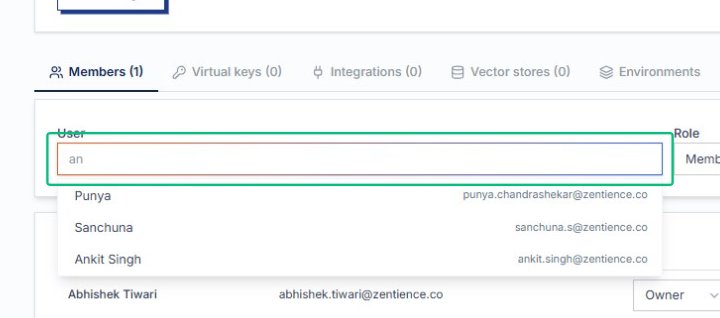
Finish entering the search term
Once you see the user you want to add, the filtered result appears below the search field. Input: [input captured]
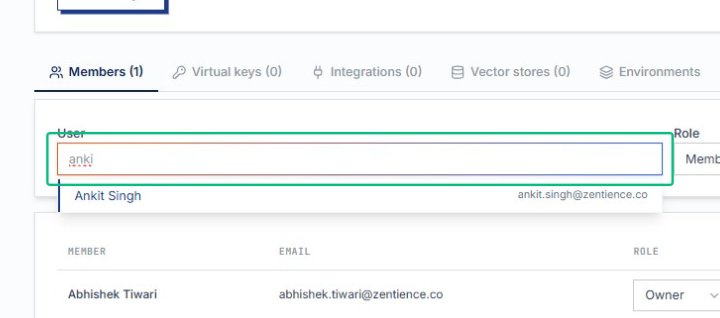
Select the user from the search results
Clicking the user row populates the User field, ready for you to assign a role and add them to the project.
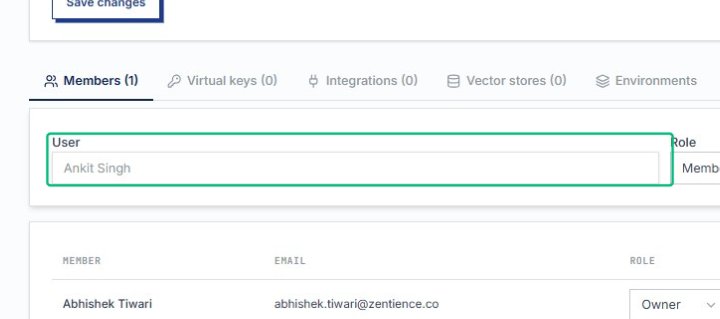
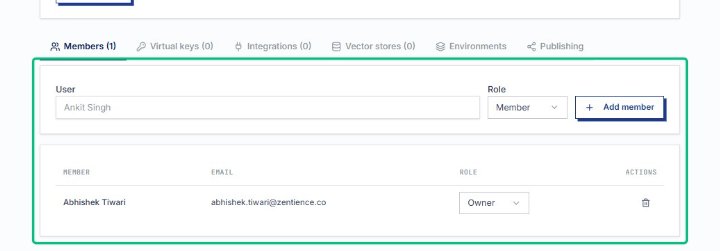
Review the Members tab
With the user selected, the Members tab shows the current member list and the new user row awaiting a role assignment.
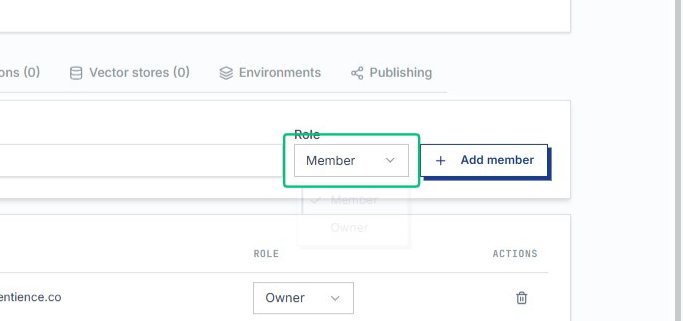
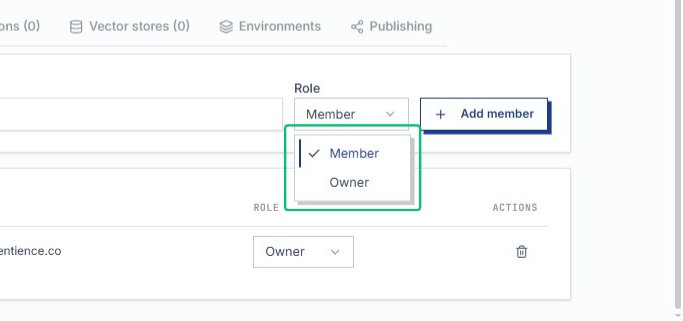
The menu lists the available roles you can assign to the new user, such as Member or Owner.
Choosing Owner grants the new member full permissions on this project, including the ability to manage members and settings.
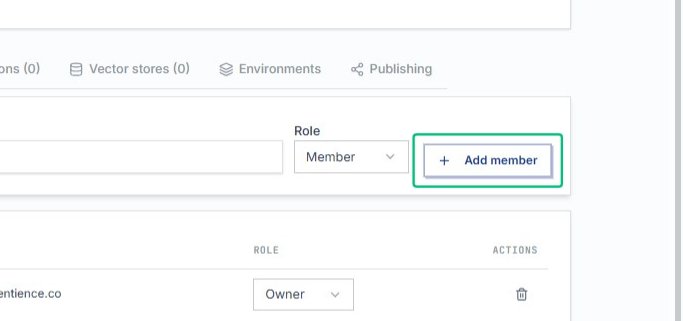
Add member
This confirms the new member and their role, adding them to the project team.
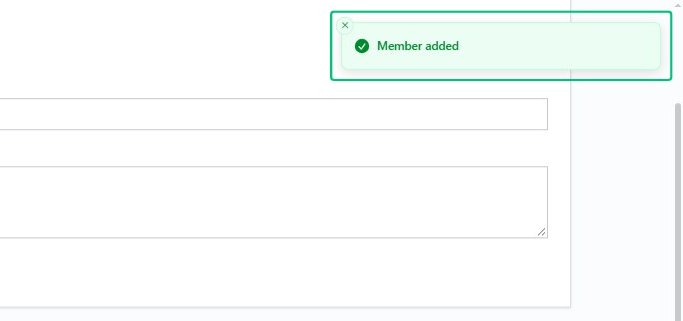
Acknowledge the Member added notification
A success message confirms the new member has been added to the project. The dialog closes automatically, returning you to the Members tab.
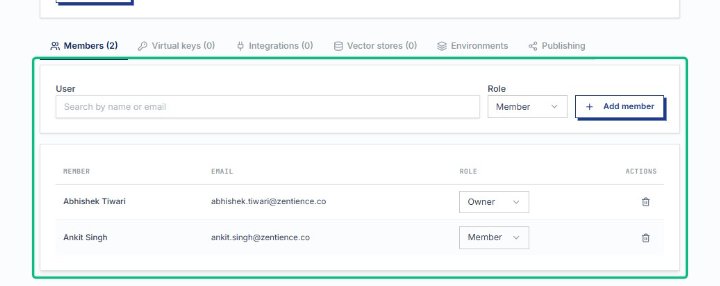
Review the Members tab
The Members tab now displays both team members with their assigned roles, confirming the addition was successful. > Info: Virtual Key Mapping in Project
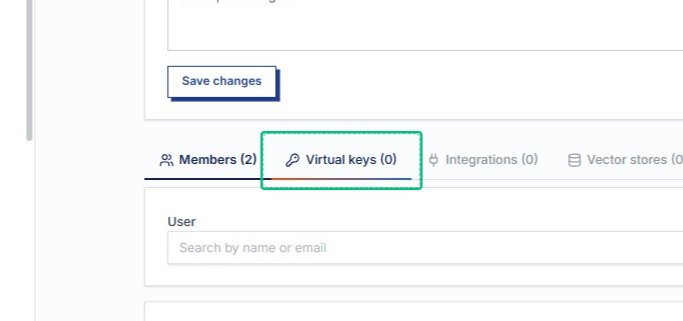
Switch to the Virtual keys tab
This tab lets you map virtual keys to the project, which apps use to authenticate requests.
Opens the list of available keys you can map to this project.
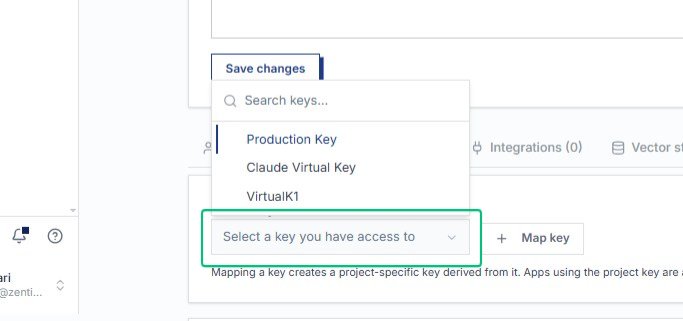
Review the available keys
The menu displays Production Key, Claude Virtual Key, and VirtualK1; browse the list to find the key you want to map.
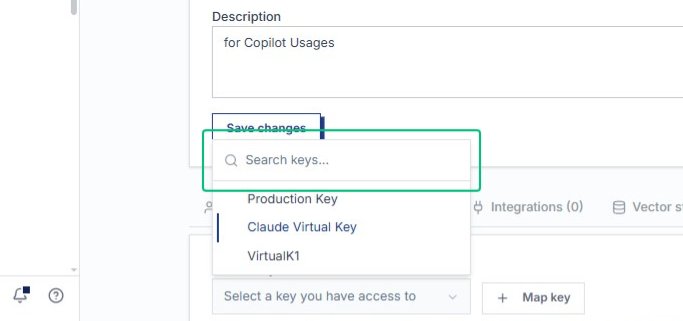
Select Production Key
Choosing Production Key maps it to the project, allowing apps to use this key for production requests.
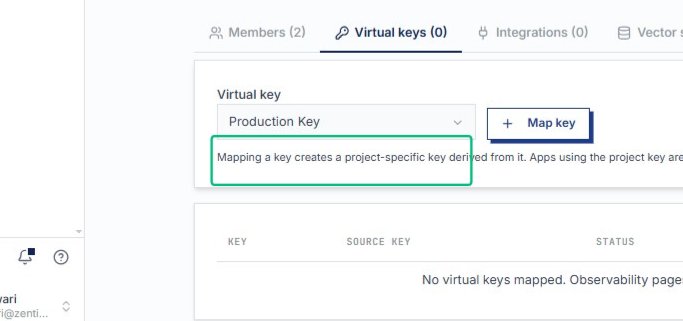
Map the key from this project
After selecting Production Key, the Virtual keys tab shows the key ready to be mapped. Trigger that button to map that key with this project.
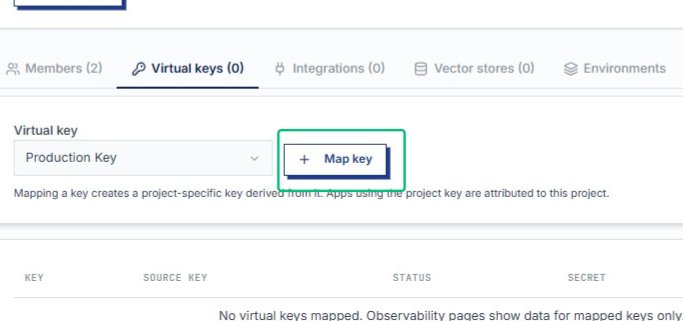
Map key
Confirms the mapping and creates a project-specific key derived from Production Key.
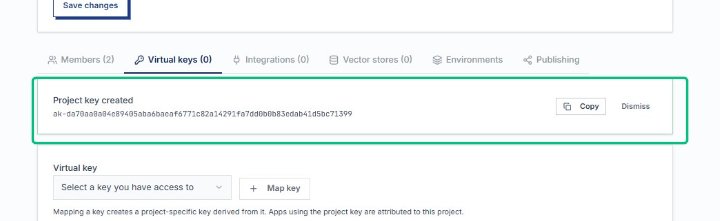
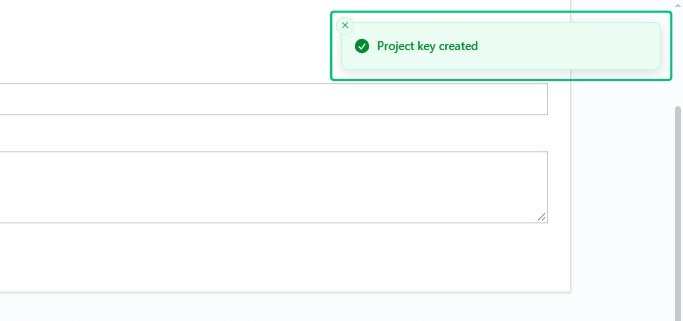
Dismiss the Project key created notification
The notification confirms the virtual key was successfully mapped; dismiss it to continue configuring the project.
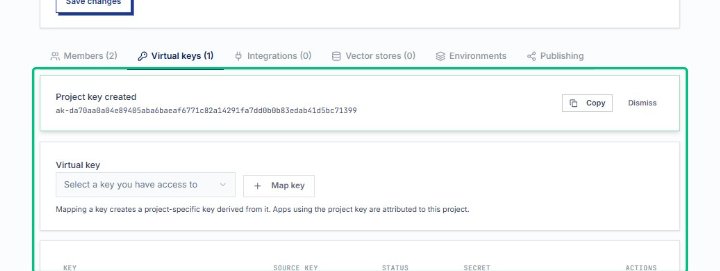
Review the Virtual keys (1) tab
The tab now shows one mapped key; the table below lists the key name, source, status, and actions.
Review the mapped key details
The Virtual keys tab displays the Production Key entry, confirming it is active and ready for use in this project.
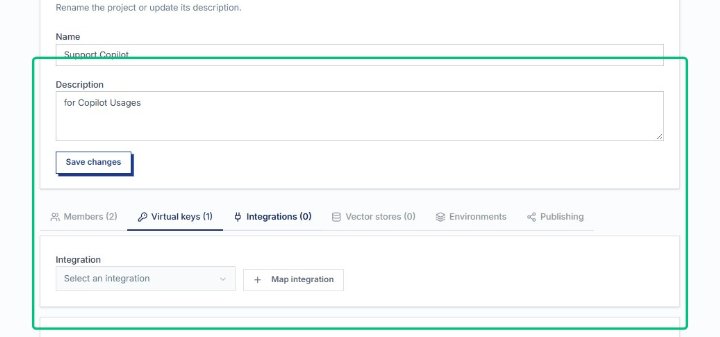
Switch to the Integrations (0) tab
This tab lets you connect external services to the project; the count shows no integrations are mapped yet.
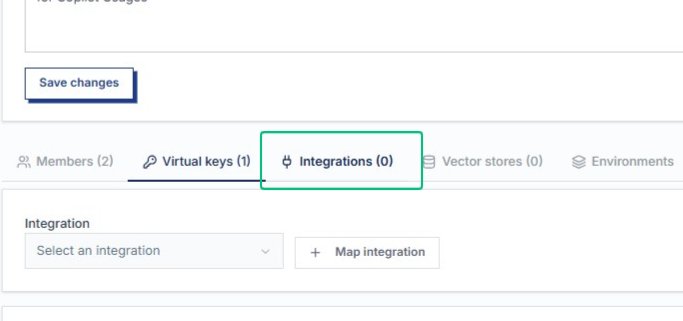
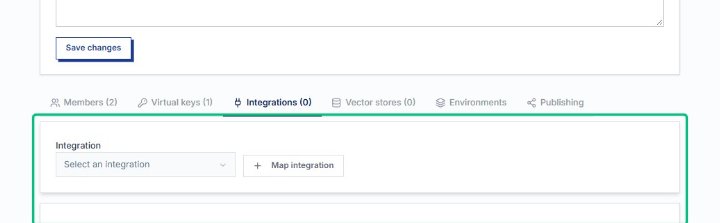
Review the Integrations panel
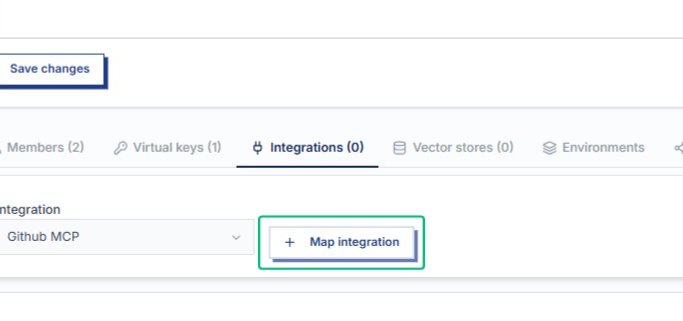
On the Integrations tab, the panel displays the integration selector and Map integration button, where you connect external services to the project.
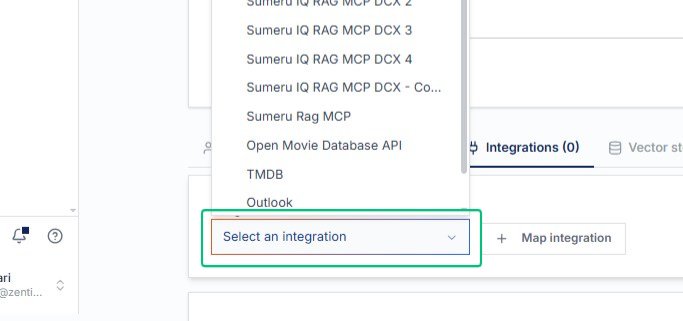
Opens the list of available integrations you can map to this project, such as Github MCP and other configured services.
Choosing Github MCP populates the integration selector and prepares the connection for mapping.
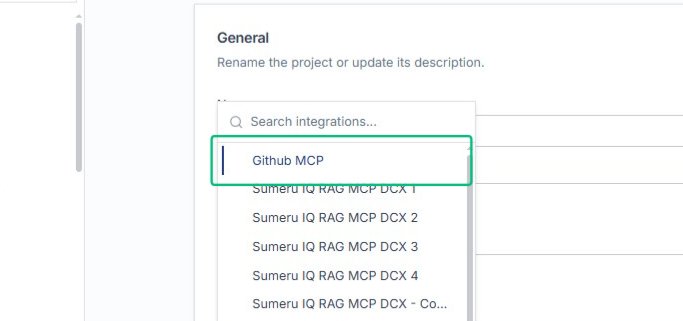
Map the integration
After selecting Github MCP, confirm the mapping to make the integration available to this project.
Dismiss the Connection mapped notification
The notification confirms that Github MCP was successfully mapped; the Integrations tab count updates to reflect the new connection.
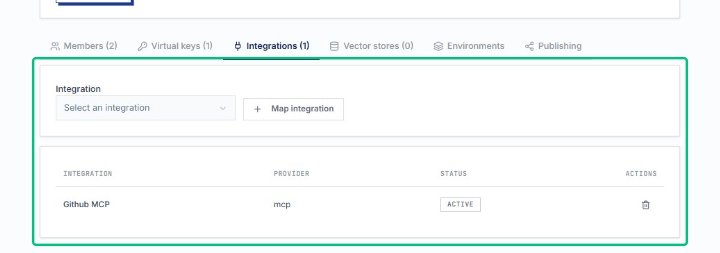
Review the Integrations panel
The panel now shows Github MCP listed in the table with an active status and the option to map additional integrations.
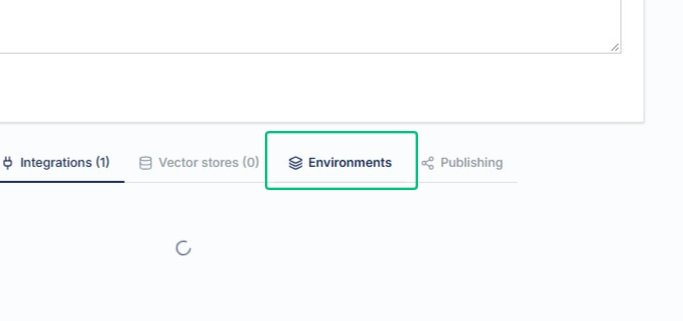
Switch to the Environments tab
The Environments tab manages deployment targets; each environment has its own keys, sandboxes, and connection credentials.
Review the Environments panel
The panel explains that environments are where releases are deployed, and that protected environments require a second person with Deploy access to approve.
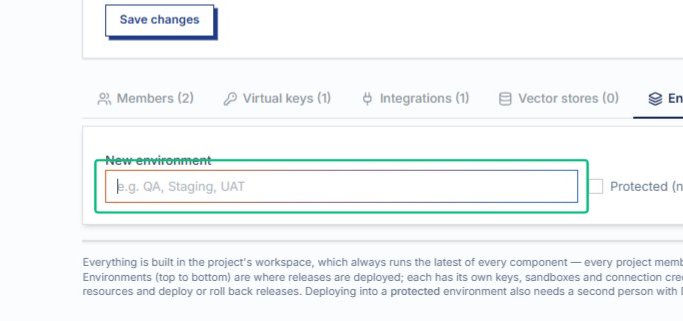
Enter a new environment name
The field accepts a name like QA, Staging, or UAT; this environment will be added to the project once you save.
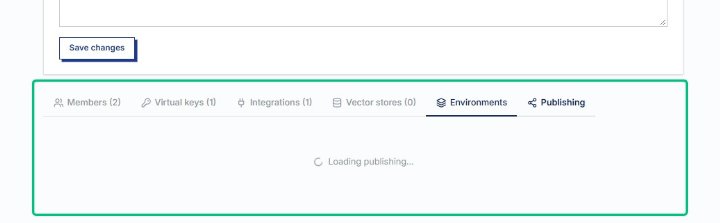
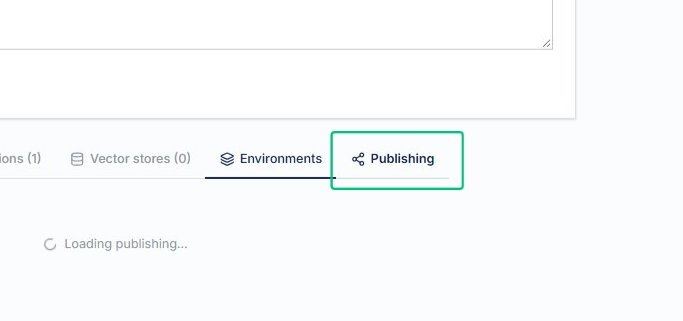
Switch to the Publishing tab
The Publishing tab controls which resources—apps, MCP servers, and workflows—are available to this project’s keys.
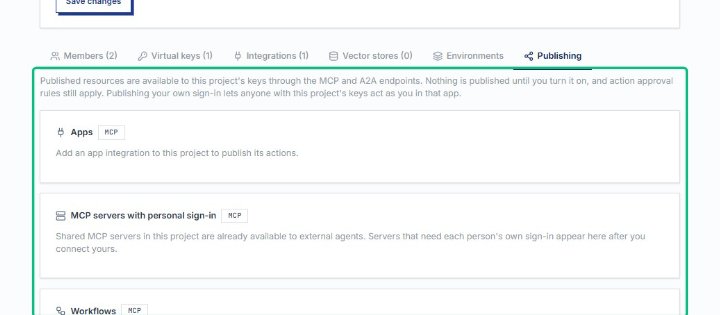
Review the Publishing panel
The panel explains that published resources are available through the project’s keys, and that nothing is published until you turn it on.
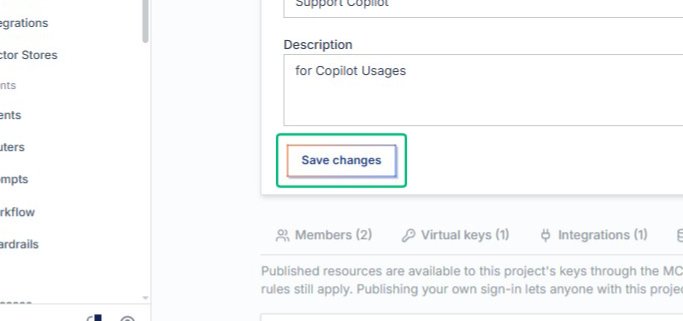
Save your changes
The new environment and publishing settings are applied to the project; a confirmation message appears at the top of the page.
Return to Console
After saving, you return to the main Console view where you can switch between projects or access other areas of the platform.