Create and Configure a New Workflow
Create and Configure a New Workflow
Start from the AlchemiStudio Console and open the Workflow section from the left sidebar. This page displays all your workflows, including published and draft versions, along with their edit history.
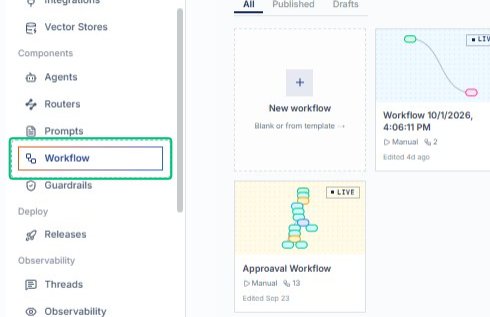
Review the Workflows page
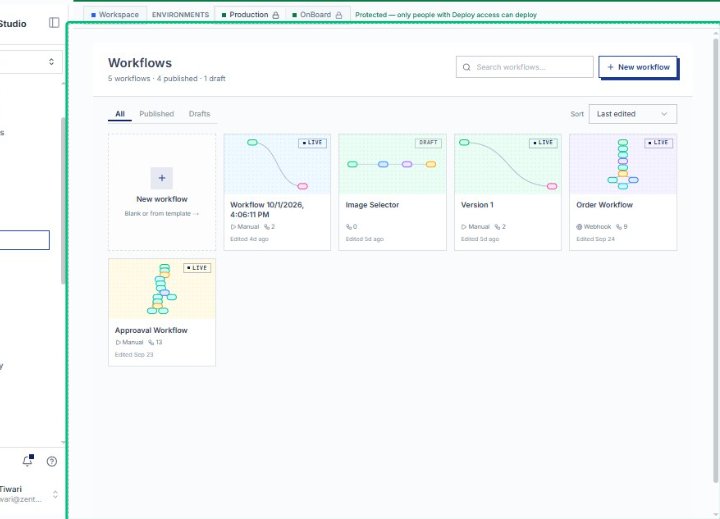
On the Workflows page, you see a summary of all workflows and their status. This is where you create, edit, and manage automations.
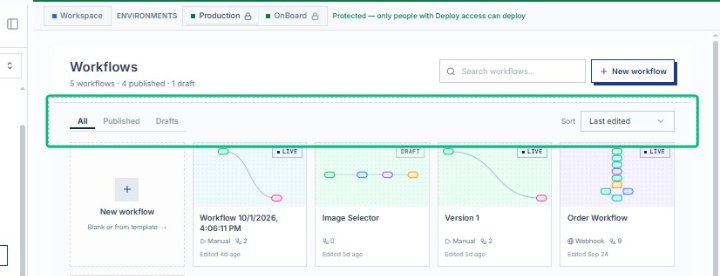
Locate the filter and sort controls
The filter tabs and sort dropdown let you organize workflows by status and edit date. These controls sit above the workflow cards.
Open the New workflow dialog
Click the New workflow card to launch the creation dialog. This opens a modal where you can start from a blank canvas or choose from pre-built templates for common automation patterns.
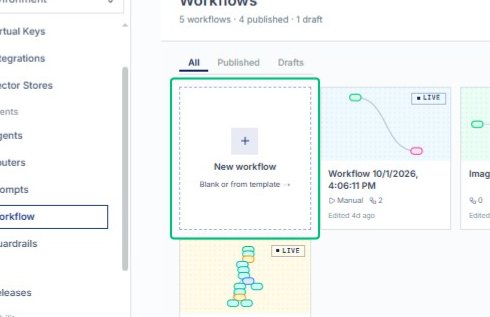
Review the Create a workflow dialog
With the dialog open, you can choose a template or start from a blank canvas.
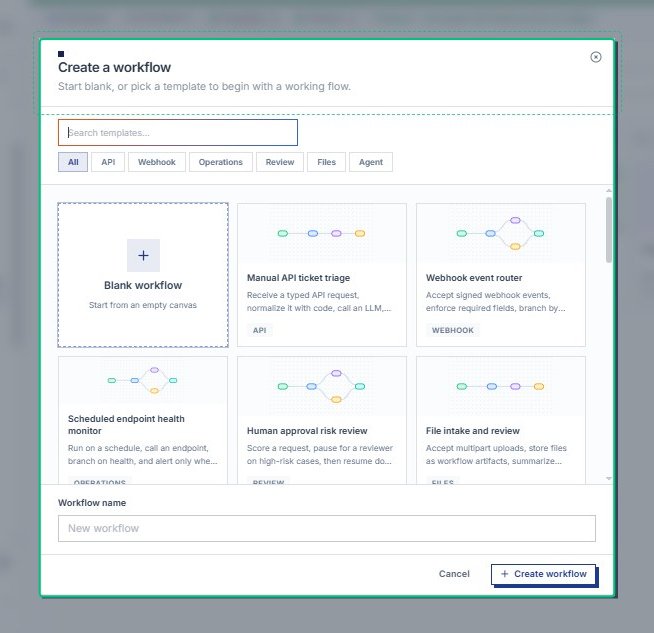
Focus the Search templates field
The field becomes active, ready for you to filter the template gallery by keyword. You can also browse the category tabs below to narrow your options.
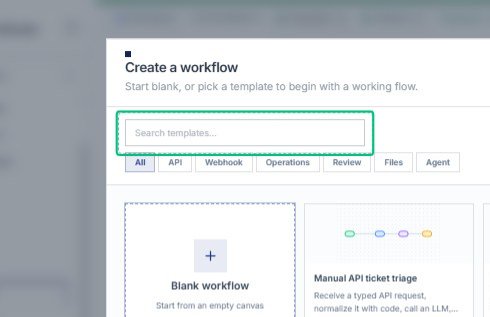
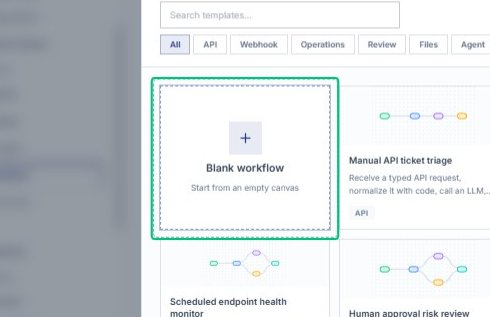
Select the Blank workflow card
This option starts you with an empty canvas, ideal when you want to build a custom automation from scratch. Templates are also available if you prefer a pre-configured starting point.
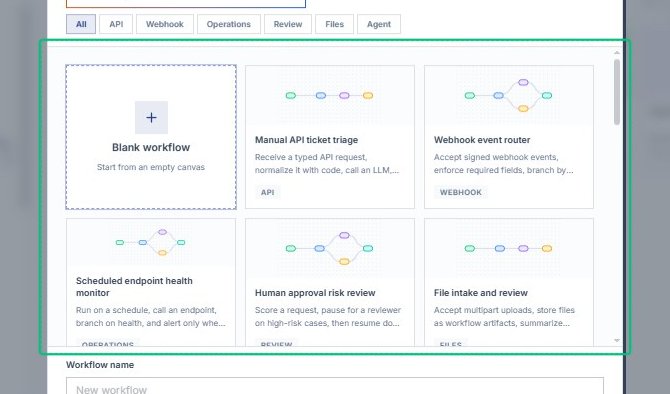
Confirm Blank workflow selection
The Blank workflow card is now selected, and the Workflow name field at the bottom is ready for you to name your new automation.
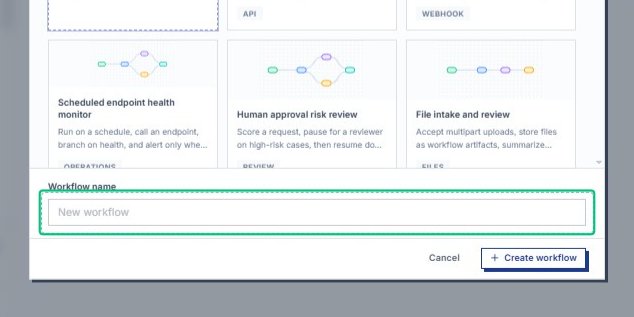
Focus the Workflow name field
With the Create a workflow dialog open, click into the Workflow name field at the bottom to begin entering a custom name for your new workflow.
Enter your workflow name
Type a descriptive name that will help you identify this workflow in the console. The name appears in the workflow list and editor header. Input: [input captured]
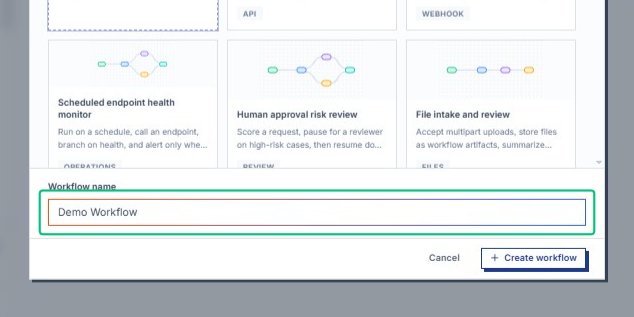
Create workflow
Once you have named your workflow, click Create workflow to finalize setup. The editor opens with a blank canvas and a default Start Trigger node.
Review the Demo Workflow editor
The workflow editor now displays your new workflow in draft mode. The canvas shows a single Start Trigger node configured for manual start, ready for you to add logic and integrations.
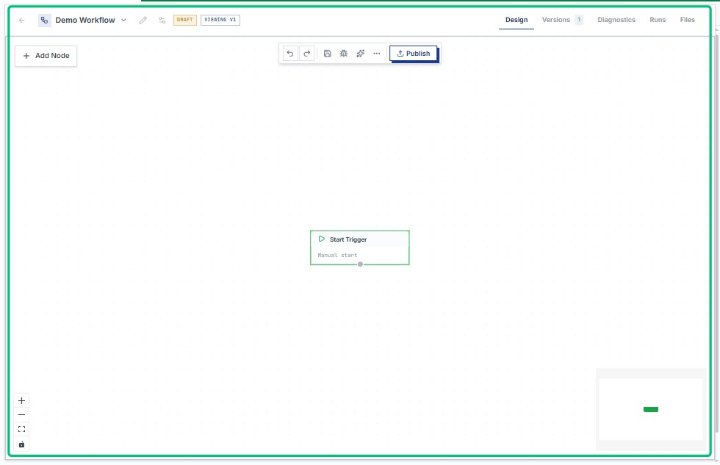
Select the Start Trigger node
On the workflow canvas, click the Start Trigger node to open its configuration panel. This displays the trigger settings in the right sidebar.
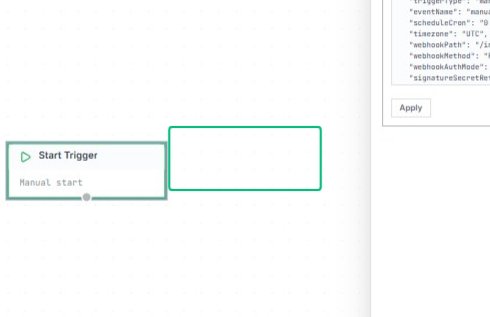
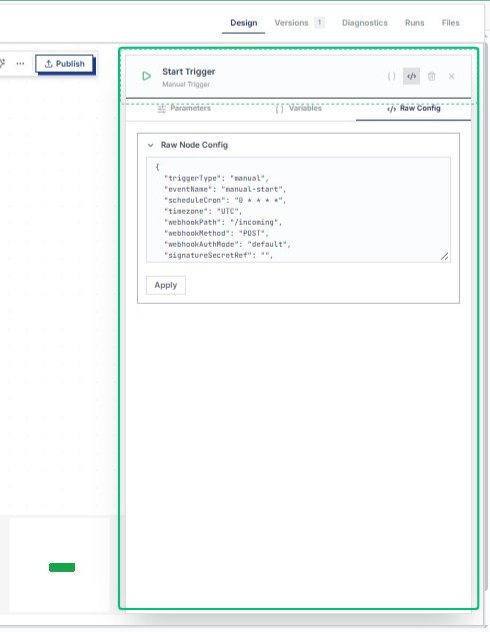
Review the Manual Trigger configuration panel
The right panel displays the Manual Trigger settings, including the raw JSON configuration. This view shows the trigger type, event name, and webhook details that define how the workflow starts.
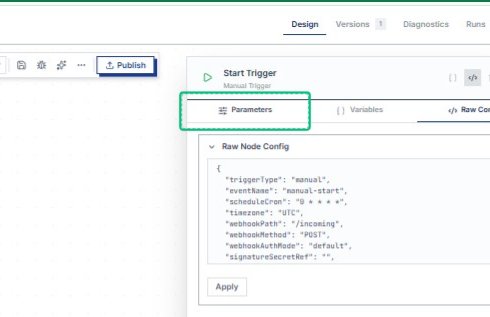
Switch to the Parameters tab
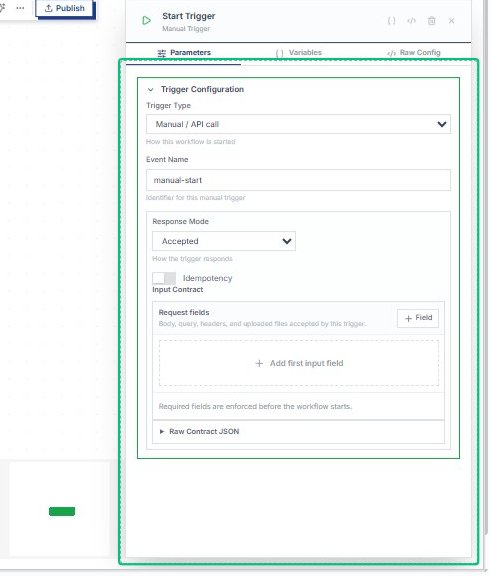
Click the Parameters tab at the top of the right panel. This displays structured configuration options for the trigger, including trigger type, event name, response mode, and request fields.
Review the Trigger Configuration section
The Parameters tab shows the Trigger Configuration section with fields for trigger type, event name, response mode, and input contract. These settings control how the workflow accepts and responds to incoming requests.
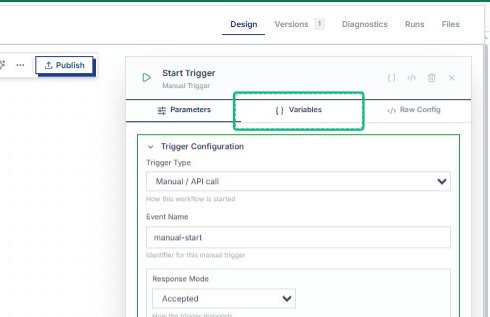
Switch to the Variables tab
With the Start Trigger panel open, switch to the Variables tab to view and manage workflow variables. These variables can be referenced throughout your workflow nodes.
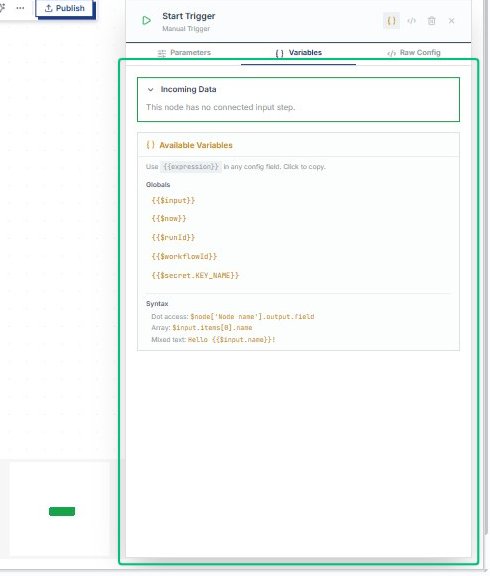
Review the Incoming Data section
The Variables tab displays the Incoming Data section and Available Variables. This area shows the global variables and syntax helpers you can use in your workflow configuration.
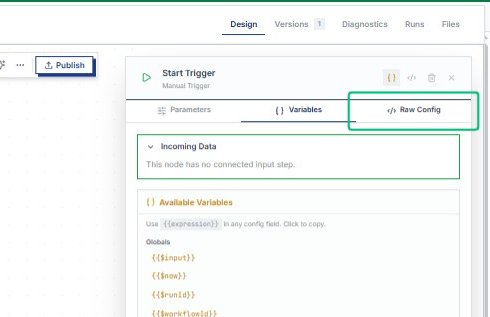
Switch to the Raw Config tab
From the Variables view, switch to the Raw Config tab to access the JSON editor. This tab allows you to directly edit the node configuration as structured data.
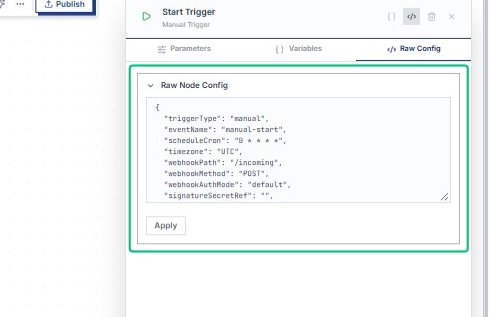
Review the Raw Node Config panel
The panel displays the JSON configuration for the Start Trigger node. You can edit the raw JSON here before applying changes.
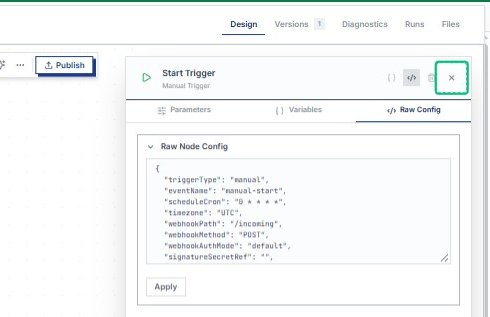
Close the Raw Node Config panel
With the configuration saved, dismiss the right-side panel to return to the full workflow canvas. The Start Trigger node now reflects your manual trigger settings.
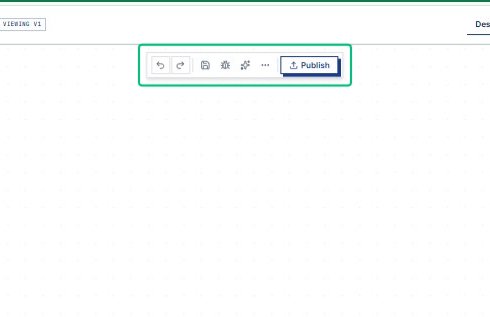
Review the Publish option
The Publish button in the top toolbar is now visible, ready to deploy your workflow. Before adding more nodes, you can explore the node library to understand available components.
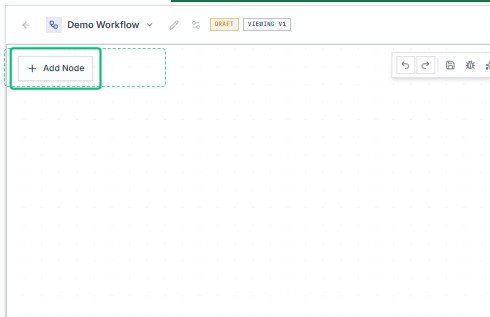
Open the Add Node dialog
Click the Add Node button in the top-left corner to open the node selection menu. This library contains all available workflow components, organized by category.
Review the node selection dialog
With the Add Node dialog open, you can browse triggers, flow control, data operations, integrations, AI agents, and custom code nodes. The tabs at the top filter by category.
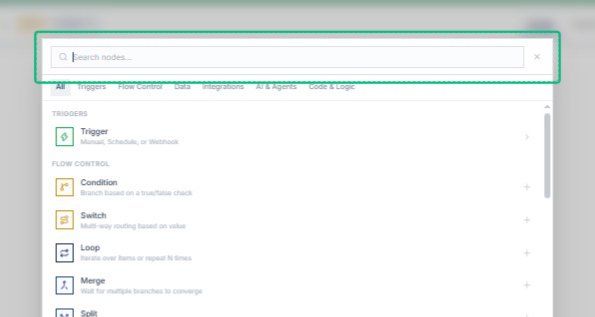
Switch to the All tab
With the Add Node dialog open, return to the All tab to see every available node type across categories. This view helps you explore the full range of workflow components.
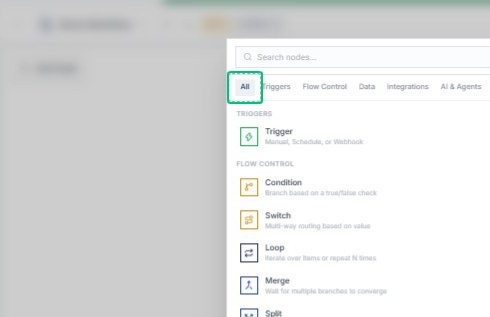
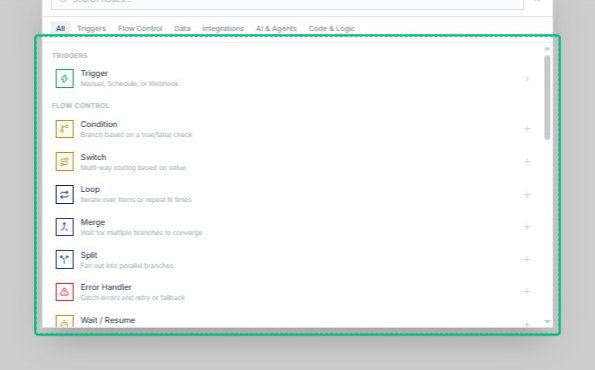
Review the TRIGGERS section
The TRIGGERS section displays node types that can start your workflow, including Manual, Schedule, and Webhook triggers. These define how and when your automation begins execution.
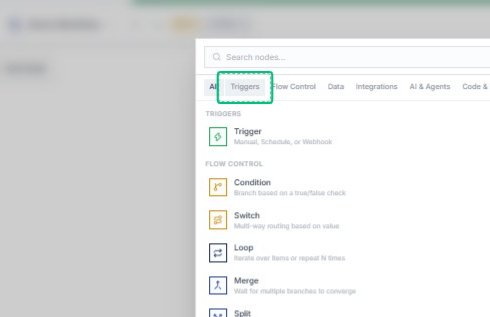
Switch to the Triggers tab
From the Add Node dialog, select the Triggers tab to filter the list to trigger nodes only. This narrows the view to Manual Trigger, Schedule Trigger, and Webhook Trigger options.
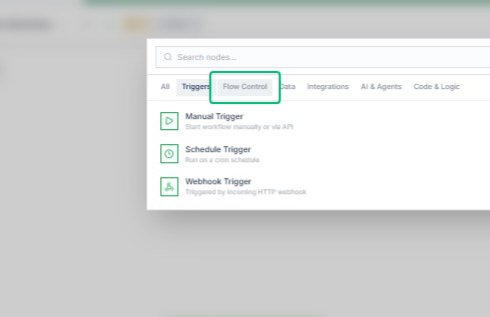
Switch to the Flow Control tab
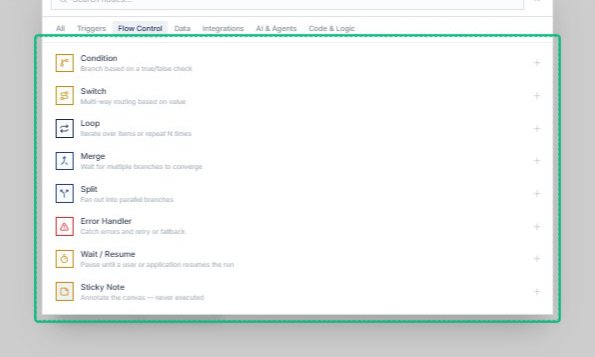
Select the Flow Control tab to view nodes that manage branching and logic. This category includes Condition, Switch, Loop, Merge, Split, Error Handler, Wait/Resume, and Sticky Note.
Review the Condition node option
With the Add Node dialog open and Flow Control selected, the Condition node is displayed. This node branches your workflow based on a true or false evaluation.
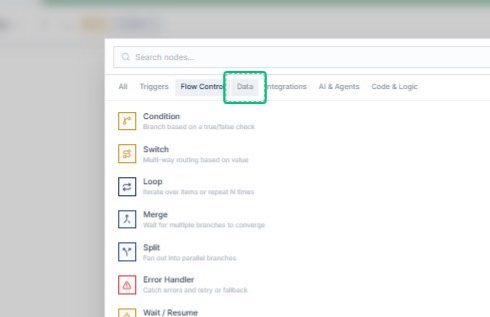
Switch to the Data tab
From the category tabs at the top of the dialog, select Data to view nodes that manage workflow variables and data transformations.
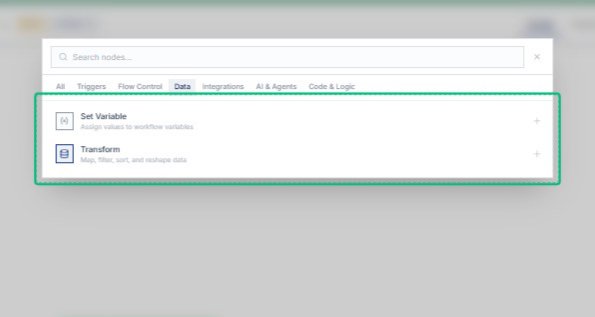
Review the Set Variable node option
The Data tab now shows Set Variable and Transform. Set Variable allows you to assign values to workflow variables for use in later steps.
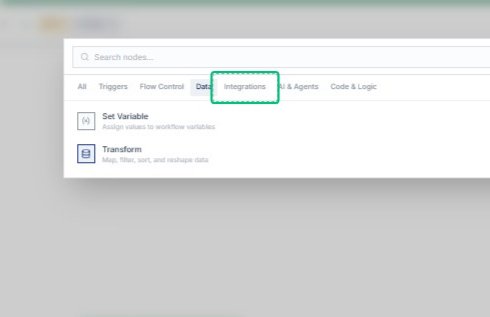
Switch to the Integrations tab
Select Integrations from the category tabs to browse nodes that connect your workflow to external services and APIs.
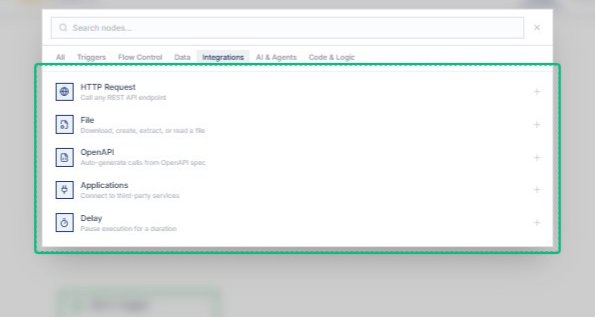
Review the HTTP Request node option
With the Integrations tab active, the HTTP Request node appears at the top of the list. This node allows you to call any REST API endpoint within your workflow.
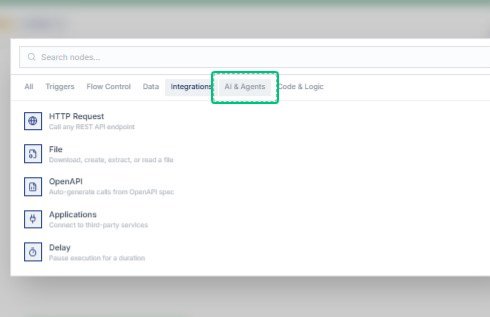
Switch to the AI & Agents tab
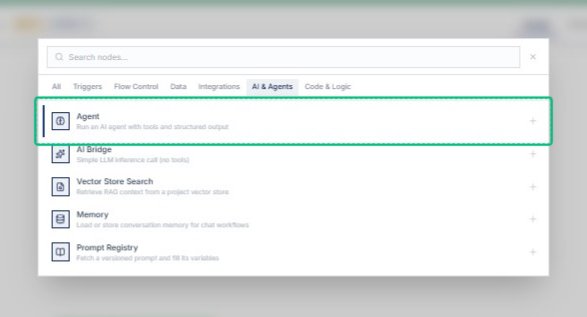
From the Add Node dialog, select the AI & Agents tab to filter the available nodes. The list updates to show AI-related components like Agent, AI Bridge, and Vector Store Search.
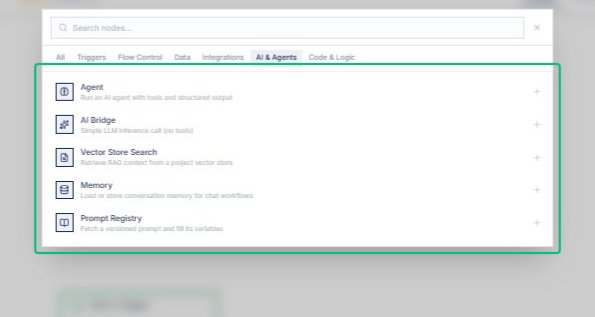
Review the Agent node option
With the AI & Agents tab active, the Agent node is displayed at the top of the list. This node runs an AI agent with tools and structured output capabilities.
Switch to the Code & Logic tab
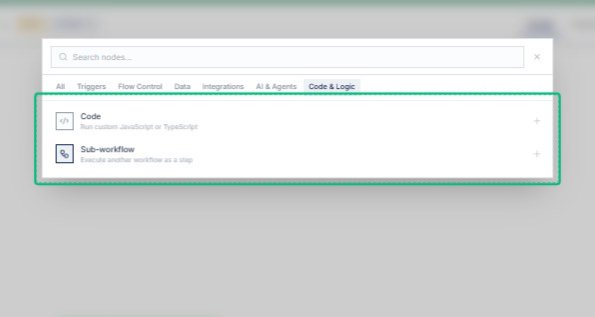
Select the Code & Logic tab to filter the node list. The dialog updates to show nodes for custom code execution and workflow logic, including Code and Sub-workflow.
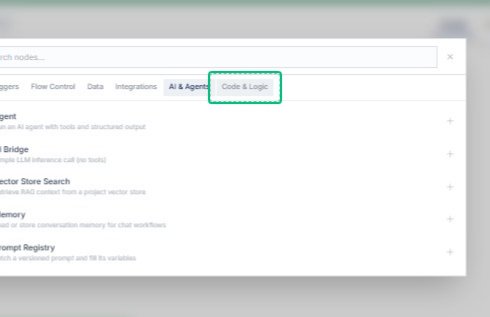
Review the Code node option
With the Code & Logic tab active, the dialog displays the Code node, which runs custom JavaScript or TypeScript. This option is available for adding custom logic to your workflow.
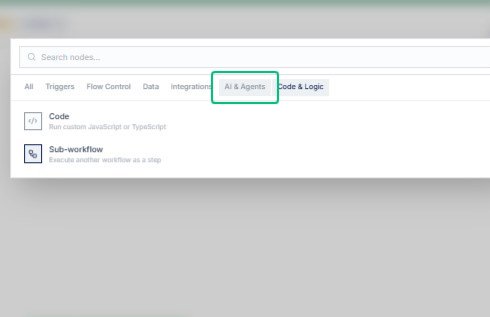
Switch to the AI & Agents tab
From the Code & Logic view, return to the AI & Agents category to browse agent-related nodes. The list updates to show options like Agent, AI Bridge, and Vector Store Search.
Add an Agent node to the workflow
Select the Agent option from the AI & Agents list to insert an AI agent node into your workflow. The node appears on the canvas and requires configuration before it can run.
Select the Agent node on the canvas
With the Agent node added, click it to open the configuration panel on the right. The node shows a not configured status until you choose an agent and define its parameters.
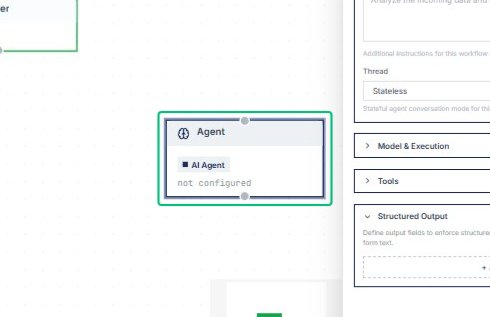
Review the Agent configuration panel
With the Agent node selected, the right panel displays the configuration form where you can choose which AI agent will execute this step.
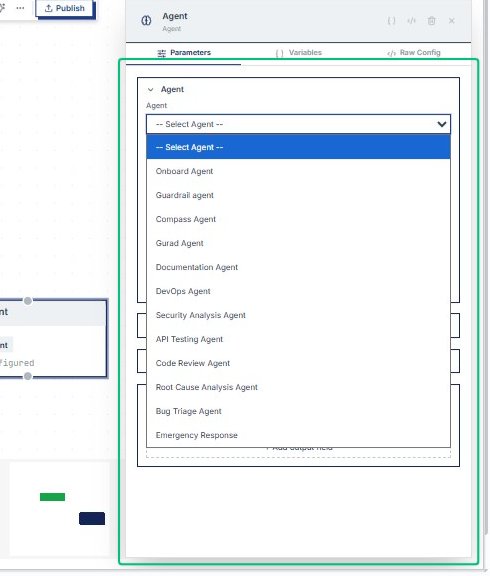
Open the Agent selector dropdown
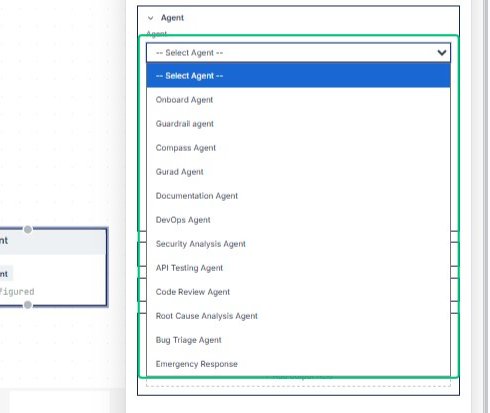
The dropdown lists all available agents, including Onboard Agent, Guardrail Agent, and others, so you can assign one to this node.
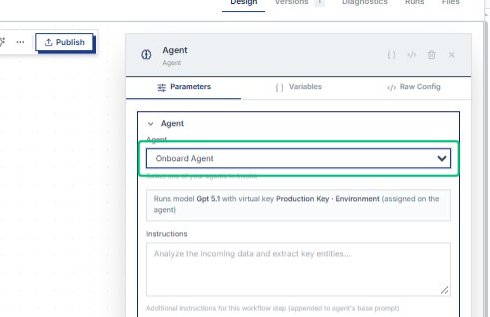
Select Onboard Agent from the dropdown
Choosing Onboard Agent configures the node to use that agent’s instructions and capabilities. The panel updates to show agent-specific settings. Input: Onboard Agent
Click Start Trigger to begin the workflow
Click the Start Trigger node in the workflow canvas. This node initiates the workflow execution with a manual start trigger. It serves as the entry point for the workflow sequence.
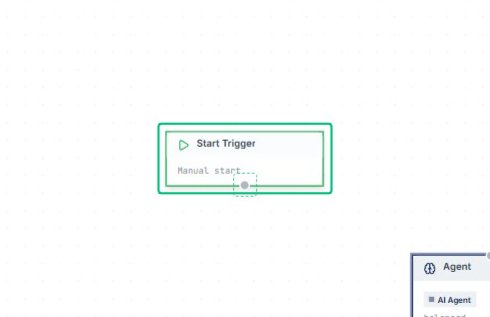
Select the Start Trigger node
With the workflow canvas visible, click the Start Trigger node to review its configuration. The right panel displays the manual trigger settings, including event name and response mode.
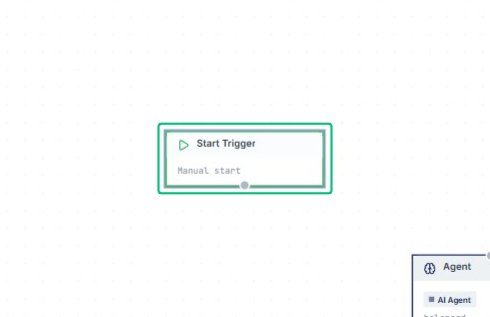
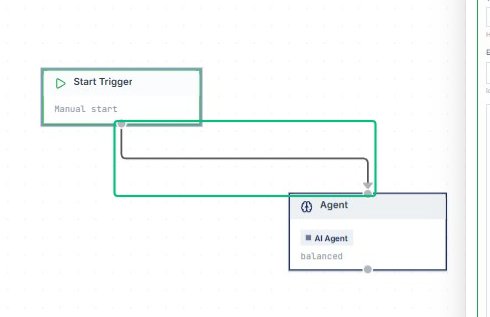
Dismiss the agent selector
The agent selector closes, returning focus to the workflow canvas. The Start Trigger and Agent nodes remain connected and ready for further configuration.
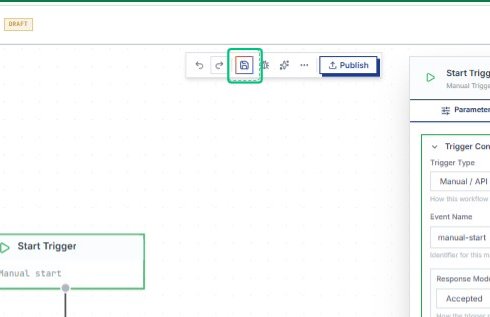
Save your changes
The workflow configuration is now complete. Saving stores the trigger settings, node connections, and agent selection for testing or publishing.
Open the Debug panel
Launch the debug interface to test your workflow before publishing. Debug mode provides detailed execution logs and helps troubleshoot configuration issues.
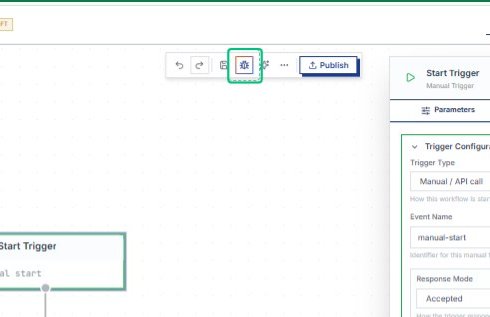
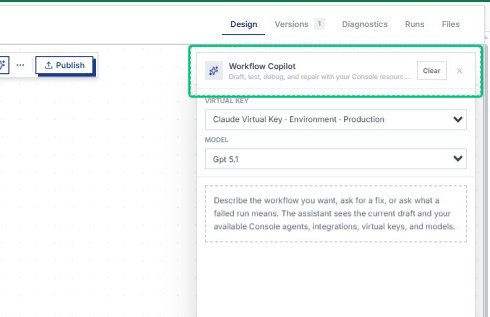
Open the Workflow Copilot panel
The Copilot panel appears on the right, offering AI assistance to draft, test, and debug your workflow.
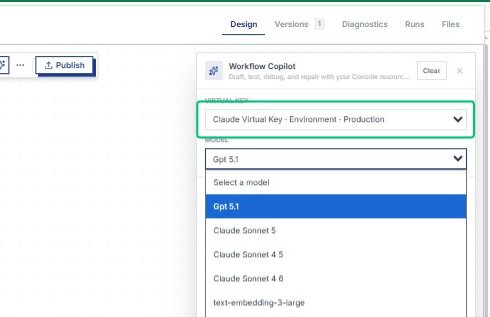
Expand the Model selector
Inside the Workflow Copilot panel, open the Model dropdown to choose which AI model will power the assistant. The selected model determines the quality and capabilities of the Copilot’s suggestions.
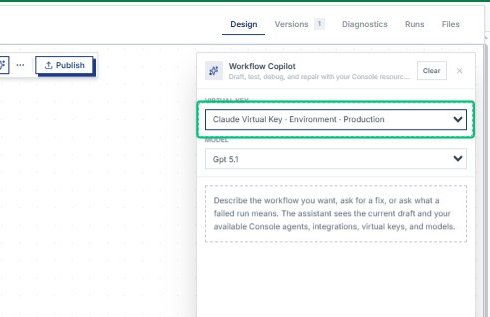
Collapse the Model selector
Close the Model dropdown after reviewing the available options. The Copilot retains your current selection and is ready for further configuration.
Expand the Model selector again
Reopen the Model dropdown to confirm or change your AI model choice. This menu lists all models available through your selected virtual key.
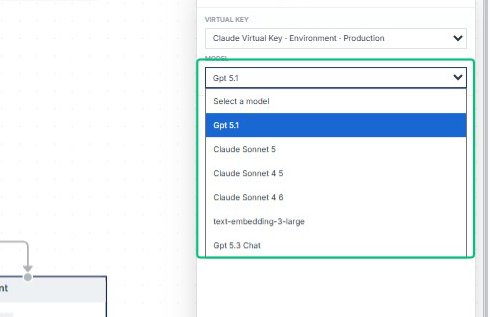
Open the Model selector
With the Workflow Copilot panel open, expand the Model dropdown to choose the AI model that will power your agent.
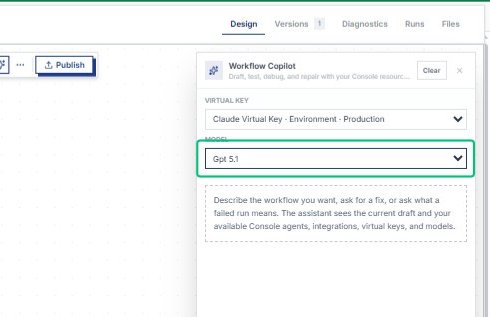
Focus the Workflow Copilot input field
Click into the text area at the bottom of the Workflow Copilot panel to begin typing your request. This field accepts natural language descriptions of workflows, fixes, or debug plans.
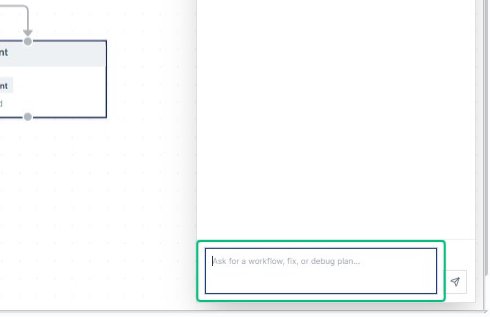
Enter your message in the Copilot input
Type your workflow request or question into the input field. The Copilot will use your message along with the current workflow context to provide tailored suggestions. Input: [input captured]
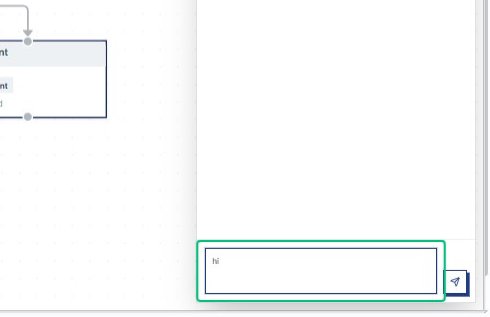
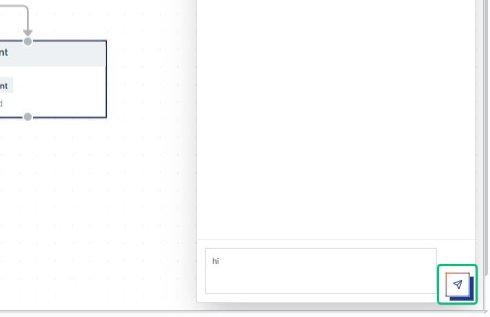
Send your message to the Copilot
Submit your request to the AI assistant by clicking the Send button. The Copilot will analyze your workflow and respond with suggestions or modifications.
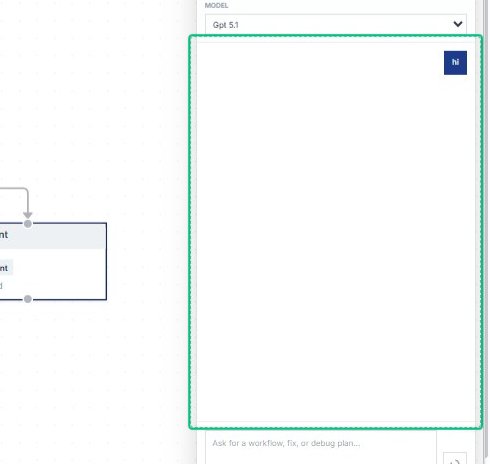
Review the Copilot response
After sending your message, the Workflow Copilot displays its reply in the conversation panel. The assistant analyzes your current workflow and offers suggestions for next steps.
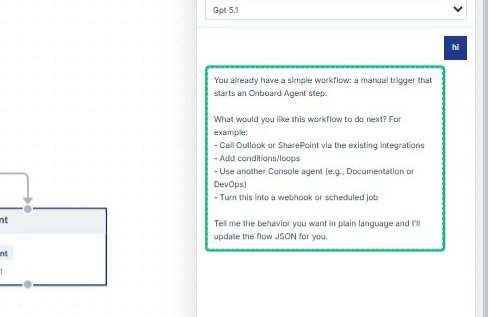
Review the Workflow Copilot response
The copilot confirms you already have a simple workflow with a manual trigger and Onboard Agent step.
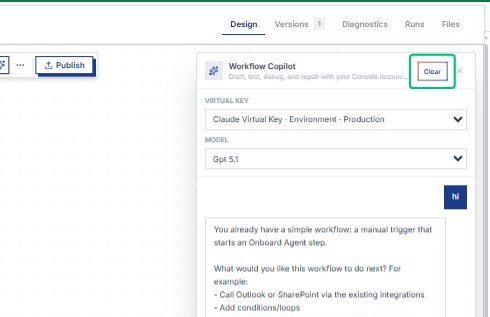
Clear the Copilot conversation
With the Workflow Copilot panel open, reset the conversation to start fresh. This removes previous messages and context, allowing you to begin a new planning session.
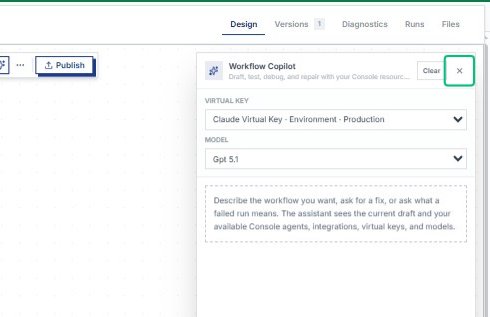
Close the Workflow Copilot panel
After clearing the conversation, dismiss the Copilot sidebar to return focus to the workflow canvas. The workflow design remains unchanged and ready for publishing.
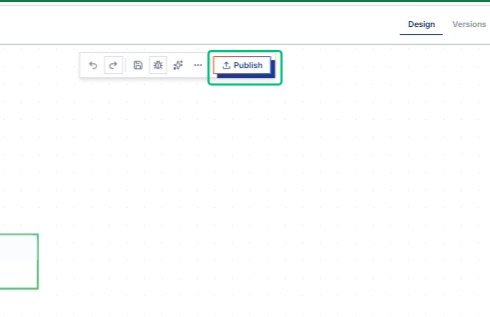
Publish the workflow
After closing the Copilot panel, click the Publish button in the top toolbar. This deploys Demo Workflow to production, making it available for external triggers and API calls.
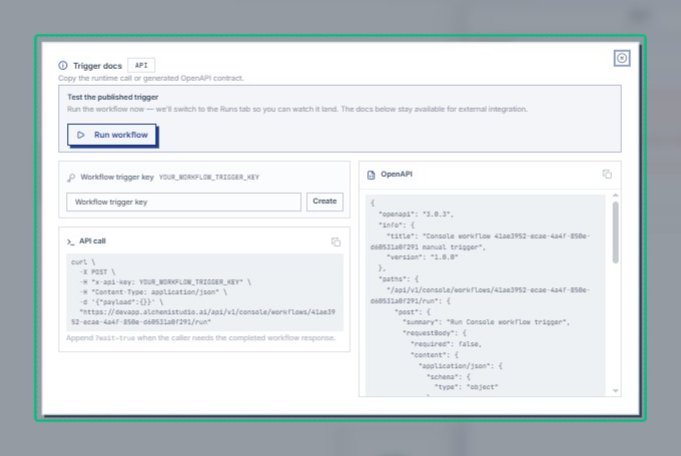
Review the Trigger docs modal
The Trigger docs modal opens automatically after publishing. It displays the workflow trigger key, API call examples, and OpenAPI specification for integrating the workflow into your application.
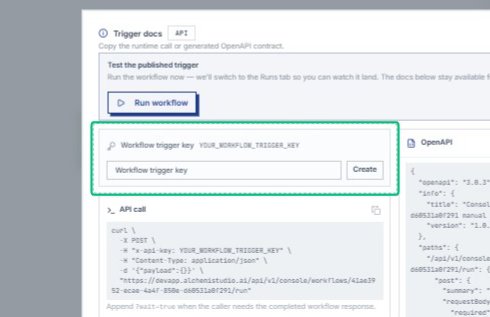
Select the Workflow trigger key section
Click the Workflow trigger key field to view or copy the unique identifier for this workflow. This key is required when calling the workflow trigger endpoint from external systems.
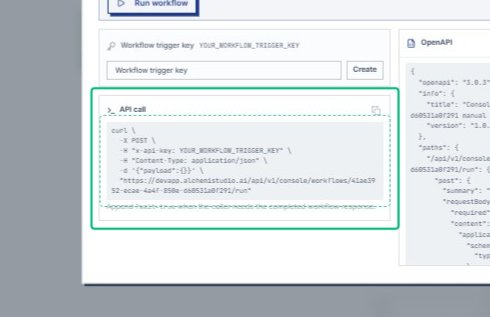
Review the API call code snippet
The curl command shows how to trigger the workflow via HTTP POST. You can copy this snippet to integrate the workflow into your application or testing tool.
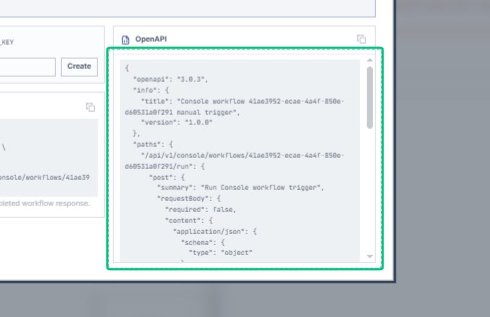
Review the OpenAPI specification
The OpenAPI code block displays the workflow trigger endpoint schema. This specification can be copied for integration into external systems or API documentation.
Expand the Test the published trigger section
This section provides a manual test option to verify the workflow trigger before external integration. The Run workflow button executes the workflow immediately.
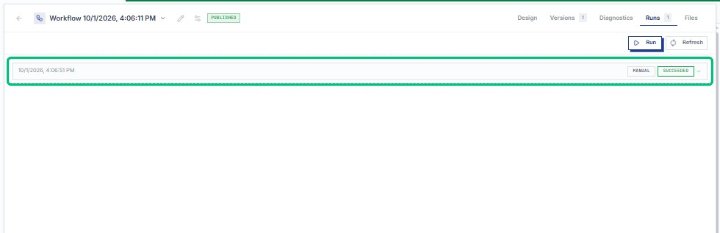
Open the workflow run entry for 10/1/2026, 4:06:51 PM
This opens the detailed execution log for the manual run that succeeded. The log shows all steps, outputs, and status information for this workflow execution.
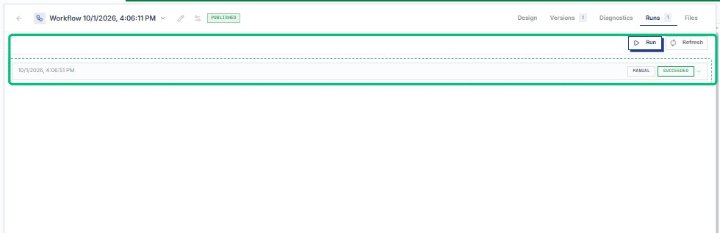
Select the workflow run entry for 10/1/2026, 4:06:51 PM
The workflow has been successfully created, published, and tested. This run entry confirms the Demo Workflow executed correctly with a manual trigger.