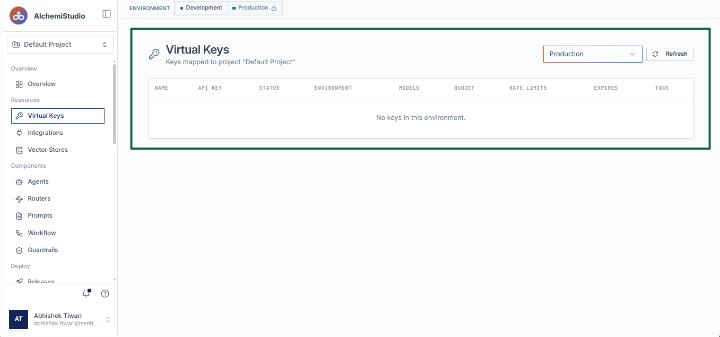
Managing Virtual Keys in Projects
Managing Virtual Keys in Projects
Open the Virtual Keys section from the left sidebar under Resources in the Default Project. This page displays API keys mapped to the project, including their status, environment, and associated AI models. Use this view to manage and monitor virtual keys for different environments.
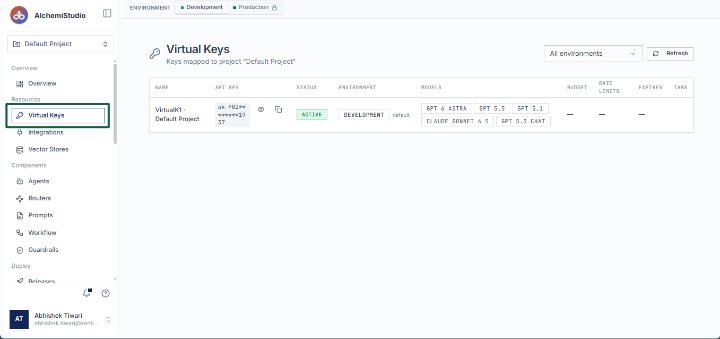
Switch to the Development environment
Start on the Virtual Keys page in the AlchemiStudio Console. Select the Development tab at the top to view API keys scoped to the Development environment.
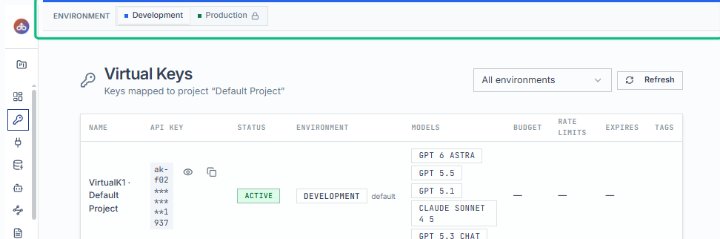
Review the Virtual Keys table
The table displays keys mapped to the Default Project, showing each key’s status, associated models, and environment. This is where you manage and monitor your project’s API keys.
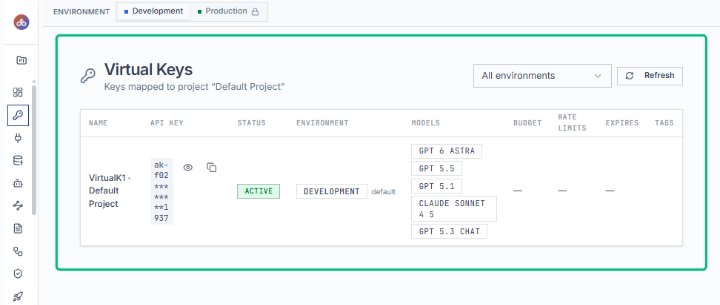
Refresh the Virtual Keys list
Click the Refresh button in the top-right corner to reload the table. The page updates to reflect any recent changes to keys, statuses, or configurations.
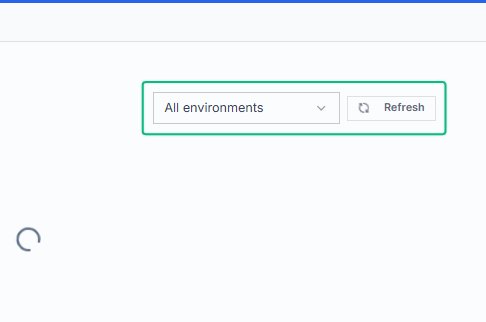
Open the environment filter dropdown
With that in place, click the All environments dropdown to choose which environment’s keys to display. The dropdown reveals options for All environments, Development, and Production, allowing you to filter the table.
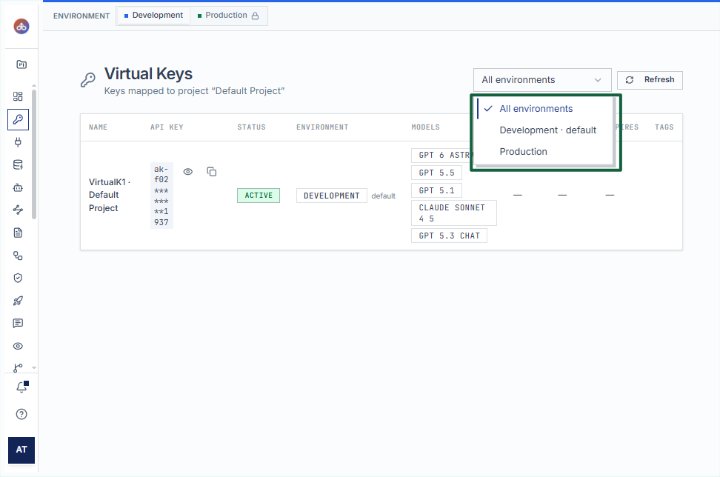
Open the Virtual Keys page from the Resources section in the left sidebar. This page displays all API keys mapped to the Default Project, including their status, environment, and associated AI models. You can manage keys, view credentials, and configure project access from here.
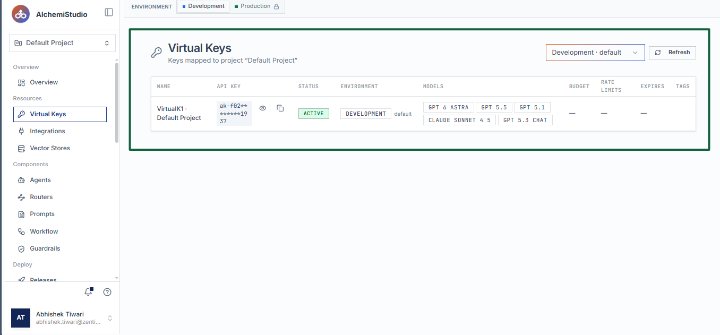
Open the Virtual Keys section from the Resources menu in the left sidebar. This page displays API keys mapped to the Default Project, organized by environment. Currently, the Production environment shows no keys configured.