Managing Evaluators
Managing Evaluators
Start from the AlchemiStudio Console and open the Evaluators page, where you define score rubrics and manage judges.
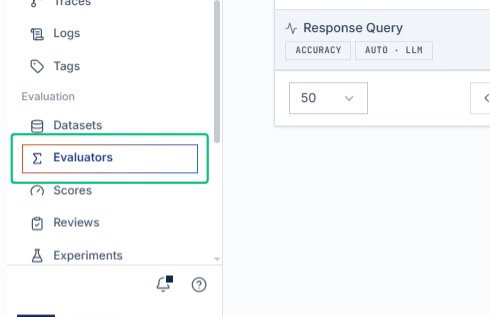
Review the Evaluators page
On the Evaluators page, you can see the list of existing evaluators and create new ones. The page displays evaluator cards with their status, type, and configuration details.
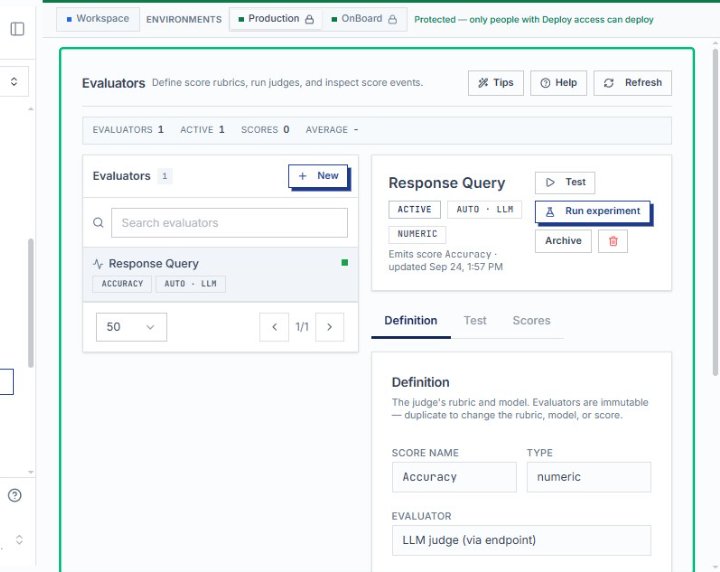
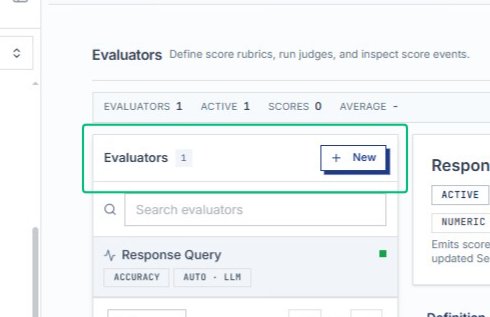
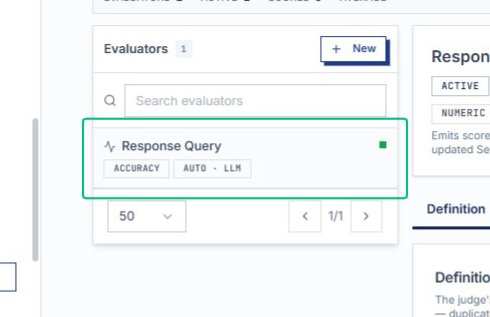
Locate the evaluator list
The Evaluators section shows one active evaluator and a New button to create additional evaluators. From here, you can select an evaluator to view or edit its configuration.
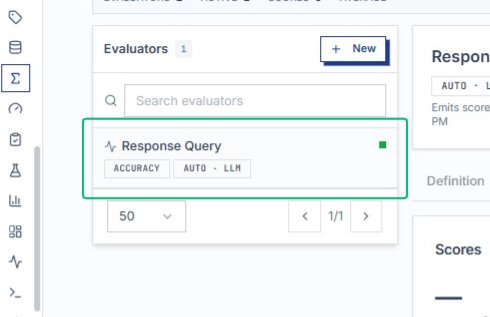
Review the Response Query evaluator card
The Response Query evaluator card displays its active status, accuracy score type, and Auto LLM judge configuration. Selecting this card opens the detail panel on the right.
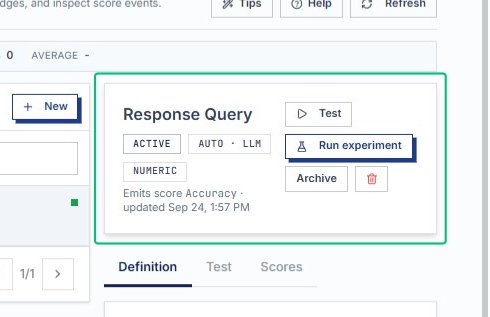
Open the Response Query evaluator
From the Evaluators list, select Response Query to view its configuration. The right panel displays the evaluator’s definition, test options, and score history.
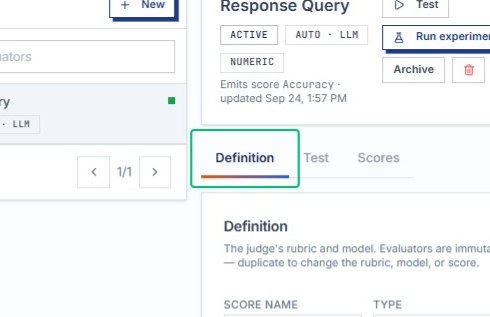
Switch to the Definition tab
The Definition tab displays the evaluator’s complete configuration, including score name, type, evaluator endpoint, rubric, and model settings. This view lets you review how the evaluator judges responses.
Review the Definition panel
With the Definition tab open, examine the judge’s rubric, model configuration, score name, and evaluator type. This panel shows how the evaluator scores responses.
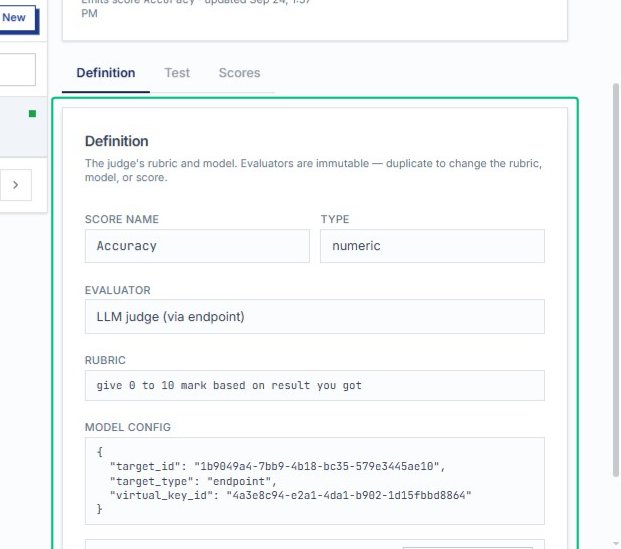
Inspect the evaluator configuration fields
The panel displays the score name, type, evaluator endpoint, rubric text, and model configuration. These fields define how the LLM judge scores responses based on the provided rubric.
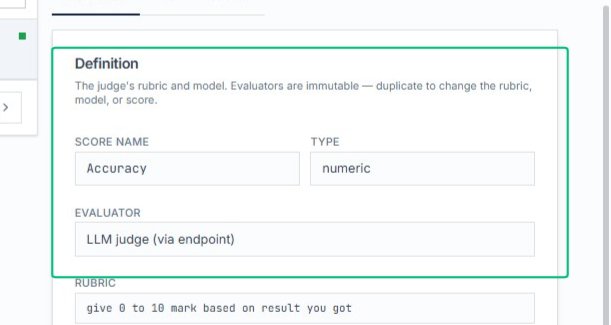
Review the Definition panel
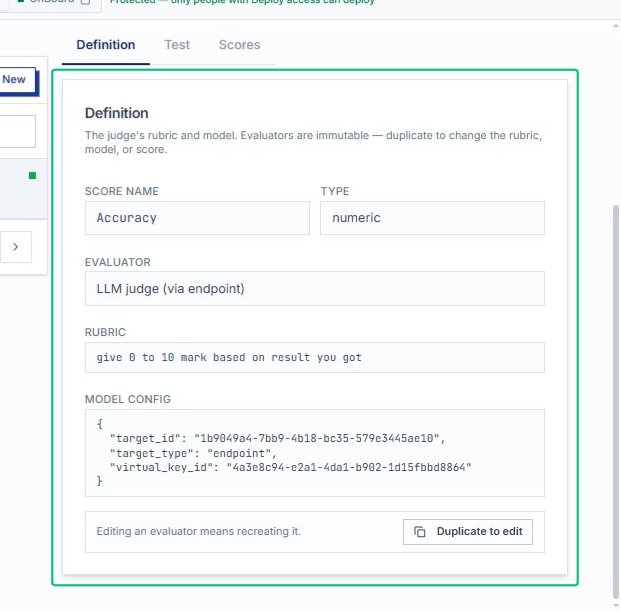
The Definition panel displays the evaluator’s score name, type, rubric, and model configuration. These properties are immutable; to modify them, duplicate the evaluator.
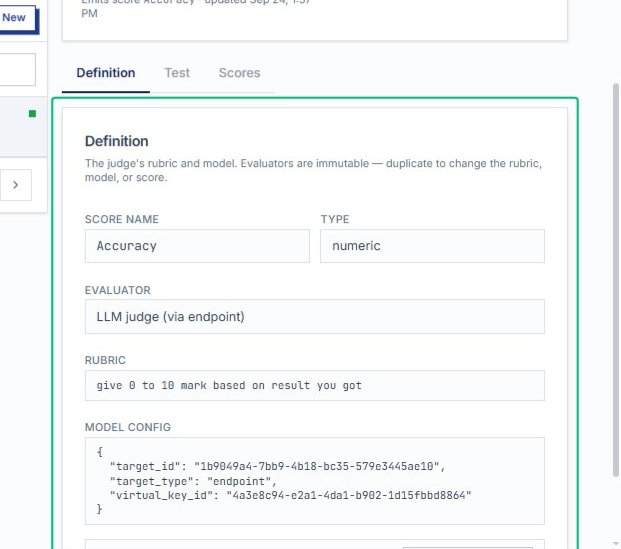
Scroll to view the full Definition panel
The panel now shows the complete evaluator configuration, including the Duplicate to edit button at the bottom. Evaluators cannot be edited directly once created.
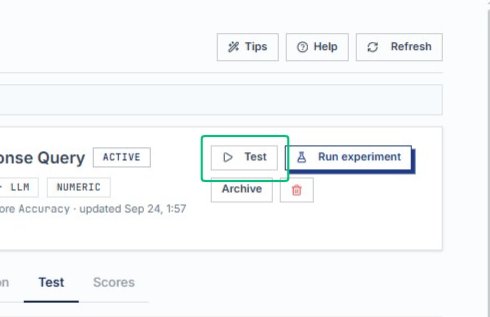
Open the Test panel
The Test button switches to the testing interface, where you can send sample inputs to the configured judge and preview results without affecting production scores.
Switch to the Test tab
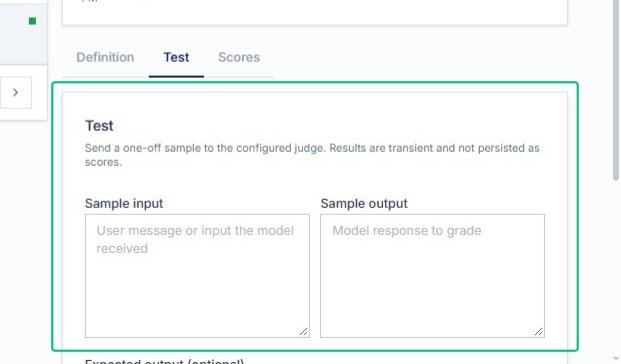
With the Test tab selected, the panel displays fields for sample input and output. Test results are transient and not persisted as scores.
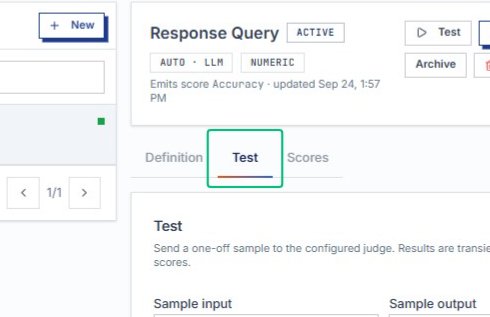
Review the Test panel
The panel explains that test results are transient and not saved as scores. You can send one-off samples to the configured judge.
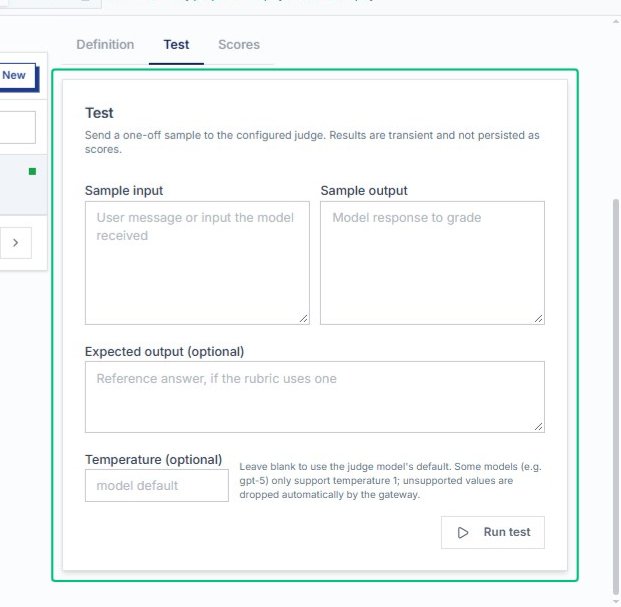
Inspect the full Test panel layout
The expanded Test panel shows all available fields, including optional expected output and temperature settings. This interface lets you configure and run a single test against the evaluator’s rubric.
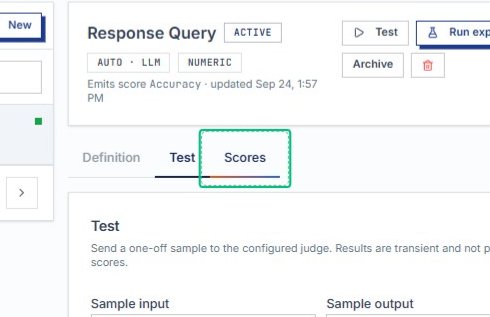
Switch to the Scores tab
From the Test panel, select the Scores tab to view scoring history and averages. This tab displays persistent score data collected from experiments and runs.
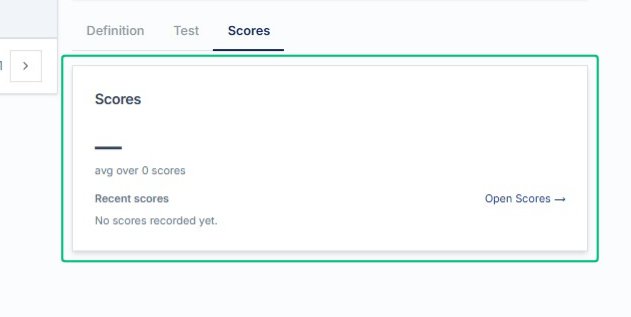
Review the Scores panel
The Scores panel shows the average over recorded scores and a list of recent results. Currently, no scores have been recorded yet for this evaluator.
Select Response Query from the Evaluators list
Click the Response Query evaluator in the left sidebar to return to its detail view. This completes the walkthrough of the evaluator’s Definition, Test, and Scores tabs.