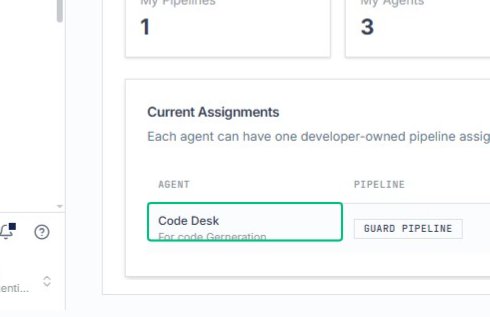
Create and Configure Guardrail Definitions and Pipelines
Create and Configure Guardrail Definitions and Pipelines
From the left sidebar under Components, select Guardrails to open the page where you create and manage guardrail definitions and pipelines. The page displays activity metrics including executions, blocked requests, and flagged.
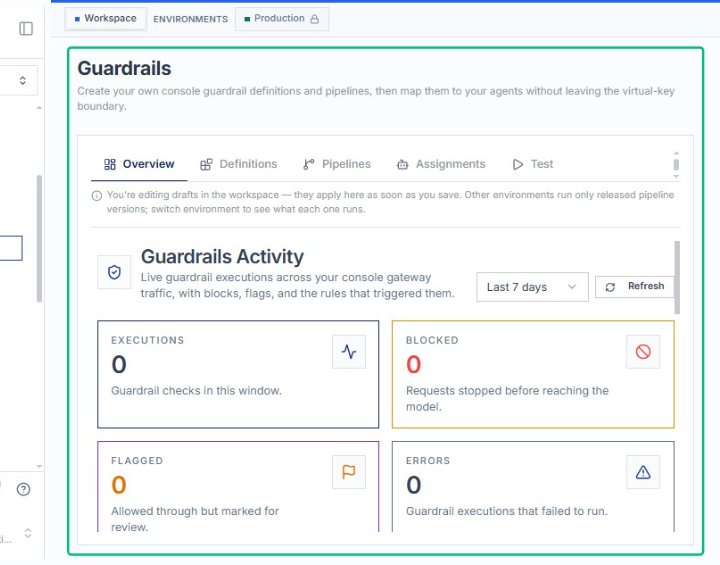
Expand the time filter dropdown
On the Guardrails Activity panel, open the time range dropdown to filter the metrics by a specific period. The dropdown offers options such as Last 24 hours, Last 7 days, and Last.
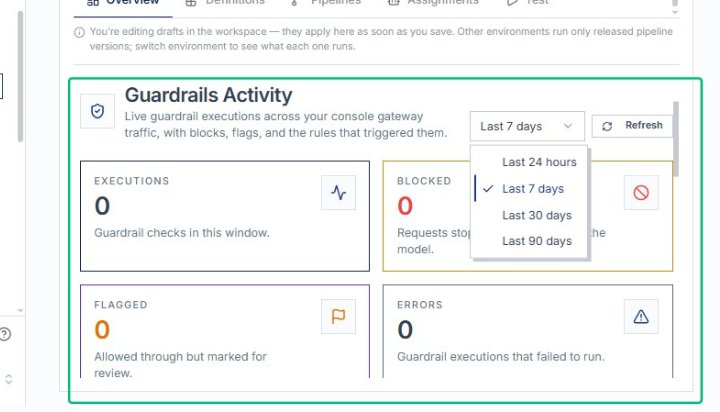
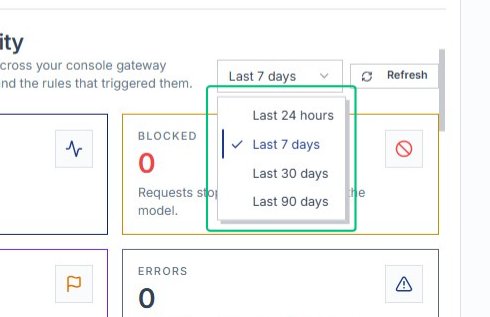
Select Last 7 days from the time filter
Choose Last 7 days from the dropdown to filter guardrail execution metrics to the past week. The dashboard updates to reflect executions, blocks, flags, and errors within this timeframe.
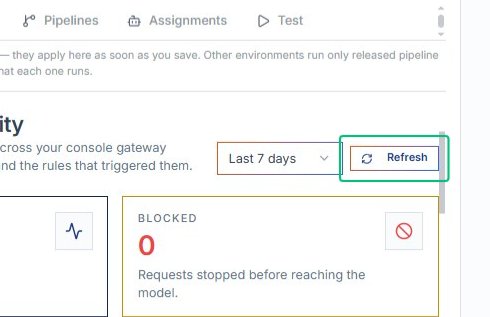
Refresh the activity data
Click the Refresh button in the top-right corner of the Guardrails Activity section to reload the metrics. The statistics update immediately to reflect the most recent guardrail activity.
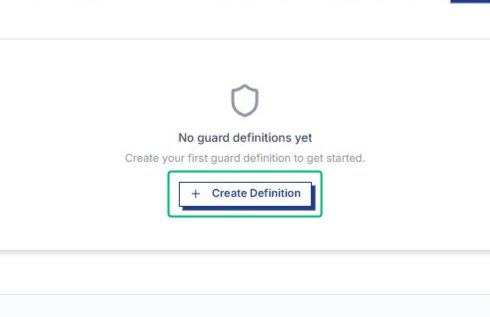
Open the Create Definition dialog
On the Definitions tab, click Create Definition to launch the guard configuration form. The dialog collects the guard type, name, and detection settings for your new definition.
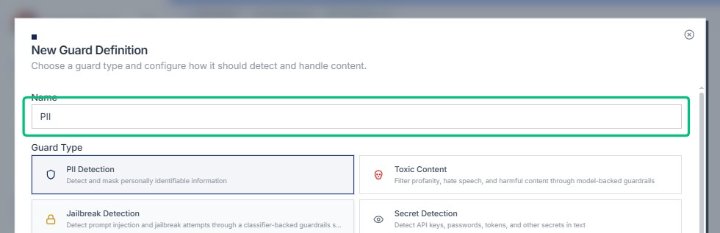
Enter a name for the guard definition
With the New Guard Definition dialog open, type a descriptive name in the Name field. The placeholder suggests naming conventions like PII Detection - Strict to help you identify the guard later.
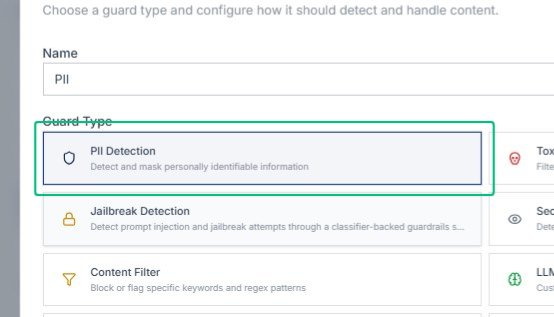
Select the PII Detection guard type
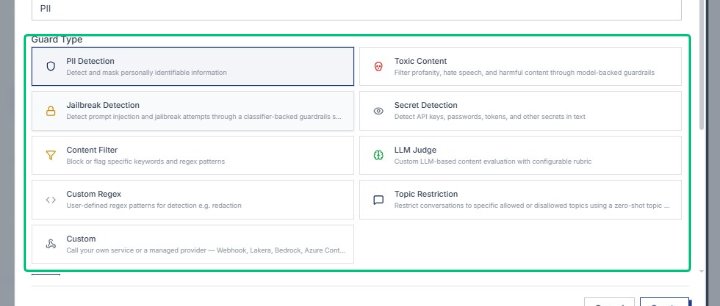
In the Guard Type section, click the PII Detection card to configure detection of personally identifiable information. This guard type will scan for entities like email addresses and phone numbers.
Scroll to view additional guard types
With the New Guard Definition dialog open, scroll down to reveal more guard type options such as Content Filter, Custom Regex, and Custom. These additional types offer different detection and filtering strategies.
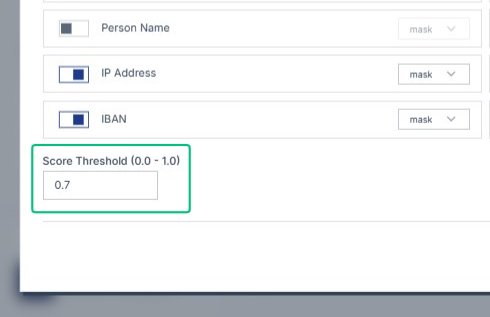
Review the Score Threshold setting
The Score Threshold field controls detection sensitivity, with values from 0.0 to 1.0. Higher values require stronger confidence before flagging content as PII.
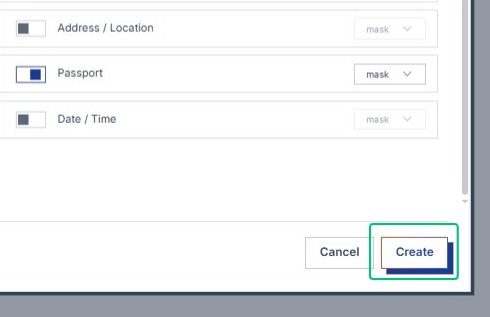
Create the guard definition
With the New Guard Definition dialog configured, save the PII detection guard by clicking Create. The new definition becomes available for use in pipelines.
Review the Guard Definitions section
Start here and moves the workflow forward.
Open the New Pipeline dialog
After creating the guard definition, navigate to the Pipelines tab and click New Pipeline to begin configuring a pipeline that will orchestrate when and how guards are applied.
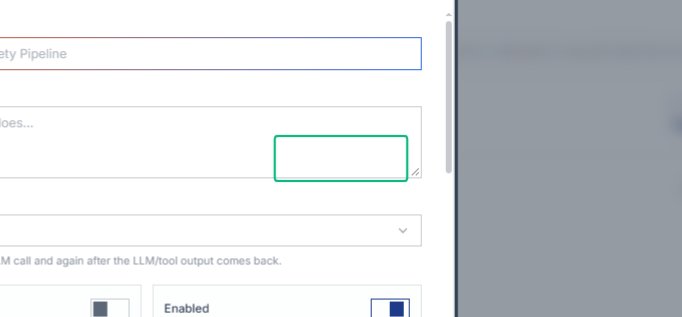
Review the New Pipeline dialog
The dialog presents fields for naming and describing your pipeline, choosing when guards run, and setting account-wide defaults.
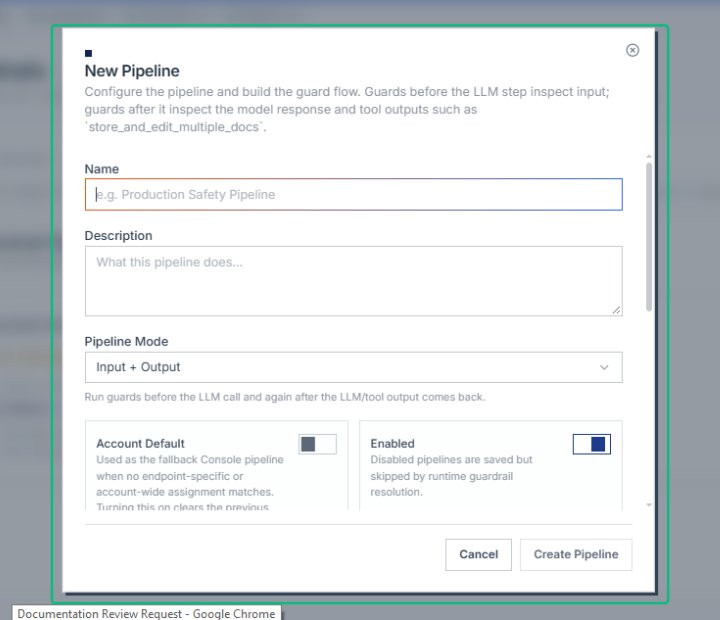
Review the New Pipeline dialog
Start here and moves the workflow forward.
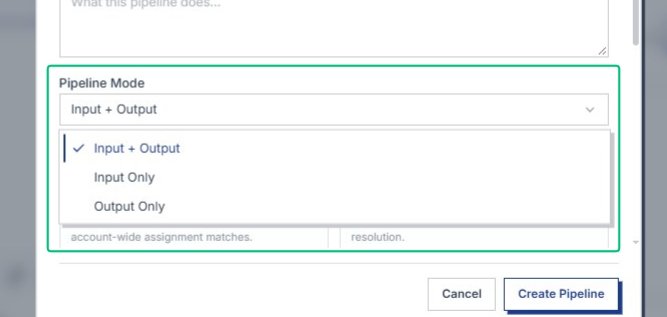
The dropdown displays Input + Output, Input Only, and Output Only. Input + Output runs guards before the LLM call and after the response is generated.
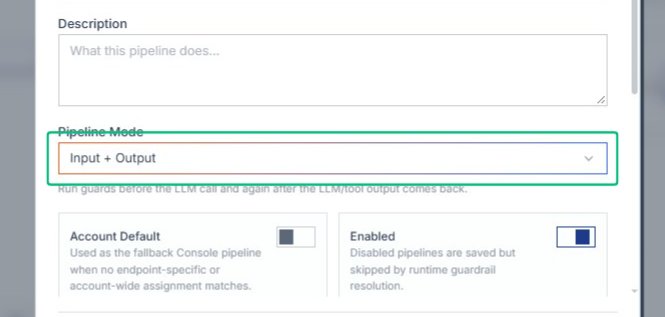
Confirm the Pipeline Mode selection
With the dropdown closed, the dialog returns to the main configuration view. Input + Output remains selected as the mode.
Switch to the pipeline builder view
The dialog now displays the visual pipeline builder, showing the flow from incoming request through guards, the LLM call, and response delivery.
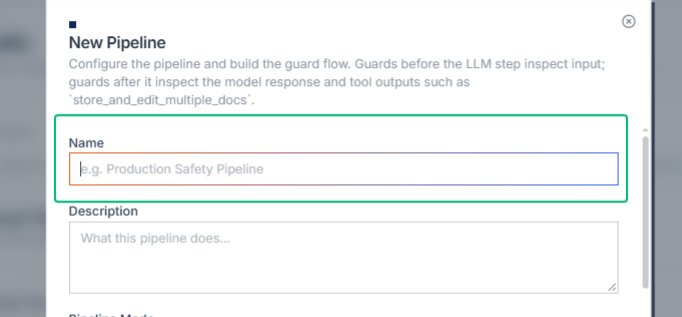
Focus the pipeline name field
With the New Pipeline dialog open, click into the Name field to begin entering a recognizable name for your pipeline.
Enter your pipeline name
Type a name that describes the purpose of this pipeline. This name will appear in your workspace and help you identify the pipeline when assigning it to agents. Input: [input captured]
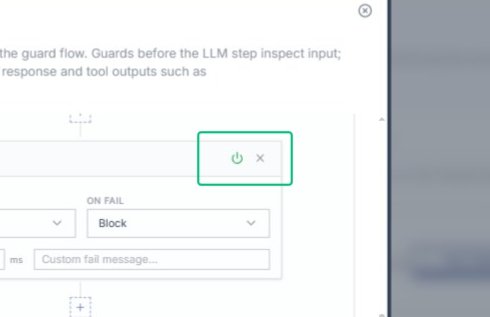
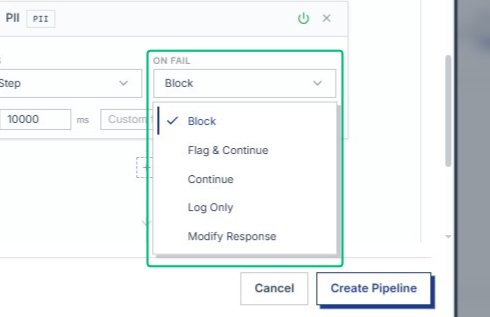
Open the dropdown to choose what happens when a request fails the guard. The options include Block, Flag & Continue, Continue, Log Only, and Modify Response.
Scroll to view the routing options
Inside the Next Step dialog, scroll to see the available routing choices for requests that pass the PII guard.
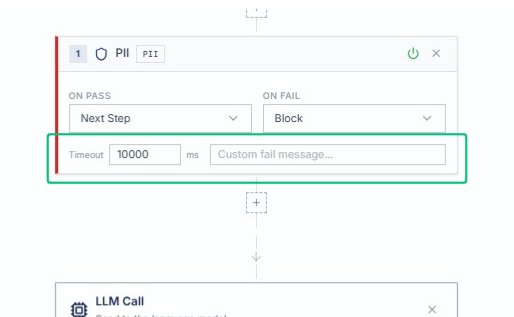
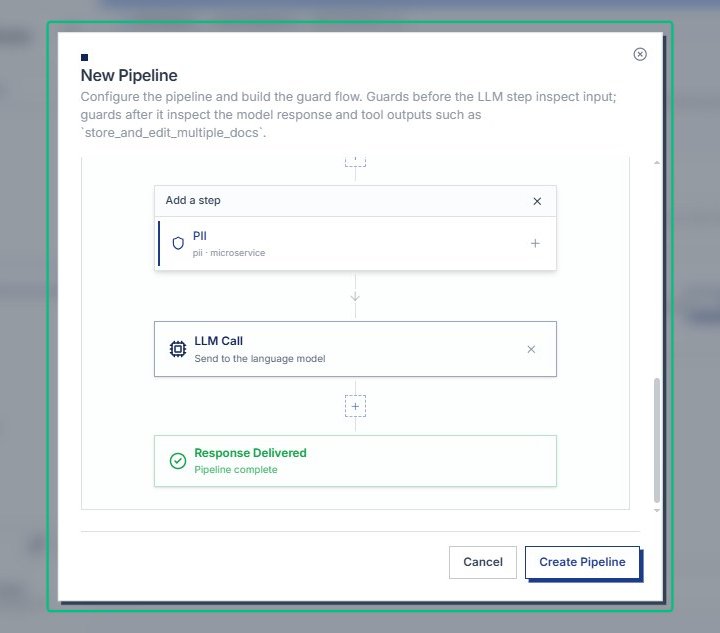
Scroll to view the pipeline flow
After selecting the failure action, scroll to see the complete workflow from Incoming Request through the PII guard, LLM Call, and Response Delivered stages.
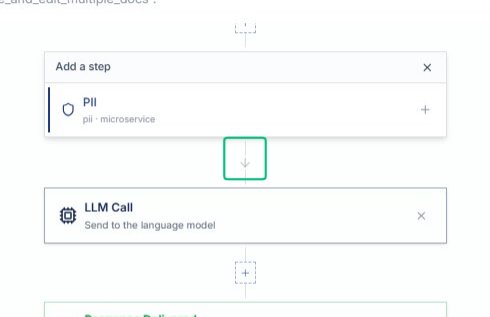
Open the On Pass routing selector
With the Input + Output dialog open, with the PII guard card visible, expand the On Pass dropdown to choose where the pipeline should route requests that pass the guard successfully.
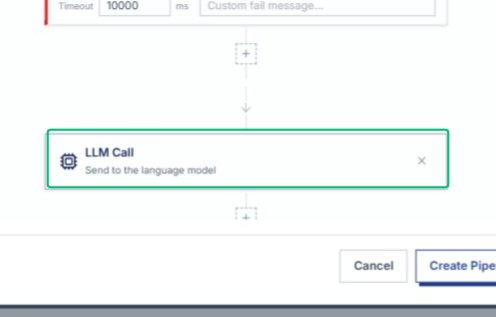
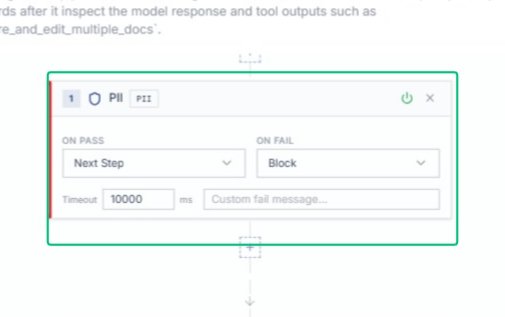
Review the PII guard configuration card
Locate the PII guard step card showing On Pass, On Fail, and Timeout settings. This card represents the first guard in your flow and displays how the pipeline handles each outcome.
Scroll to view the LLM Call step
Scroll within the New Pipeline dialog to reveal the LLM Call step below the guard configuration. The pipeline builder displays steps vertically in sequence, showing how data flows from the guard to.
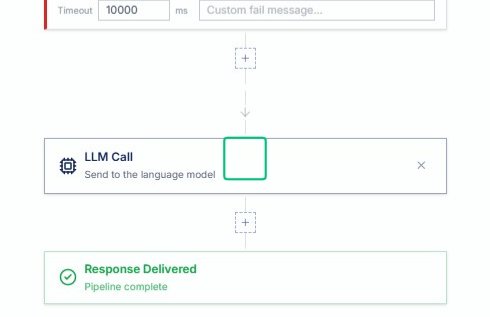
Review the Incoming Request step
With the Next Step dialog open, examine the Incoming Request step that represents the user message entering the pipeline. This is the starting point before the PII guard evaluates the input.
Close the On Fail dropdown
After reviewing the On Fail options, dismiss the dropdown. The guard step now shows Block as the configured behavior when the PII check fails.
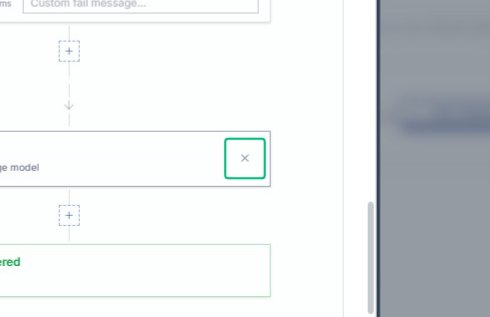
Scroll to view the LLM Call step
Scroll within the New Pipeline dialog to bring the LLM Call step into view. This step sends the request to the language model after the guard passes.
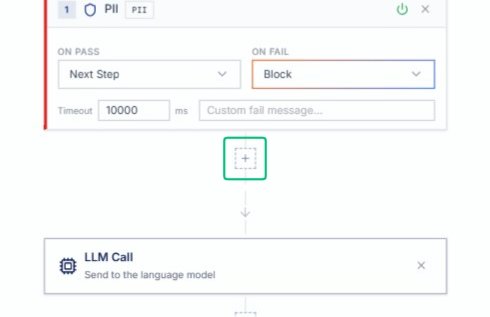
Review the PII guard configuration
The PII guard card displays the configured settings, including the On Pass and On Fail actions. This confirms the guard will block requests that fail and proceed to the next step when.
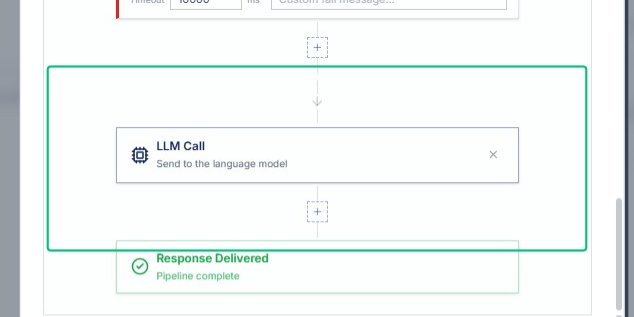
Create Pipeline to save the configuration
With the pipeline configured, press the Create Pipeline button at the bottom-right of the dialog. This saves the pipeline and makes it available for assignment to agents.
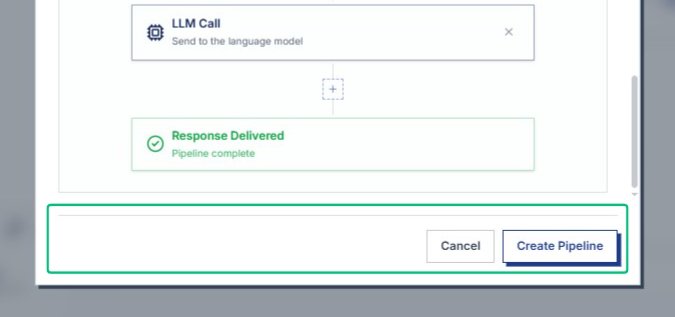
Close the Next Step dialog
With the pipeline flow configured, dismiss the Next Step dialog to return to the main pipeline builder. The guard step is now linked to the LLM Call step in the flow sequence.
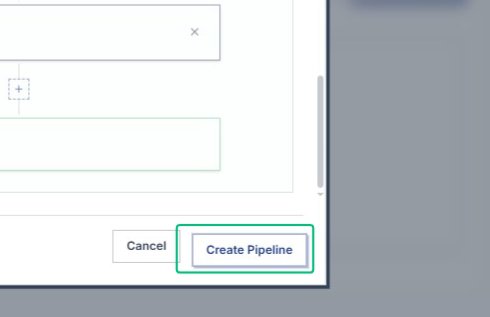
Save the pipeline configuration
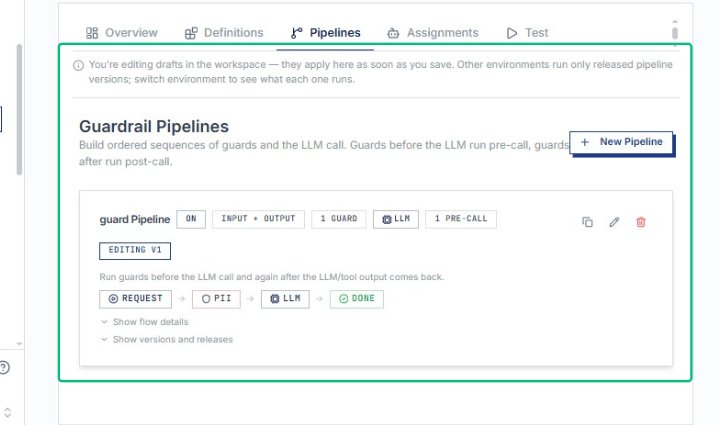
The New Pipeline dialog closes and the pipeline is saved. You return to the Guardrail Pipelines page, where the newly created guard Pipeline appears in the list with its flow sequence visible.
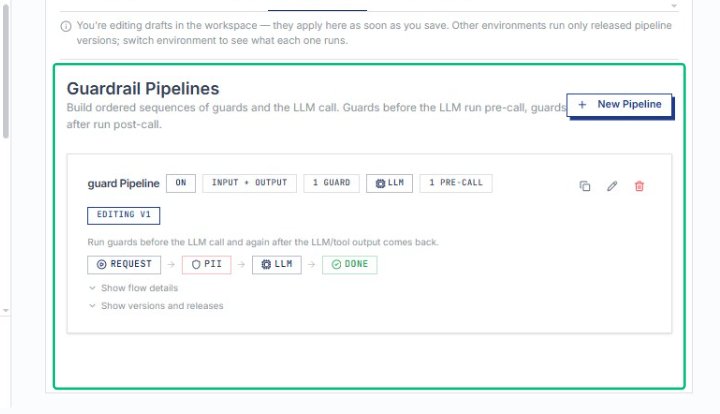
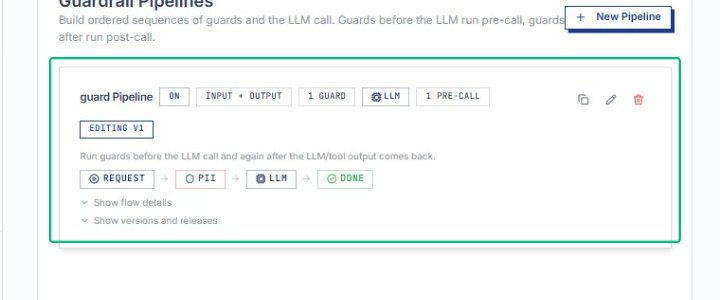
Select the guard Pipeline card
This opens the pipeline details, where you can review the flow sequence and access the Assignments tab to link the pipeline to an agent. > Info: Guardrail Assignment
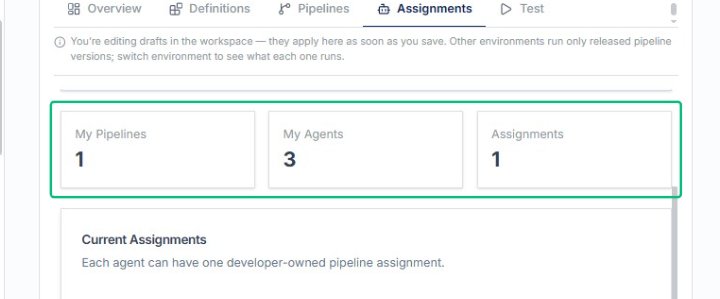
Open the Assignments tab within the Guardrails section of AlchemistStudio. This page allows you to map private console guardrail pipelines to specific agents you own. The assignments apply separately at runtime for each agent.
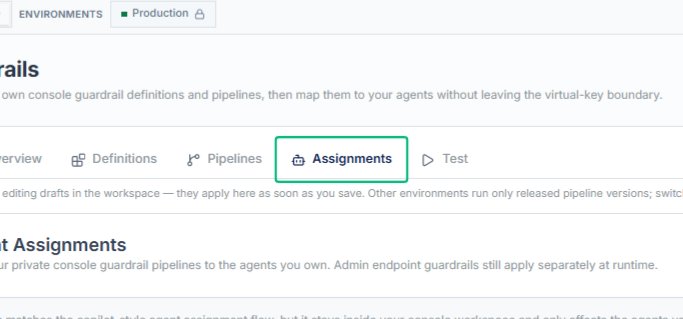
Select New Assignment for Guardrail
Open the Assignments tab within the Guardrails section of AlchemistStudio. This page allows you to map private console guardrail pipelines to specific agents you own. The interface displays your current pipelines, agents, and existing assignments in a centralized view.
Review the New Agent Assignment dialog
The dialog prompts you to choose an agent and a pipeline to link together, so that the selected agent automatically uses the guardrail pipeline you created.
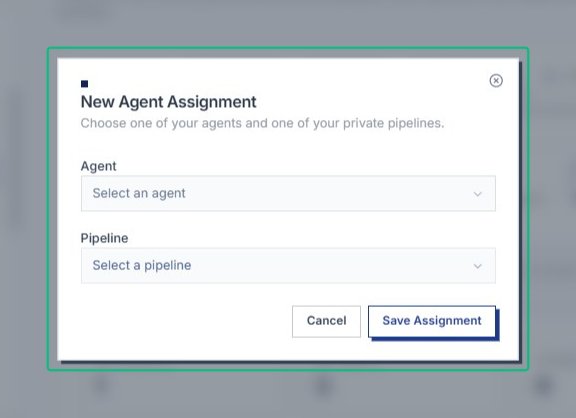
In the New Agent Assignment dialog, expand the agent selector to view the list of available agents in your workspace.
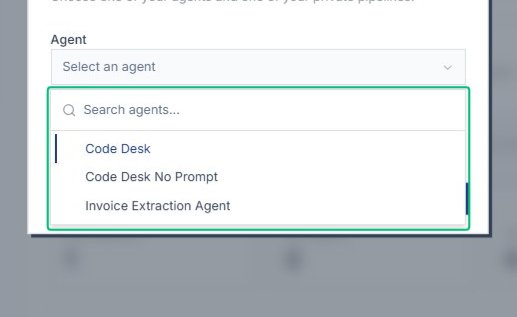
Focus the Search agents field
With the agent menu open, click into the search field to filter agents by name if needed.
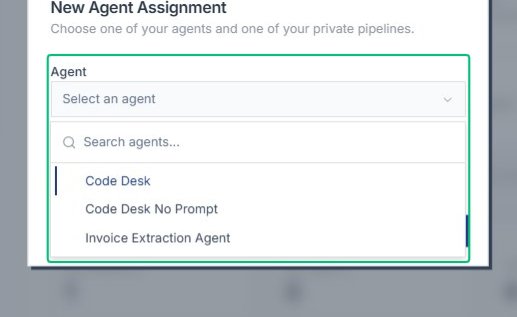
Select Code Desk from the agent list
Choose Code Desk from the list of agents; this agent will use the guardrail pipeline you assign in the next step.
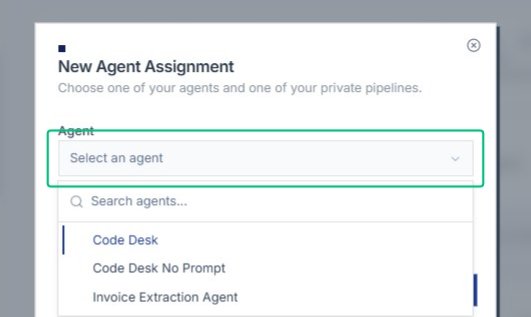
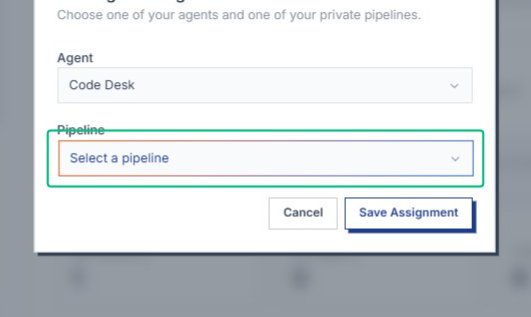
With the agent chosen, expand the pipeline selector to view your available private pipelines. This menu lets you assign a guardrail pipeline to the Code Desk agent.
Focus the Search pipelines field
Once the pipeline menu is open, click into the search field to filter the list. This helps you quickly locate the guard Pipeline you created earlier.
Save your assignment
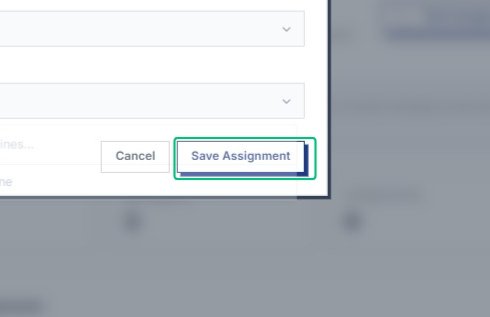
After selecting the pipeline, click Save Assignment to finalize the mapping. The assignment becomes active and appears in the Current Assignments table on the Assignments tab.
Scroll to view the assignments table
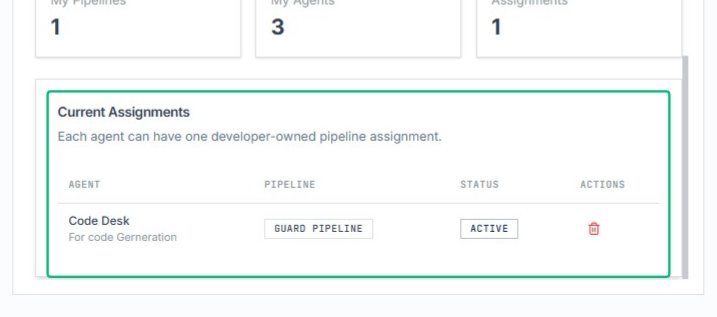
Scroll down the Assignments page to reveal the Current Assignments table, which lists each agent, its assigned pipeline, and status.
Select the Code Desk agent row
Click the Code Desk row in the Current Assignments table to view or modify its pipeline assignment. The agent is now linked to the guard Pipeline with an active status, completing the.