Delete an Agent
Delete an Agent
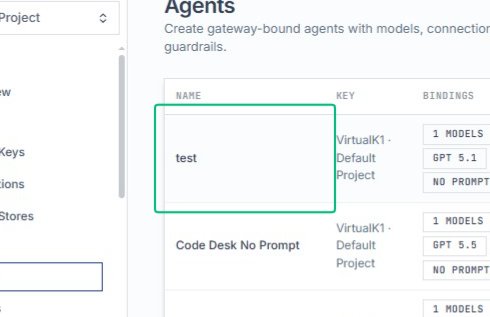
Select the test agent row
On the Agents page, locate and select the test agent from the table. This opens the row actions menu where you can manage the agent.
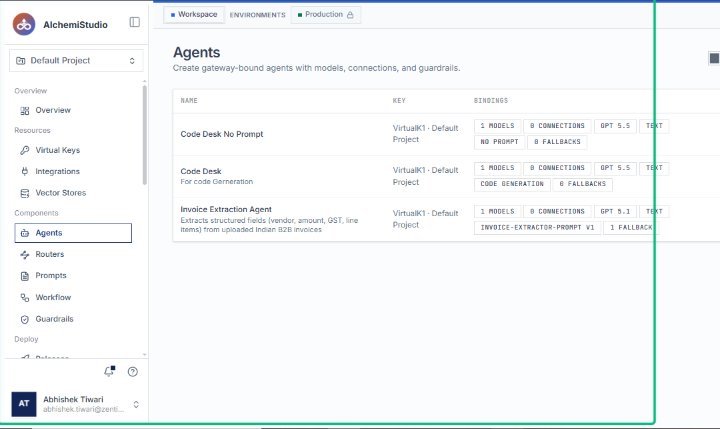
Open the delete action
With the test agent selected, click the delete icon in the Actions column. This launches the Delete Agent confirmation dialog.
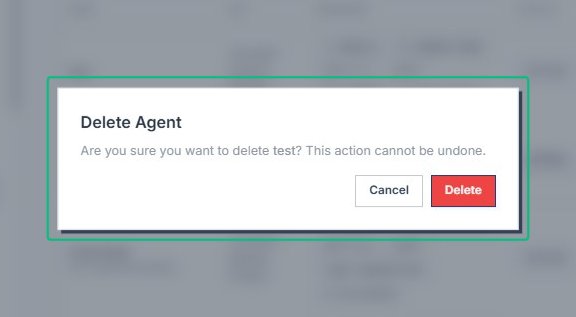
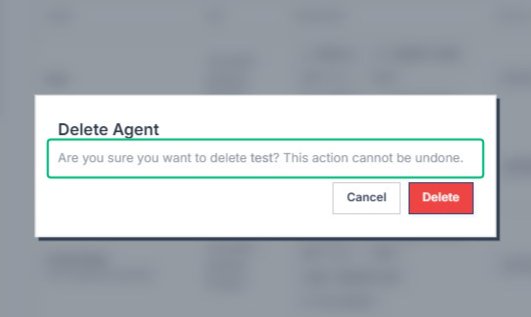
Review the Delete Agent dialog
The dialog warns that deleting the test agent cannot be undone. Confirm you want to proceed before taking the next step.
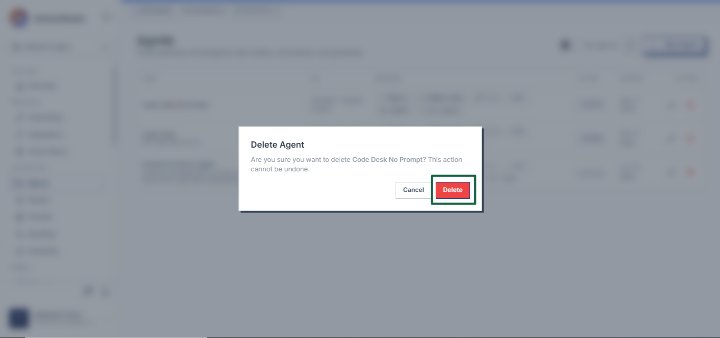
Confirm deletion
Click the red Delete button in the confirmation dialog to permanently remove the agent. The agent will be deleted immediately and the dialog will close.
Click Delete to remove the agent permanently
Press the red Delete button in the confirmation modal to permanently remove the agent named ‘Code Desk No Prompt’. This action cannot be undone and will immediately delete the agent from your system. The modal will close and the agent will no longer appear in your agents list.
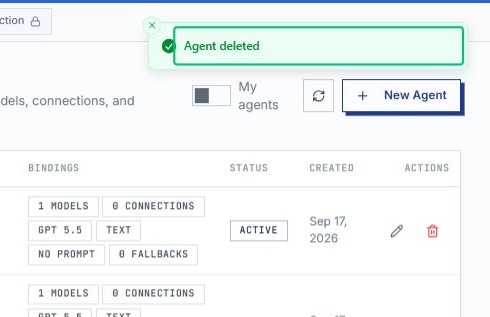
Dismiss the Agent deleted notification
After deletion, a success message appears at the top of the page. The agent no longer appears in your Agents list.