Sandbox Instance
Sandbox Instance
Start from the AlchemiStudio Compute page and open the Sandboxes section, where you can view and manage your isolated compute instances.
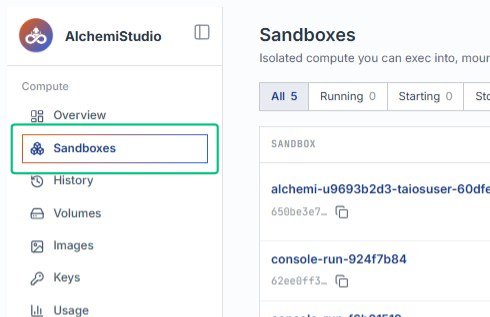
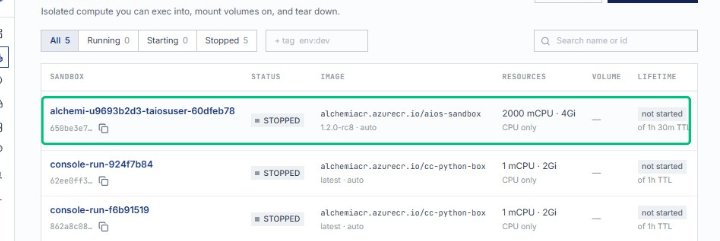
Review the Sandboxes overview
On the Sandboxes page, the main content area displays your available compute instances and their current status.
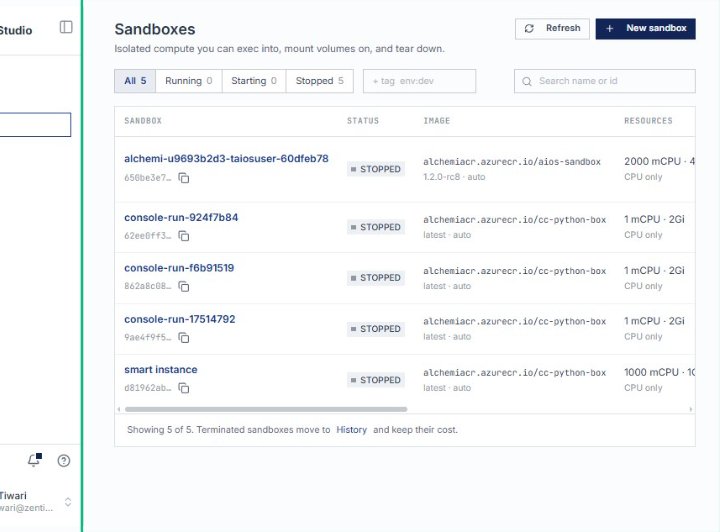
Locate the sandbox list
The table shows all sandboxes with details including name, status, image, and allocated resources.
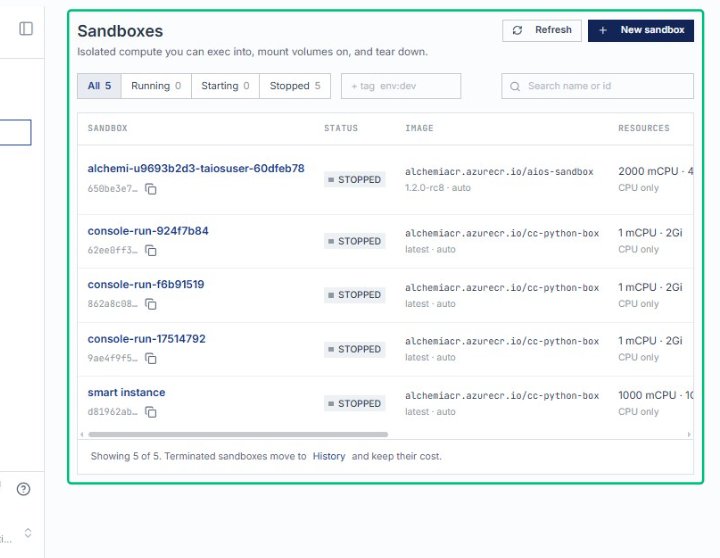
Select the sandbox
Choose the sandbox instance you want to inspect or manage from the list.
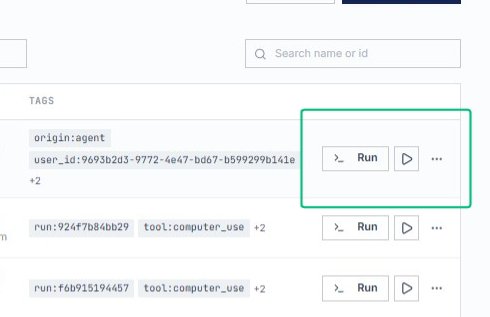
Select the Run cell
From the sandbox list, locate the row containing the instance you want to explore. This cell opens the detailed view for that sandbox.
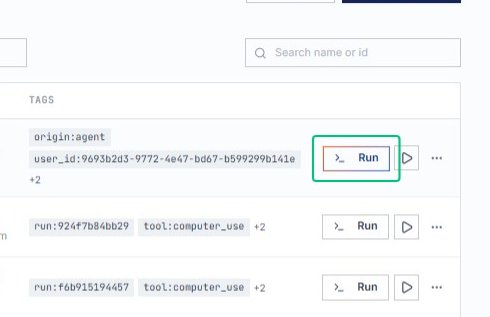
Go to Run
The link navigates to the instance detail page, where you can execute commands and scripts.
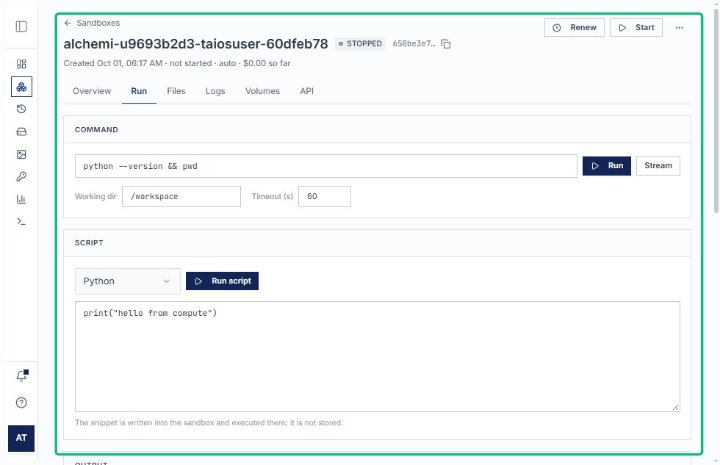
Review the instance detail page
After navigation, the page displays the sandbox name, status, and tabs for managing commands, files, logs, volumes, and API operations.
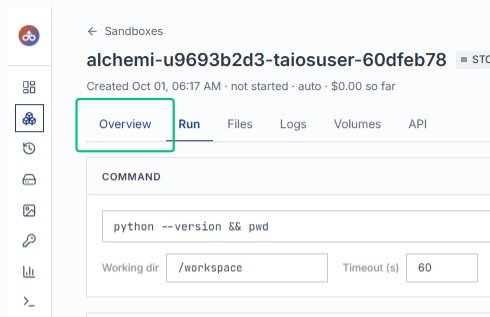
Switch to the Overview tab
The Overview tab displays lifecycle, resource, and placement information for the sandbox.
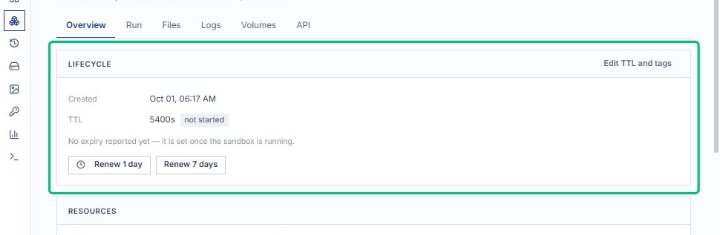
Review the LIFECYCLE section
On the Overview tab, the LIFECYCLE section displays the instance creation time, TTL, and renewal options.
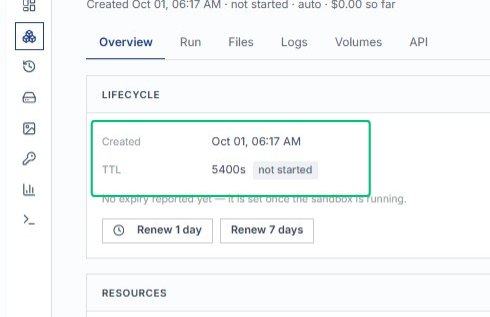
Review the Created and TTL details
Within the LIFECYCLE section, the creation timestamp and time-to-live settings are shown alongside renewal controls.
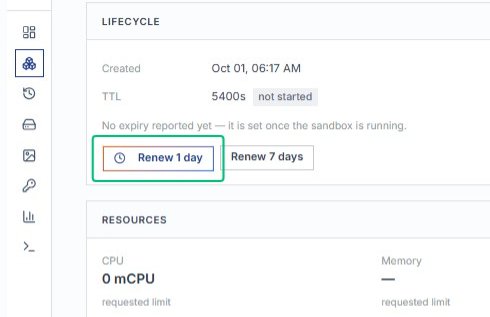
Renew 1 day
Extends the instance TTL by one day, preventing automatic shutdown.
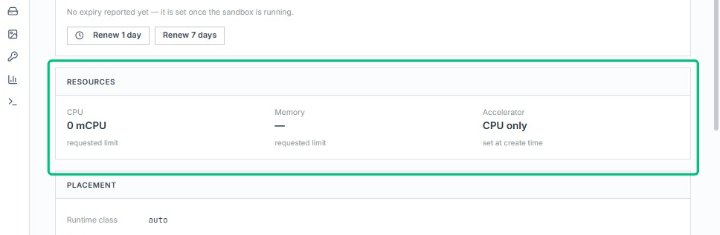
Review the RESOURCES section
Below lifecycle, the RESOURCES section lists CPU, memory, and accelerator allocations for this instance.
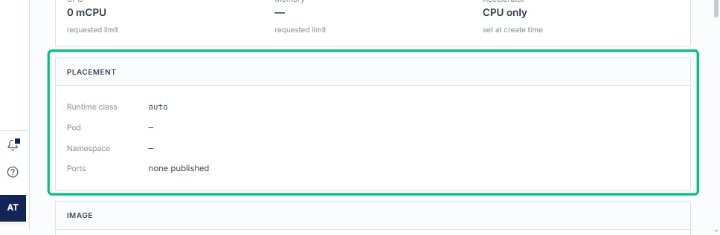
Review the PLACEMENT
This section reveals the runtime class, pod, namespace, and published ports for the instance.
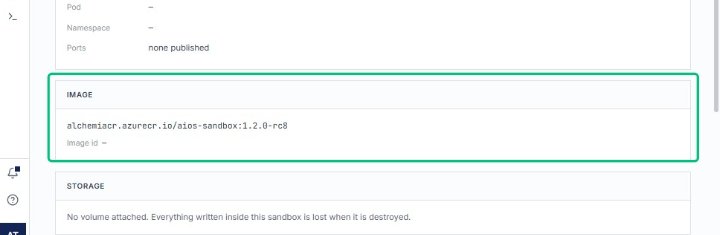
Review the IMAGE
The IMAGE section displays the container image identifier and version used by the sandbox.
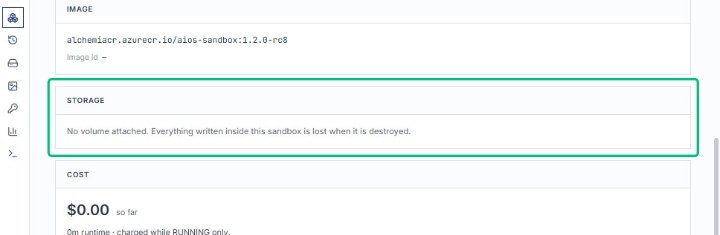
Review the STORAGE
Here you can see whether a volume is attached; unattached sandboxes lose all written data on destruction.
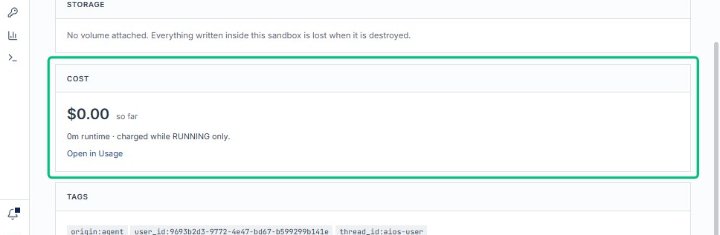
Review the COST
This panel shows the running total and explains that charges accrue only while the instance is running.
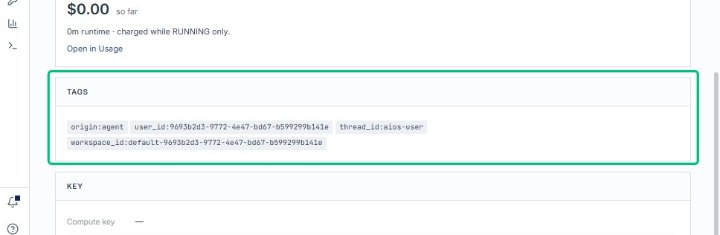
Review the TAGS section
On the instance detail page, this section displays the tags assigned to the sandbox for organization and filtering.
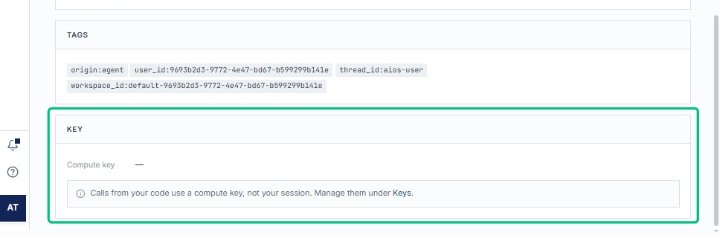
Expand the KEY section
Below TAGS, this section shows the compute key used for API calls from your code.
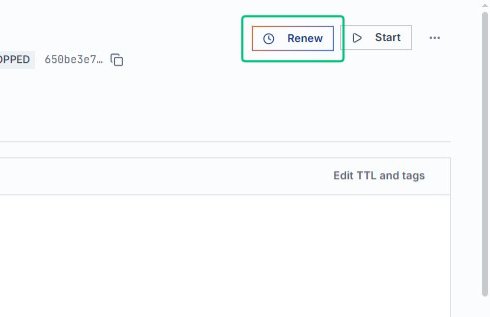
Renew the instance
With the instance details reviewed, extend the time-to-live to keep the sandbox available.
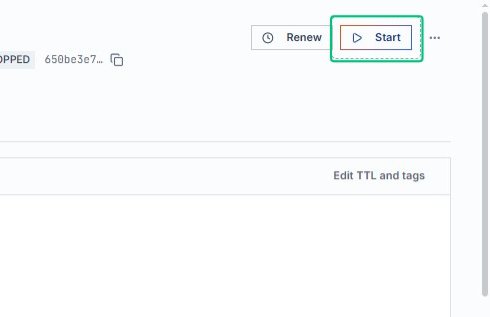
Start the instance
After renewing, launch the sandbox so it transitions from stopped to running state.
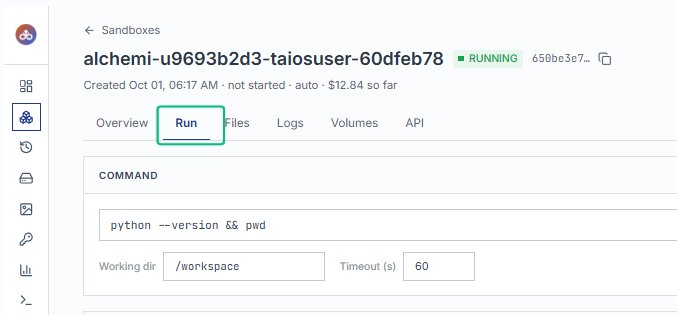
Switch to the Run tab
On the instance detail page, the Run tab displays command and script execution tools for the sandbox.
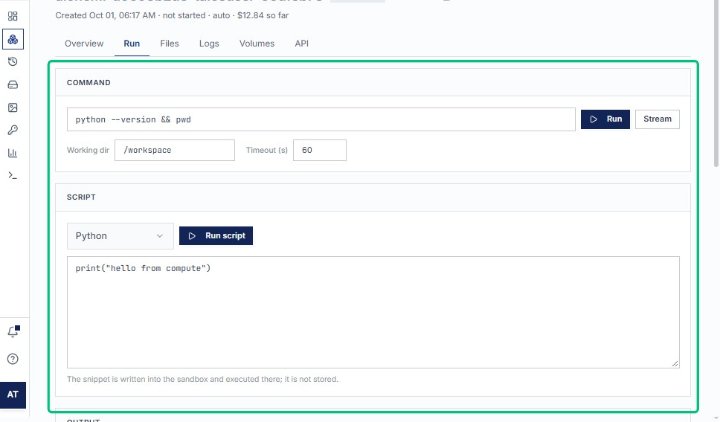
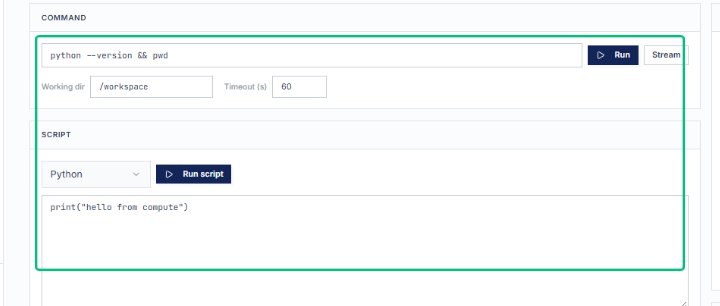
Review the COMMAND section
This section lets you enter and execute shell commands directly in the sandbox environment.
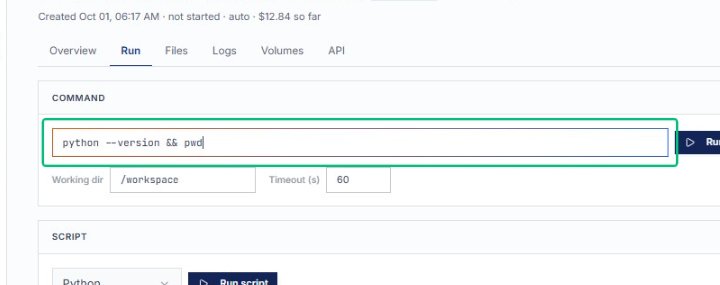
Enter your command
With the command field active, specify the shell command you want to run in the sandbox.
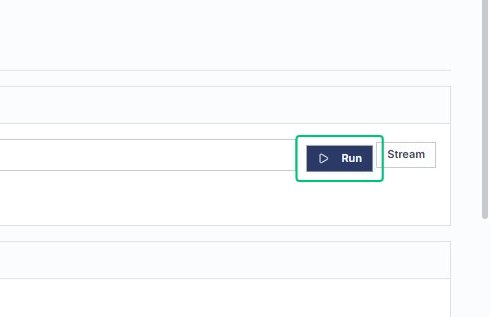
Run the command
Executes the command in the sandbox and displays the output below.
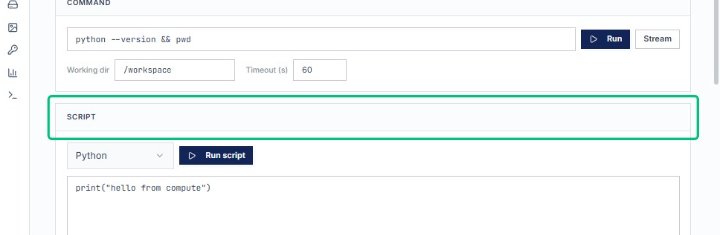
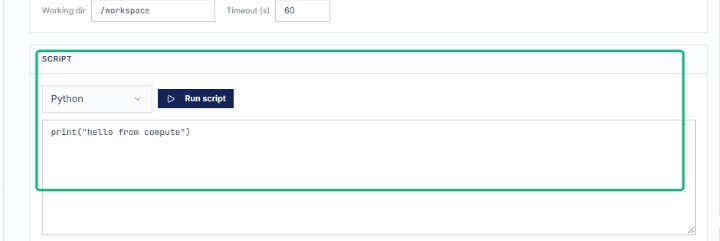
Switch to the SCRIPT section
The SCRIPT section lets you write and execute code snippets in Python, Node, Bash, or Ruby directly in the sandbox.
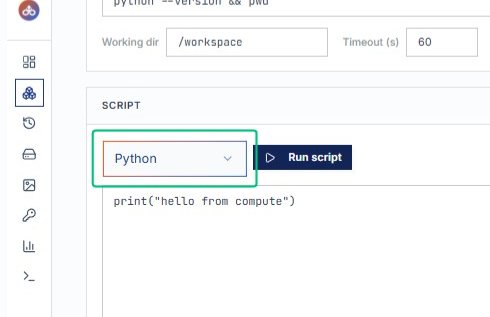
Open the Python language selector
The selector lets you choose Python, Node, Bash, or Ruby as the runtime for your script.
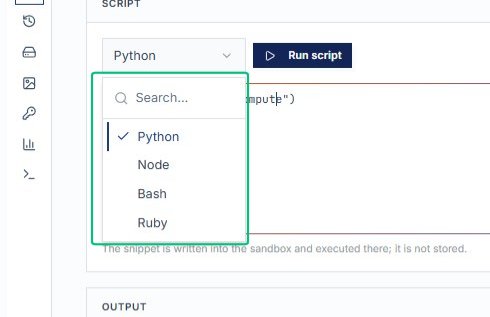
Select Your Language
With the language menu open, the text area is ready for you to write or paste your code snippet based on your selected script language.
Review the OUTPUT section
The OUTPUT section displays exit code, execution time, and console output once you run the script.
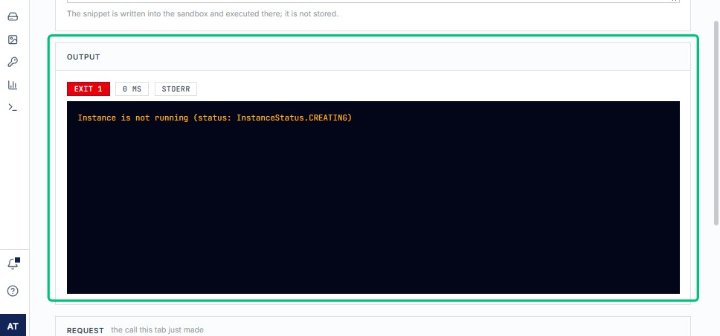
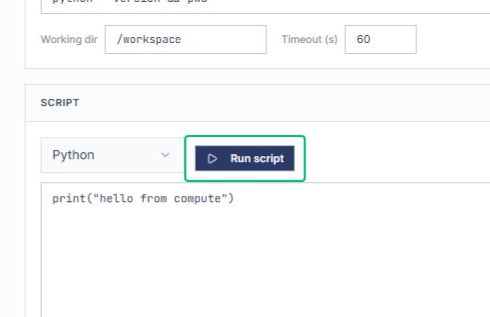
Run script
After reviewing the output section, execute the Python snippet in the sandbox. The result appears in the OUTPUT panel below.
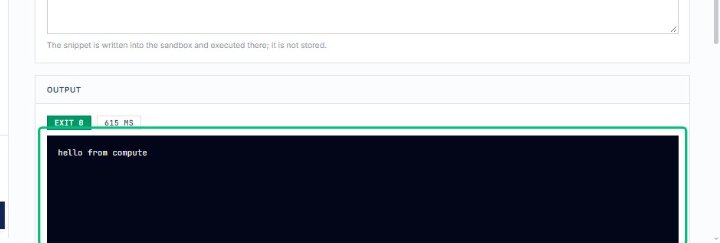
Review the hello from compute output
Once the script completes, the console displays the printed message confirming successful execution.
Expand the REQUEST section
After running the script, the REQUEST section shows the API call that was made, including the endpoint, headers, and payload.
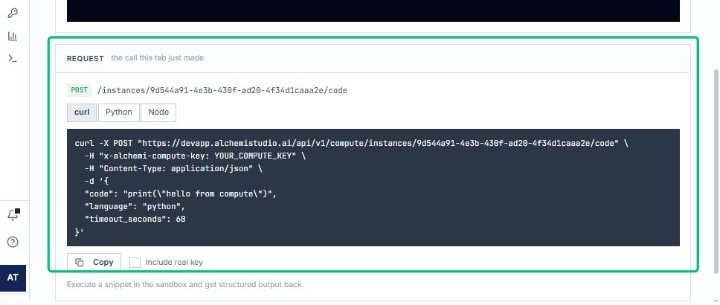
Review the POST endpoint details
With the REQUEST section expanded, the endpoint path and method are visible above the code samples.
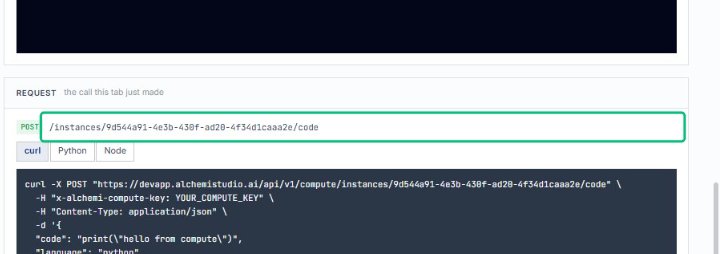
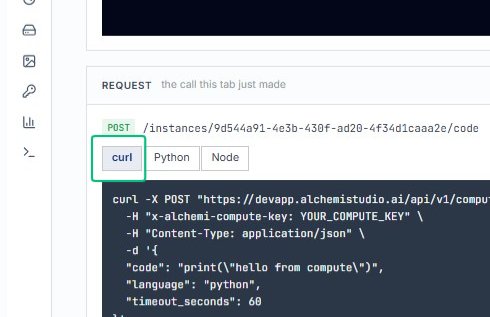
Switch to the curl tab
The REQUEST section displays code snippets in multiple languages. Selecting curl shows the command-line example for calling the instance endpoint.
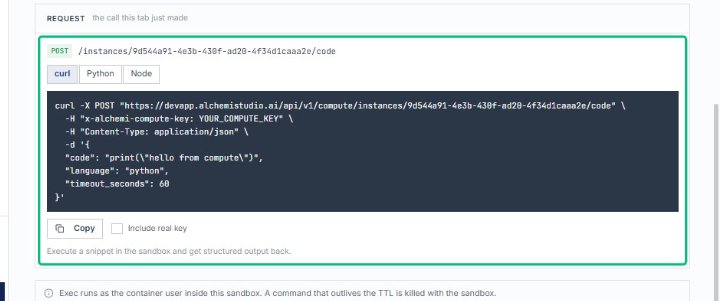
Review the POST /instances/9d544a91-4e3b-430f-ad20 request
The panel displays the full curl command with headers, payload, and endpoint. This snippet demonstrates how to execute code remotely on the sandbox instance.
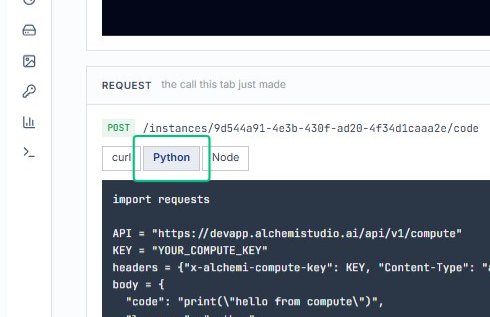
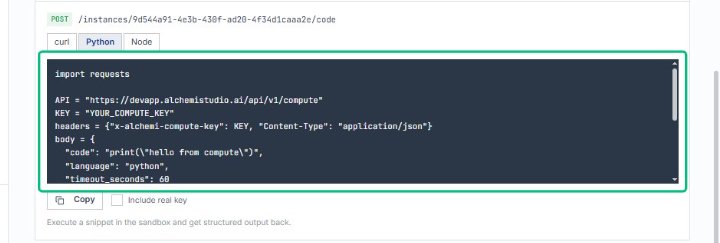
Switch to the Python tab
From the language tabs, select Python to view the equivalent request in Python syntax.
Review the Python request snippet
The code block shows how to import requests, configure headers, and post the execution payload. Use this example to integrate sandbox execution into your Python application.
Select Node
Switching to the Node tab shows the equivalent request code in JavaScript, making it easier to integrate with Node.js projects.
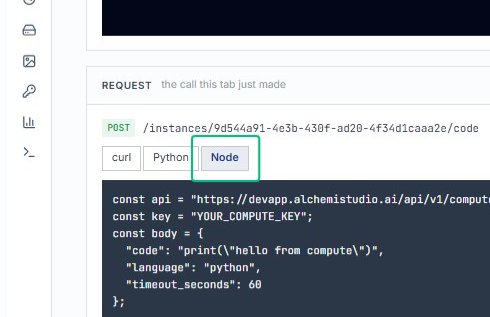
Review the Node.js sample code
The code snippet demonstrates how to call the instance script endpoint using Node.js fetch. You can copy this directly into your application.
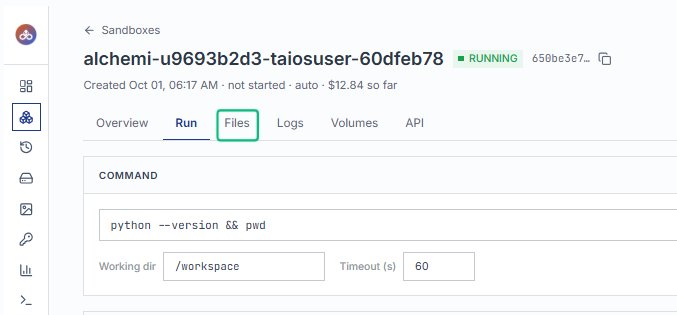
Switch to the Files tab
From the sandbox detail page, open the Files tab to browse and manage the workspace directory.
Review the FILES section
On the Files tab, the FILES section displays the workspace folder and the Upload button for adding new files.
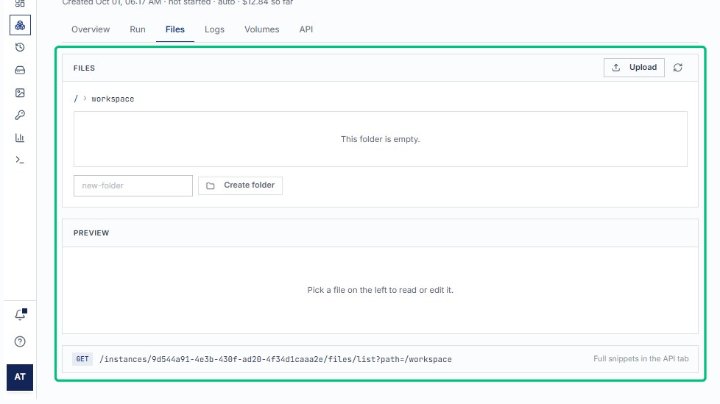
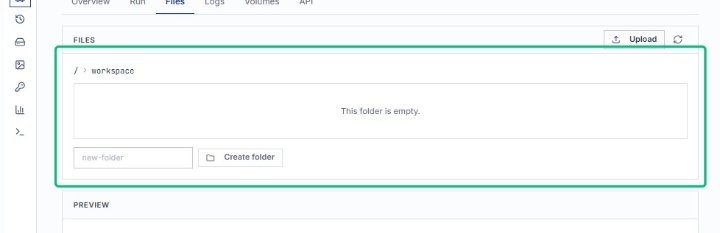
Review the workspace folder
The workspace folder is currently empty, ready for files to be uploaded or created.
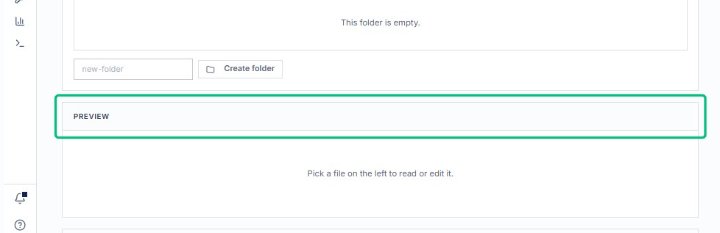
Review the PREVIEW section
Below the workspace folder, the PREVIEW section prompts you to select a file from the left to read or edit it.
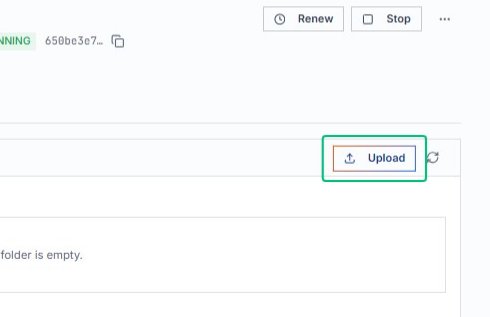
Open the file upload dialog
Clicking Upload launches the file picker so you can select a file from your local machine.
Select the file to upload
With the upload picker open, choose the file from your local system that you want to transfer to the workspace folder. Input: C:\fakepath\Capture.PNG
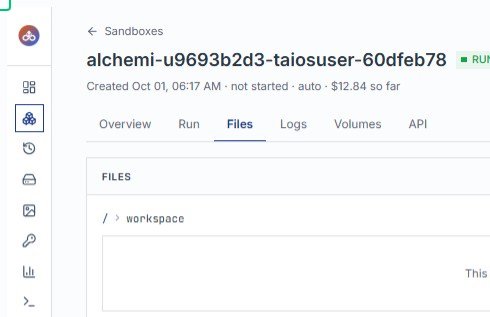
Confirm the file path
The field displays the selected file path; verify it before proceeding with the upload.
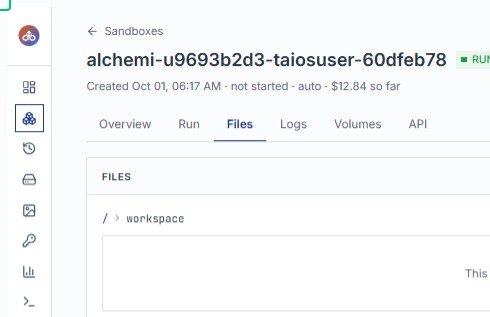
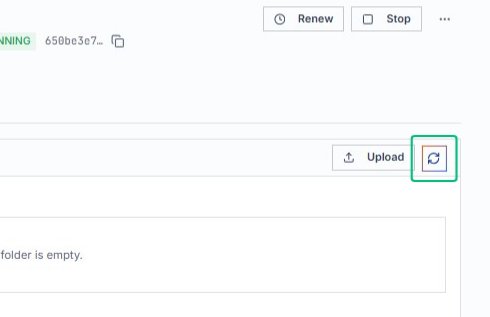
Refresh files
After uploading, reload the file list to confirm the new file appears in the workspace directory.
Switch to the Logs tab
From the Files tab, move to Logs to view the sandbox’s runtime output and boot messages.
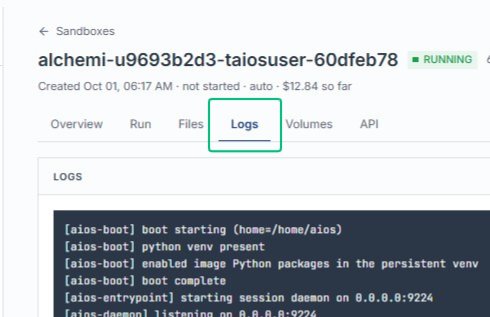
Review the LOGS section
On the Logs tab, the section displays the sandbox boot and daemon output. Tail, Load, and Follow controls let you manage the log stream.
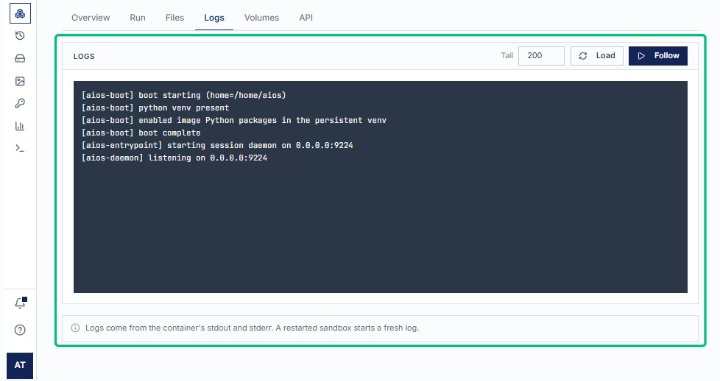
Review the boot log output
The log area shows the aios-boot and aios-daemon startup messages. This confirms the sandbox environment is running.
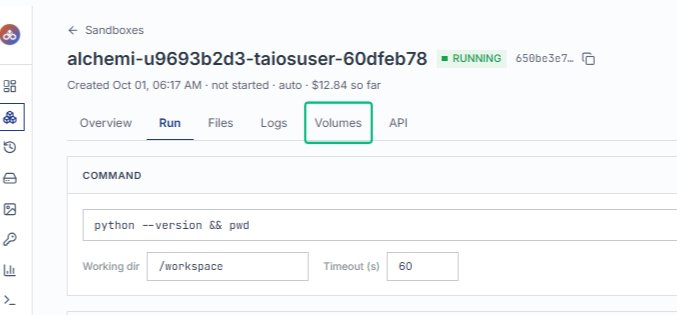
Switch to the Volumes tab
From the Logs tab, open the Volumes section to manage persistent storage attached to this sandbox.
Review the MOUNTED VOLUMES section
The section shows any volumes currently attached to the sandbox. When empty, files written to the sandbox are lost on destruction.
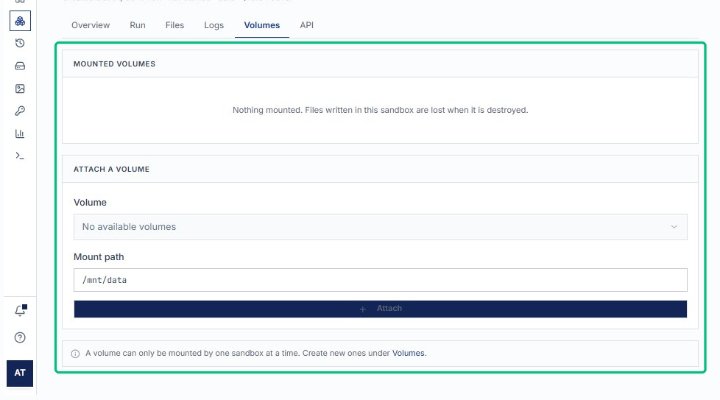
Locate the ATTACH A VOLUME section
On the Volumes tab, this section lets you mount an external volume to the sandbox workspace.
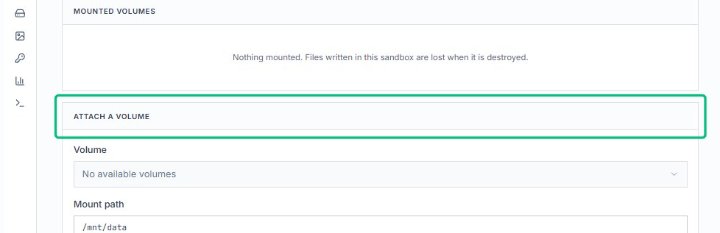
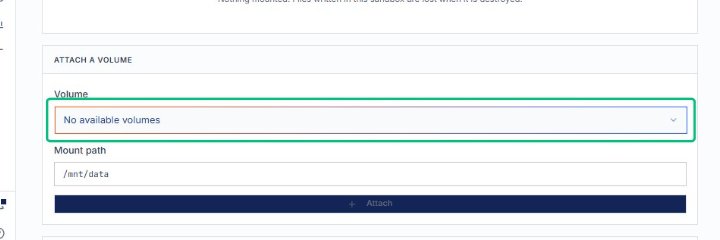
The dropdown shows which volumes can be attached; in this case, none are available.
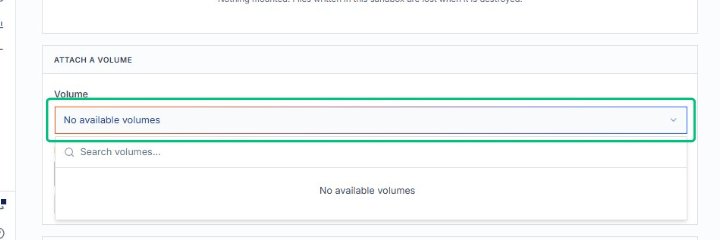
Opening the menu confirms no volumes exist in your workspace to mount.
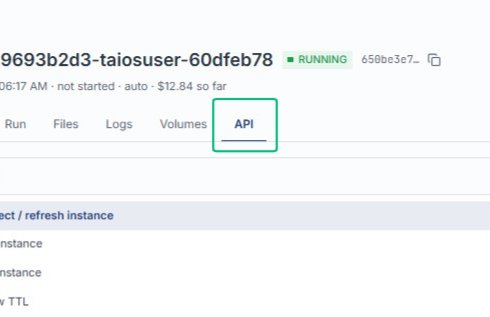
Switch to the API tab
From the Volumes tab, move to the API tab to explore programmatic operations for this sandbox.
Review the OPERATIONS section
On the API tab, this section lists all available instance operations, from starting and stopping to managing files and directories.
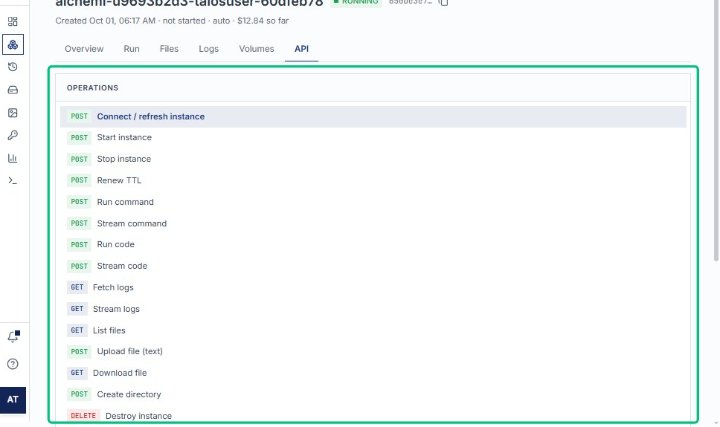
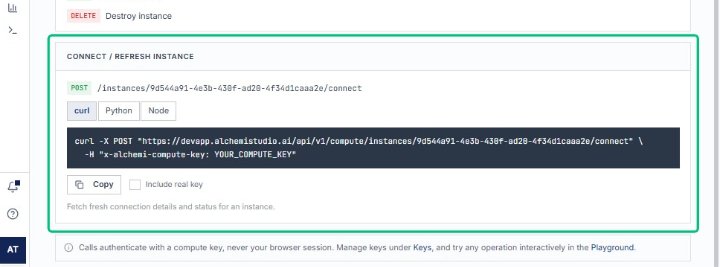
Expand Connect / refresh instance
Opens the details for the POST endpoint that fetches fresh connection details and status for the instance.
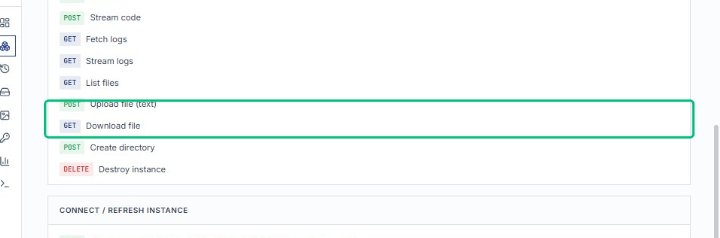
Review the CONNECT / REFRESH INSTANCE section
The section displays the endpoint path, code samples in curl, Python, and Node, and a note about key authentication. This completes the API reference walkthrough for the instance.