Managing Production Releases
Managing Production Releases
Navigate to the Releases section under the Production environment tab in AlchemiStudio. This page displays all releases organized by deployment status: running, waiting, and historical. Use this view to monitor active deployments, track pending releases, and review deployment history.
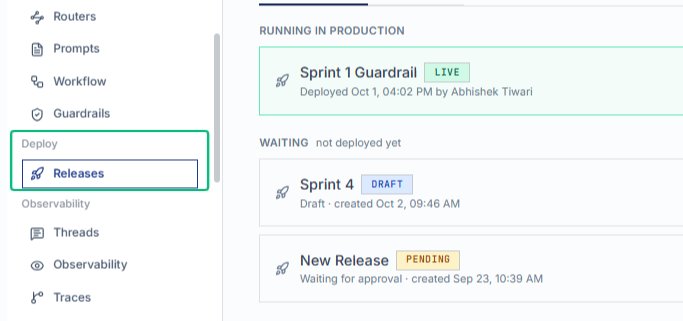
Start from the AlchemiStudio Console and open the Releases page from the Deploy section in the left sidebar. This page shows all releases organized by deployment status: Running in Production, Waiting, and.
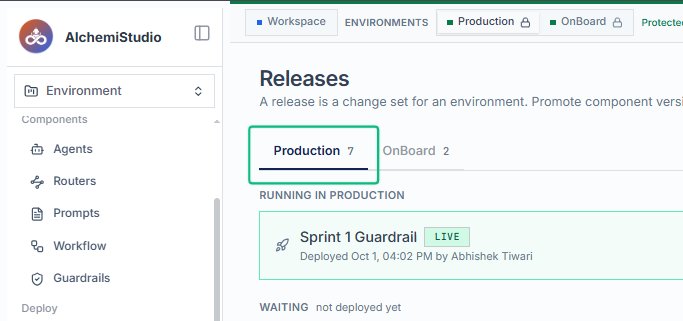
Scroll down the Releases page
Scroll through the page to view all release entries across the different status sections. This reveals additional releases beyond what is initially visible, including historical deployments.
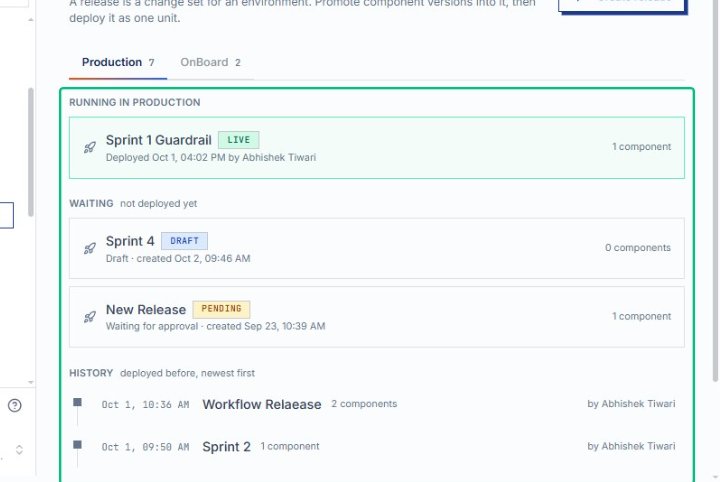
Expand the Running in Production section
Select the Running in Production section to view releases currently live in the Production environment. This section displays active deployments and their component details.
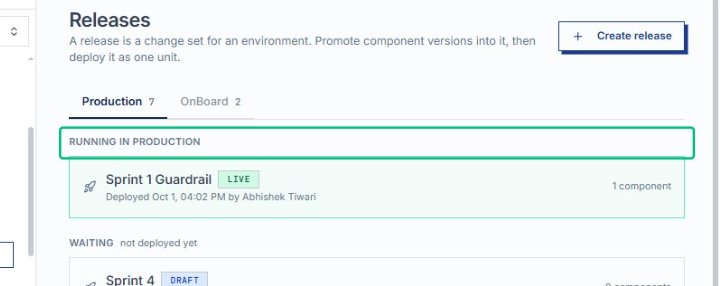
Open the Sprint 1 Guardrail release
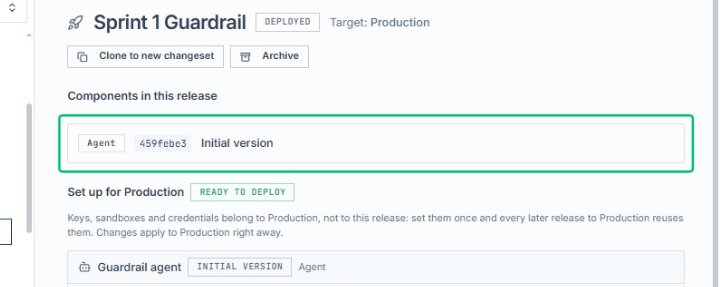
On the AlchemiStudio Console page, select the Sprint 1 Guardrail release from the Running in Production list. This navigates to the release detail page, where you can review components, production setup, and.
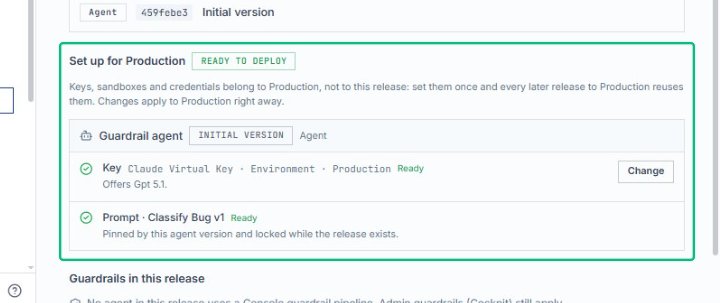
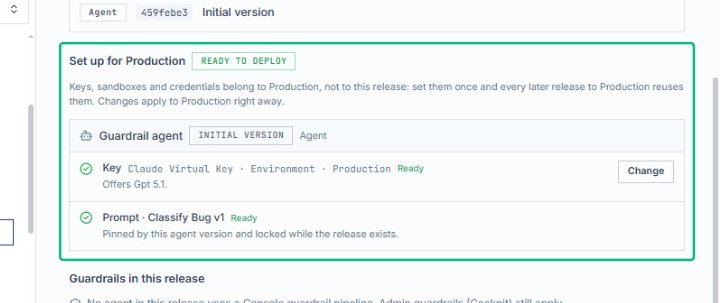
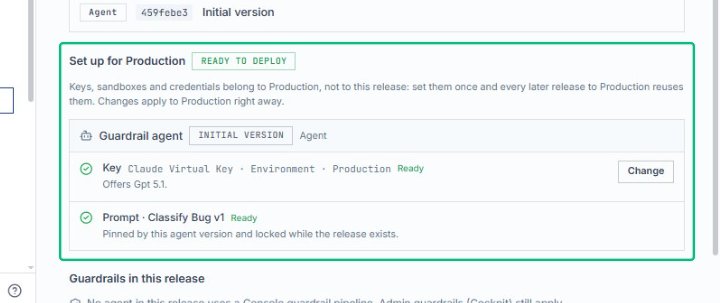
Review the Set up for Production section
This section shows the keys, prompts, and guardrails configured for the Production environment. The Ready to deploy badge confirms all required settings are in place.
Scroll to view deployment options
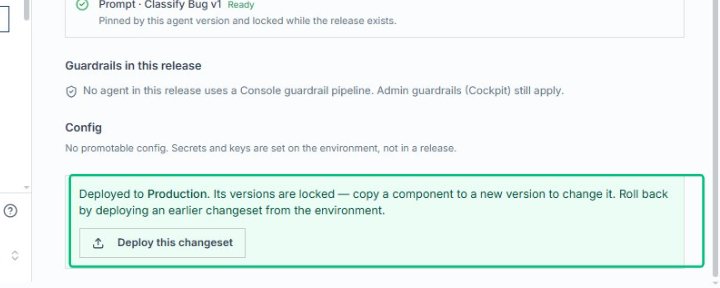
After reviewing the production setup, scroll down to reveal the Deploy this changeset button and additional release information.
Deploy this changeset
Pushing this release to Production locks its component versions and applies the configured keys and prompts to the live environment.
Scroll to the top of the release page
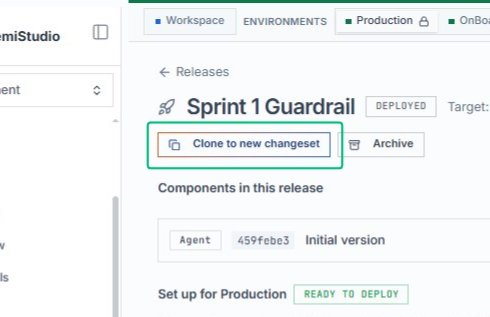
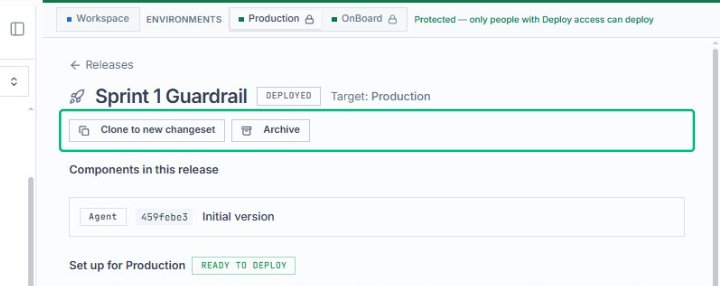
Once deployment completes, scroll back up to access the Clone to new changeset button near the release title.
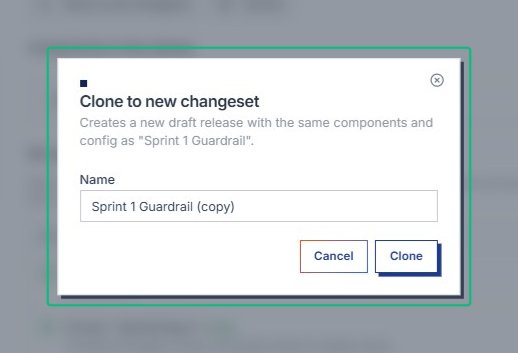
Confirm the clone in the dialog
With the Clone to new changeset dialog open, review the proposed name and confirm the action. This creates a draft release with the same components and configuration as the original.
Review the Set up for Production section
On the release detail page, locate the Set up for Production section. This area shows keys, sandboxes, and credentials required before deploying to the Production environment.
Open the Clone to new changeset action
From the release header, select Clone to new changeset. This action duplicates the current release configuration so you can modify it without affecting the deployed version.
Return to the Releases overview, where you can see all releases grouped by status: running in Production, waiting for deployment, and historical entries.
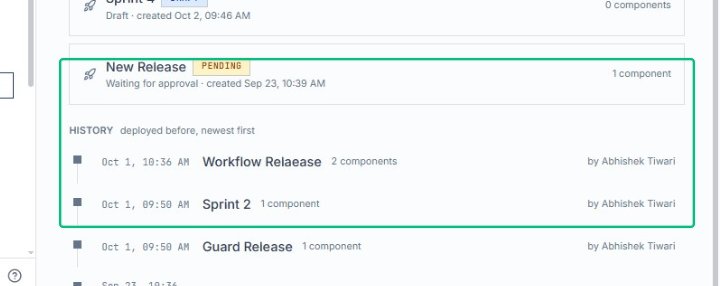
Scroll through the Waiting section
Browse the Waiting section to view draft and pending releases that have not yet been deployed to Production.
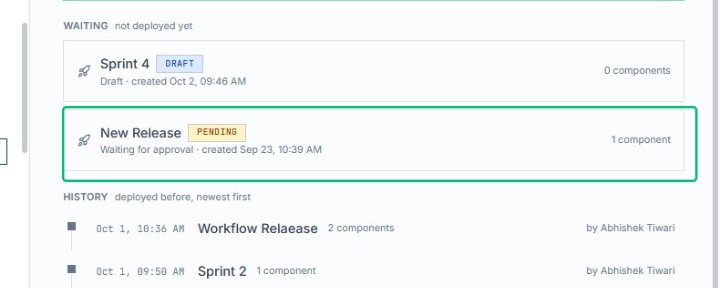
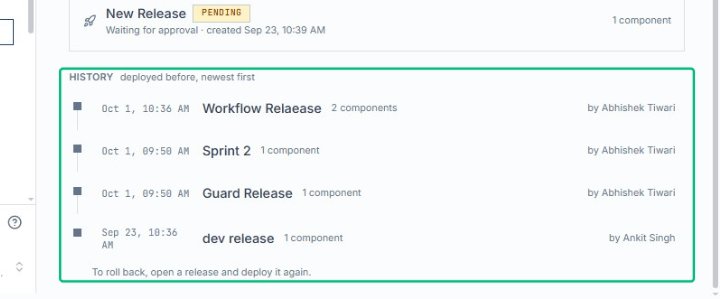
Review the deployment history
Scroll through the History section to see past releases deployed to Production, including timestamps and component counts. This completes your review of production release management.