Update an Agent
Update an Agent
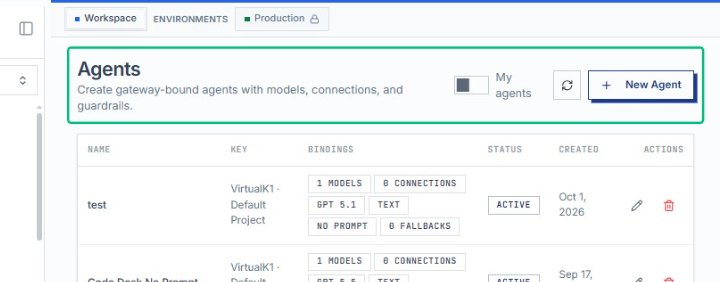
Start from the AlchemiStudio Console and select Agents from the Components section in the left sidebar. This opens the Agents page, where you can view and manage all gateway-bound agents in your.
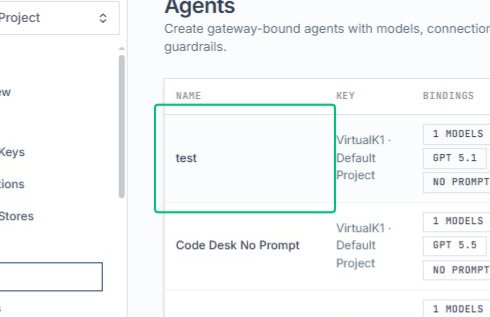
Select the test agent
On the Agents page, click the test agent row in the table. This opens the agent’s detail and editing view, where you can modify its configuration, prompts, models, and connections.
Click the actions area in the test agent row to reveal available operations. The menu provides options to edit or manage the selected agent.
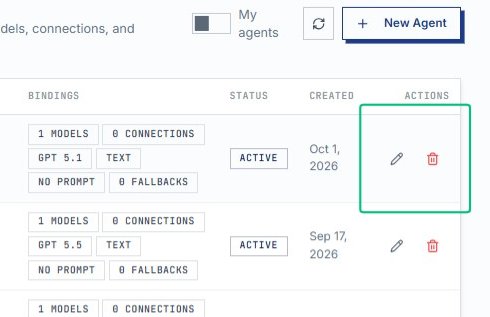
With that in place, click the edit icon button in the actions column of the test agent row. This prepares to navigate you to the agent editing interface.
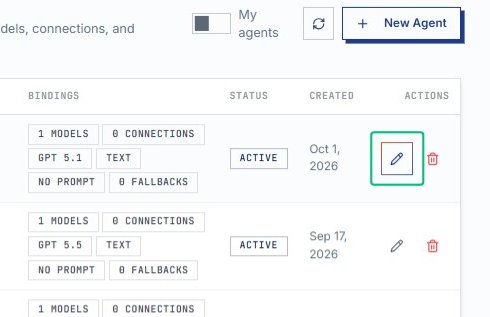
The page loads after selecting an agent from the Agents list. Here you can configure the agent’s virtual key, bind resources, define its prompt, and manage versions.
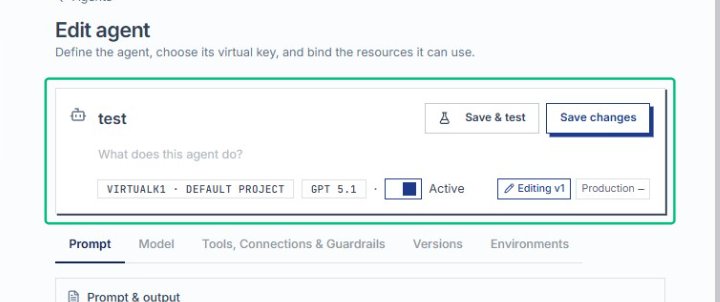
Review the Edit agent page
On the Edit agent page, you see the agent’s name, virtual key, and tabs for Prompt, Model, Tools, Connections & Guardrails, Versions, and Environments. This is where you make changes to the.
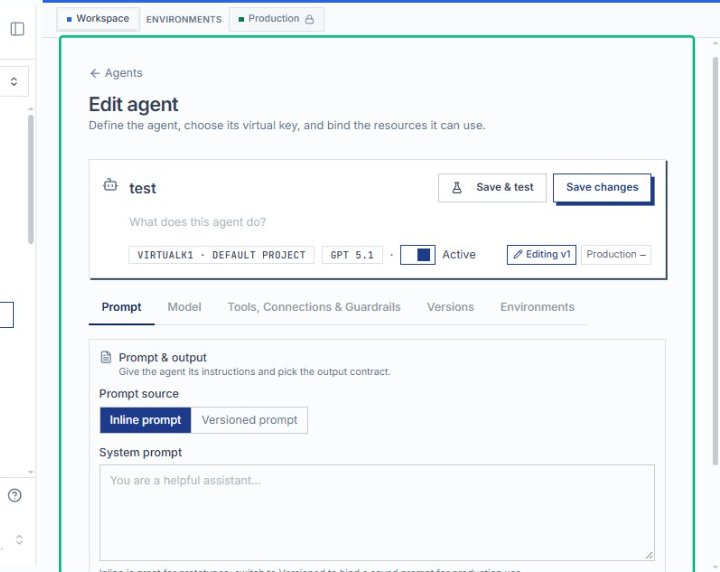
Select the agent configuration area
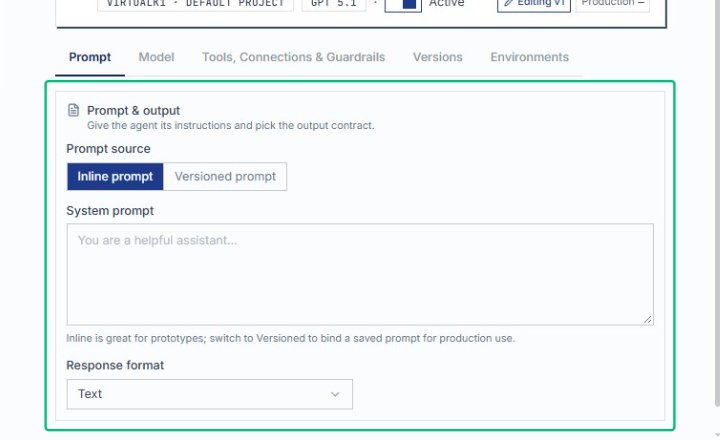
Focus on the main configuration panel to begin reviewing or editing the agent’s settings. The Prompt & output section is visible, where you can adjust the system prompt and response format.
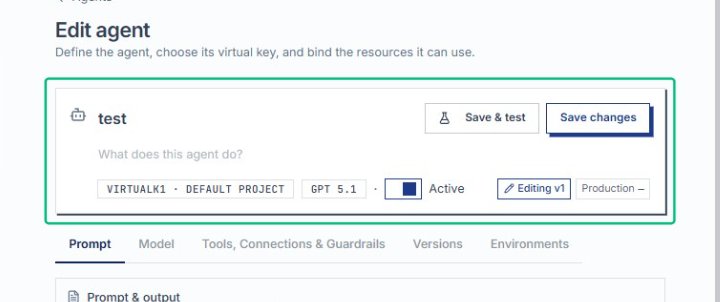
Scroll down the Edit agent page
Scroll to reveal additional fields in the Prompt & output section, including the System prompt text area and Response format dropdown. These settings control how the agent interprets requests and structures its.
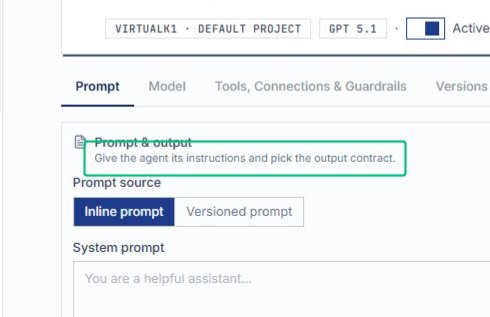
Review the Prompt & output section
On the Edit agent page, locate the Prompt & output section, which displays the system prompt and response format settings. This section defines how the agent interprets requests and structures its replies.
Switch to the Model tab
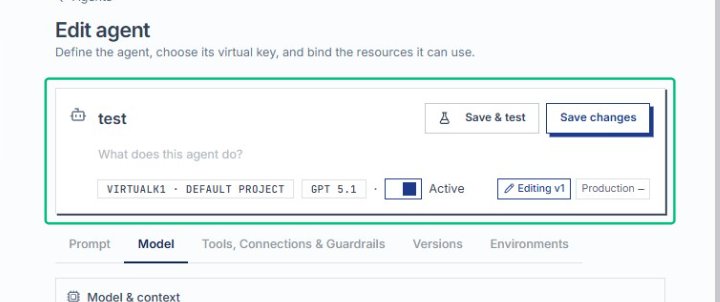
From the Prompt & output section, move to the Model tab to access model selection and context settings. This tab controls which language model the agent uses and how much conversation history.
Scroll down the Model tab
Scroll through the Model tab to view advanced parameters and fallback model options. These settings allow you to fine-tune model behavior and configure backup models if the primary model is unavailable.
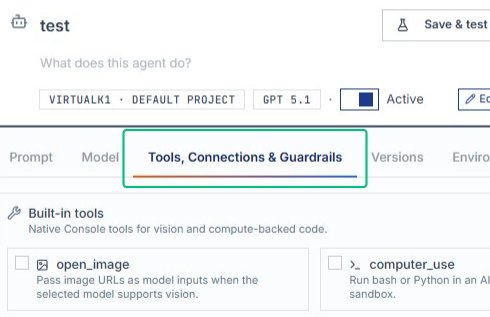
Switch to the Tools, Connections & Guardrails tab
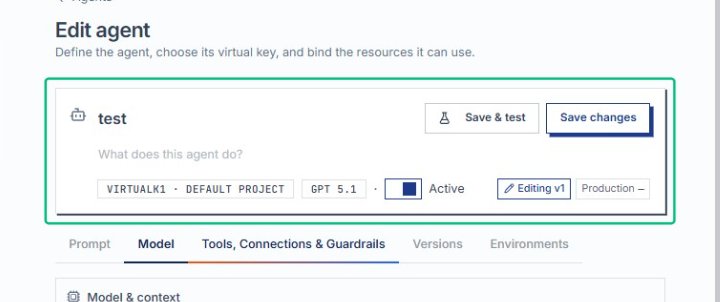
Select the Tools, Connections & Guardrails tab to configure built-in tools, external integrations, and safety controls. This tab appears in the horizontal navigation below the agent name and status.
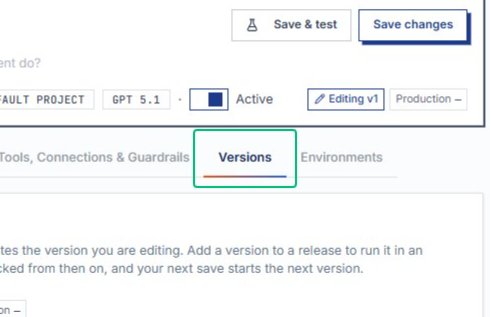
Switch to the Versions tab
On the Edit agent page, select the Versions tab to view and manage agent versions. This tab shows the version history, deployment status, and options to create new versions or add versions.
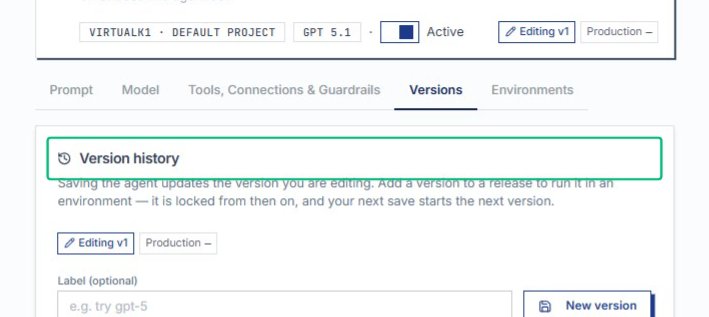
Scroll to view the version history section
Scroll down within the Versions tab to reveal the complete version history. The section displays all saved versions of the agent, including timestamps, deployment environments, and version management controls.
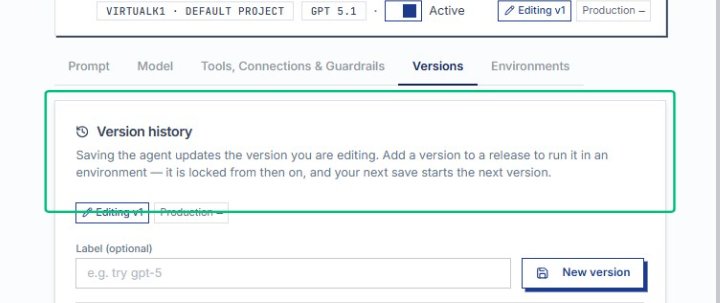
Review the Version history section
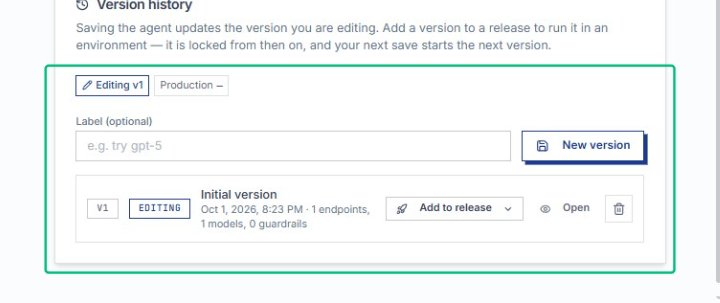
The Version history section explains that saving the agent updates the version you are editing. From here you can add a version to a release to run it in an environment, or.
Select the current version entry
Click the version entry showing Editing v1 and Production status. This expands options for managing the current version, including adding it to a draft release or creating a new version.
Scroll to view version details
Scroll within the Versions tab to review the full version history and release options for the agent. This reveals the Initial version entry and the controls for adding versions to releases.
Review the agent configuration page
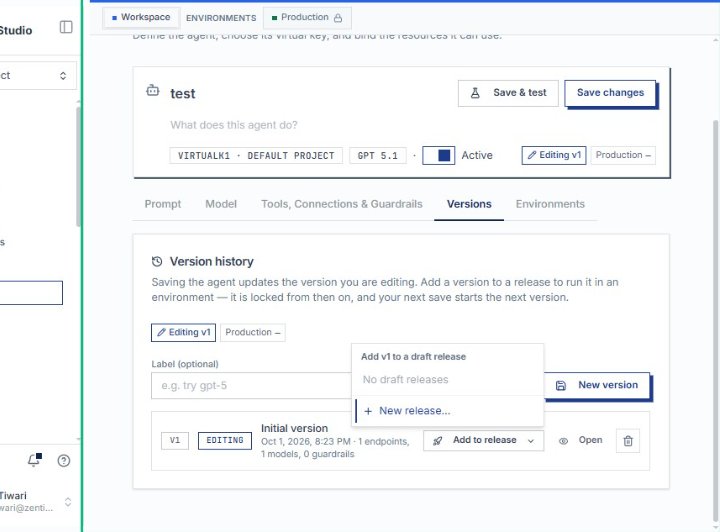
The page displays the agent editor with tabs for Prompt, Model, Tools, Connections & Guardrails, Versions, and Environments. From here you can manage version history and prepare the agent for deployment.
Open the Add to release dialog
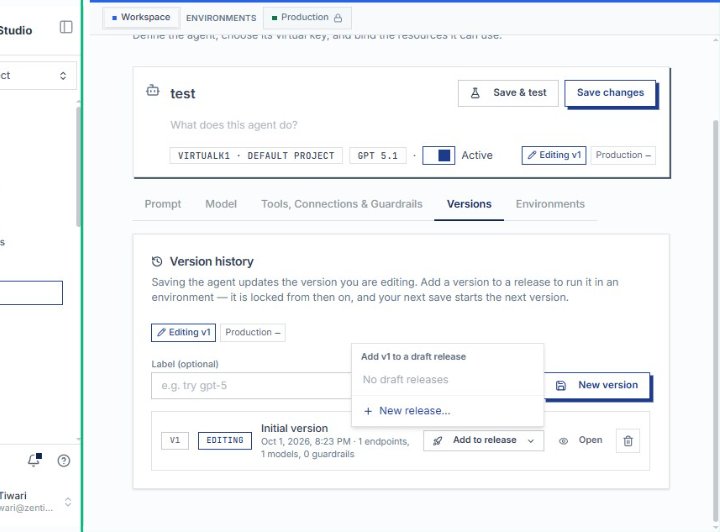
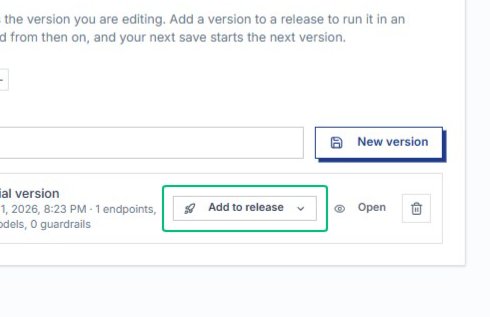
Click the Add to release button next to the Initial version entry in the Version history section. This opens a dialog where you can promote the current agent version to a specific.
Focus the agent description field
With the Add to release dialog open, the agent description field becomes active. This field allows you to document what the agent does, helping team members understand its purpose.
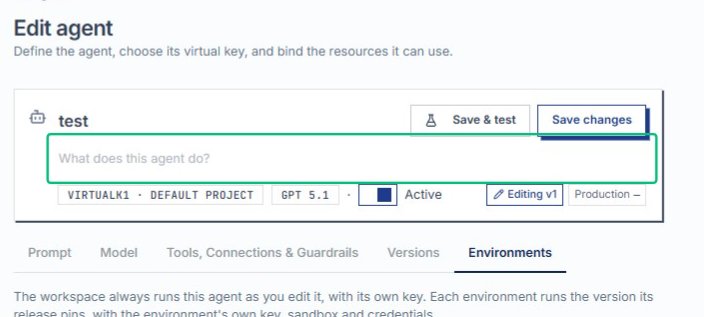
Scroll to view the Save changes button
Inside the Add to release dialog, scroll down to bring the Save changes button into view so you can finalize your agent updates.
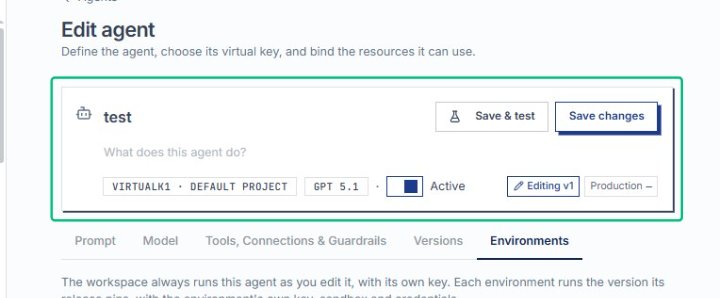
Return to the Agents page
After saving, you are taken back to the Agents page, where all your gateway-bound agents are listed with their models, connections, and status.
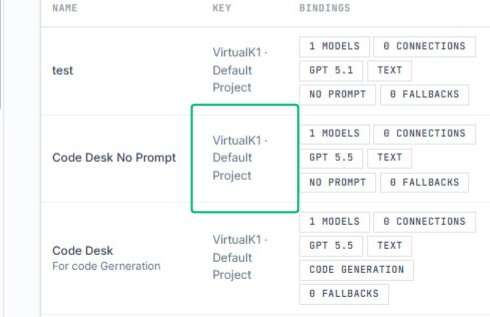
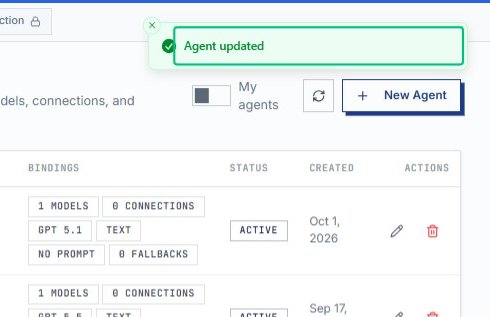
Review the Agent updated confirmation
The green Agent updated banner at the top confirms your changes were saved successfully. Your updated agent is now live in the workspace.