Create and Attach a Persistent Volume in Compute
Create and Attach a Persistent Volume in Compute
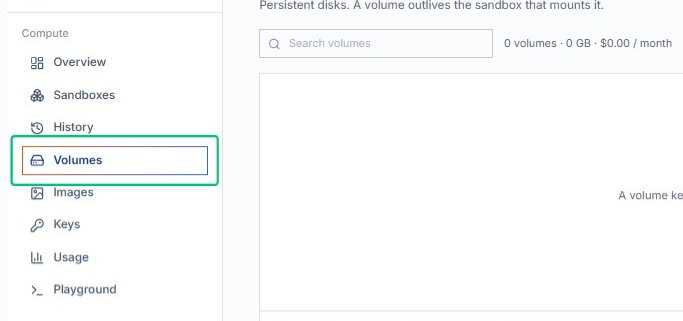
Start from the AlchemiStudio Compute page and open the Volumes section, where persistent disks are managed.
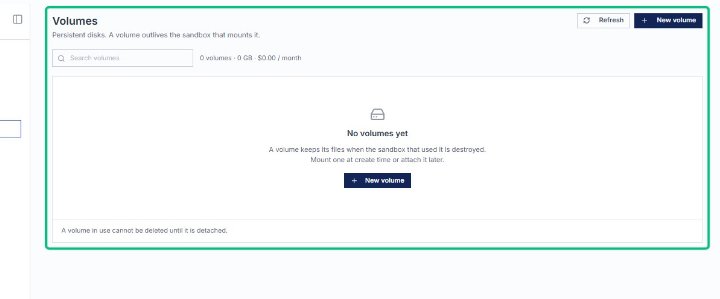
Review the Volumes page
The page displays existing volumes and provides an option to create a new one. Currently no volumes exist.
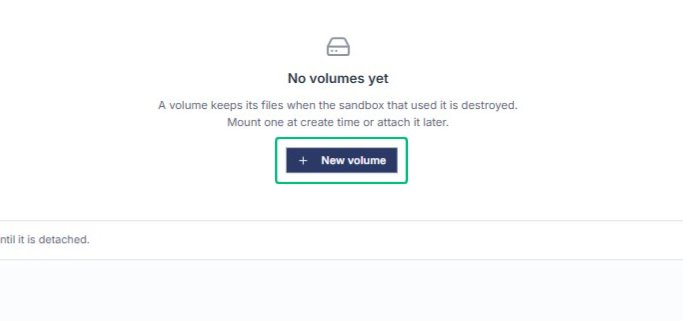
Open the New volume dialog
This launches the form where you specify the volume name, size, and tags.
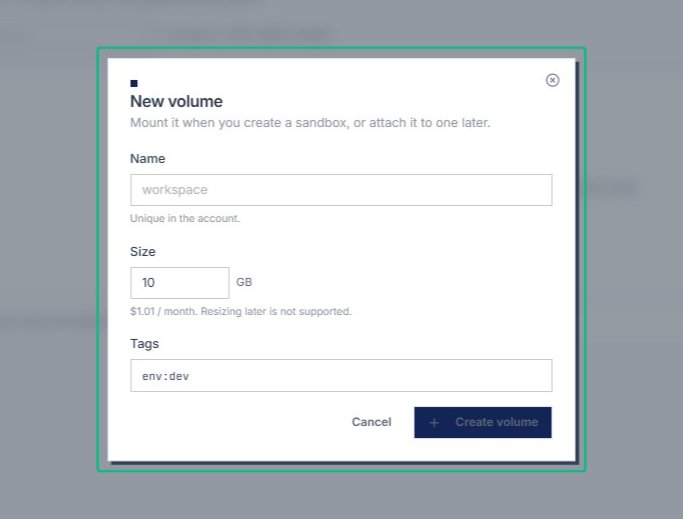
Review the New volume dialog
With the dialog open, you can configure the volume settings before creating it.
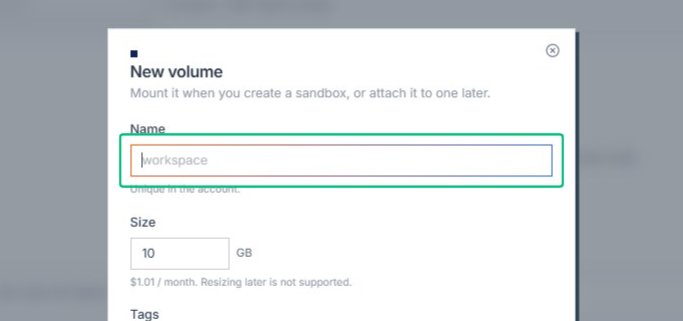
Select the Name field
With the New volume dialog open, place your cursor in the Name field to begin typing the volume identifier.
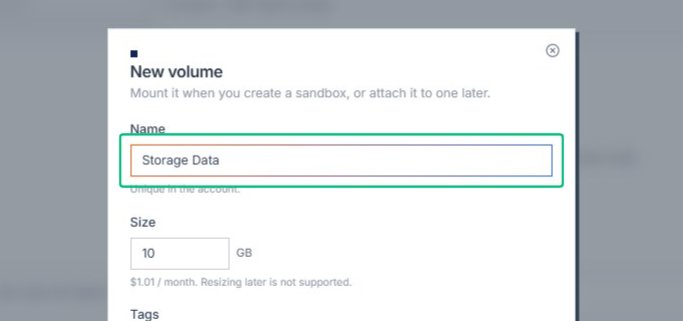
Continue entering the volume name
The name field updates as you type, helping you choose a descriptive identifier for the persistent disk. Input: [input captured]
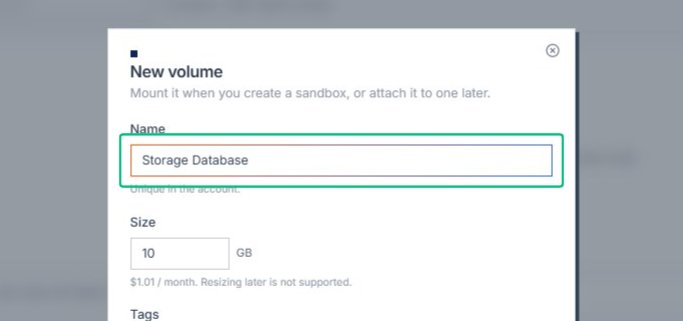
Finish entering the volume name
Complete the name entry; this label will appear in the volumes list and must be unique within the account. Input: [input captured]
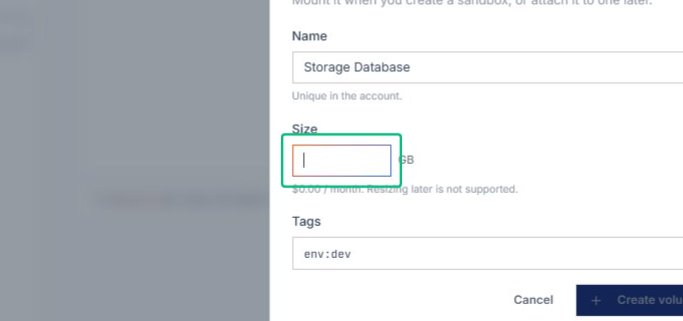
Enter the volume size
The Size field determines the storage capacity and monthly cost shown below the input.
Focus the Tags field
With the volume name and size entered, the Tags field lets you add labels like env:dev or team:ml to organize and filter volumes across your workspace.
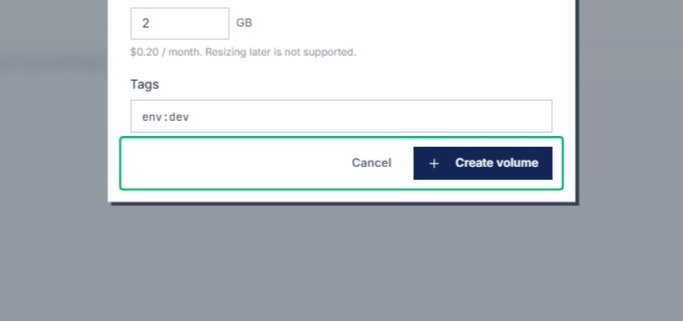
Review the Cancel and Create volume actions
With the New volume dialog open and all fields filled, the action bar at the bottom offers Cancel to discard or Create volume to save the new persistent disk.
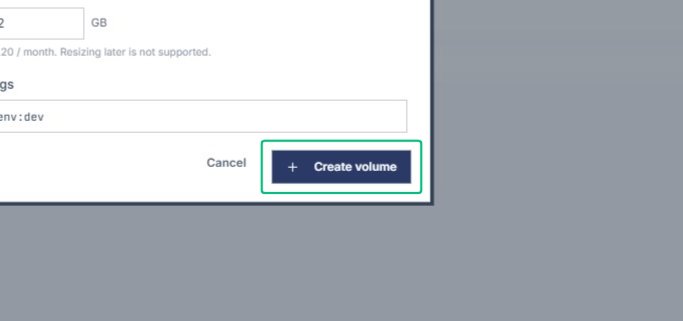
Create volume
Submits the form and provisions the new volume. The dialog closes and the Volumes page refreshes to show Storage Database in the table.
Review the VOLUME column header
On the Volumes page, the table lists your persistent disks. The VOLUME column displays each disk’s name and identifier.
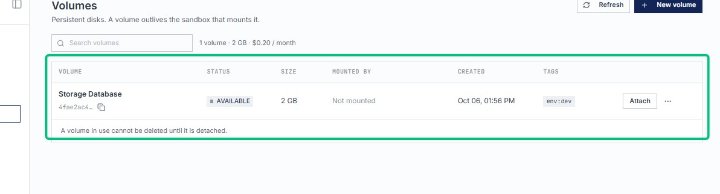
Select the Storage Database row
Clicking the row highlights the newly created volume and reveals inline actions. The volume is currently not mounted to any sandbox.
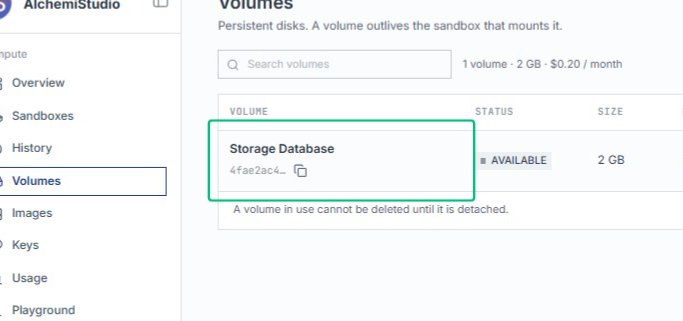
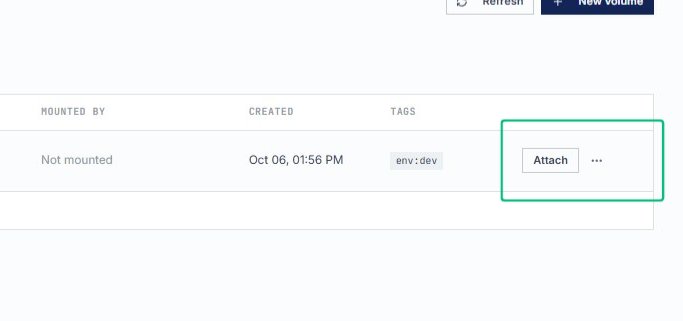
Locate the Attach cell
After the volume is created, the Volumes table displays the new Storage Database volume with an Attach action in its row.
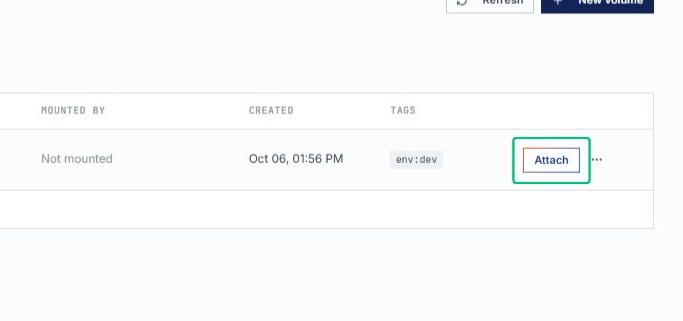
Open the Attach dialog
Clicking Attach launches the form where you choose a sandbox and mount path for the volume.
Review the Attach Storage Database dialog
The dialog explains that a volume can only be mounted by one sandbox at a time and prompts you to select a sandbox.
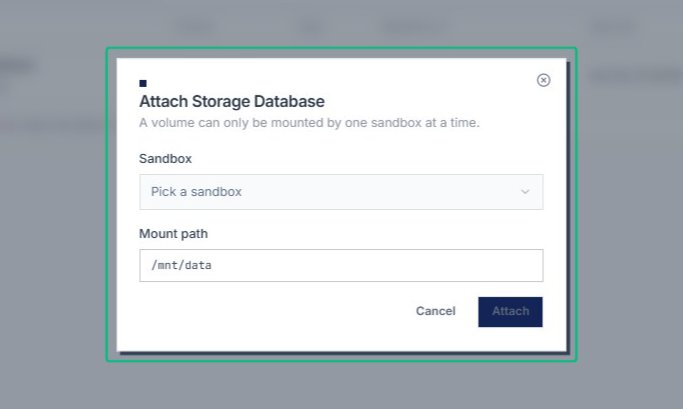
With the Attach Storage Database dialog open, the dropdown reveals available sandboxes and a search field.
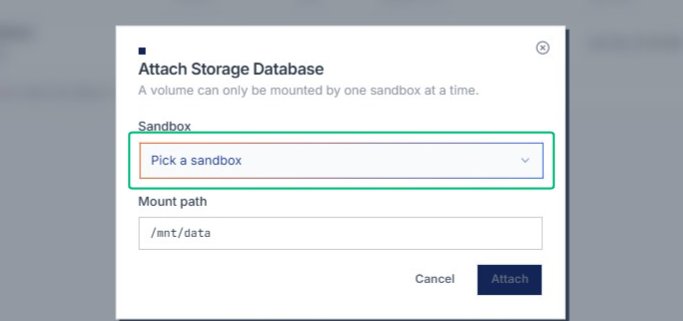
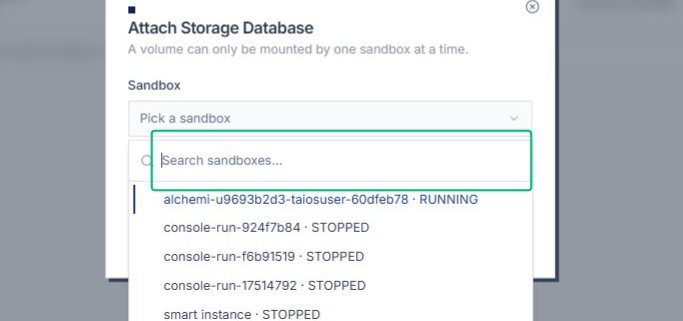
Open the Search sandboxes field
Inside the Attach Storage Database dialog, the search field lets you filter the list of available sandboxes by name or identifier.
Review the Suggestions section
With the sandbox menu expanded, the Suggestions section displays recommended sandboxes that can mount the volume.
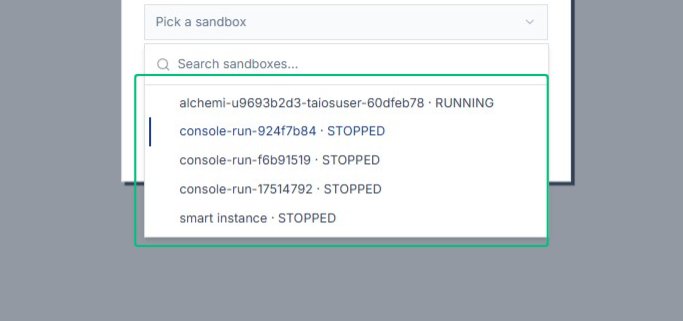
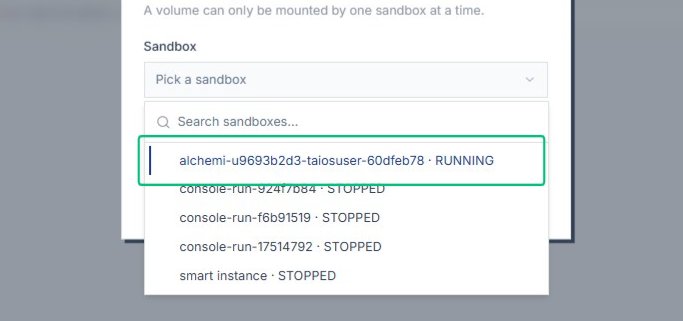
Select a sandbox from the list
Choosing a sandbox populates the Sandbox field and reveals the Mount path input, where you specify where the volume will be accessible.
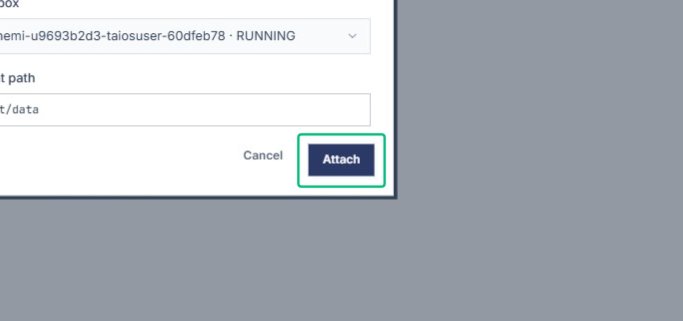
Attach the volume
With the sandbox and mount path configured, this action mounts Storage Database to the selected sandbox and closes the dialog.
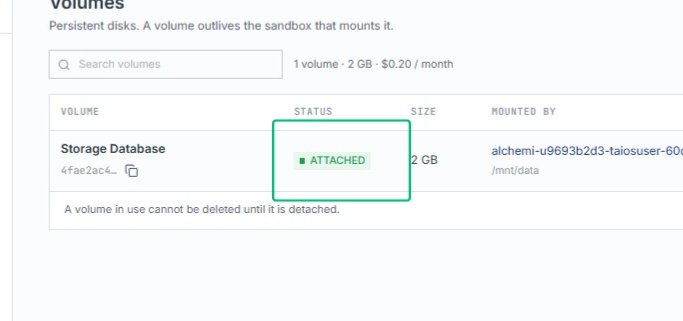
Review the ATTACHED status
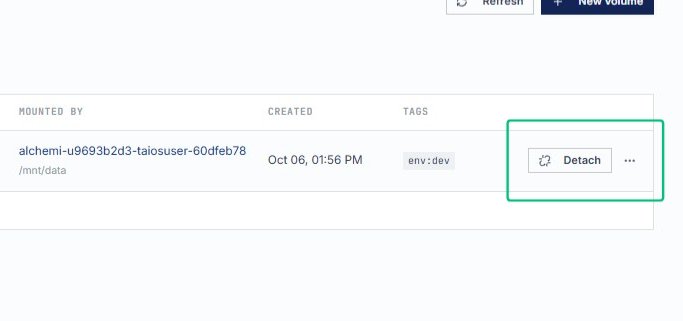
The volume row now shows Storage Database is mounted to the sandbox at /mnt/data, confirming the attachment succeeded.
Select Detach
Opens the detach confirmation for the Storage Database volume, allowing you to unmount it from the sandbox.