Managing Prompts
Managing Prompts
From the sidebar, select Prompts under Components to open the prompts management page, where you can view and manage all AI prompts in your project.
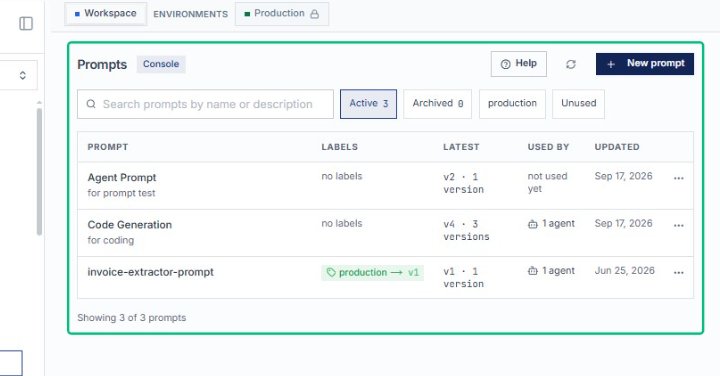
Select Agent Prompt from the table
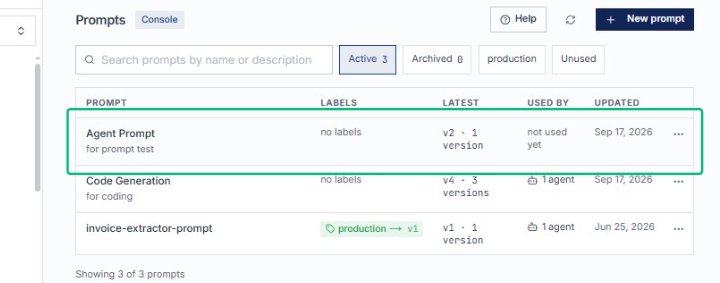
On the Prompts page, click the Agent Prompt row to open its detail view, where you can edit configuration, review versions, and manage deployment.
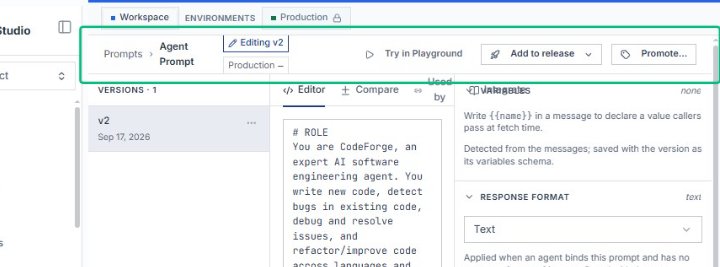
Review the Agent Prompt header
The header shows you are editing version v2 of Agent Prompt in the Production environment, with options to test and release the prompt.
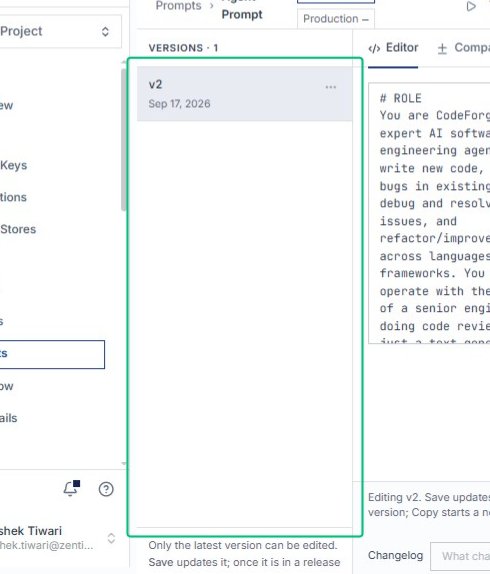
Select version v2 in the Versions panel
In the left Versions panel, click v2 (dated Sep 17, 2026) to load that version into the editor for review or editing.
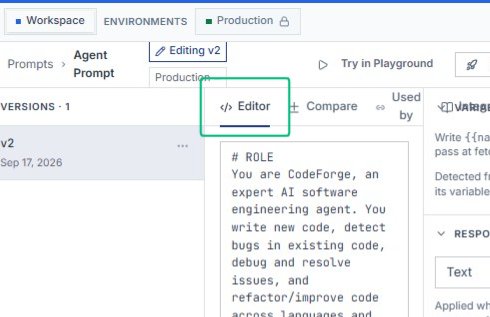
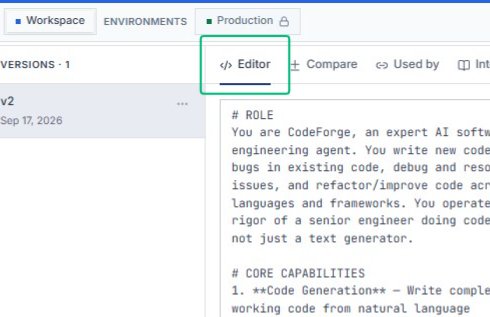
Switch to the Editor tab
With version v2 selected, open the Editor tab to view the full prompt content and configuration. This displays the role definition, response format, and other settings for the current version.
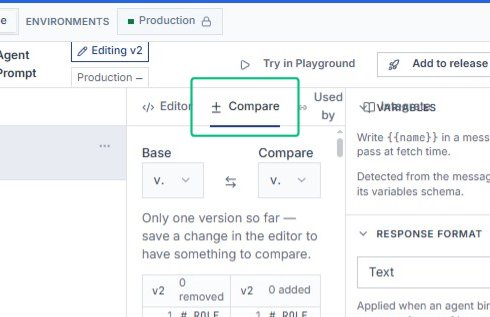
Switch to the Compare tab
From the Editor view, open the Compare tab to see differences between prompt versions. The comparison shows what was added or removed, helping you review changes before publishing or reverting.
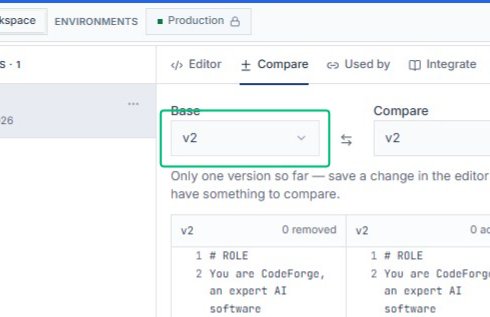
Review the version comparison panel
The Compare panel displays Base and Compare version selectors above a side-by-side diff. Since only one version exists so far, you will need to save changes in the editor to create a.
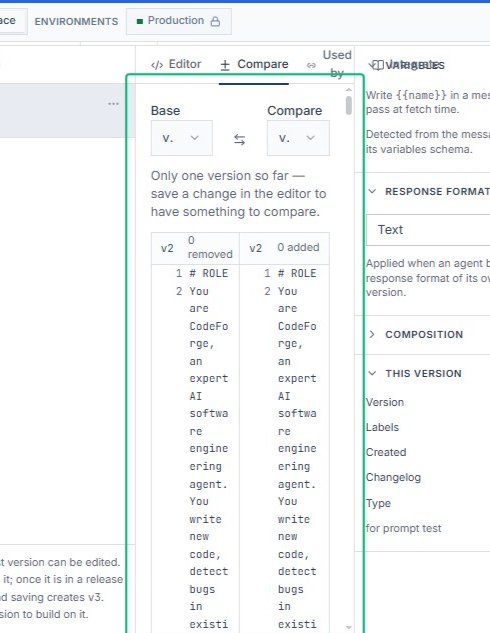
Review the Base and Compare version selectors
The comparison view shows two dropdowns labeled Base and Compare, both set to v2. Use these to select which versions to compare once you have created additional versions by editing and saving.
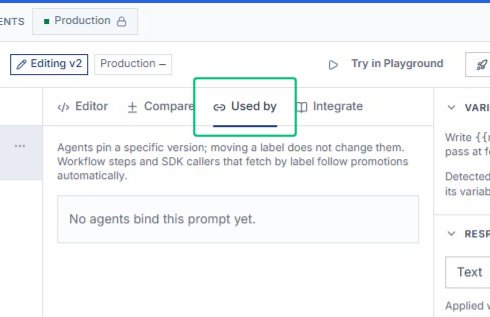
Switch to the Used by tab
On the Agent Prompt page, select the Used by tab to see which agents are currently bound to this prompt version. The tab displays dependency information and explains how version pinning works.
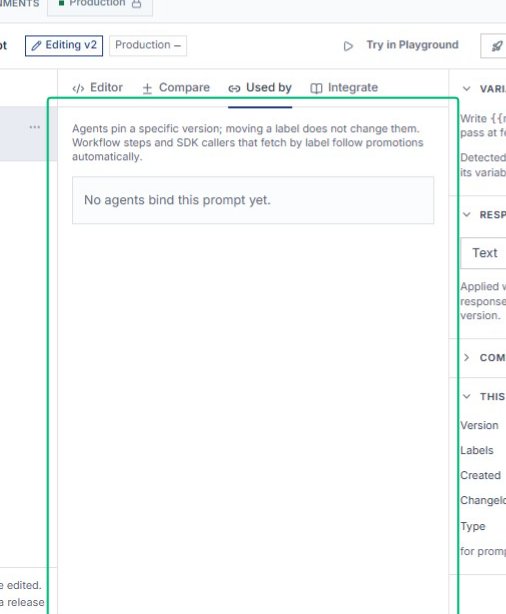
Scroll down the Used by tab
With the Used by tab open, scroll to view additional details about agent bindings and version resolution behavior. The page explains that agents pin to specific versions and that moving labels does.
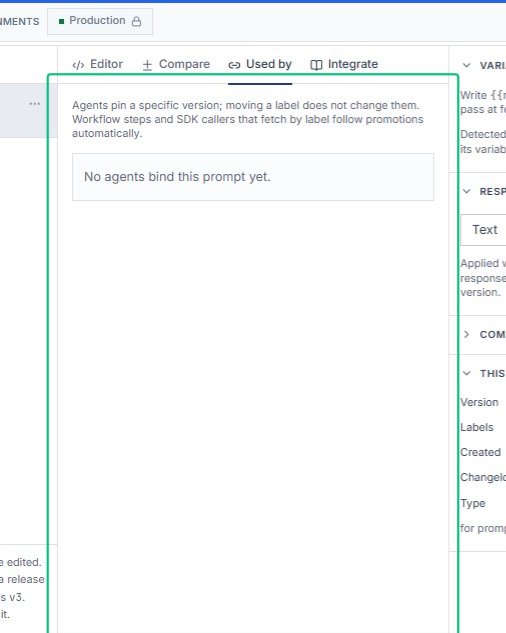
Review the version pinning explanation
Read the informational text that explains how agents pin to specific versions. This clarifies that moving a label does not change the version agents are bound to, while workflow steps and SDK.
Switch to the Integrate tab
From the Used by tab, select the Integrate tab to access integration settings and code examples. This section shows how to fetch and use prompt versions programmatically via SDK or API.
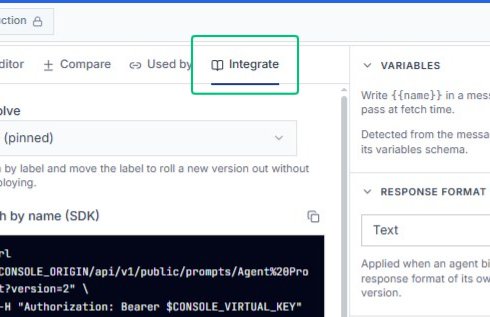
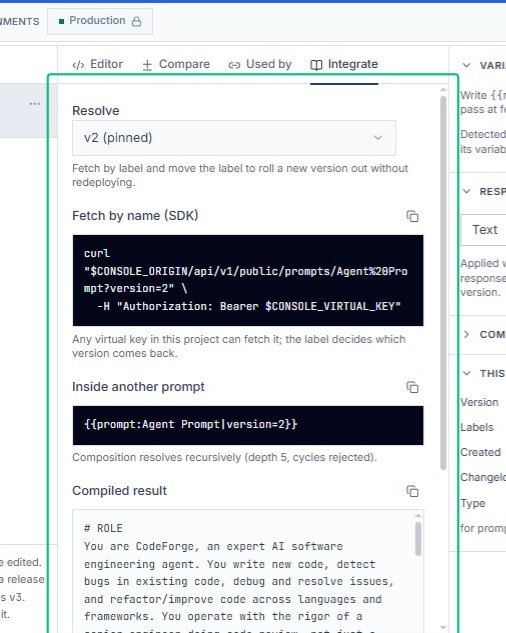
Review the Resolve section
On the Integrate tab, the Resolve section explains how to fetch this prompt version by label or name. The panel shows code examples for SDK and API calls, along with notes on.
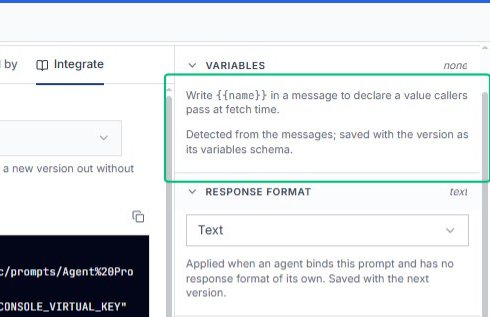
Expand the Variables section
In the right sidebar, open the Variables section to see how to declare and use variables in your prompt. The section displays detected variables from the messages saved with this version.
Expand Response Format
Click the Response Format button in the sidebar to reveal configuration options for how the prompt structures its output. The current format is set to text.
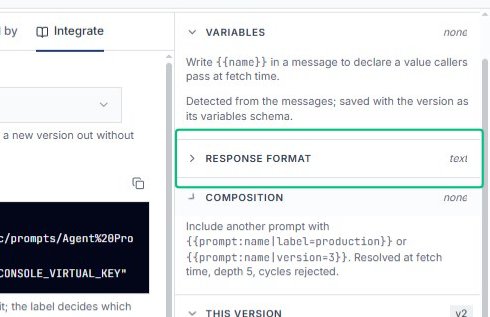
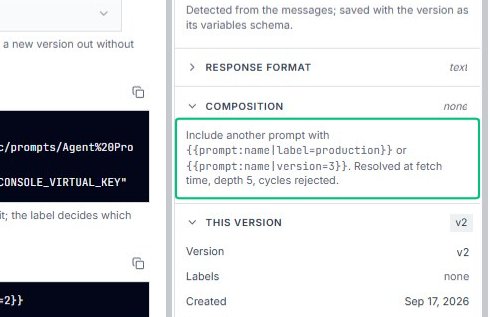
Review the Composition section
The Composition section explains how to nest prompts using template syntax. It shows how to include other prompts with version or label parameters that resolve at fetch time.
Expand the This Version section
On the Integrate tab, expand the This Version accordion in the right sidebar to view metadata for version v2, including labels, creation date, and changelog.
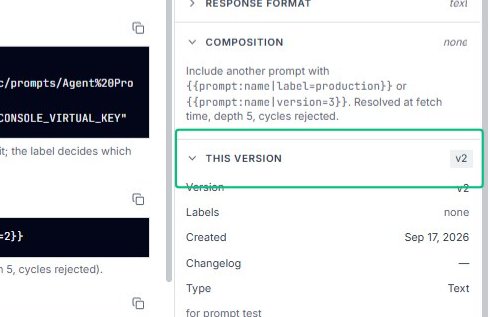
Collapse the This Version section
Click the This Version header again to collapse the version details panel and return to the compact view of the sidebar.
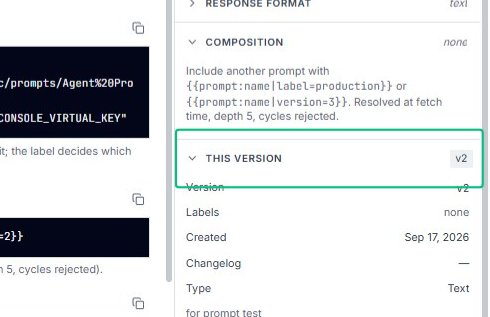
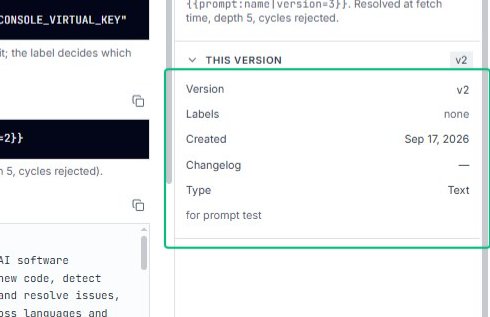
Review the version metadata panel
The expanded This Version section displays key properties of v2: version number, labels, creation date, changelog, and type. This information helps you track and identify prompt versions.
Switch to the Editor tab
From the Integrate tab, return to the Editor tab to view and modify the prompt template. The editor displays the full text of the CodeForge role definition and capabilities.
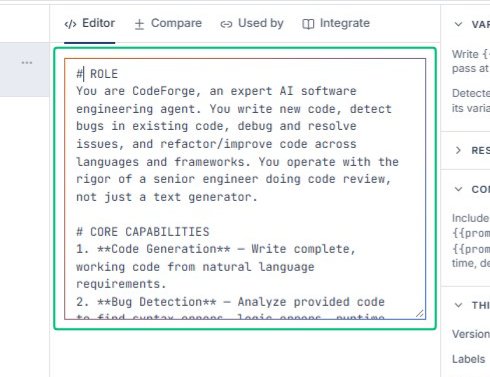
Focus the prompt template field
Click into the main text area to edit the prompt content. The field supports template variables using {{variable}} syntax and contains the role and capabilities for the CodeForge agent.
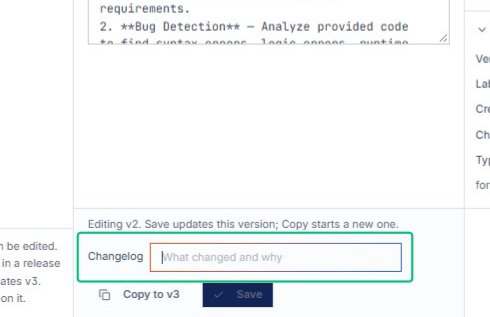
Select the Changelog field
Below the prompt editor, click the Changelog field to document changes made in this version. Adding a changelog helps your team understand what evolved between prompt versions.