Inspecting Request Traces
Inspecting Request Traces
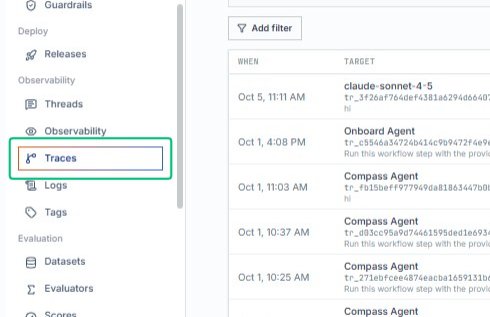
Start from the AlchemiStudio Console and open the Traces page from the left sidebar under Observability. This page displays request timelines, payload evidence, routing, spend, and latency metrics for your LLM application.
Review the Traces page overview
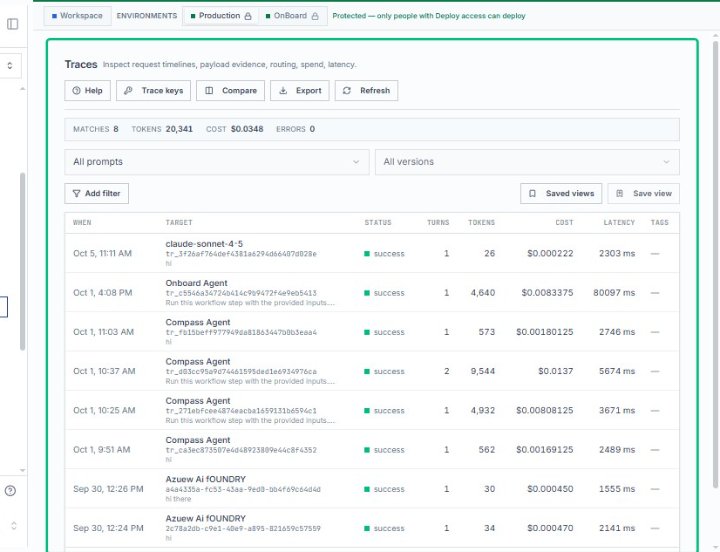
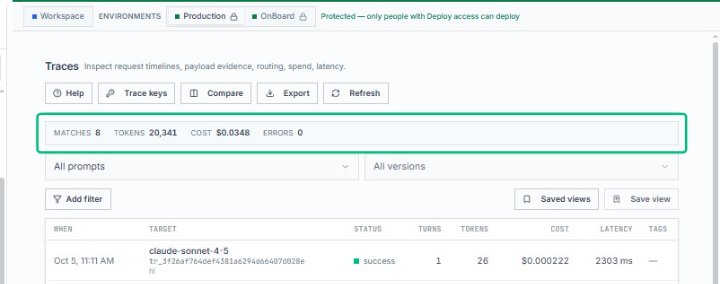
On the Traces page, you can inspect a filterable table of all trace records with detailed performance data. The page includes summary metrics showing matches, tokens, cost, and errors across your requests.
Review the Traces header section
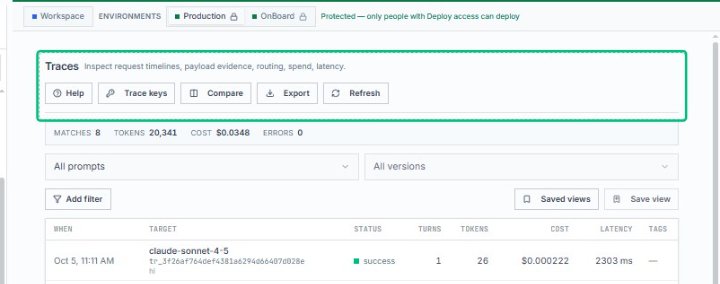
The header displays the page title, description, and action buttons including Help, Trace keys, Compare, Export, and Refresh. Below it, the metrics summary shows the current query results at a glance.
Review the metrics summary bar
The summary bar displays key statistics for the current trace query: 8 matches, 20,341 tokens processed, and a cost of $0.0348. This provides a quick overview of the filtered trace set.
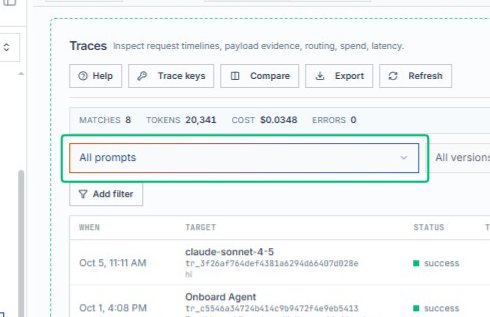
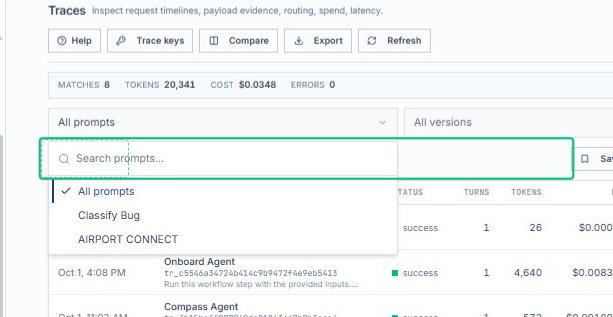
With the Traces page open, expand the All prompts dropdown to filter traces by specific prompt types. This menu lets you narrow results to individual prompts or add custom filters.
Select Add filter
With the All prompts menu open, choose Add filter to define additional criteria for narrowing your trace results. This lets you combine multiple conditions to focus on specific request patterns.
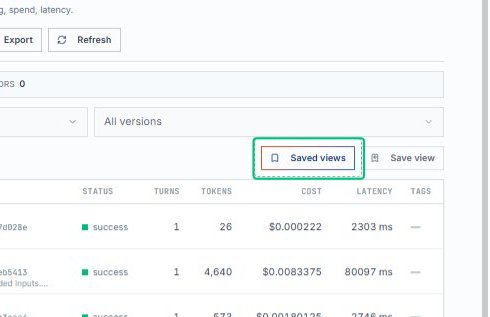
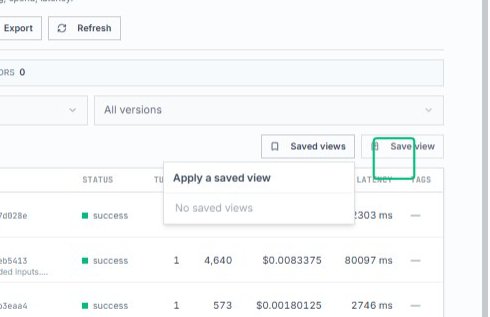
From the filter bar, click Saved views to access pre-configured filter combinations. These views help you quickly switch between common trace analysis perspectives without rebuilding filters.
Dismiss the Saved views popover
Click outside the Saved views popover to close it and return to the Traces table. The current filter settings remain active.
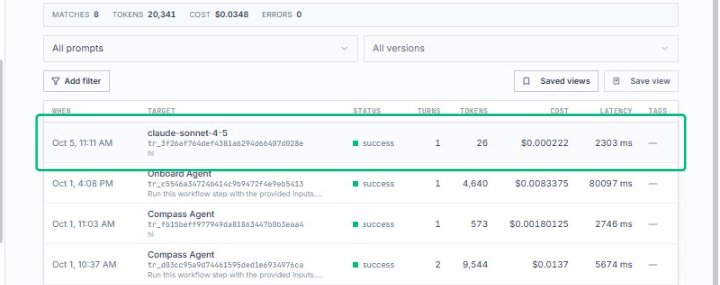
Select the Oct 5, 11:11 AM trace row
With the All prompts dialog open, choose the first trace entry showing a claude-sonnet-4-5 request from October 5 at 11:11 AM. This opens the detailed trace view where you can inspect the.
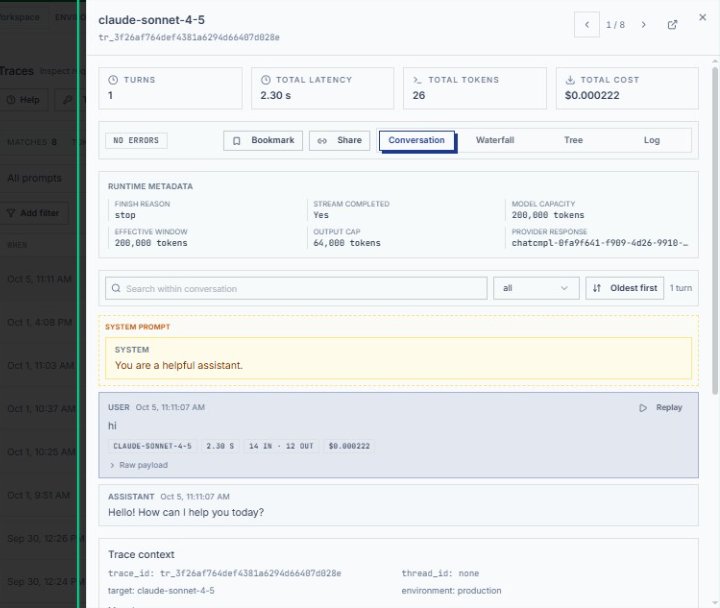
Review the claude-sonnet-4-5 trace detail panel
The trace detail panel displays the full conversation, including turns, total latency, token usage, and cost. From here you can explore the system prompt, user messages, assistant responses, and trace context.
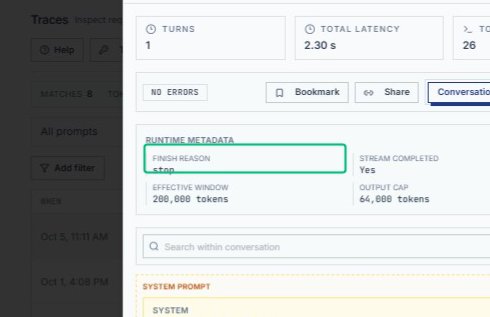
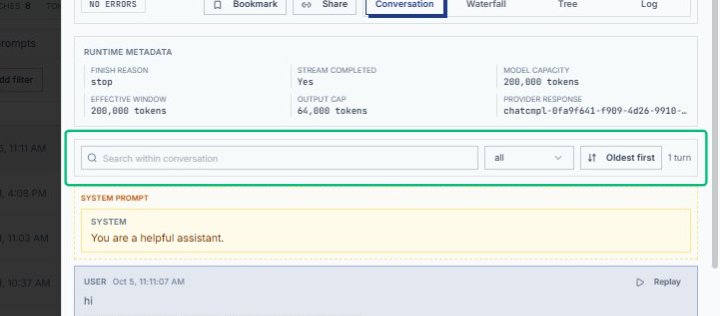
Review the Finish Reason field
Within the Runtime Metadata section, the Finish Reason field shows why the model stopped generating, such as reaching a natural end or hitting a token limit. This helps diagnose conversation flow and.
Review the conversation controls
The conversation controls display filtering options, sort order (Oldest first), and the turn count (1 turn). These tools help you navigate multi-turn conversations and locate specific messages.
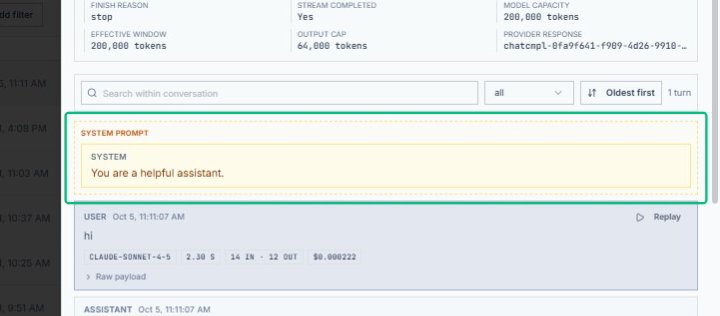
Expand the System Prompt section
With the trace detail panel open, expand the System Prompt section to view the full instruction that defines the assistant’s behavior. This reveals the complete system message sent to Claude Sonnet 4.5.
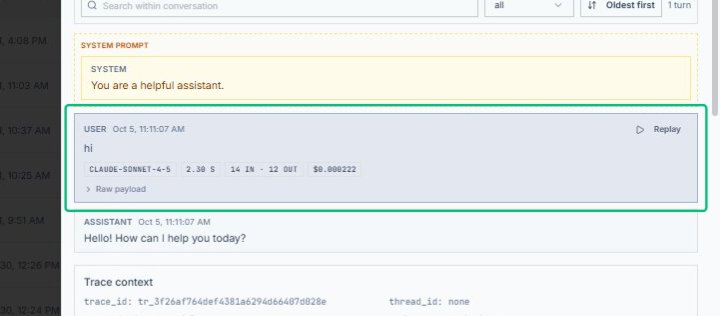
Expand the user message
Select the user message timestamped Oct 5, 11:11:07 AM in the conversation thread. This reveals the full user input, token counts, and associated metadata for the request.
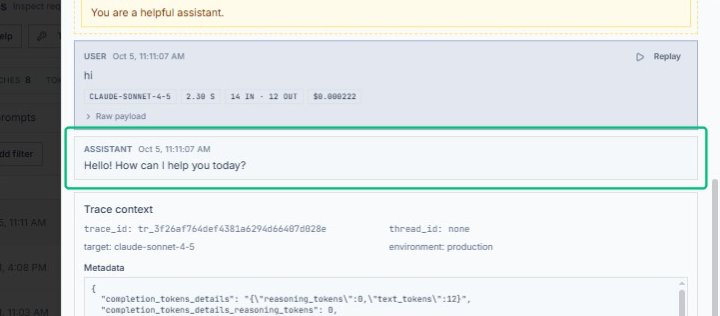
Expand the assistant message
Inside the All prompts dialog, select the assistant message timestamped Oct 5, 11:11:07 AM to view the full response. The expanded view displays the complete reply along with trace context and metadata.
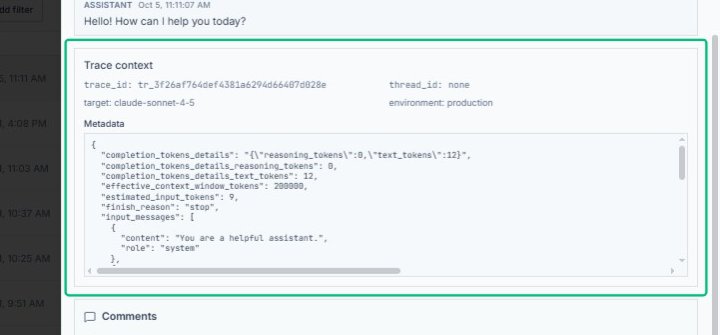
Review the Trace context section
The Trace context section displays key metadata including trace ID, target model, environment, and token usage statistics. This information helps you debug and analyze the request.
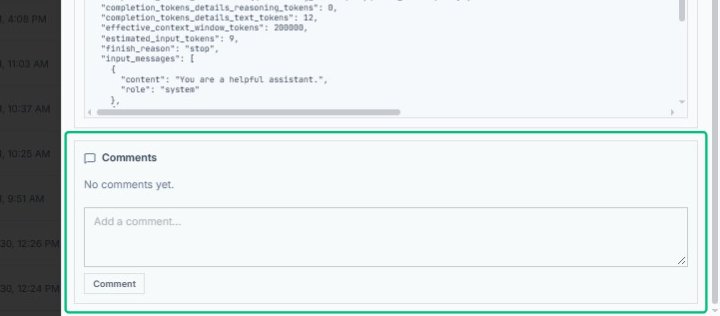
Expand the Comments section
With the trace detail panel open, click the Comments section to reveal the comment input area. This allows you to add notes or feedback about the trace; no comments have been added.
Open Next (j)
Click the Next button in the top-right corner of the trace detail panel. This navigates to the next trace in the sequence, allowing you to review subsequent conversation turns.
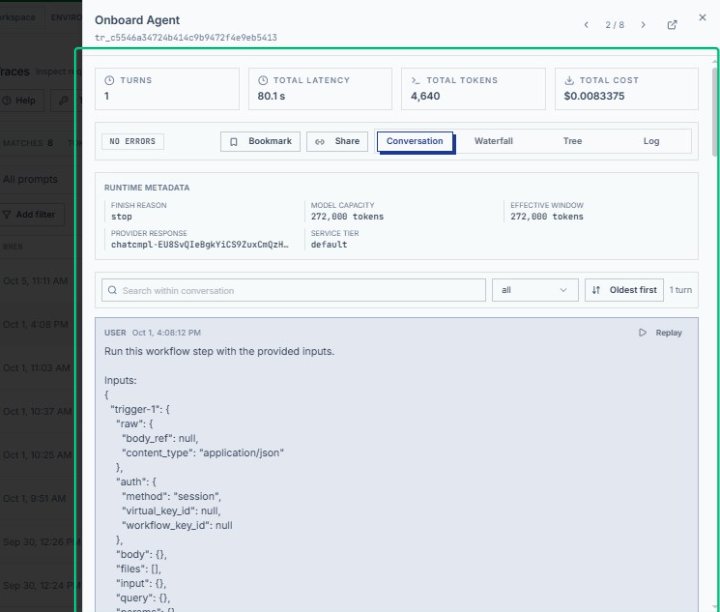
Review the Onboard Agent trace summary
The trace detail panel now displays the Onboard Agent trace, showing 1 turn, 80.1 seconds total latency, and 4,640 tokens. You can inspect the conversation, runtime metadata, and performance metrics for this.